



Manage content
Many authors create user documentation using multiple tools — a text editor, a screenshot utility, and a graphics program for adding labels. This approach involves tedious manual work that consumes time and increases the risk of errors. Manage content in a different way.
Dr.Explain is a professional help authoring tool that simplifies the process with automated screenshot annotation, a rich set of content management tools, and export to the most common formats: HTML, CHM, DOCX, and PDF. It streamlines the creation of detailed guides, letting you focus on delivering clear, engaging content that’s easy for users to follow.
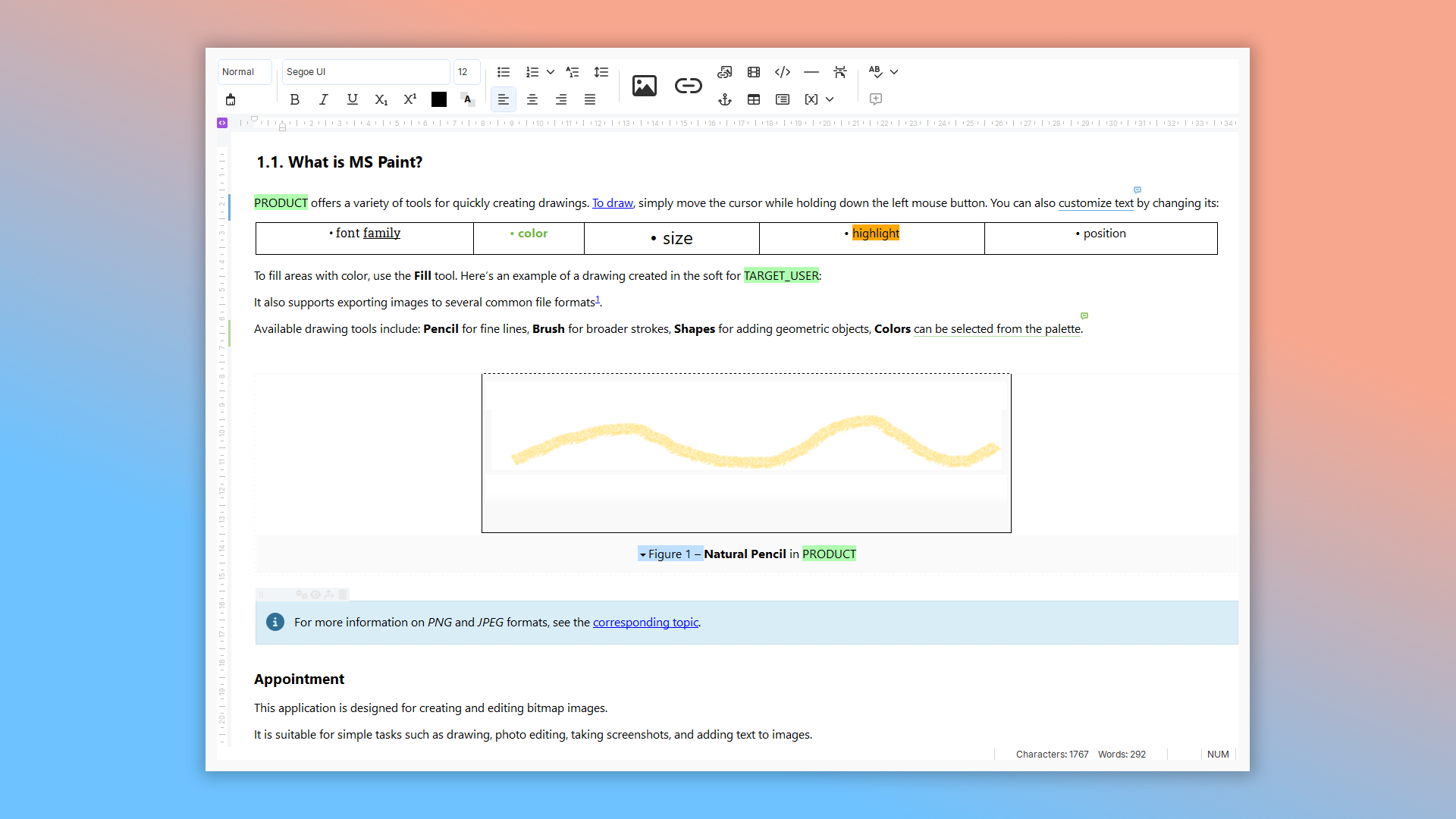
What content editing features does Dr.Explain offer?
Dr.Explain streamlines your work with intuitive tools for a wide range of tasks. You can explore these content management features by downloading the free version. Here’s a glimpse of what’s included:
- rich-text formatting with multiple fonts and styles;
- annotated images with auto-numbered callouts;
- embedded tables and video;
- ordered and unordered lists;
- automatic numbering;
- text blocks;
- hyperlinks, variables and special objects;
- built-in spell checking with multi-language dictionaries.
These tools help you work efficiently while keeping your documentation consistent and professional.
How does it work?
A documentation author’s effectiveness is measured by how well their work helps users. If the documentation is easy to read, logically structured, and helps users achieve their goals — the author has succeeded. Dr.Explain includes a modern text editor to help you create just that kind of guide. If you’ve used "MS Word" or "Google Docs", you’ll feel right at home in Dr.Explain’s clean, familiar interface.
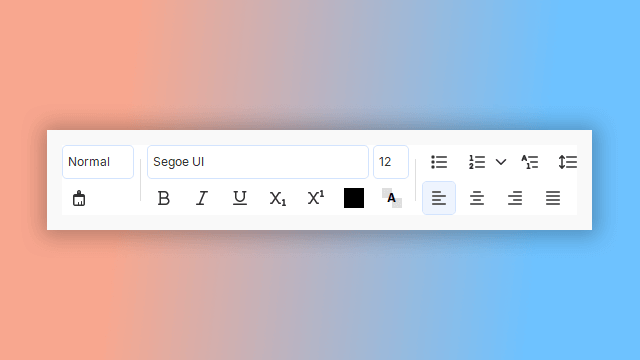
Here’s a look at the text formatting toolbar:
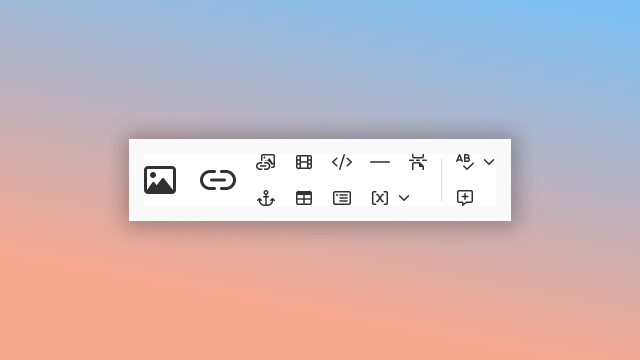
A panel with advanced content settings allows you to work with links, graphics, variables, special blocks, and HTML markup:
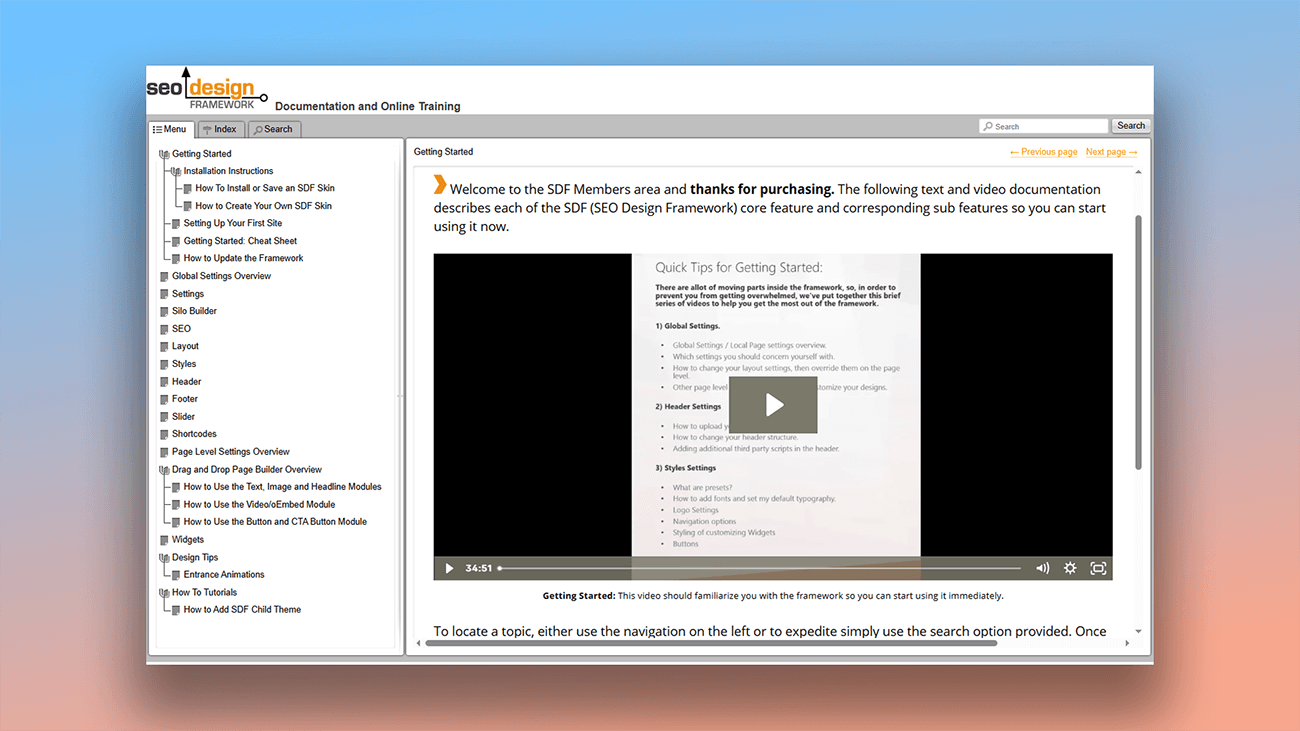
Examples of user manuals created in Dr.Explain
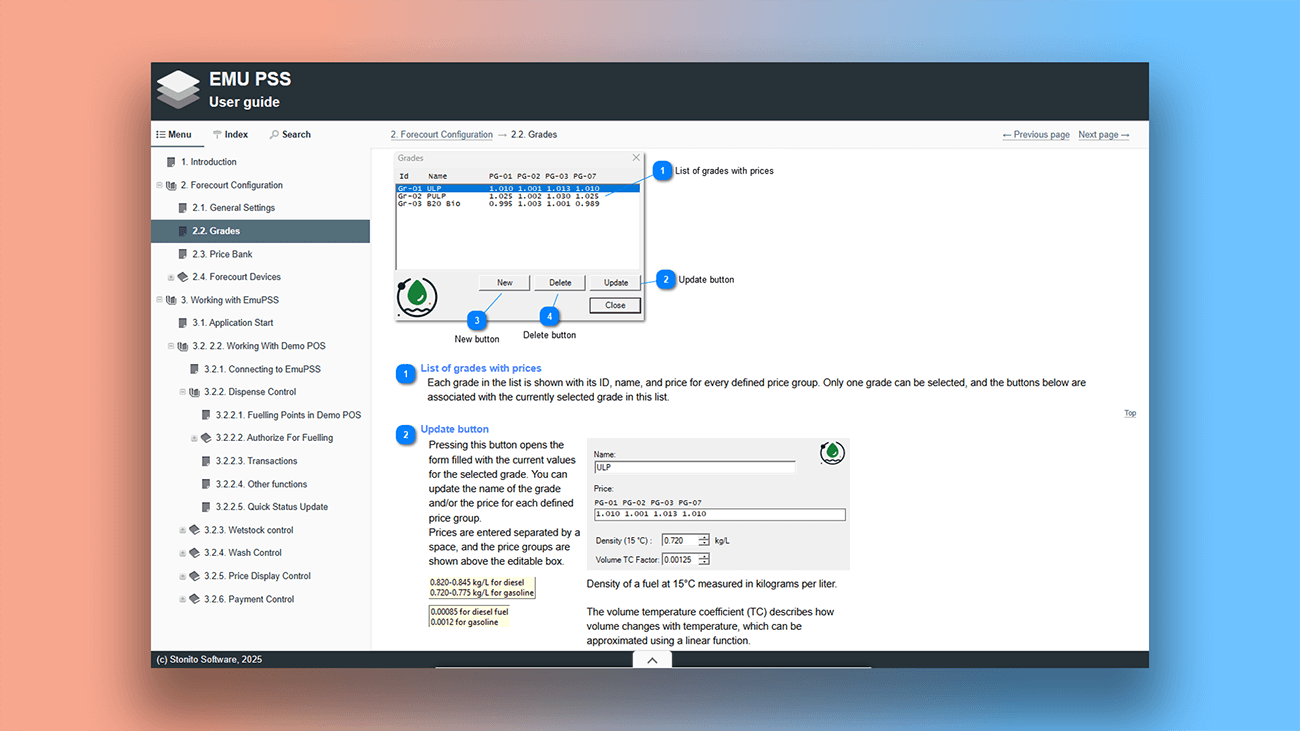
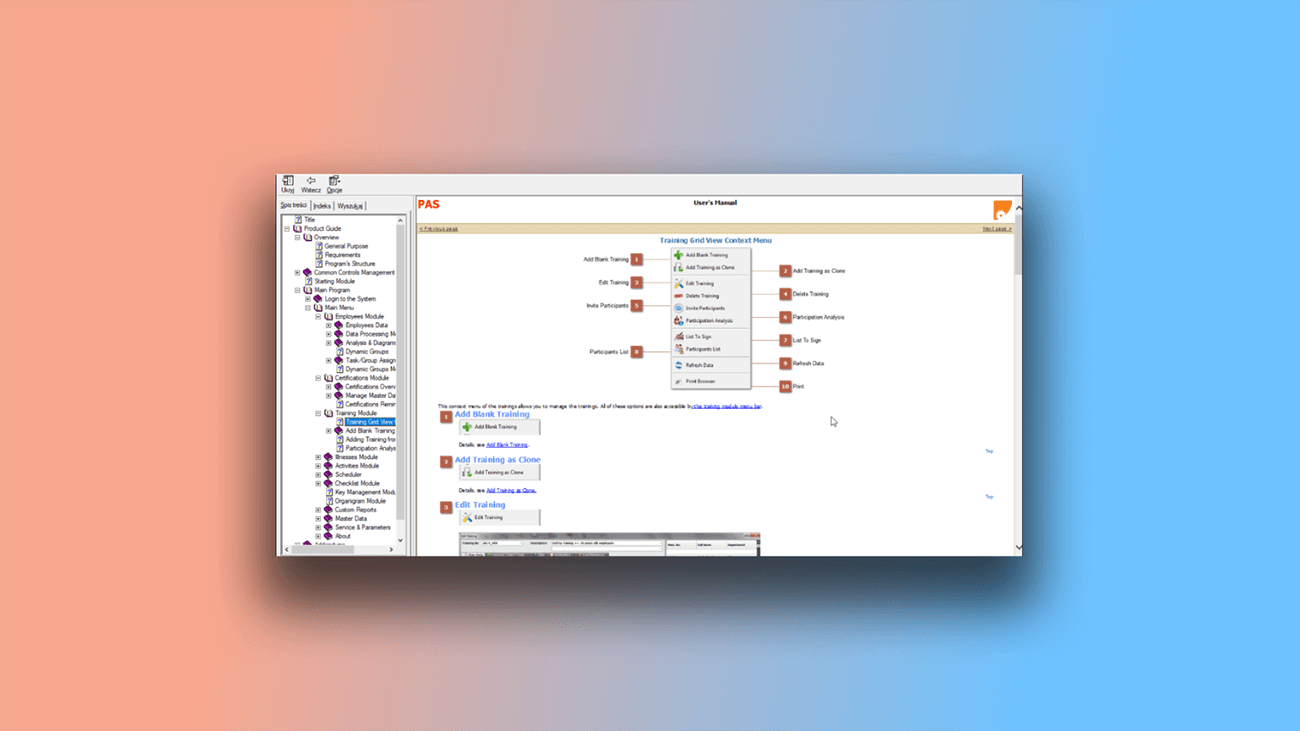
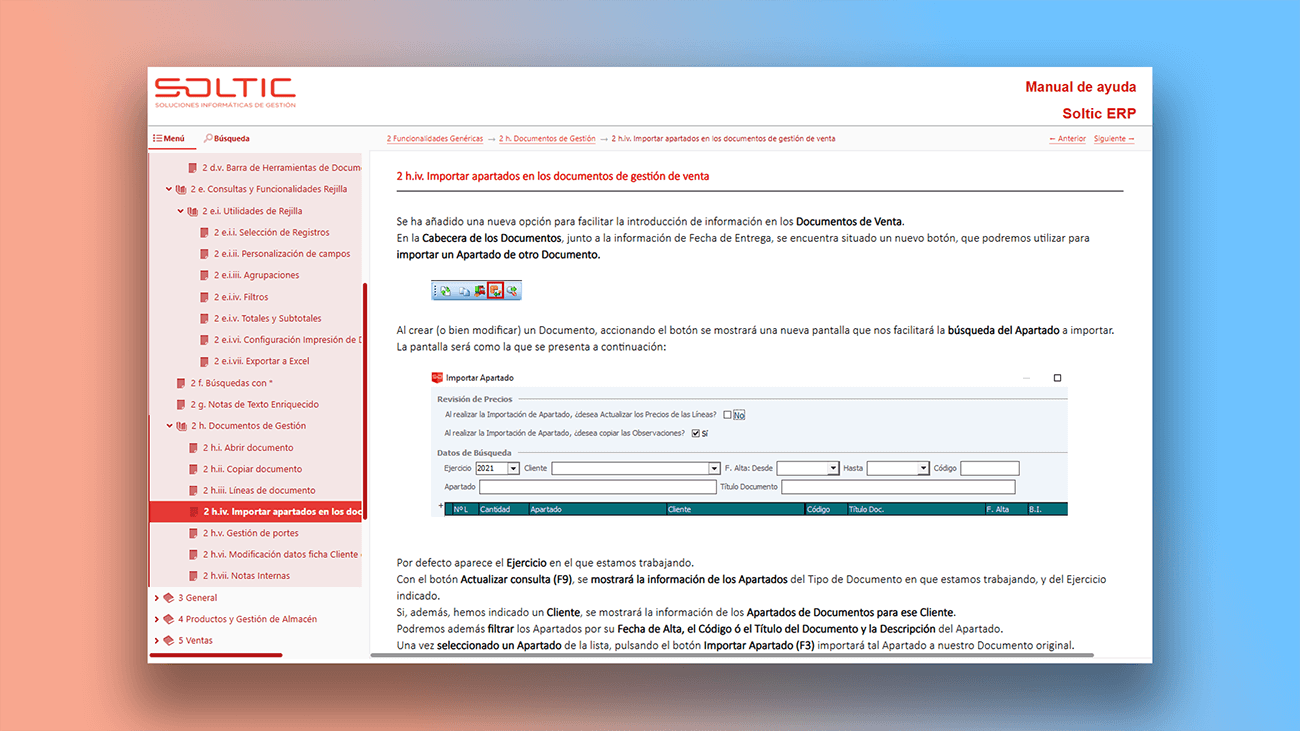
Dr.Explain includes a specialized toolkit that simplifies user documentation — making the entire process more efficient and intuitive. Below are real-world user guides created with these tools:


What are the benefits of using Dr.Explain?
A professional-looking user guide is an investment in your product's success and user satisfaction. Here’s why Dr.Explain is worth trying:
Saves time. Everything you need is in one place: screen capture, annotation, content editing, and export. No need to switch between different tools. Ready-made templates help you get started faster.
Professional appearance. Clean, polished documentation strengthens your product’s image and shows customers you take quality seriously.
Compliance with standards. Following documentation standards ensures consistency and reflects professionalism — especially important for larger companies and international projects. Dr.Explain helps you create polished, user-friendly guides that build trust and make a strong impression.
Advantages of the Dr.Explain text editor
| Basic text editor | Professional help authoring tool Dr.Explain | |
|---|---|---|
| Automatic annotation | — | + |
| Live preview of results | — | + |
| Import/export settings | — | + |
| Auto-generate documentation structure from screenshots | — | + |
| Cross-platform content sync | ~ | + |
| IT-optimized styling (e.g., error message formatting) | ~ | + |
What type of users is Dr.Explain suited for?
Dr.Explain is the right choice when you're facing challenges like these:
- your project has grown too large to manage easily;
- you need clear, multi-level navigation;
- your documentation requires full-text search;
- you want advanced content formatting tools;
- you work extensively with screenshots and images;
- you need straightforward multi-format exporting;
- you want both print and digital documentation versions;
- your team needs collaborative editing features;
- you prefer software with long-term developer support;
- you'd like to try a free version before purchasing.
Users about content management in Dr.Exlain

"Now we use Dr.Explain a lot in our projects. Each time we release a new version of our software system, we add a description of the new functions to the help system. When the user starts the updated software system, a “What's New” page of the help file automatically opens, with a list of changes and links to their detailed description. Thanks to that, the user can easily navigate through the help file. There is no need to manually search for the information in a big document".
Natalia Obukhova, a business analyst in CRM Expert
Interview with Natalia

"We evaluated Dr.Explain against other options. This included other online help authoring tools and potentially just using videos".
Steve Voller, the founder of Altuity
Interview with Steve
Frequently Asked Questions
Does Dr.Explain support automatic image numbering?
Yes. Images are numbered automatically, and you can customize the format (Arabic numerals, Roman numerals, Latin or Cyrillic letters, etc.). If you add or remove images, the numbering updates automatically.
Can I save formatting styles?
Yes. You can create unlimited custom styles and even import formatting settings from other Dr.Explain projects.
Do I need to export the document to see the final result?
No. All changes appear instantly in the preview window.
Is there automatic numbering for tables?
Yes. You can number tables as well, with full control over the numbering style.
If I delete numbered images, do I have to renumber manually?
No. The numbering updates automatically when items are added or removed.
Does the program count words and characters?
Yes.
Is there a free version of your application?
Yes. You can download Dr.Explain for free.