
Setting up AI assistant with OpenRouter
Follow the instructions below to start using the AI Assistant in Dr.Explain via the OpenRouter service.
-
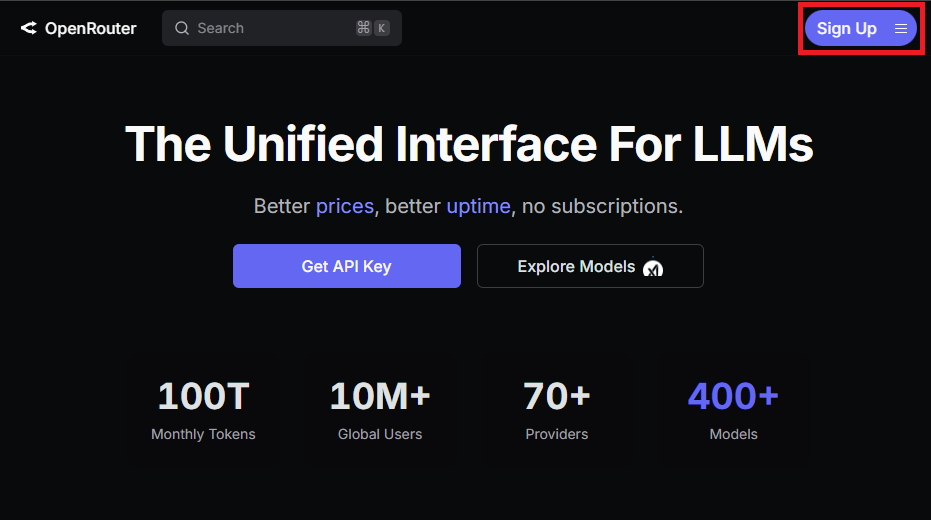
Open https://openrouter.ai/ website in your browser, click the Sign Up button in the top right corner and complete the registration process.
-
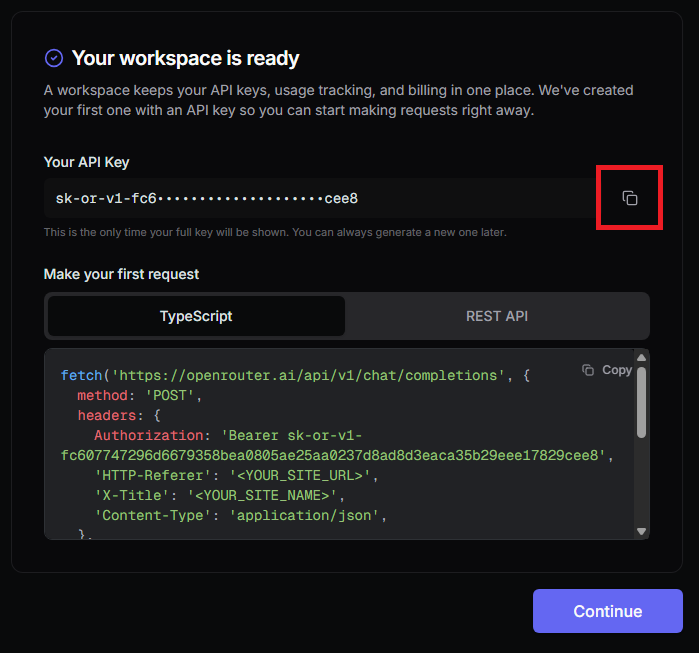
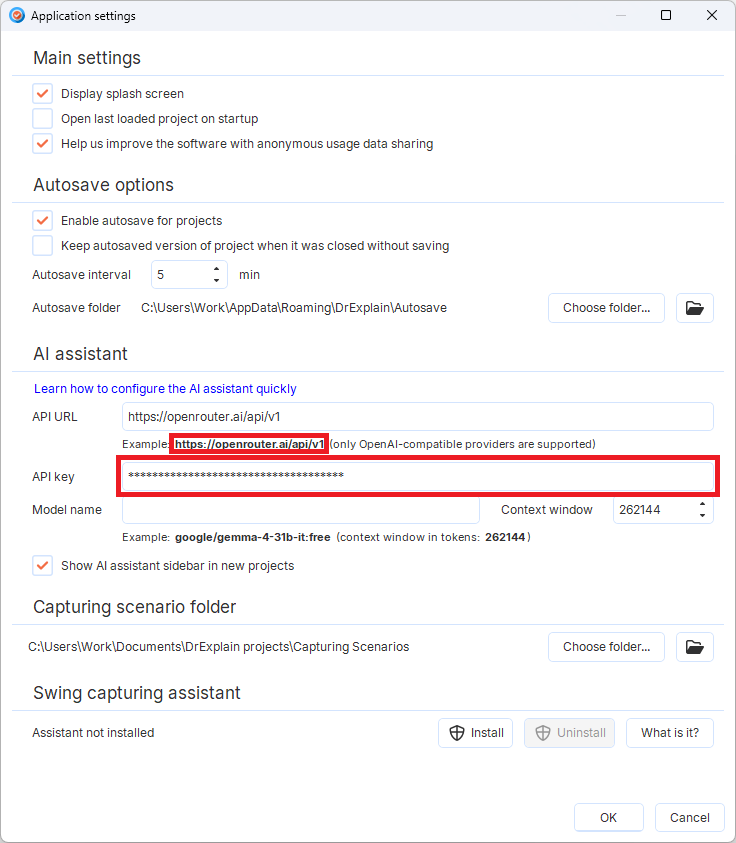
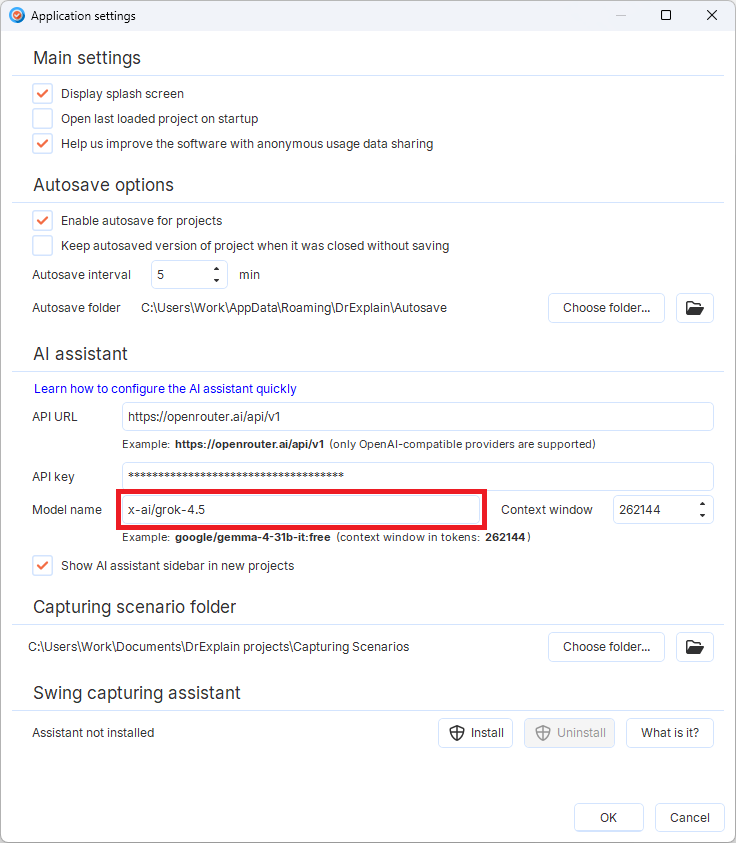
Click the copy icon next to Your API Key and paste it into API key field in the Application settings dialog in Dr.Explain. Also, click the link under API URL to fill it with the OpenRouter's API endpoint.
-
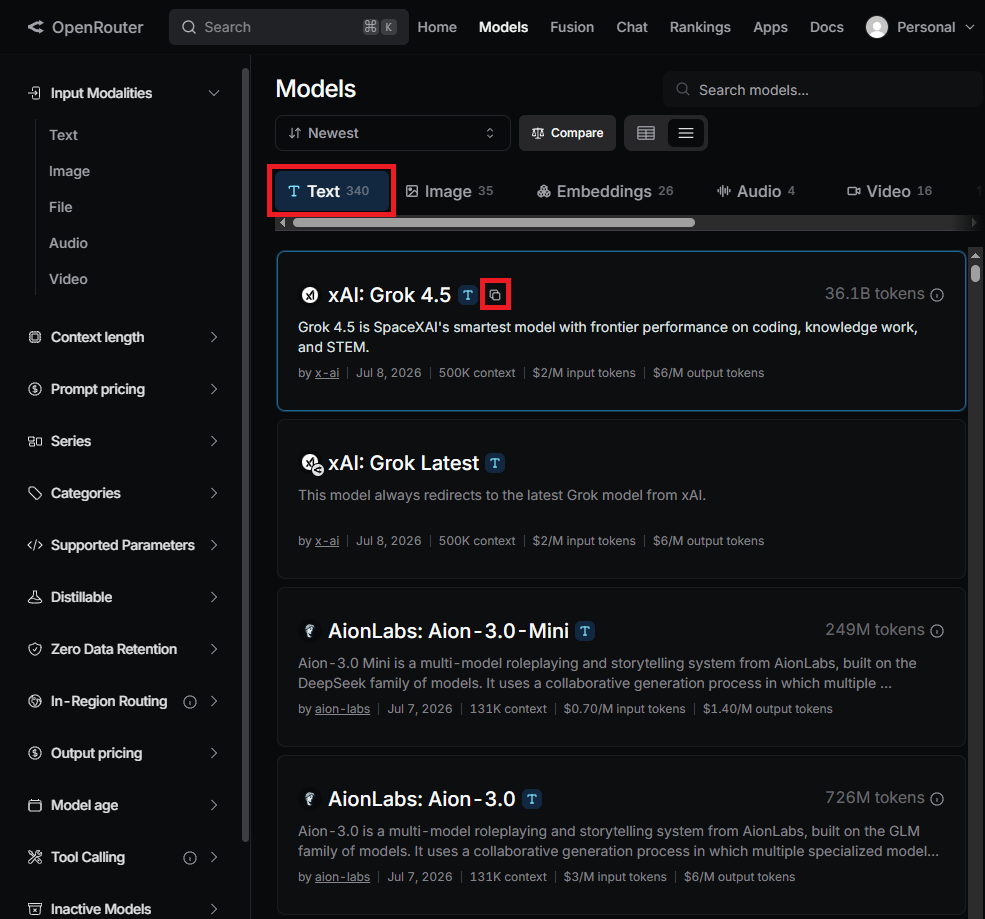
Complete the onboarding process on the OpenRouter website, go to the "Models" page, switch to Text tab and click the copy icon next to the model's name, then paste it into Model name field in Dr.Explain's Application settings dialog.
-
Click OK to save changes in Application settings dialog and try typing something in AI assistant side panel to check the results.
We suggest using these models for writing documentation:
|