



Published:
- The Regulatory Reality: WCAG and VPAT
- Europe: The European Accessibility Act
- Accessibility Tools Masked as Productivity Features
- The Blank Canvas Problem
- How to Make User Documentation Accessible
- Automation: AI and Interface Capture
- Conclusion
In the late 1970s in Berkeley, California, disability rights activists began pouring concrete ramps at street crossings themselves. City officials responded with an official curb-cutting program. That is how the Curb Cut effect was born — the principle that solutions designed for people with disabilities end up benefiting everyone.
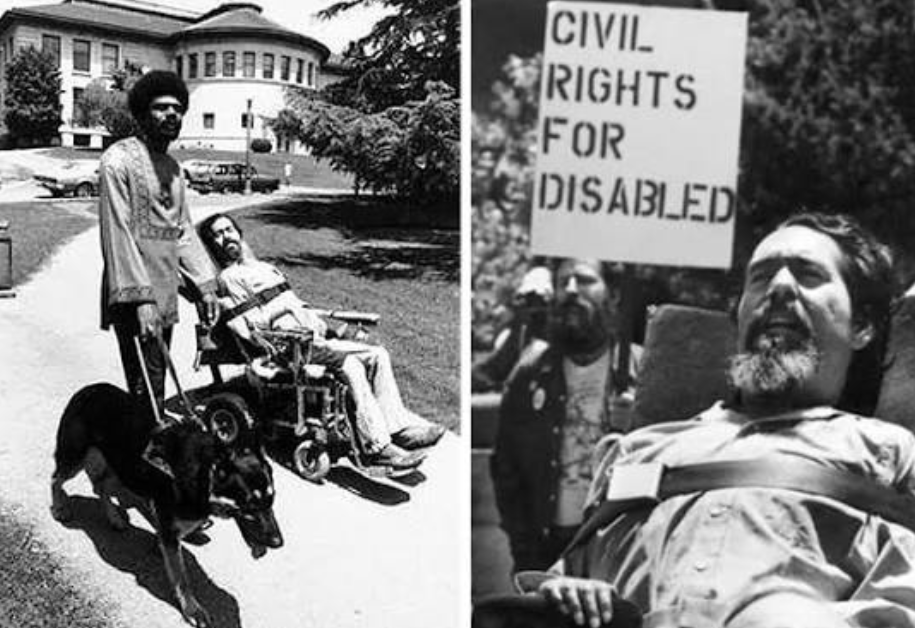
After widespread adoption, it turned out that wheelchair users were only a small fraction of ramp users. Parents with strollers, couriers with carts, travelers with rolling suitcases, cyclists, and older adults use them daily. Infrastructure designed for one percent improved convenience for everyone else.
If we move from physical space into the digital one — specifically into software design and user documentation (Help Authoring Tools, or HAT) — we find that the Curb Cut effect works here with mathematical precision. The most ergonomic, widely used, and effective features of modern knowledge bases, wikis, and documentation editors trace their origin directly to inclusive standards originally developed as assistive "crutches" for people with disabilities. That is why accessible user documentation and the question of how to write user documentation can no longer be considered separately.
Yet there is a paradox, and it is a significant one. If you go to the main marketing webpages for Notion, Confluence, MadCap Flare, Adobe RoboHelp, or any other similar platform, you will not see any banners stating that their product has been adapted for the needs of blind people or those with motor disabilities. A software vendor will strive to hide such information, conceal it in technical specifications, or, at best, present it as a tool for a broad range of users rather than a specific group of individuals. This is due to the dynamics of the B2B selling process, corporate marketing, sales mentality, and law marketing, and risk management strategies.
The Regulatory Reality: WCAG and VPAT
In the Western IT market (covering the US, Canada, the UK, and the EU), the concept of "digital accessibility" has long outgrown charity, corporate social responsibility (CSR), or good manners. Today it is a zone of severe legal pressure and massive financial risk. The Western approach to inclusion is built on the rule of law, where every violation of user rights is followed not by public criticism, but by an actual lawsuit.
In the United States, the key regulatory act is Section 508 of the Rehabilitation Act. This law imposes a hard ban on the purchase of any software by federal agencies, ministries, state universities, and any commercial contractors working on government contracts if that software does not provide equal access for people with visual, hearing, or motor impairments.
In Europe, the regulatory landscape has become even stricter with the full entry into force of the European Accessibility Act (EAA). This document erased the line between the public and private sectors, obliging all commercial companies providing digital services (from online stores and banks to software developers) to bring their products into compliance with strict accessibility standards.
Under these conditions, the language of marketing for documentation software gives up its compassion in favor of technical specifications. The emphasis is placed on WCAG 2.2 AA (Web Content Accessibility Guidelines) or the presence/fulfillment of a VPAT (Voluntary Product Accessibility Template) rather than a care for people with disabilities. But WCAG for user documentation goes beyond the accessibility of the interface: the same requirements for the color contrast, alternative descriptions of images, and heading structure are imposed on each page of the help system.
When a major bank or insurance company from the Fortune 500 list chooses a platform for its internal and external instructions, its legal department checks the VPAT document first. It contains a mandatory and very strict section — Support Documentation. If the company's ERP or CRM system is perfectly accessible but the built-in help or online user manual "goes blind" and fails accessibility tests, the entire deal collapses. The product will be deemed legally unfit for purchase. That is why VPAT for user documentation is not a formality, but a condition for accessing large corporate contracts. Western help authoring vendors sell corporations not abstract empathy, but commercial safety and the right to operate legally in multi-billion-dollar markets.
Europe: The European Accessibility Act
Europe's experience with digital inclusion has followed its own path — from fragmented national regulations to a unified framework. For years, accessibility in many EU countries was associated primarily with compliance with local public-sector requirements and the creation of so-called "low-vision versions" on government, healthcare, and educational websites.
We have all seen these buttons with a glasses icon in website headers. Clicking one turns the page into a monochrome canvas with giant fonts, stripped of nearly all elements of modern interactive design. The paradox is that actual blind or severely visually impaired professionals almost never use these versions. They work with standard versions of sites and applications using advanced screen readers such as NVDA or JAWS, which read page code on the fly and speak it through a speech synthesizer. Formal "low-vision" versions were created solely to pass inspections and avoid administrative fines.
Today, it is a large European business that drives change: banks, technology companies and retail stores. An inclusive environment is a means of retaining the audience and extending the potential for expansion, not a goal in itself.
Europe is actively developing a culture of inclusive hiring: companies hire talented blind programmers, analysts, technical support operators, and content managers. But for these employees to do their jobs, the entire internal infrastructure — from task trackers to corporate knowledge bases and documentation platforms — must work seamlessly with assistive technologies. European enterprise customers have begun embedding strict accessibility requirements into their tender specifications when replacing foreign software. Domestic developers of knowledge management systems are forced to learn quickly how to build interfaces that meet not just formal regulations, but real international code accessibility standards. The question of how to make documentation accessible has ceased to be a topic for individual enthusiasts — it has become a procurement requirement.
Accessibility Tools Masked as Productivity Features
If accessibility tools are so important and in demand by large businesses in both the West and Europe, why don't software vendors put them on their main marketing banners? Why is this topic shrouded in marketing silence?
A development manager or CTO might think: "This software was built specifically for charities, social services, medical companies, or government agencies. It doesn't suit us — a commercial business focused on speed and aggressive marketing. Surely it has a bloated, archaic interface, a bunch of settings we don't need, and the usual user experience (UX) is broken in favor of accessibility." The customer will be scared off by imagined complexity and go to competitors who promote their software as "stylish, modern, and minimalist."
To avoid losing the mass buyer while still meeting the requirements of enterprise customers and regulators, developers repackage inclusive solutions as "productivity features." This is the Curb Cut effect in action. Below are five examples of how tools for creating accessible documentation are sold as productivity features.
| Tool in a documentation editor | How marketing sells it (to a broad audience) | What it actually is (true inclusive purpose) |
|---|---|---|
| Full keyboard navigation (Keyboard Navigation & Focus) | "A tool for true professionals (Power Users). Forget the mouse, control your knowledge base at the speed of thought with hotkeys. Boost your personal productivity by 40%." | The only way to interact with a computer for people with severe motor impairments, hand tremors, cerebral palsy, or amputations who physically cannot use a mouse cursor. |
| Mandatory text description fields (Alt-text) | "A unique SEO module for your knowledge base. Helps Google and Bing crawlers perfectly index your screenshots, pushing your help content to the top of search results." | A text attribute in HTML code that a screen reader speaks to a blind user. Without it, a blind professional hears only useless noise: "Element, Graphic, Image 12." |
| Built-in speech synthesizer (Text-to-Speech) | "Listen to complex technical regulations and multi-page instructions like an engaging podcast in traffic, on the subway on your way to the office, or during a workout." | A vital basic technology that allows blind and visually impaired people to perceive text information and work fully with documents. |
| Automatic style contrast audit | "Stylish, minimalist, and modern themes. The ideal palette balance reduces overall eye fatigue during long night work in dark mode." | A tool that prevents unreadable color combinations for people with various forms of color blindness (protanopia, deuteranopia) or age-related vision loss. |
| Simplified text modes (Plain Text / Focus Mode) | "Maximum concentration mode for authors. Removes all interface noise, letting you fully focus on writing clean, concise, and clear content." | Technology designed for users with cognitive differences, attention deficit hyperactivity disorder (ADHD), or dyslexia, helping them perceive text. |
The Blank Canvas Problem
Help editor developers shift responsibility for the accessibility of the final product onto the technical writer. Formally, this is true: the editor provides a valid HTML template with ARIA support. In practice, it means accessibility is almost never delivered.
Software makers claim: "We have done our part 100%. We designed an empty HTML template whose code is perfectly valid, supports all ARIA (Accessible Rich Internet Applications) specifications, and allows you to configure any accessibility parameters. We gave you a flawless blank canvas. What you draw on it, and how accessible your final help system turns out to be for people with disabilities — that is entirely your responsibility."
In the harsh reality of commercial development, this approach results in total failure of inclusion. The technical writing profession in modern IT companies comes with enormous stress and constant time pressure. Software releases ship every week, sprints are on fire, and documentation requirements change on the fly. A writer simply has no time to conduct scrupulous manual accessibility audits.
When an author is tasked with documenting a major update to a complex ERP system that includes thirty new screens, their workflow looks standard. They take thirty screenshots, paste them into the editor, briefly describe the user's sequence of actions, and close the ticket. They have no time to open the properties of each image and manually write detailed alt text. They cannot check if a screen reader will correctly read a complex multi-level table or whether the callout colors on a screenshot will be invisible for a color-blind user. Screenshot images are the most common sources of accessibility issues because they have high quantity, they are generated fast, and manual annotations of each image would not be cost-effective in the long run.
How to Make User Documentation Accessible
Theory without practice does not work. Below is a minimal set of actions that covers most WCAG requirements and makes documentation readable for all categories of users. The question of how to make user documentation accessible comes down to seven concrete steps.
-
Describe every image. Every screenshot, diagram, and icon needs alt text. Not "Image 12," but a description of what is on the image and why it matters: "Export settings window with a folder path field and a Run export button." If the image is decorative, leave alt empty.
-
Check contrast. Text on background must have a contrast ratio of at least 4.5:1 for normal text and 3:1 for large text. This applies not only to body text, but to screenshot captions, callouts, tooltips, and color highlights.
-
Build a logical heading structure. One H1 per page, then H2–H3 without skipping levels. Headings must describe the content of the section, not just number it. A screen reader navigates the document specifically by headings.
-
Make tables readable. Every table must have header cells (th), not just data rows. If the table is complex, add a brief text description before it. Fill empty cells with a dash — otherwise a screen reader will read them as a gap.
-
Check Tab order. Navigate the document using only the keyboard. Focus must move top to bottom and left to right, without jumps or traps. Links and buttons must be reachable and have a visible focus indicator.
-
Simplify the language. Short sentences, active voice, imperative mood in instructions. One thought — one sentence. This helps not only people with dyslexia, but also those for whom the documentation language is not their native one, and those reading in a hurry. The official principles of plain language are defined in ISO 24495-1:2023.
-
Test the results you can hear. Start up a screen reader (NVDA, JAWS, or VoiceOver) and go over your document. Something doesn't make logical sense? Fix it. This is your best chance to spot and correct any issues that aren't easily apparent to the eye.
These seven steps require no special tools and take no more than an hour for an average document. If built into a regular process, accessibility stops being a separate task and becomes part of ordinary work on text.
Automation: AI and Interface Capture
The blank canvas problem can be solved technically. A documentation editor does not need to "see" a screenshot — it needs to obtain the window structure from the operating system. This comes from a combination of three components. In essence, this is the application of AI in user documentation: the model takes over what a human used to do manually.
Step 1. Interface parsing. Interface parsing. At the moment of taking a screenshot, an inspection module connects to the documented program through an accessibility API (for example, Microsoft UI Automation). It retrieves the element tree: types (Button, CheckBox, DataGrid), identifiers, tooltip texts, states (active, disabled).
Step 2. Binding to the image. Binding to the image. The screen capture engine matches the element tree with coordinates on the screenshot. The program understands exactly where the "Save" button is, where the table is, and where a hidden panel sits.
Step 3. Generating descriptions. The tree and screenshot are passed to a language model. It generates alt text, Tab order, and checks contrast — the work that used to take a technical writer hours.
What this delivers in practice:
- Alt text. Instead of "Image 12," a screen reader receives: "Modal window 'Export Parameters'. Folder path field, encoding list with UTF-8 selected, 'Run export' and 'Cancel' buttons."
- Tab order. Focus moves through elements logically, without chaotic jumps.
- Contrast audit. If error text is pale pink on a gray background (below the WCAG 4.5:1 threshold), a hidden text hint is added to the page for the screen reader.
- Language simplification. With one click, AI breaks long sentences, removes passive voice and jargon — a version for users with dyslexia and for those for whom the documentation language is not native.
For a technical writer, this means accessibility stops being a separate task. They work at the same pace, and markup is generated automatically.
Conclusion
The historical lesson of the Curb Cut effect gives us an unambiguous answer: any system design that accounts for the needs of people with disabilities ultimately produces products that are more convenient and ergonomic for the entire mass market. Accessible user documentation is a special case of this principle: what is done for blind and visually impaired readers improves the help system for everyone else.
Automating the creation of inclusive knowledge bases and user documentation with AI and low-level interface parsing is not a fad, not a charitable gesture, and not a waste of a commercial company's resources. It is a classic, highly effective win-win business strategy that delivers tangible dividends to all participants in the process.
Documentation authors obtain an intellectual tool that allows them to take over all the rote work of markup, graphics description, and structuring of data, thus enabling them to concentrate on the core of the business processes they describe.
Persons with disabilities gain full, unimpeded access to knowledge out of the box, the ability to learn how to work with complex software, and the chance to realize their potential through inclusive employment.
Ordinary users get a crystal-clear document structure, logical navigation, the ability to use advanced hotkeys, listen to instructions as audio podcasts, and read concise texts cleansed of verbal noise.
Businesses and software developers get 100% legal cleanliness and protection from litigation in any international market, unimpeded access to government and large corporate contracts, plus a huge bonus in the form of search engine optimization (SEO). Google and Bing crawlers cannot look at pictures — they evaluate text code, and AI-generated alt text for screenshots instantly pushes a company's documentation to the top of search results, reducing the load on the support desk. Thus SEO optimization for documentation turns out to be a side effect of accessibility: what is done for blind users simultaneously improves search visibility.
Inclusion will stop being a separate task only when it becomes a background function of the tool. The combination of interface capture and AI is a practical path to that.