



Published:
Dr.Explain has already established itself as a reliable and efficient tool for creating user documentation. However, there are plenty of worthy alternatives that are also popular. HelpNDoc is one of them. In this article, we'll compare both programs so you can decide which one best fits your workflow. We will review and compare:
- the workflows of both programs;
- user documentation templates;
- text editor interfaces;
- explore the scenarios where each tool truly shines.
We hope this helps you to pick the right tool for your situation.

Workflows: control vs. conversion
Both applications are desktop-based (Windows) and let you write user documentation once, then publish to multiple formats: create CHM help file for Windows apps, generate web help, PDF, MS Word documents (DOCX format). With HelpNDoc you can create ePub or Markdown. They both aim to replace the nightmare of maintaining separate Word files or wrestling with raw HTML.
However, their philosophies and workflows differ significantly. HelpNDoc appeals to users who want full control over output. Dr.Explain focuses on speed and automation, especially if your documentation relies heavily on screenshots. Let's have a look at their startup screens.
The two screenshots reveal fundamentally different design philosophies and target user workflows in the help authoring tool (HAT) space.
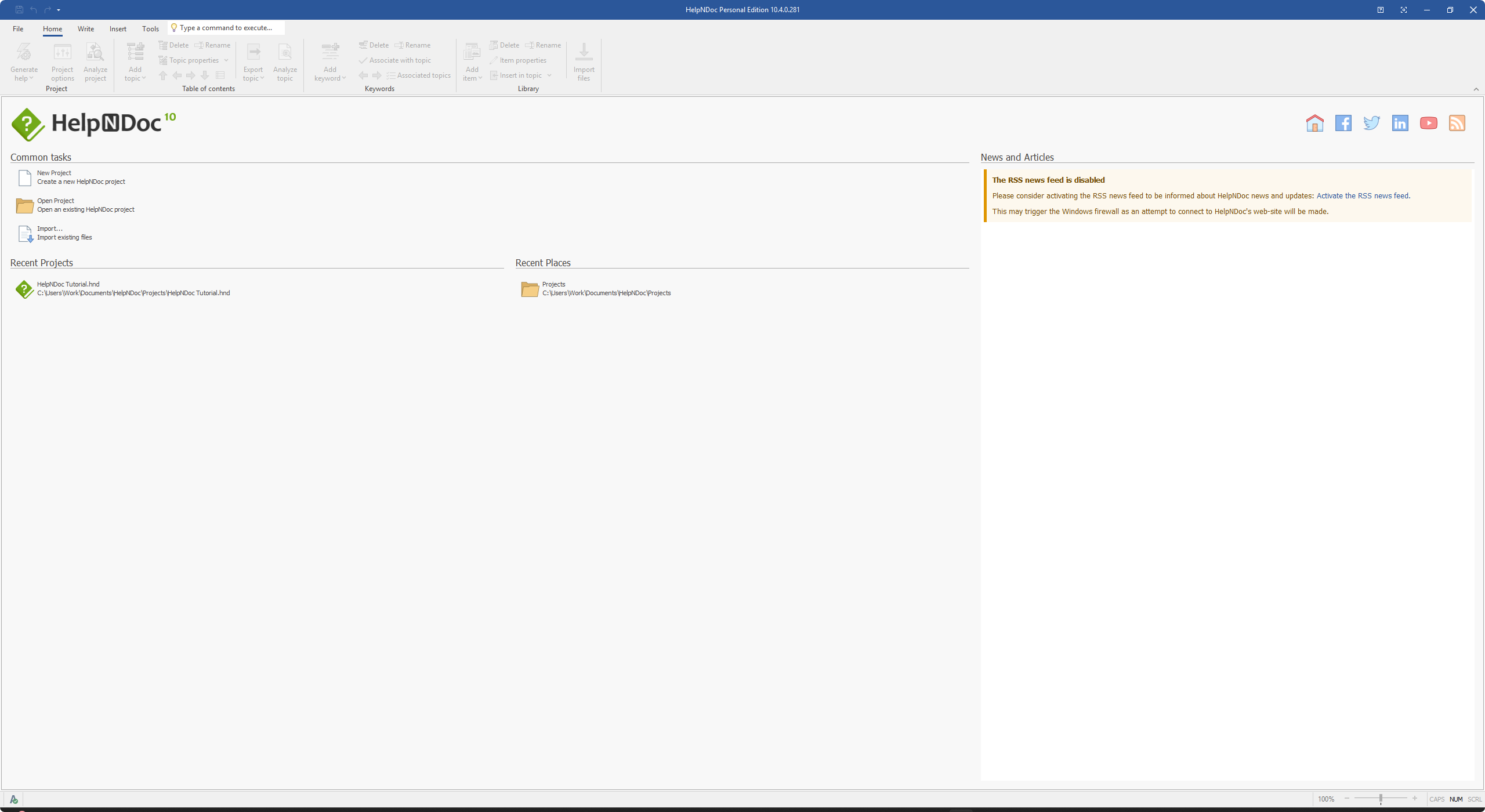
HelpNDoc startup screen:
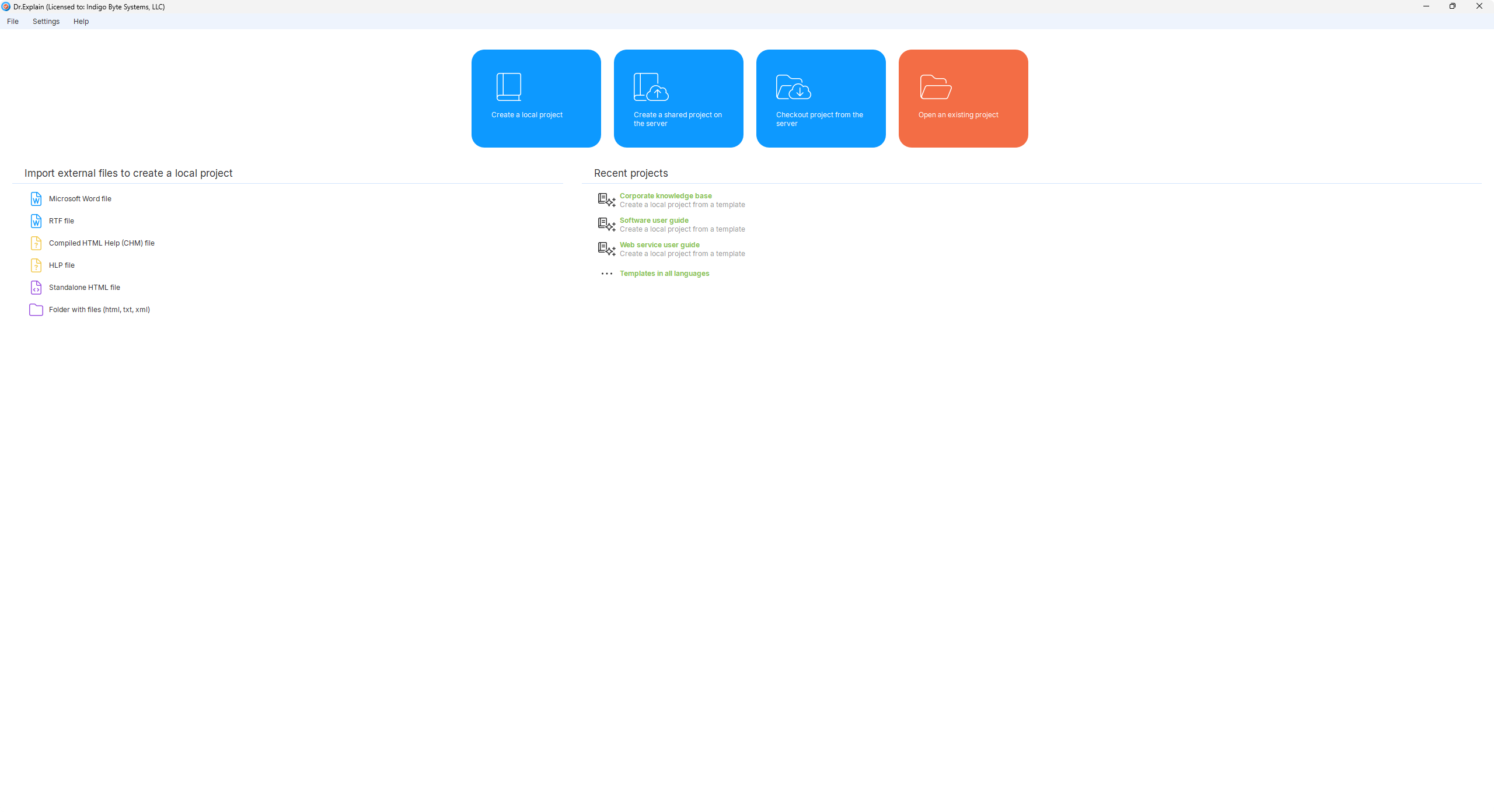
Dr.Explain startup screen:
Core concept of HelpNDoc: project starts with the tool (control).
HelpNDoc’s interface resembles a classic IDE or professional Windows application. The emphasis is on tool management, file‑system navigation, and staying informed about the software itself.
Central position: common tasks
Both "New Project" (starting from scratch) and "Import" are given equal prominence. The distinction between new and existing projects suggests that users frequently begin with a blank slate — a use case less emphasized in Dr.Explain.
"Recent Places" and file‑centric model
Displaying folder locations alongside recent projects indicates a file‑centric project model. This appeals to developers and writers who want manual control over file locations, source control integration (Git), and backups.
News and articles panel
A dedicated block for RSS news (even when disabled) occupies significant space. This shows that the start page doubles as a communication channel for updates, tutorials, and marketing — a feature absent in Dr.Explain’s minimalist approach.
A builder‑centric interface prioritizing control, awareness, and customisation. Ideal for those who plan to deeply modify CSS/HTML templates and prefer full visibility into file management.
Core concept of Dr.Explain: project starts with content (import).
Dr.Explain’s interface is laser‑focused on importing existing files. It positions itself as a rapid‑conversion solution for legacy documentation, minimizing clicks to turn Word documents or HTML folders into structured help systems.
Central position: import sources
Instead of a generic "New Project" button, users immediately see source options: Microsoft Word, RTF, HTML, or a full folder. This aligns with the "export Word to online help" scenario — the tool implicitly says, "You already have documents; let me transform them into a professional help system."
Recent projects and templates
The recent projects section is clean and minimal, but templates are named contextually: Corporate knowledge base, Software user guide, Web service user guide. This lowers the barrier for new users by providing ready‑made structures for real‑world business use cases.
A wizard‑driven interface prioritizing utility and speed. Perfect for technical writers who need to transform existing Word/HTML documentation into CHM, web help, or PDF with minimal friction.
What the screenshots reveal?
Dr.Explain’s start screen removes friction for the most common enterprise task: importing Microsoft Word documents and converting them to web help, CHM, or PDF. The layout visually confirms the tool’s strength — automation and speed for screenshot‑heavy, maintenance‑oriented documentation.
HelpNDoc’s start screen offers flexibility and transparency. By showing "Recent Places" (folders) and news updates, it addresses power users who manage multiple projects, rely on version control, or need to stay updated on new features. This matches the philosophy of freedom, customisation (CSS/HTML), and detailed output control.
Both tools solve the problem of moving beyond Microsoft Word, but their entry points reflect different personalities:
- Dr.Explain = "let me convert your existing docs".
- HelpNDoc = "let you decide how to build, from scratch or from imports, with full customisation ahead".
Which interface fits your workflow?
Choose HelpNDoc if you prefer to start from scratch or manage project files manually, require full CSS/HTML customisation. The start screen gives you equal access to new projects, recent folders, and tool news — empowering fine‑grained control.
Choose Dr.Explain if you live in Microsoft Word, need to convert dozens of documents into HTML/CHM quickly, and rely heavily on screenshot automation. The import‑first interface will feel like a natural accelerator.
User manual templates: diversity vs focus
Let's compare template strategies now. What templates does HelpNDoc offer? In the "New project" window, we see 5 options:
- API documentation;
- Cooking recipes;
- Mobile app;
- Software documentation;
- Training Materials.
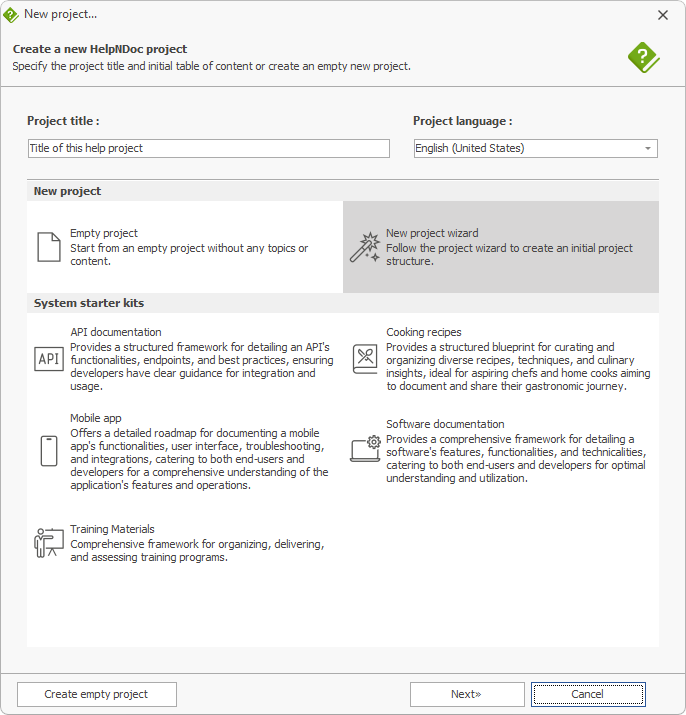
HelpNDoc presents a diverse, multi-purpose set that goes beyond pure software help. It embraces non-technical domains (cooking, training) and technical API references with equal weight.
And Dr.Explain offers 3 options:
- Corporate knowledge base;
- Software user guide;
- Web service user guide.
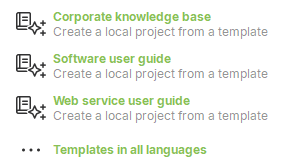
Dr.Explain focuses on business and technical documentation — knowledge bases, software manuals, and web service guides. The templates reflect a pragmatic, enterprise‑ready approach.
What the templates reveal about each tool's DNA?
HelpNDoc’s template list is unusually broad. Including "Cooking recipes" alongside "API documentation" signals that the tool is designed for maximum flexibility — it doesn’t assume you’re only writing software manuals. This aligns with HelpNDoc’s philosophy of offering full customisation (CSS, HTML, scripts) and multiple output formats (CHM, Web Help, PDF, DOCX, ePub, Mobipocket, Qt Help, Markdown). The template variety suggests HelpNDoc targets:
- Freelancers and hobbyists who create documentation for anything from apps to recipe collections.
- Technical writers who need to produce API references as well as training manuals.
- Users who appreciate a blank canvas or genre‑specific starting point — from mobile app guides to structured educational content.
The "API documentation" template is especially relevant for developer‑facing products, while "Training Materials" points to e‑learning and internal corporate courses. HelpNDoc essentially says: "No matter what you document — software, recipes, APIs, or courses — we give you a head start."
Dr.Explain’s three templates are laser‑targeted at organisational and software documentation. There is no "cooking" or generic lifestyle category — instead, you get Corporate knowledge base, Software user guide, and Web service user guide. This reflects Dr.Explain’s core strengths:
- Speed and automation — the templates are designed for teams that need to quickly import existing Word docs or capture UI screenshots with automatic annotations.
- Enterprise readiness — knowledge bases and software manuals are the bread and butter of internal IT departments, product companies, and SaaS vendors.
- Web service documentation — highlights Dr.Explain’s ability to generate clean, searchable online help for APIs and cloud services, often from structured Word or HTML sources.
Dr.Explain’s template strategy reinforces its identity as a professional tool for technical communicators in corporate environments. Instead of spreading across diverse genres, it doubles down on what it does best: transforming legacy content into structured help systems with minimal friction.
Template comparison: scope and target audience:
|
| HelpNDoc | Dr.Explain |
|---|---|---|
| Number of templates | 5 | 3 |
| Technical scope | Broad: API docs, mobile apps, software, training, plus non‑technical (cooking recipes) | Focused: corporate knowledge base, software user guide, web service guide |
| Ideal user profile | Versatile writers, open‑source maintainers, technical authors who need multiple output formats and full CSS control | Corporate technical writers, software product teams, organizations migrating from Word to online help/CHM |
| Philosophy hint | "We support any documentation genre — from recipes to REST APIs." | "We optimize business and software documentation workflows with automation." |
Which template approach fits your needs?
Choose HelpNDoc if you need:
- A template for API reference guides or mobile app documentation alongside training materials.
- The freedom to document creative or lifestyle content (e.g., recipes, educational courses) without fighting a rigid corporate structure.
- A starting point for multiple output types (ePub, Markdown, CHM) where you can heavily customize CSS/HTML from day one.
Choose Dr.Explain if your focus is:
- Building a corporate knowledge base or internal help system from existing Word documents.
- Creating software user guides with heavy screenshot automation and frequent UI updates.
- Web service/API documentation where you need a clean, searchable online help system derived from structured content.
Connection to previous interface analysis: the template selection mirrors the start screen priorities discussed earlier. HelpNDoc’s diverse templates (including cooking recipes) reflect its "builder‑centric, flexible" identity — you can start from any genre and then deep‑customize. Dr.Explain’s three business/software templates align with its import‑first, automation‑driven interface: the tool assumes you’re documenting software, services, or internal knowledge, and it gives you a targeted structure to accelerate that specific workflow.
Both tools offer powerful documentation capabilities, but the template lineup is a quick litmus test: HelpNDoc embraces diversity and customisation, while Dr.Explain embraces focus and efficiency for business/software documentation.
Text editors: feature‑rich workspace vs minimalist approach
Let's have a look at their text editor interfaces now: how two help authoring tools approach content creation — from rich dynamic fields to minimal placeholders.
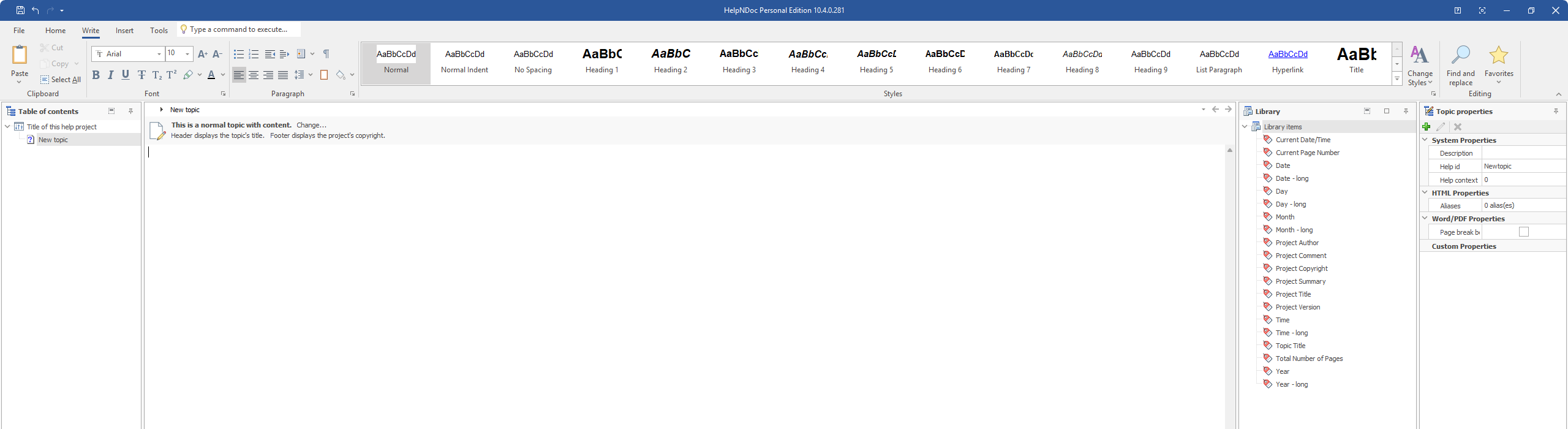
Text editor in HelpNDoc (contextual panels):
Pros
- Rich dynamic fields. The Library offers dozens of pre‑defined variables (dates, project metadata, page numbers) that auto‑update on output — a huge time‑saver for templates.
- Structural overview. Embedded table of contents and topic list help navigate large projects without leaving the editor. But initially, the document does not provide a ready-made topic structure.
- Context awareness. The editor shows how headers, footers, and copyright information will behave.
- Reusability. Variables promote consistency across the entire help system (e.g., project version, copyright year).
- Professional touch. Ideal for teams that produce multi‑format output (CHM, PDF, Web) with automatically updated metadata.
Cons
- Steeper learning curve. New users need to understand variables, snippets, and the interplay of panels.
- More cluttered interface. The abundance of panels (TOC, Library, etc.) might distract writers who prefer a clean, distraction‑free environment.
- Overkill for simple tasks. For quick one‑off manuals, the feature richness can feel excessive.
- Placeholders are not actual content. Variables require training to use correctly; misuse can lead to broken placeholders in output.
- No immediate visual feedback to see how the final output will look.
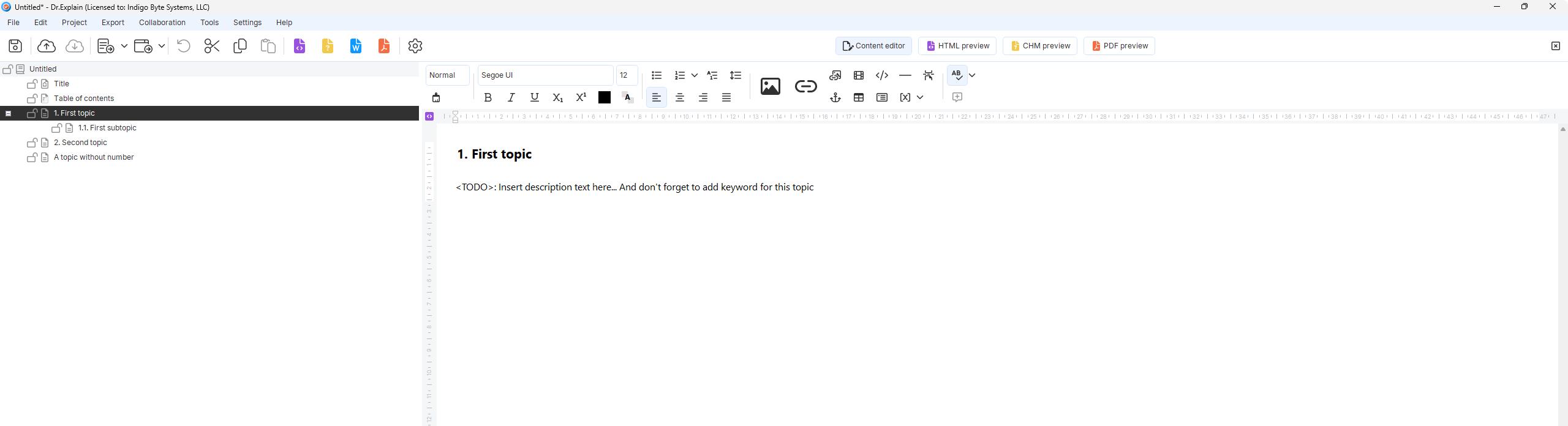
Text editor in Dr.Explain:
Pros
- Extreme simplicity. No clutter — writers focus purely on content.
- Low learning curve. Anyone familiar with plain text or Markdown can start immediately.
- Placeholder reminders. The
<TODO>pattern helps enforce consistency and reminds authors to add keywords and descriptions. - Ideal for structured import. Matches Dr.Explain’s philosophy — you bring your own content (from DOCX or HTML) and the editor stays out of the way.
- Quick access to preview tabs and import buttons.
Cons
- No built‑in dynamic fields. No auto‑insertion of dates, page numbers, project properties, or reusable variables.
- Missing content reuse hints. No snippets or library of reusable components shown in the editing area.
- There are few styles for text formatting.
Feature comparison
| Aspect | HelpNDoc editor | Dr.Explain editor |
|---|---|---|
| Primary interface style | Rich text with structural panels (table of content, library, variables) | Plain text/Markdown‑like area |
| Dynamic fields/variables | Extensive library: dates, project properties, page numbers, topic titles | None visible; relies on manual typing |
| Content navigation | Embedded table of contents and topic list inside the editor view | External project tree (not shown in editor) |
| Placeholder guidance | Built‑in variables with descriptive names, drop‑down insertion | Custom <TODO> reminders (user‑managed) |
| Learning curve | Moderate – requires understanding of variables and project structure | Low – anyone comfortable with plain text |
| Best suited for | Complex, template‑driven projects with repeated metadata and multi‑format publishing | Rapid conversion of existing documents, minimalist writing |
Philosophy reflected in the editors
HelpNDoc’s editor showcases its "builder‑centric" DNA. The presence of a Library with dynamic variables, a table of contents panel, and topic lists transforms the editor into a control center. This matches HelpNDoc’s strength: giving writers fine‑grained control over output (CSS, HTML, scripts) and enabling them to maintain consistent metadata across hundreds of topics without manual updates.
Dr.Explain’s editor embodies its "import‑first, automate" mantra. The editor itself is deliberately minimal because the tool assumes you’ll import content from Word or HTML, then use its powerful screenshot annotation features. The <TODO> placeholder hints at a workflow where writers fill gaps after automated imports — it’s a lightweight nudge, not a full templating system
Which editing experience fits your team?
- Choose HelpNDoc’s approach if you build templates from scratch, reuse variables across many topics, and need live access to project metadata (version numbers, copyright, dates). Writers who manage complex help systems with multiple outputs will benefit from the built‑in structure and variable library.
- Choose Dr.Explain’s approach if your documentation is largely imported from existing sources (DOCX, HTML) and you want a clean slate to add minor adjustments. Teams that value speed over deep customization will appreciate the distraction‑free environment.
Both editors accomplish the same end goal — authoring help content — but they cater to different mindsets: Dr.Explain treats the editor as a lightweight annotation layer, while HelpNDoc turns it into a feature‑rich dashboard.
Best-practice scenarios
When each tool shines? It is time to consider these programs in the context of the most optimal use cases.
Scenario 1: the screenshot-heavy documentation
Imagine you're documenting an ERP system with 150+ screens. Every time the UI changes, you need to update all those images, re-number callouts, and rewrite descriptions. This is where Dr.Explain's automatic screenshot annotation tool becomes a lifesaver. The built‑in capture utility analyses application windows, extracts UI elements, and turns them into interactive hotspots. You don't need a separate image editor or Photoshop.
HelpNDoc also includes a screen capture feature, but it's basic – you get the image, but you'll need to add callouts, arrows, and numbers manually. For a one‑off manual, that's fine. For ongoing maintenance across multiple releases, it's a time sink.
Scenario 2: you need a free start or full CSS control
Not every project has a budget. If you're a student, an open‑source maintainer, or just prototyping, HelpNDoc's free version is genuinely useful – no watermarks on output (though some features are limited).
Moreover, HelpNDoc gives you deep access to templates, scripts, and CSS. If you know how to customize online help with css, you can tweak every font, colour, and layout. This is powerful when you need to match a client's existing website exactly. Dr.Explain offers pre‑built visual styles and some CSS editing, but it's more constrained.
HelpNDoc also supports exporting to ePub and Markdown – handy if you publish e‑books or want to integrate with static site generators.

Scenario 3: exporting Word docs to online help
Many teams start with documentation in Microsoft Word. It's familiar, but it falls apart when you need a structured online help system with search, navigation, and cross‑references. Both tools support importing Word files, but the experience differs.
Dr.Explain keeps the process simple: import a Word document, and it automatically creates a project tree based on heading styles. Then you can export Word to online help with a few clicks. The resulting web help includes a table of contents, search, and an index – all without setting up a database or server scripts.
HelpNDoc also imports Word files, but you might spend more time cleaning up formatting and re‑applying styles. For simple conversions, it's fine. For large, complex documents, Dr.Explain's workflow feels more streamlined.
Scenario 4: team collaboration on documentation
What if three writers need to work on the same manual? Both tools are desktop‑based, so they lack real‑time collaboration (like Google Docs). However, Dr.Explain allows multiple users to work on a project stored on a shared network drive or its own collaboration server. It also has a simple commenting system and topic statuses (Not started, In progress, Completed, Waiting).
HelpNDoc has no built‑in collaboration features. You'd have to rely on external file‑sharing and manual merging – not practical for a team of more than two.
If you're searching for how to collaborate on help documentation with team, neither is perfect, but Dr.Explain at least offers a path. For larger teams, you'd likely need a cloud‑based solution like ClickHelp or Confluence anyway.
Pros and cons summary
Key differences at a glance:
| Aspect | HelpNDoc | Dr.Explain |
|---|---|---|
| Ease of learning | Simple to start, but advanced features require time. | Very intuitive. Users praise the clean, distraction-free interface. |
| Automatic screenshot annotation | Basic capture only; manual annotation required. | Built‑in capture tool auto‑detects UI elements and adds clickable zones. |
| Output formats |
|
|
| Customisation with CSS | Full control – you can customise every detail if you know how to customize online help with CSS. | Possible, but limited compared to HelpNDoc. |
| Ready-made templates | Fewer built‑in templates, but easier to build your own from scratch. | Several built‑in visual styles and several ready-made templates. |
| Collaboration features | Limited – not designed for how to collaborate on help documentation with team scenarios. | Basic – supports shared projects via network folder or server, but no real-time co‑editing. There is also a Dr.Explain Collaboration Server. |
| User interface languages |
|
|
Dr.Explain: what users like
- Automatic screenshot annotation saves massive time.
- Very easy to learn – first help file in under an hour.
- Perpetual license option (pay once, own forever).
- Clean, professional output with minimal effort.
Dr.Explain: limitations
- No free version for commercial use.
- Limited CSS customisation compared to HelpNDoc.
- Fewer output formats (no ePub, for example).
HelpNDoc: what users like
- Generous free version (non‑commercial).
- Full control over HTML/CSS templates.
- Supports ePub and Markdown exports.
- Large user community and many tutorials.
HelpNDoc: limitations
- Manual screenshot annotation is slow.
- Can be sluggish with very large projects.
- No built‑in collaboration features.
- PDF output sometimes needs post‑editing.
Reviews from real users
What do actual users think? Let's take a look at real reviews of HelpNDoc and Dr.Explain.
Real users about HelpNDoc:
"A powerful software that delivers on its promises. It may be the only software that allows you to easily create documentation in CHM format. The interface is flawless, modern, and the use remains simple and intuitive. This software may seem complex at first glance, but in reality, it is not. Once you take the time to get familiar with it, everything becomes clearer and using it becomes quite natural." – Guillaume B. Responsible development Computer Software
"Simply a product that works. I have been using it for my online user manuals for decades now. I could not be without it. Perhaps an easy way to apply a consistent template change retrospectively. It may be there, and I have not found out how." – Mark S. Director Small-Business
"I have used it to teach HAT to beginners. The ability to integrate images and files is a huge plus. It is not available for MAC OS and many of my students use that system." – User in Education Management
Real users about Dr.Explain:
"A Truly Impressive Solution That Delivers as Promised. This truly is the real solution, just as described as doctor is not just for name sake. I have to say, this is truly impressive and performs very well. In fact, rather than finding anything to dislike, I actually feel a bit envious of the developer." – Fawaz A. Business Development Manager
"Dr. Explain- Excellent Helpfile Creator. Dr. Explain is intuitive and easy to use and install. I really appreciate how seamless it was to convert a competitor’s compiled helpfile to a Dr. Explain helpfile (no additional typing or cutting and pasting needed). I also like being able to easily create an online html helpfile with free Tiwri hosting using Dr. Explain. Creating and integrating context sensitive help into Delphi code was simple too. In addition, it was not a problem to switch the license and project to a new computer. In summary I bought Dr. Explain because I need a helpfile compiler that provide online helpfiles with hosting and context sensitive help and it worked extremely well. The free Tiwri hosting requires monthly reconfirmation and you only get a 2- or 3-day window to do this. I should not really complain since it is free, though. Otherwise I have not had any issues yet." – John K. Project Manager
"A Walk Through Review On Dr. Explain. The thing I like most about Dr. Explain is about the functionality that allows us to create numbered steps/stages on an image explaining a particular function of a software. That is; using Dr. Explain we can capture image (screenshot) of a particular function of the software and then number each step on the screenshot accordingly. This can greatly help a new software user to clearly see the steps/stages of how to use a software and go through it effectively. I don't think I dislike anything about Dr. Explain as everything works out fine to me. Particlarly, the layout and design seems to fit perfectly well to a technical writer who might be writing a user guide for a software because it have everything you might need to write a good software user guide document." – User in Computer Software
So, which one should you choose in 2026?
There's no universal "best." The right help authoring tool depends on your specific pain points.
- Pick HelpNDoc: if you're just starting, have a limited or zero budget, and want to explore a capable tool for free. You need full control over HTML/CSS output. You export to ePub or Markdown regularly. You don't mind manual screenshot annotation or working alone.
- Pick Dr.Explain: if you create and maintain documentation with hundreds of screenshots. You value automation and speed over deep CSS customisation. You prefer a perpetual license. You need a reliable way to create web help and CHM files without complex server setups.
Both tools offer trial versions (Dr.Explain's trial is time‑unlimited but adds watermarks to images; HelpNDoc's free edition is feature‑limited but usable for non‑commercial work). Download both, test with a real chapter of your documentation, and see which one feels less like a chore.

Final thought
The right choice depends entirely on your workflow, team size, and documentation goals. Throughout this article, we’ve seen how HelpNDoc and Dr.Explain approach the same task from different angles.
HelpNDoc shines when you need maximum control: full CSS customisation, a rich set of output formats (including ePub and Mobipocket), and a generous free version for non‑commercial use. Its builder‑centric interface, diverse templates (from API docs to cooking recipes), and variable‑powered editor make it ideal for writers who start from scratch, manage complex projects, or need pixel‑perfect branding.
Dr.Explain, on the other hand, is built for speed and automation. Its import‑first philosophy, automatic screenshot annotation, and laser‑focused templates (corporate knowledge base, software user guide, web service guide) are perfect for teams that live in Microsoft Word, need to convert dozens of documents into online help quickly, or maintain screenshot‑heavy documentation across frequent UI updates.
Both tools offer trial versions. We encourage you to download both, test them with a real chapter of your own documentation, and see which one feels more natural in your day‑to‑day work.
Ultimately, the best tool is the one that removes friction from your documentation process — because the real goal is helping your users succeed, not wrestling with software.