



Context-sensitive help
Most development environments support Help Context ID integration. When building your application, you can assign help IDs to interface elements like dialog boxes, buttons, lists, and settings. After compilation, your program will display the relevant documentation topic for each UI element based on its ID.
What does this mean for users? When users request assistance from any part of your application, the guide automatically opens to the page describing that specific feature. This context‑sensitive approach allows users to get answers more quickly.
By setting up Help Context IDs, you create happier users who find what they need instantly. Dr.Explain supports contextual identifiers: you can automatically assign these IDs to all your topics.
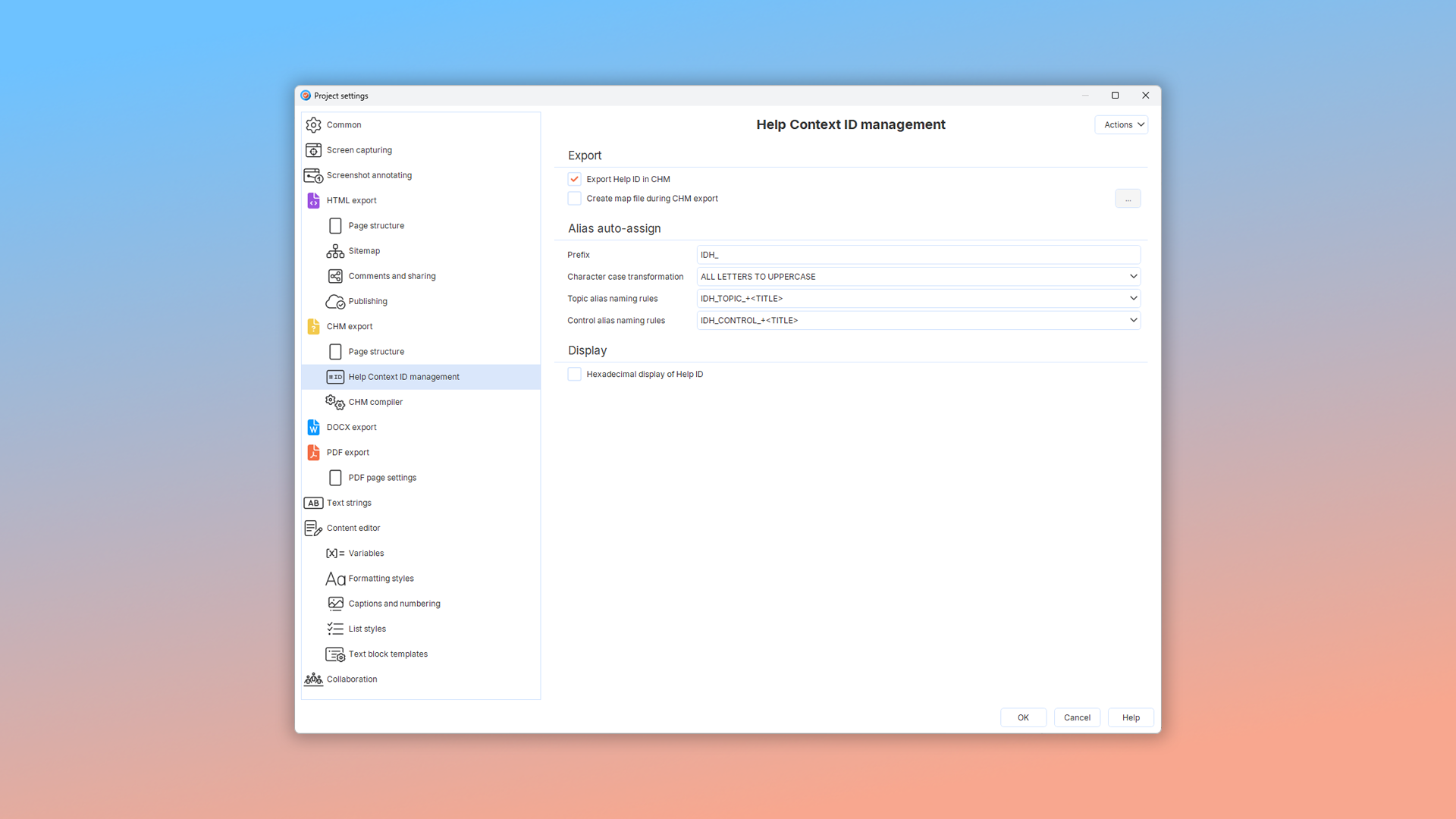
How does Dr.Explain handle context-sensitive help IDs?
Dr.Explain automatically assigns unique Help Context IDs to each topic. These IDs let you link topics directly to specific elements in your application's user interface.
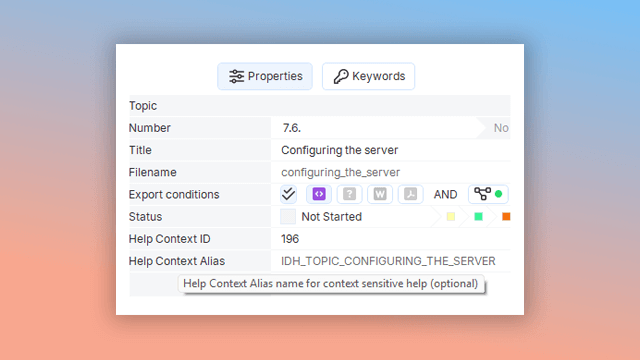
Examples of user documentation created in Dr.Explain
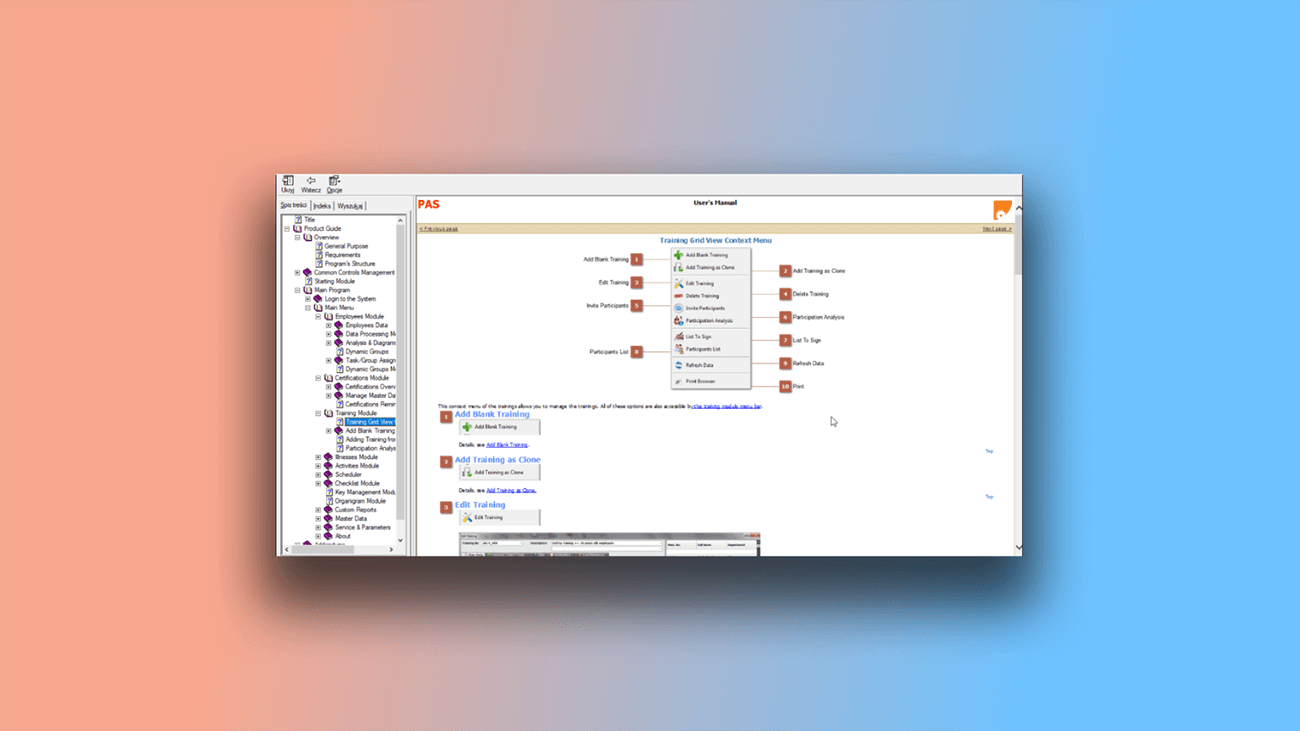
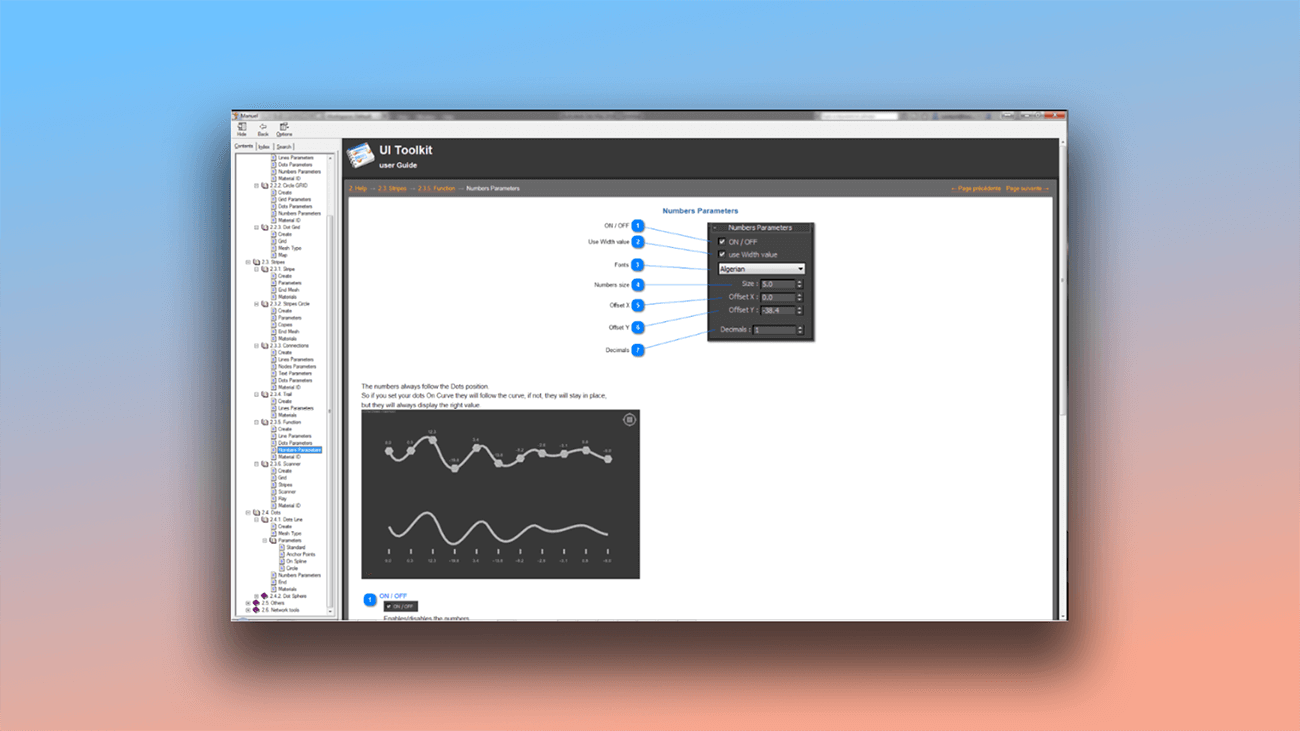
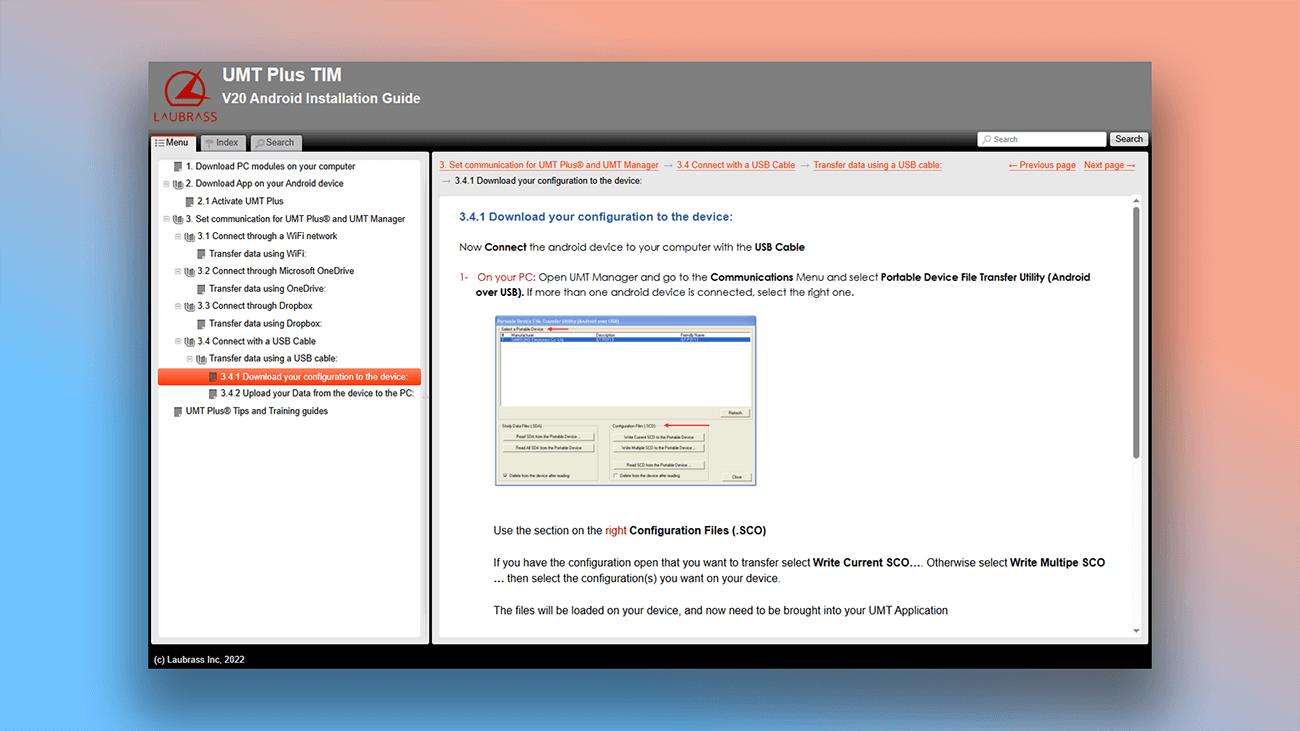
The collection of user guides created with Dr.Explain keeps growing and now spans many fields. Below are real documentation samples in different formats:
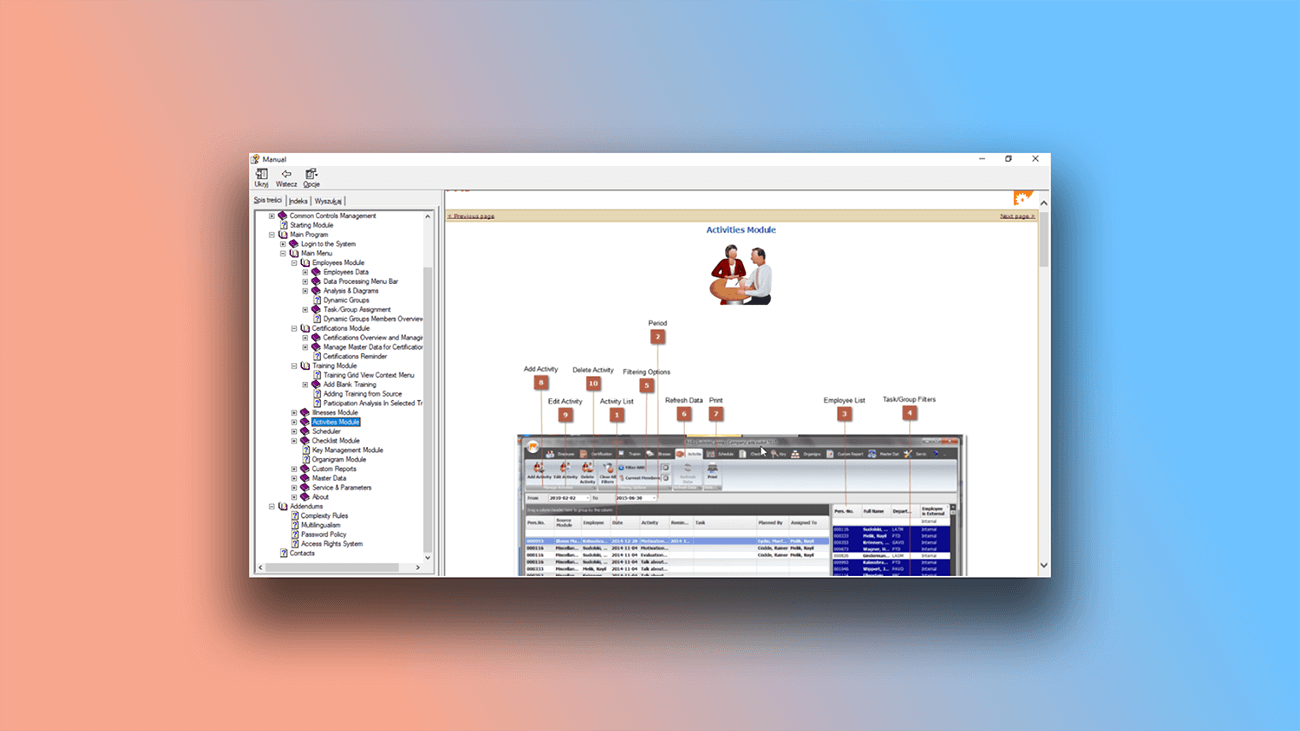
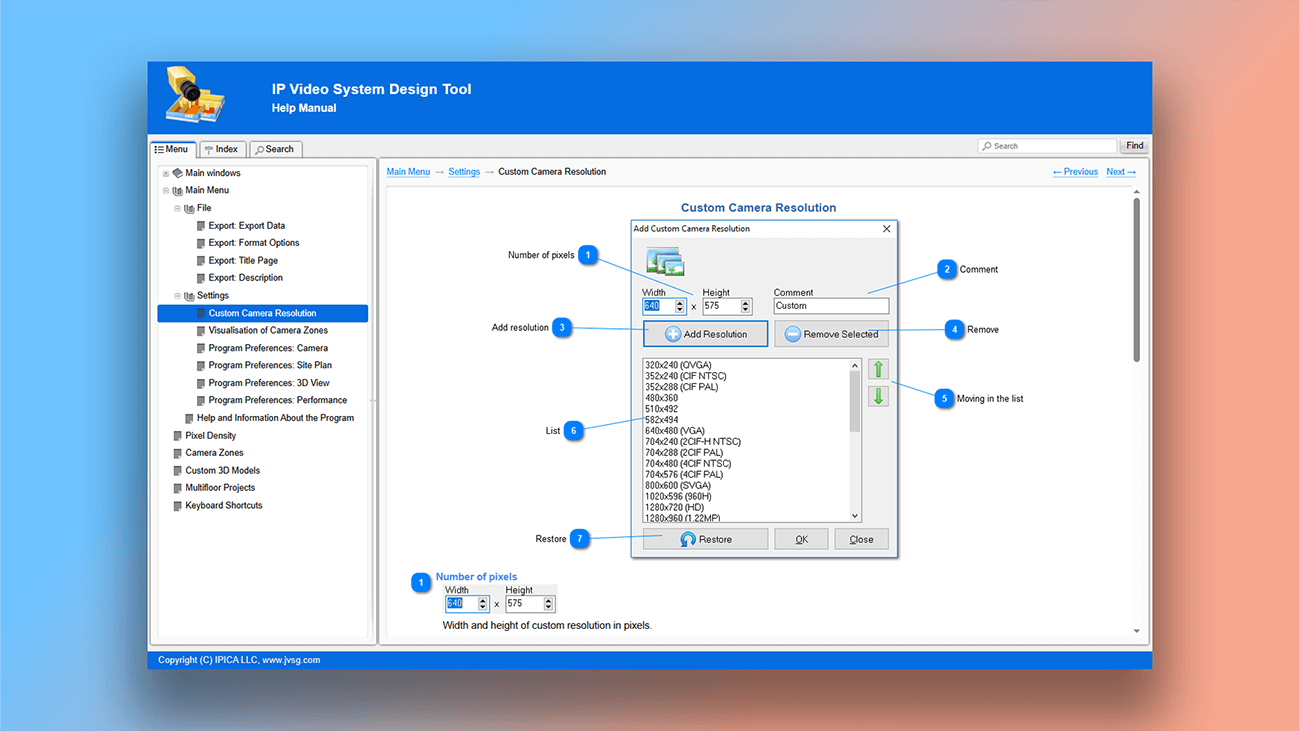
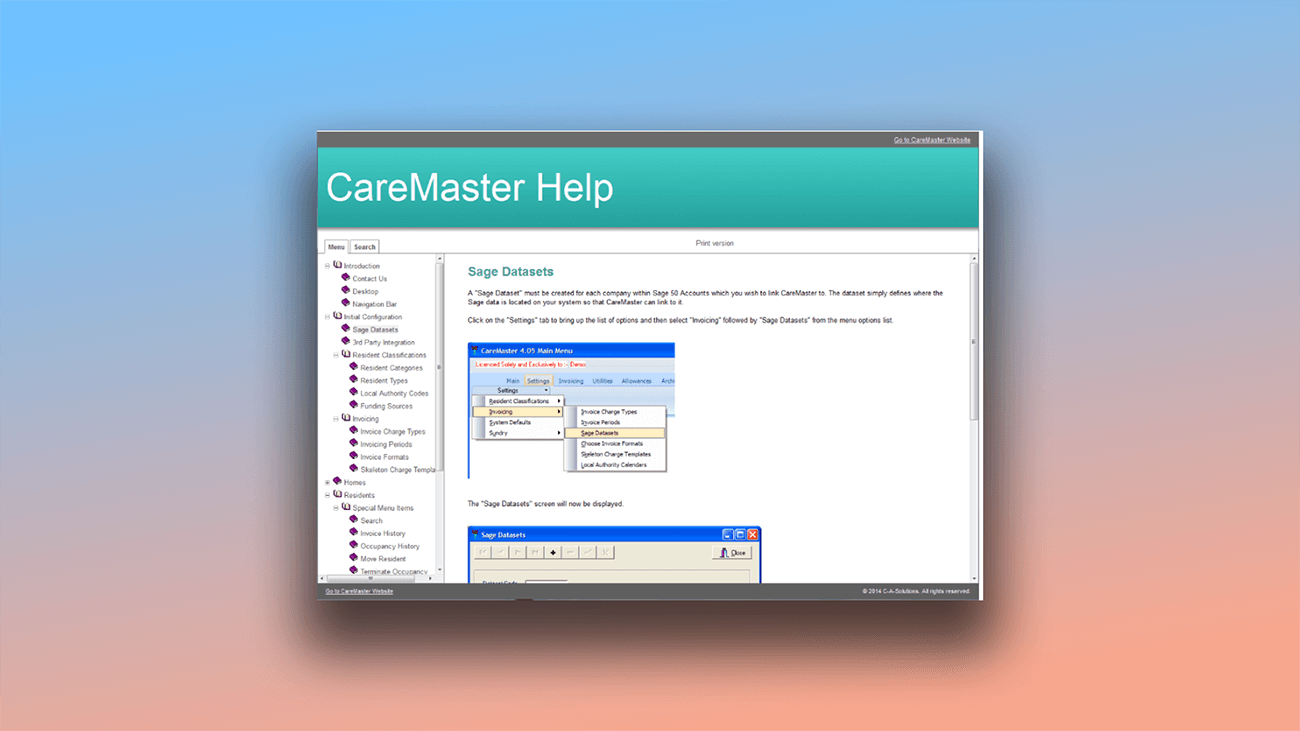
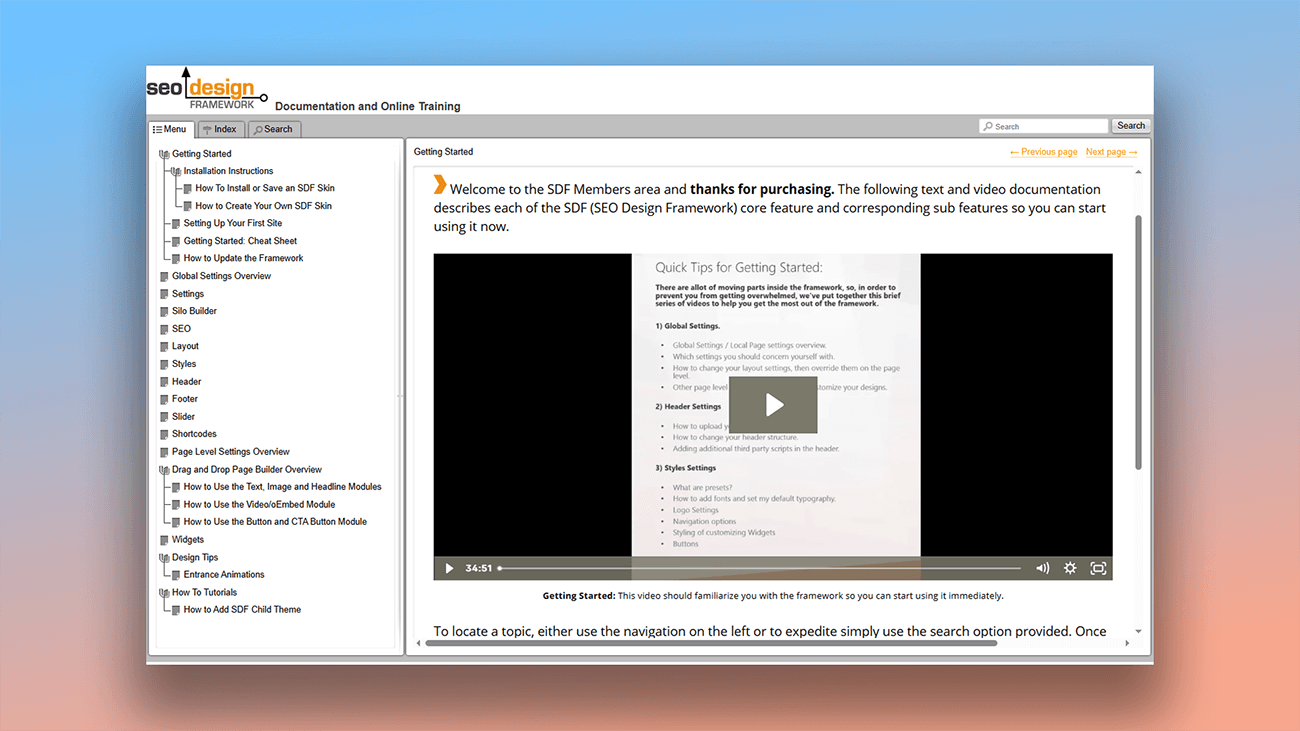
What are the benefits of using Dr.Explain?
Help Context IDs connect interface elements to specific support topics, giving users instant access to relevant information. This improves the user experience by eliminating time-consuming searches through the entire documentation.
Well-structured documents. Create logically organized projects that are easy to scale and maintain.
Clear navigation. Enables users find information quickly and master instructions faster.
Flexible export options. Generate documentation in popular formats from a single project, with no coding required.
Create professional, user-friendly guides efficiently — all within one authoring tool.
What type of users is Dr.Explain suited for?
Dr.Explain works for authors at any skill level — from complete beginners to experienced professionals. It delivers high performance, modern content tools, and flexible pricing for everyone.
Here's how it can benefit you:
- create polished user documentation quickly;
- use an all-in-one tool — capture screens, auto-annotate, and export to multiple formats;
- build online guides without technical skills;
- apply custom styling to match your brand;
- embed custom code or widgets into your guides;
- enable team collaboration on the same document.
Users about contextual Help IDs in Dr.Explain

"Using Dr.Explain, we not only have created a context-sensitive help system, but also made it user-aware. This way, we sort of provide a different help system based on the user’s privileges".
Robert Sibilski, CEO and chief programmer of Siborsoft
Interview with Robert

"We are very happy with our current help docs and the integration with our tools. From any dialog or panel in the software, we can now click on Help and open the relevant page in the docs. I think our main focus going forward will be to create more videos and embed these directly in the docs".
Are Tømmerås, Senior Geologist
Interview with Are
Frequently Asked Questions
Where can I read more reviews about your program?
You'll find user success stories on the page Dr.Explain users' success stories and use cases.
Can I open old Word documentation in your program and continue working on it?
Yes. Your document structure will be preserved during import.
Can I embed video in the content using Dr.Explain tools?
Yes. You can insert video, tables, text blocks, insert anchor links, and much more.