



Screenshot automatic annotation
When creating help files or user manuals, authors often need to annotate screenshots to highlight useful features or important interface elements. This helps users understand the software and visually identify what each control does. Dr.Explain offers automatic screenshot annotation.
Simplify the process by automatic screenshot annotation: you capture a window and Dr.Expain generates numbered callouts. All you need to do is add descriptive text.
Here’s how a screenshot looks with automatically generated annotations:
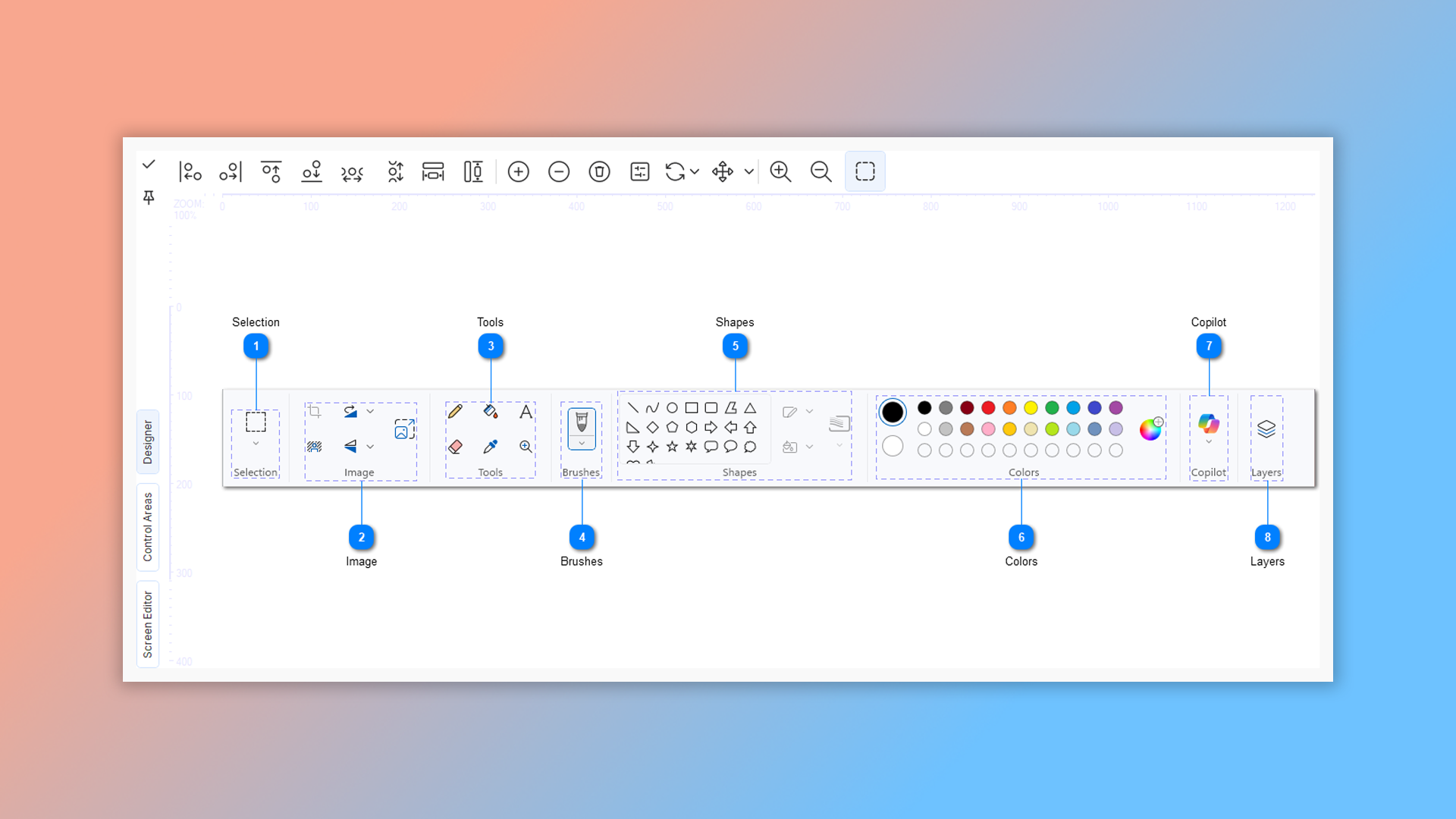
How to annotate images in Dr.Explain?
Dr.Explain captures application windows or web pages and uses algorithms to automatically detect interface elements like buttons, input fields, and menus. It then generates numbered callouts with labels, making it easy to add clear explanations for each item.
When capturing the screen, Dr.Explain highlights interface areas, letting you selectively annotate specific parts.
You can also capture the entire window at once, only a part of interface:
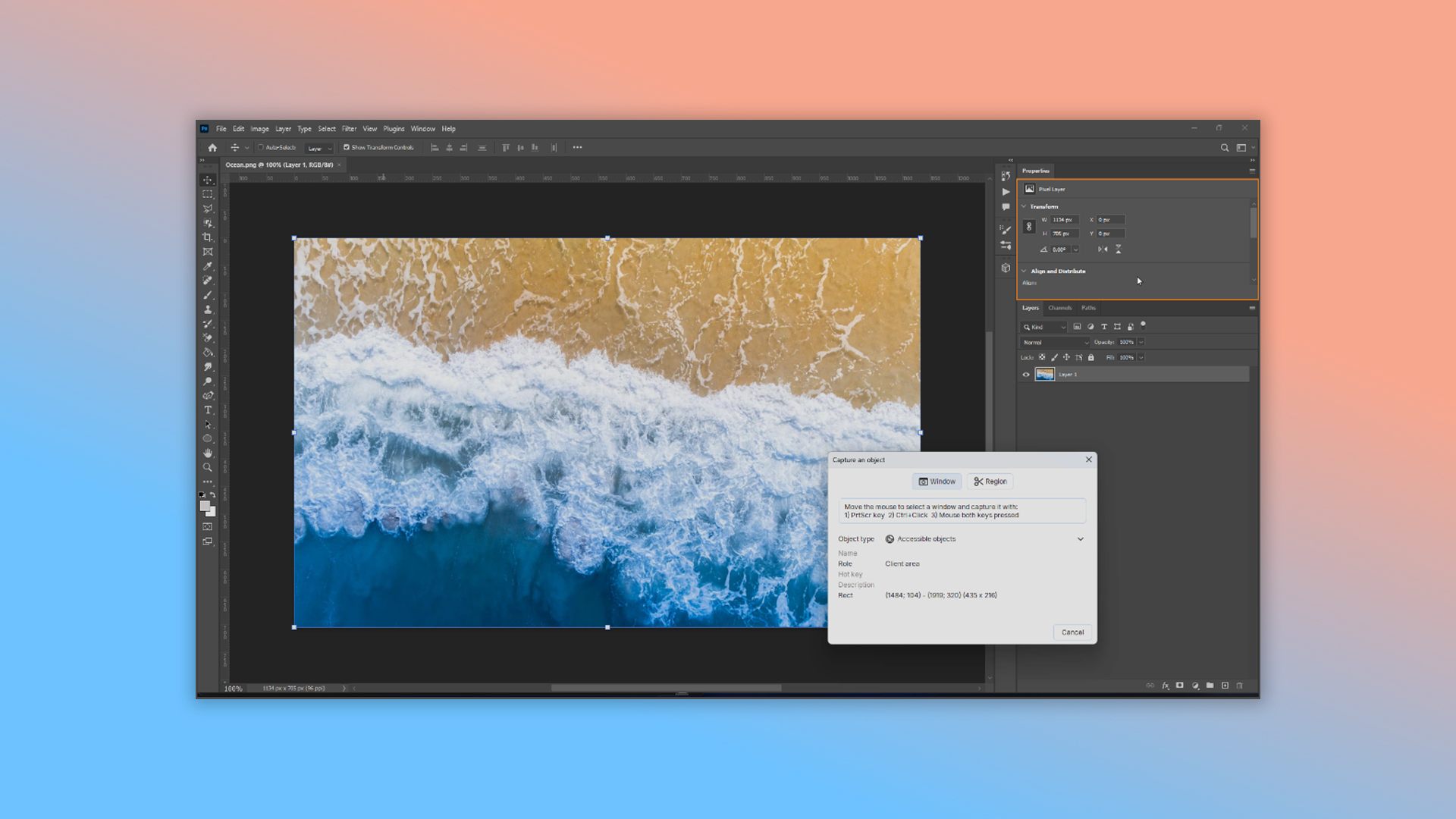
Or just a selected region:

After capturing the screen, the tool will automatically highlight interface elements and open the annotation designer. Here, you can adjust the image, zoom in or out, and add or remove unnecessary controls — the shapes that mark important on-screen items. Customize the annotation style to match your user guide and software, then add descriptions for each interface element. Once done, you’ll have a clear, informative screenshot that explains your software’s features — ready to use in your documentation.
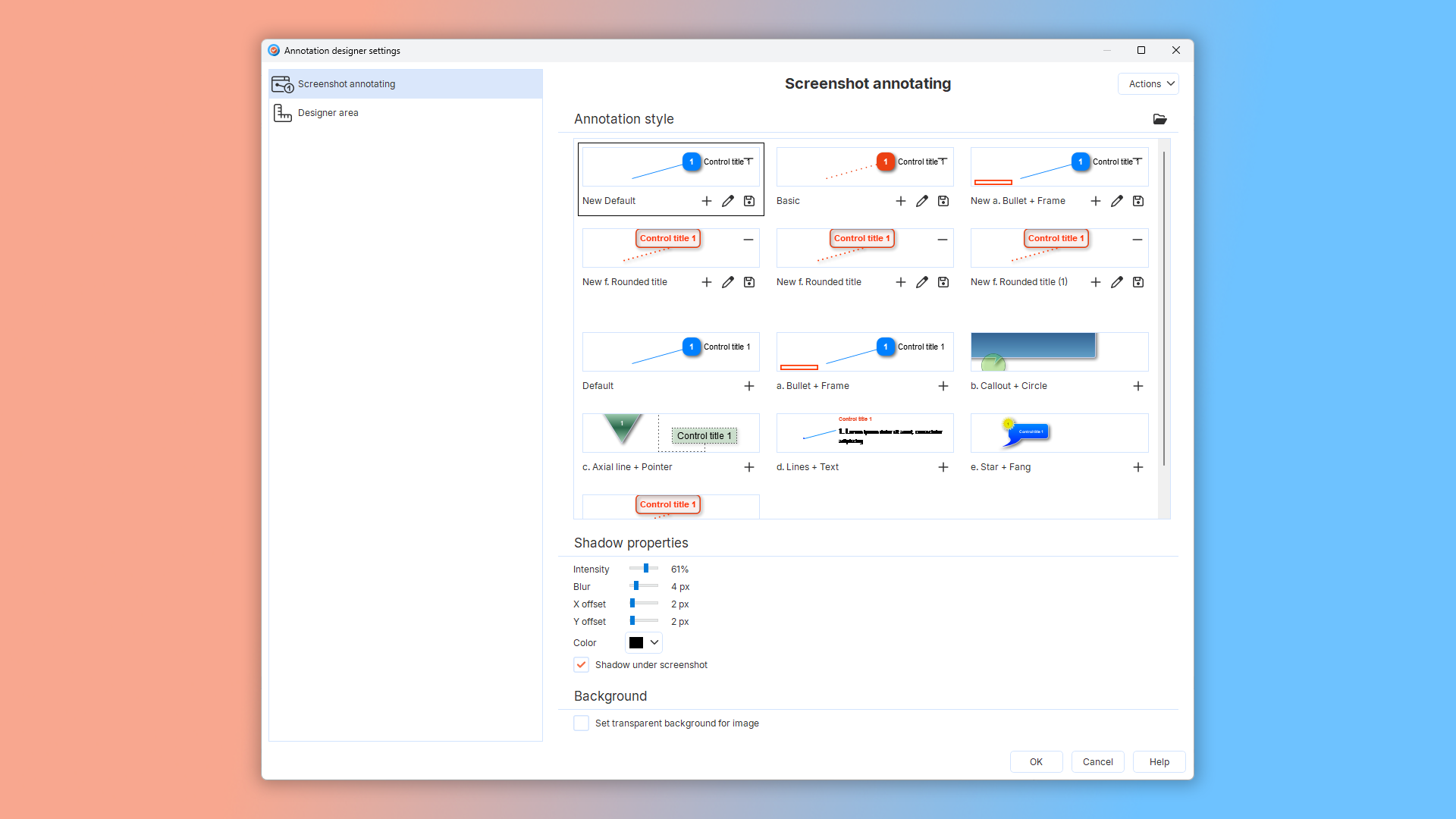
Each new screenshot is automatically added as a new topic in the table of contents. Annotation capabilities make a technical writer’s work much easier — no need for third-party tools to describe the interface. At the same time, users get clear visual guides that help them understand the program or web service faster and more comfortably.
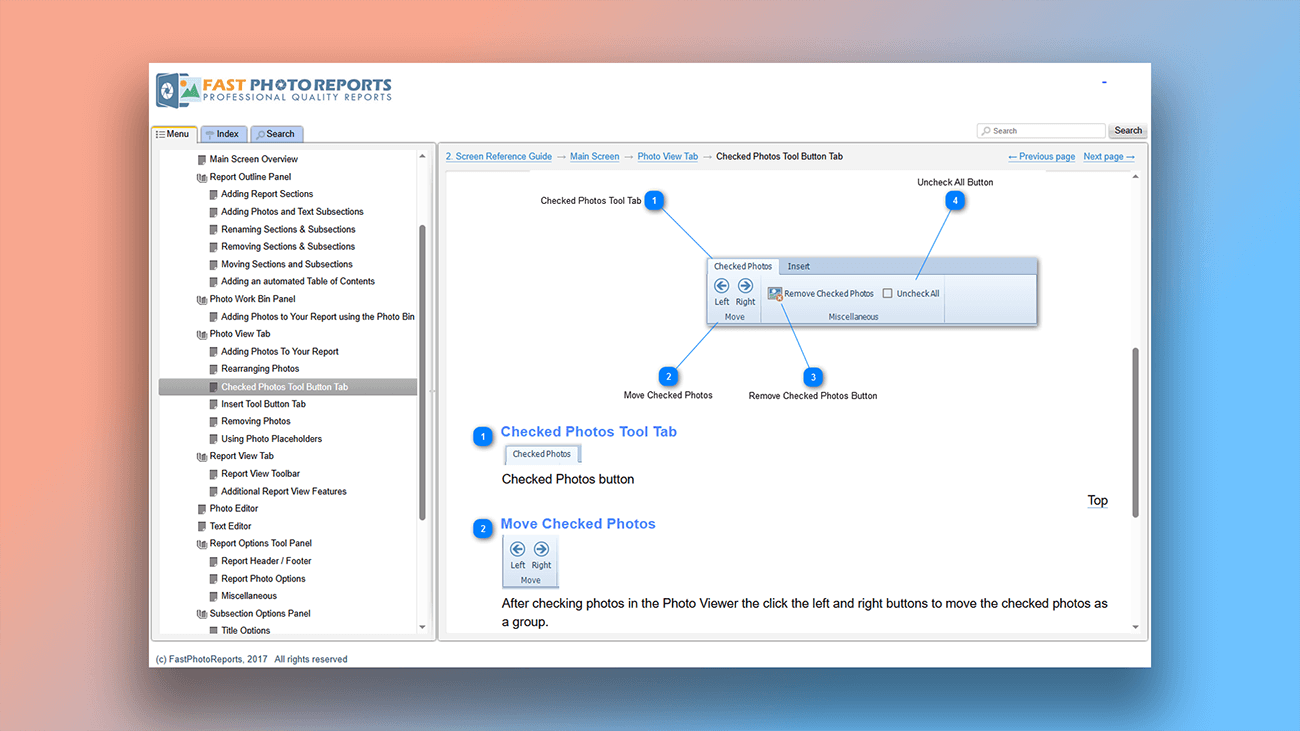
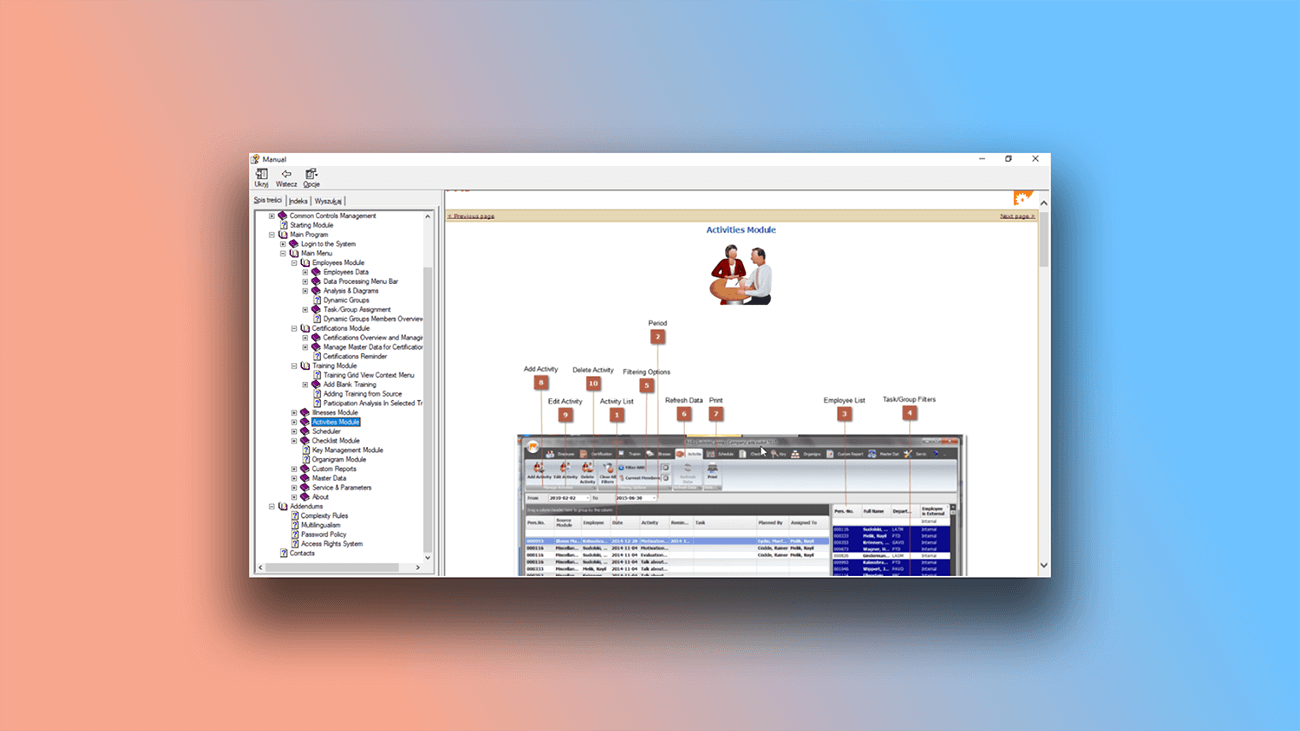
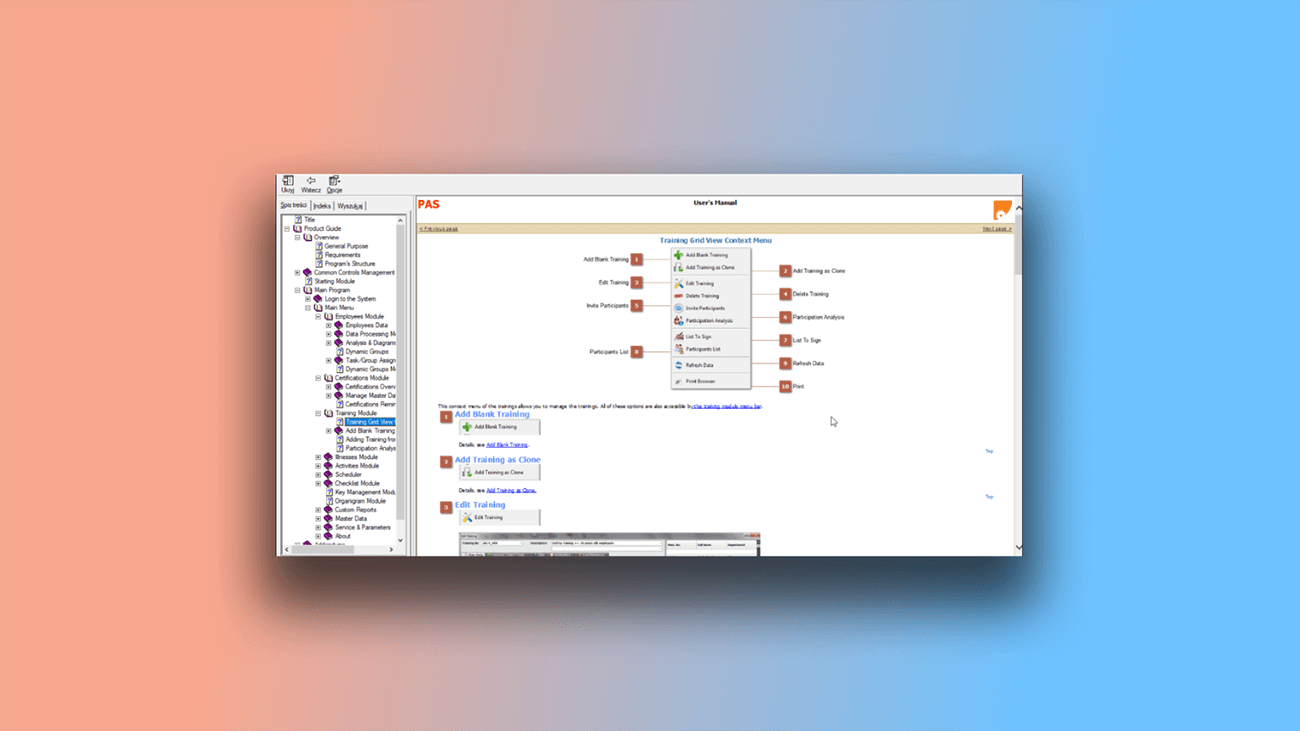
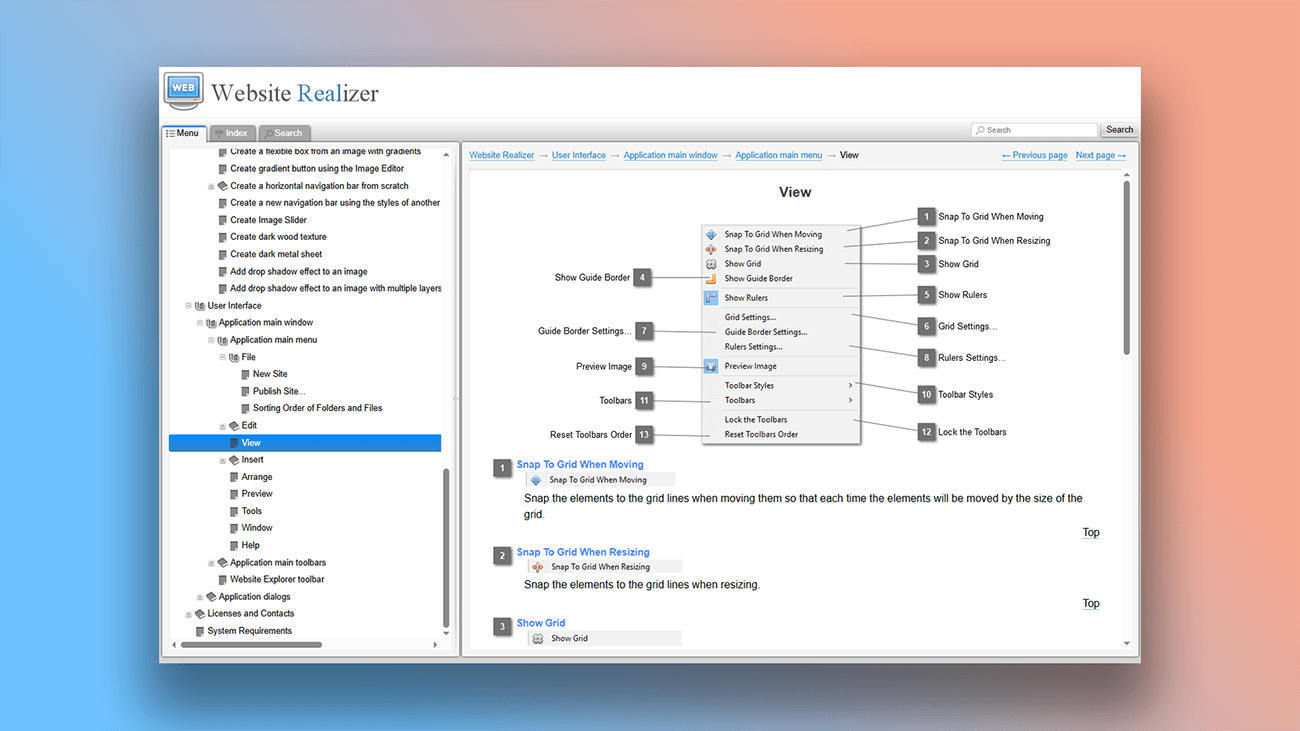
Examples of user guides created in Dr.Explain
On our website, you can not only see real examples of user manuals created with Dr.Explain but also read success stories from people that use the help authoring tool to solve real challenges and improve their key metrics.
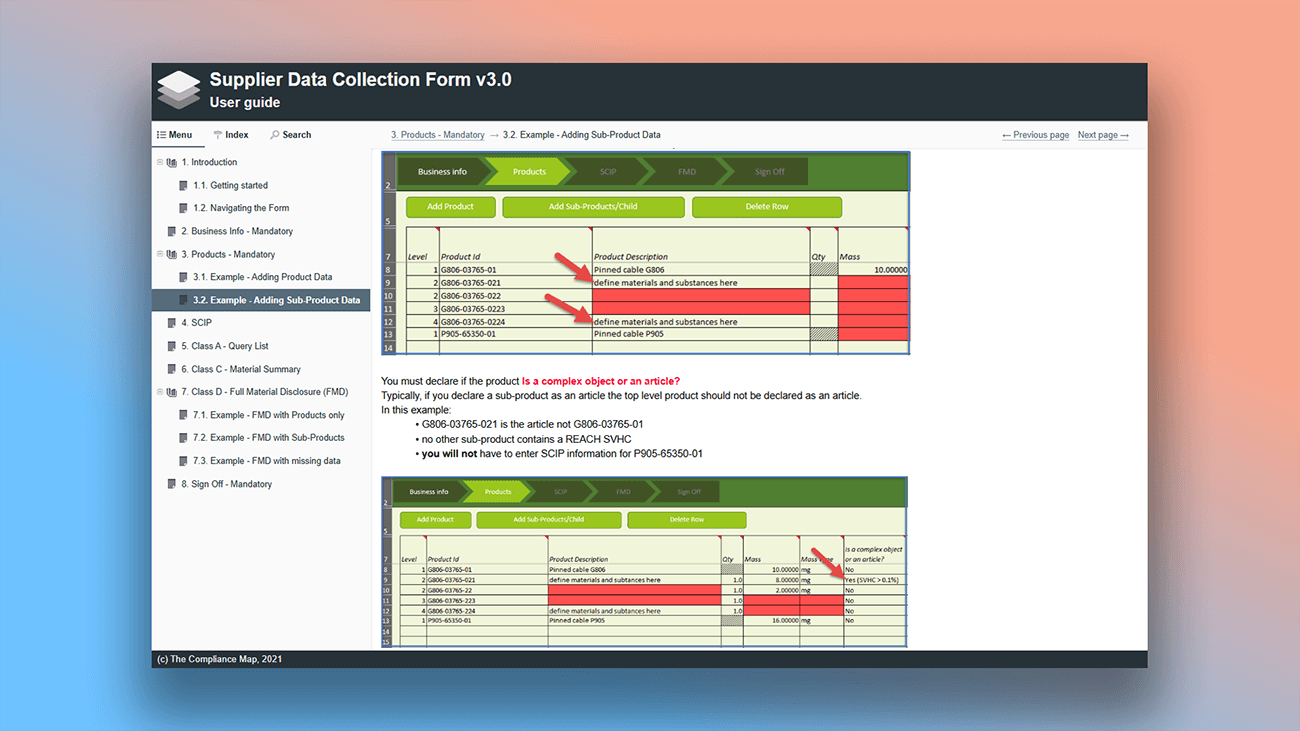
Here are just a few types of guides you can create with our software:

What are the benefits of using Dr.Explain?
Authors will save significant time. By using ready-made templates and automated tools, you'll speed up documentation development while achieving professional-looking results designed for user comfort.
Easy and intuitive annotation tools. Dr.Explain provides flexible settings for arrows, frames, and callouts, making screenshots clearer without requiring extra effort or third-party software.
Efficient handling of large projects. Dr.Explain accelerates work on big documentation projects that require numerous annotated screenshots.
Consistent documentation standards. Automatically generated annotations help maintain uniform formatting, giving your documents a professional appearance and improving information clarity.
Comparison of annotations in the cloud service and in Dr.Explain
Cloud platforms (SaaS) have gained significant popularity recently. Let’s compare the capabilities of an online documentation service with the functionality of help authoring tool Dr.Explain.
| Cloud service (SaaS) | Dr.Explain application | |
|---|---|---|
| Safety | Data is stored on a remote server. | Data is stored locally on your computer. |
| Performance | Dependent on internet connection speed and stability. | Dependent on computer's processing power. |
| Export | Primarily for online documentation (HTML). Rarely supports CHM or DOCX. | Equally effective for print, application-integrated, and online guides (PDF, CHM, DOCX, HTML). |
Many cloud services focus primarily on publishing documentation within their own platform, which can limit your ability to export to other formats. The choice between Dr.Explain and a cloud service depends on your specific needs and priorities. If you require advanced automation and detailed annotation features, Dr.Explain may be the better option. If accessibility and real-time collaboration are more important, a cloud service might be the right choice.
What type of users is Dr.Explain suited for?
Dr.Explain is a desktop help authoring tool, offering distinct advantages over cloud-based services — particularly in security and performance. It’s the right solution when you need:
- advanced tools for working with images and graphics;
- flexible control over your documentation’s visual design;
- progress tracking, especially when multiple authors are collaborating;
- spell checking in multiple languages;
- the option to purchase a permanent ("perpetual") license.
Users about automatic annotation of screenshots in Dr.Explain

"Dr.Explain was recommended to us by another software vendor, mainly because of the ability to easily annotate screenshots within the application. We have a lot of different panels and dialogs in our software, so this was a feature we saw as very useful. The option to easily publish our docs online is also very useful for us".
Are Tømmerås, Senior Geologist at Migris
Interview with Are

"The workflow is very convenient and natural. The software automatically takes the screen snaps and prepares the documentation for you to simply describe the functions. It is almost like an interview, so you can just answer the questions instead of staring at the screen with writer’s block, trying to figure out where to start".
Jeff Tindall, the chief architect at Tindall Media
Interview with Jeff

"The development was particularly straightforward, and the image annotation was a very impressive feature. So we purchased a license, and then found that tooltip mouse-overs enhanced the user’s experience even further".
Greg Bergsma, the CEO at Raptor SSC Pty Ltd
Interview with Greg
Frequently Asked Questions
Do you have the Dr.Explain user guide?
Yes, read more about our help authoring tool in Dr.Explain user manual.
Can I edit and modify the annotations that your application generates?
Yes, you have full control to edit all auto-generated annotations.
Are there examples of documentation created with Dr.Explain?
Yes, you can view real-world examples on this page.