



Enrich your documentation content with images, tables, links and objects
Enrich your documentation with multimedia and interactive content. Dr.Explain supports images, special objects, links, fonts, video. You can embed special objects directly into your guides. This helps you to create richer, clearer documentation without switching between different tools.
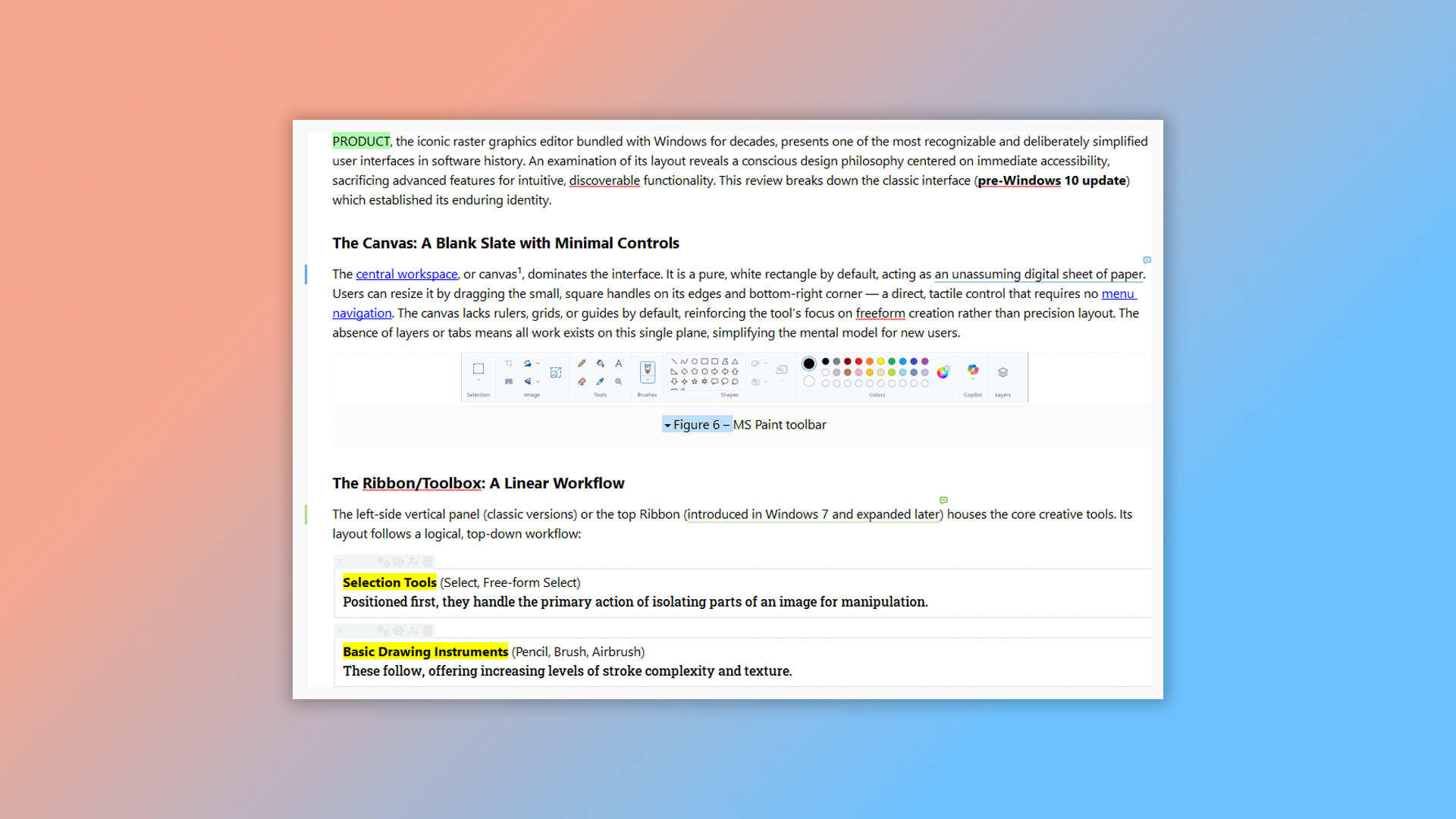
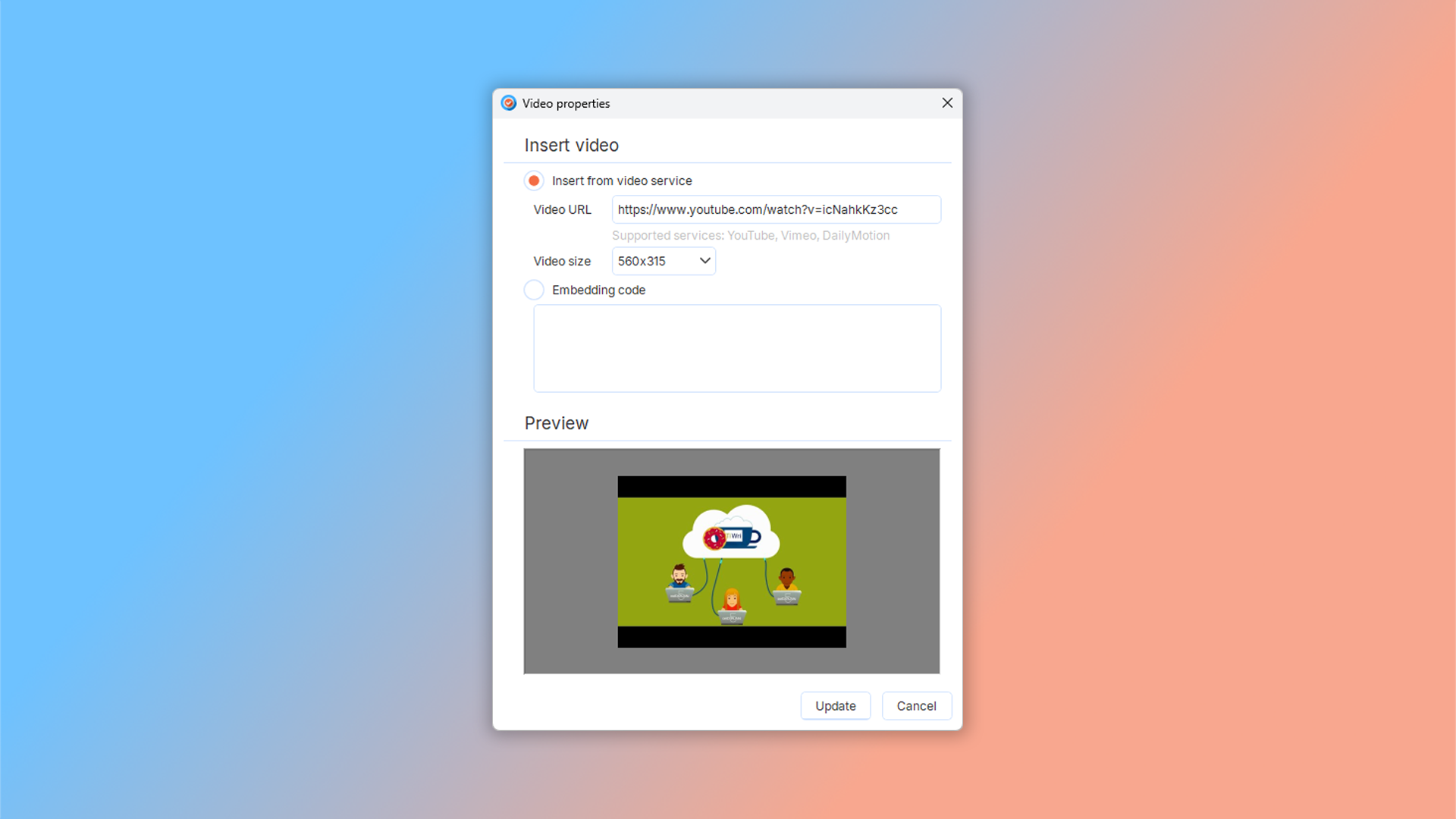
You can add images either by pasting from the clipboard or by inserting files in common graphic formats. Include links to external resources or to other topics within your help file. Dr.Explain will automatically detect broken links and alert you if any are invalid. You can also embed video directly into your online guide, giving users a helpful visual introduction to your software’s features.
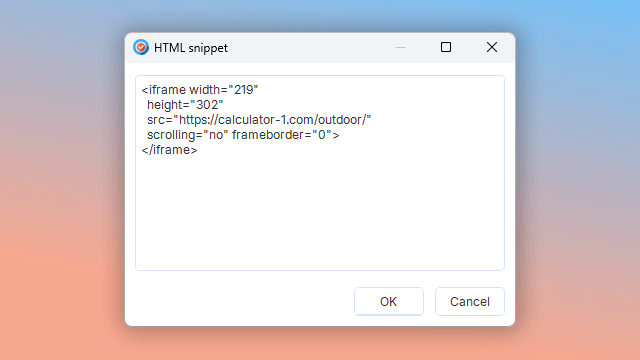
Enhance your guides with interactive and structured content. Embed HTML snippets to include custom scripts, special objects, or widgets — making your online documentation more dynamic and engaging. Use tables to organize information clearly, and add anchor links for precise deep-linking within your guide. Create variables to reuse frequently used text, ensuring consistency across your documentation. Plus, built-in spell checking with multilingual dictionaries helps you catch and correct errors effortlessly.
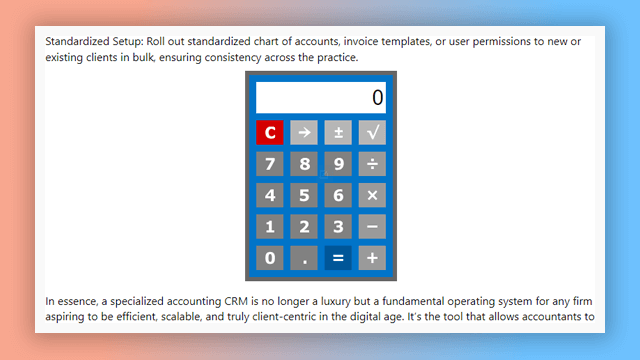
Dr.Explain makes documentation easier with support for images, interactive elements, links, multi-level lists, and rich text formatting — all in one streamlined workspace.
How to add objects to content?
Visuals make guides clearer and more engaging. In Dr.Explain, you can insert images in several ways: Use Ctrl+C/Ctrl+V to paste directly drag and drop files into the editor. Click the Insert Image button on the toolbar.
Example guides created with Dr.Explain
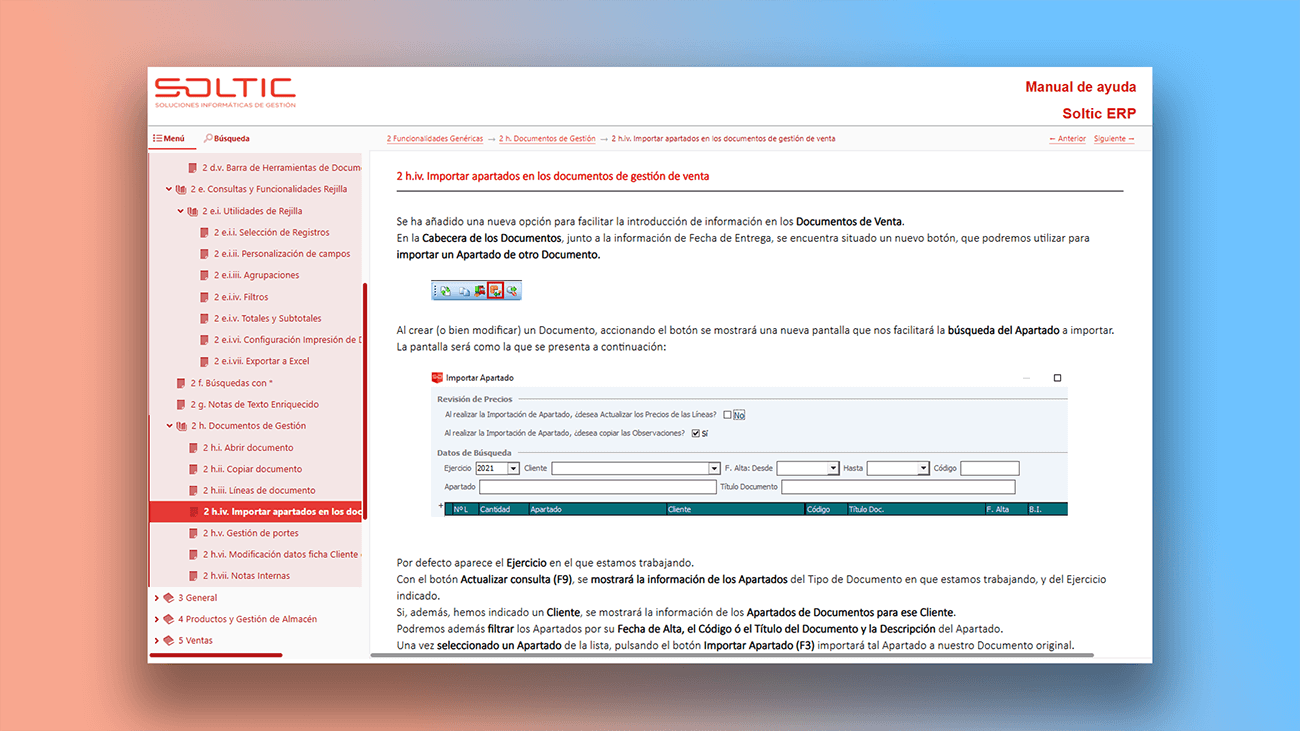
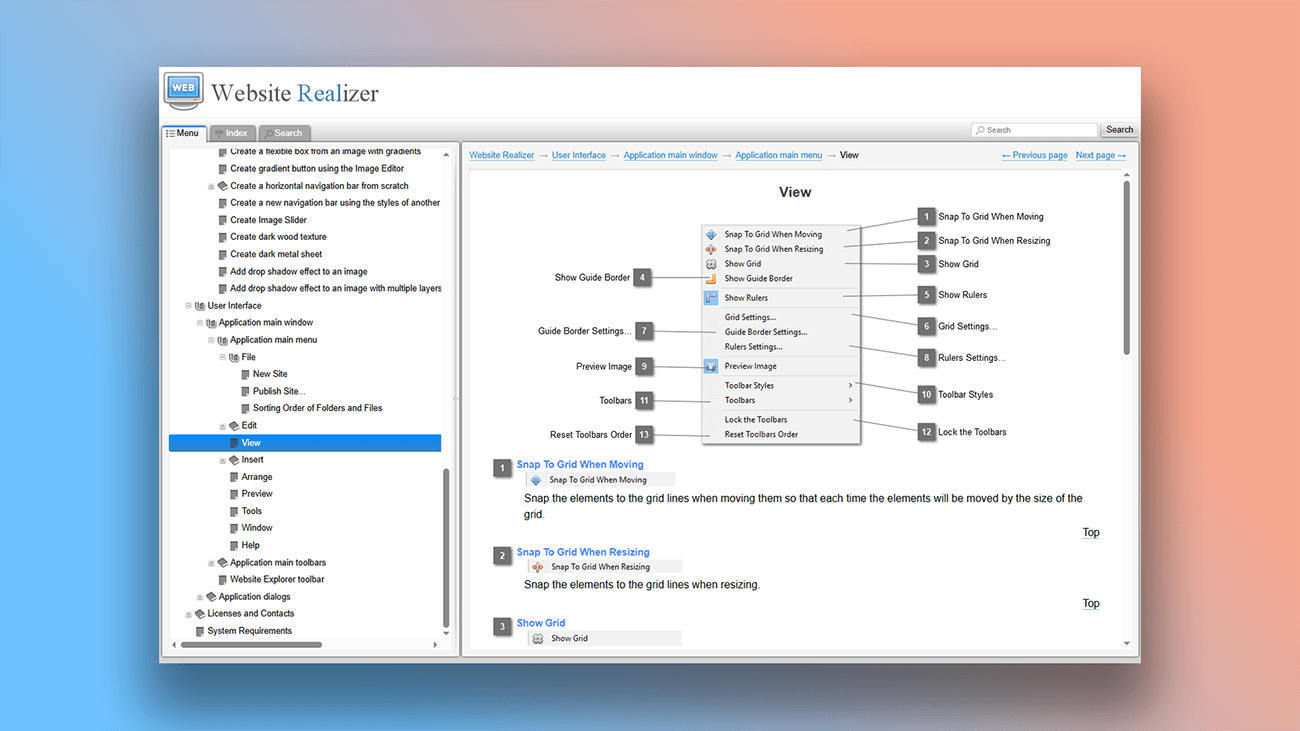
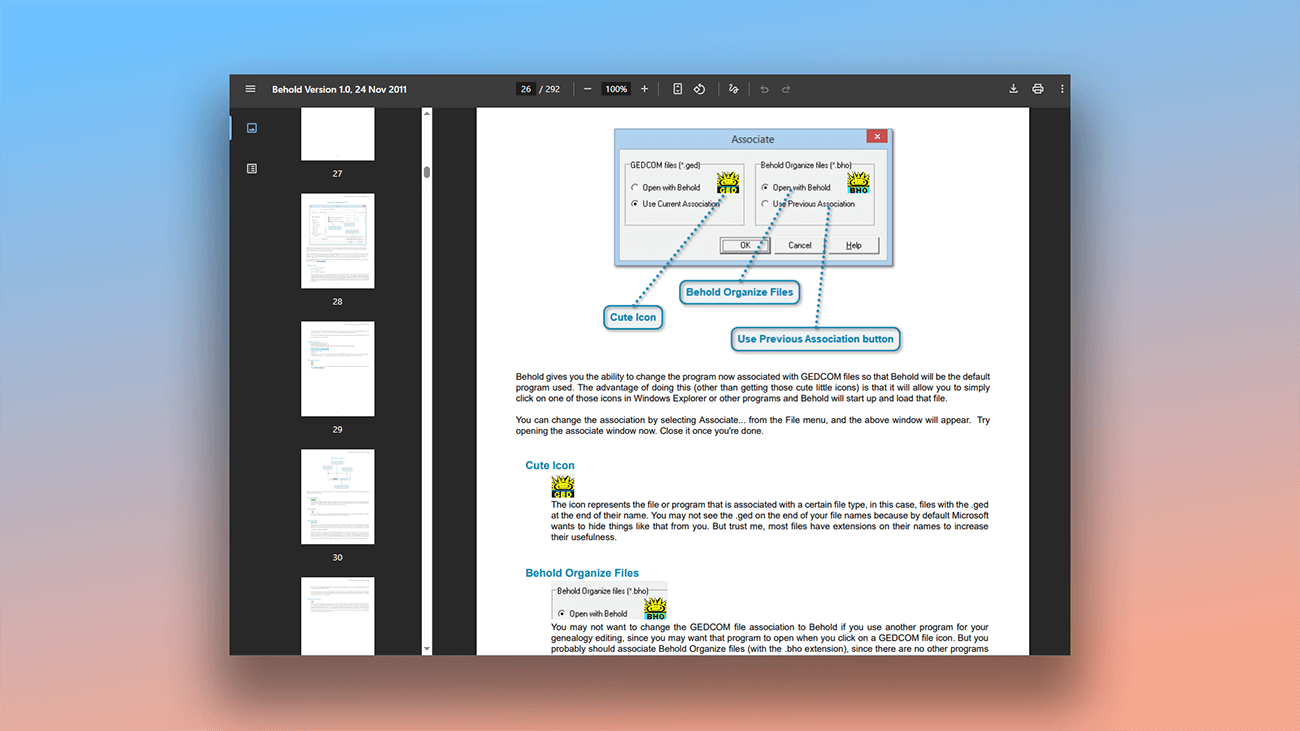
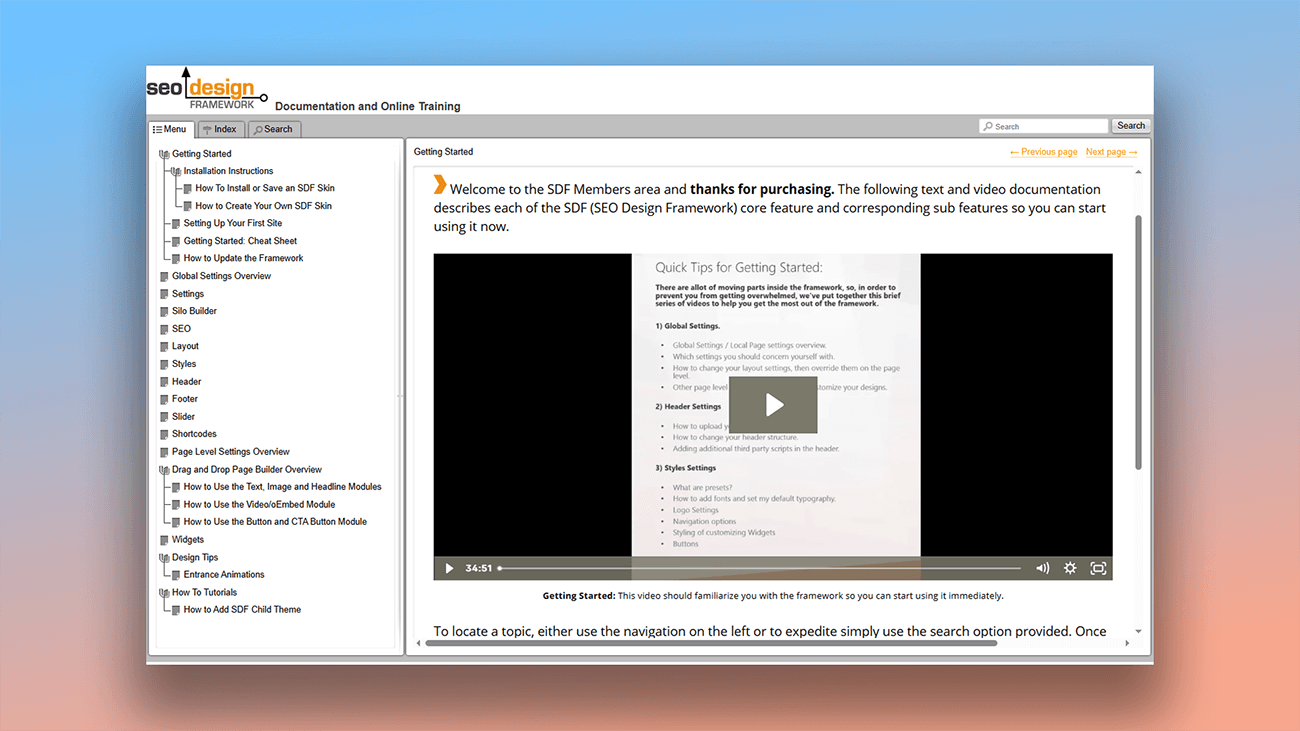
Embedding HTML widgets, scripts, videos, or links helps bring instructions to life. Below are real user manuals made using these features.
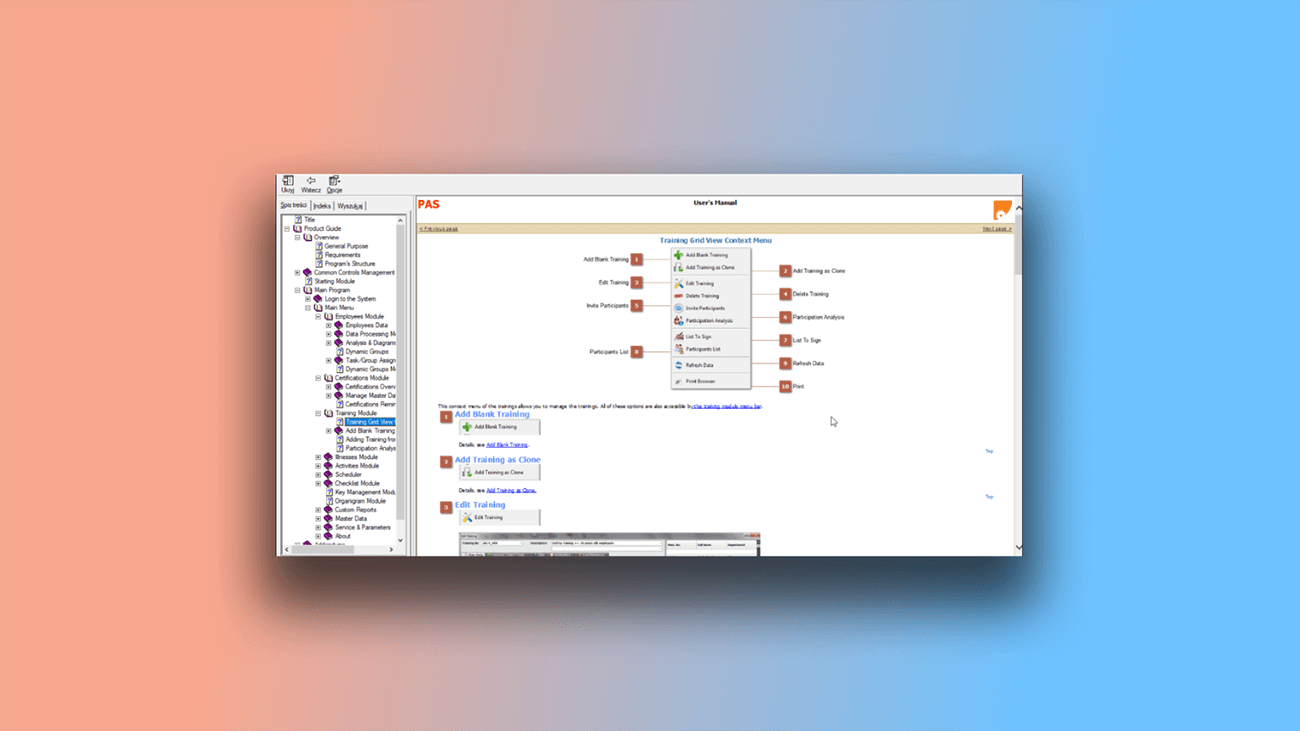
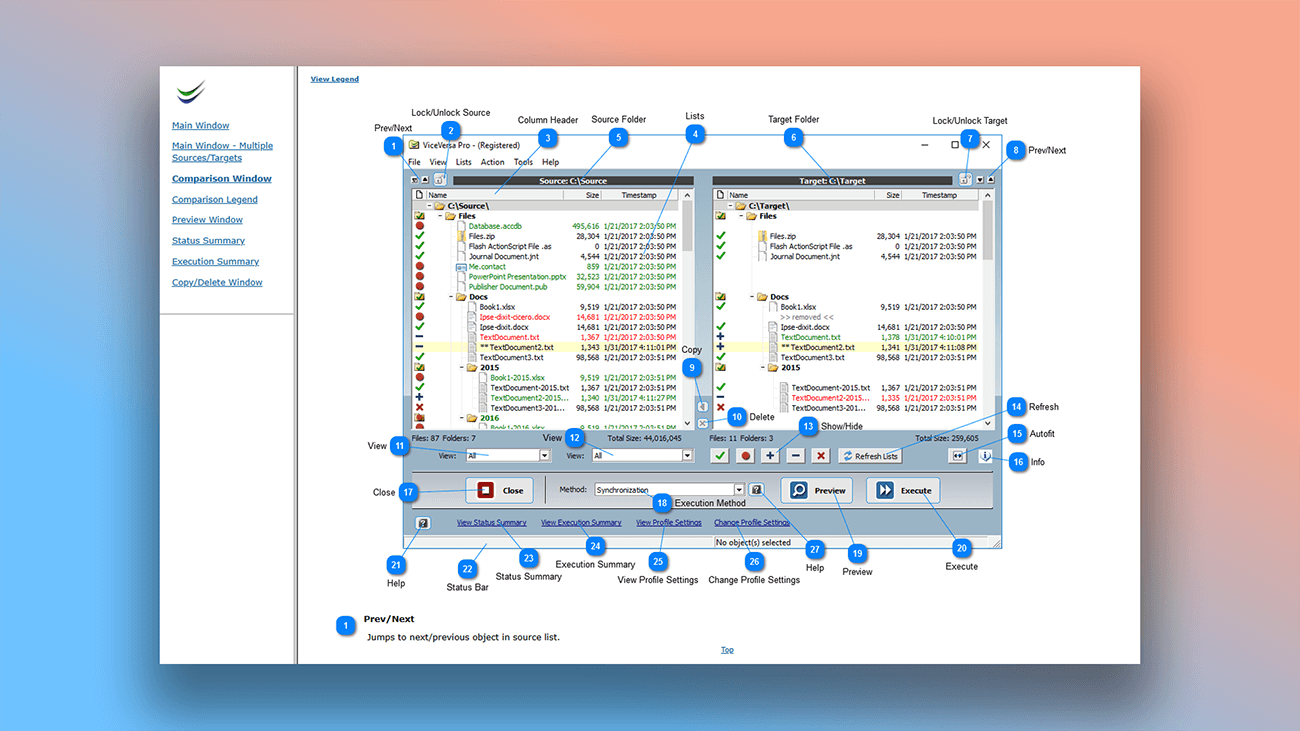
What are the benefits of using Dr.Explain?
Create professional user guides in Dr.Explain without extra software or coding skills. Use ready-made templates to speed up planning and export your finished document in just a few clicks.
Customizable design. Choose from a variety of templates and graphic styles to give your screenshots, diagrams, and charts a polished look. Adjust label fonts, colors, arrows, and other elements to match your brand.
Wide image format support. Dr.Explain works with common file types:
- PNG;
- JPG;
- GIF.
Flexible, dynamic documentation. Cross-references and smart linking help readers jump between related topics — no more scrolling or searching manually.
What type of users is Dr.Explain suited for?
Dr.Explain is a help authoring tool for anyone needing desktop software to create user documentation, especially in these situations:
- you want a free trial version before purchasing;
- you need automated screenshot annotation;
- you require multi-format export (PDF, HTML, CHM, DOCX);
- you’re creating complex documentation with deep nesting;
- you prefer a desktop application over cloud tools;
- you need real-time collaboration on documents.
Users about the convenience of working in Dr.Explain

"Because Dr.Explain is specifically designed for documentation, it made the whole process so much easier. For example, searching, indexing, hyperlinks, etc".
Mike McLoughlin, senior developer in Champion Software
Interview with Mike

"We really enjoy using this product, and embedding videos and links into social media is a big plus! We can tweak the HTML to our needs. I would love to see the ability to embed documents in the program, so that we could include objects like Visio diagrams etc".
David Swindon, CIO of Trustco Group Holdings
Interview with David
Frequently Asked Questions
Is there a tool for adding anchor links?
Yes, there is. You can test anchor links directly in the preview mode. More about Inserting anchor links.
Can I resize embedded videos?
Yes, you can adjust the video player size.
Does the program include spell checking?
Yes, spell checking supports multiple languages. More about spell checking.