



Topic statuses
In Dr.Explain, the topic status system makes it possible to monitor the progress of your work. Set a specific status for the topic, which will mark it in the topic tree with the appropriate color.
Track your progress visually with Dr.Explain's status system. Assign a status to any topic, and it will appear as a color-coded indicator in the topic tree — so you can see your progress at a glance.

How to use topic statuses in Dr.Explain?
To assign a status to a topic, click the status icon in the topic properties. You can define your own status logic or follow the suggested system below:
- white – not started;
- yellow – in progress;
- red – awaiting review or approval;
- green – completed.
This turns your documentation structure into a progress heat map, giving you a clear visual overview of your project’s status. Use statuses to track work and plan next steps. You can also lock topics to prevent unwanted edits and assign keywords to improve navigation — all from the topic tree.
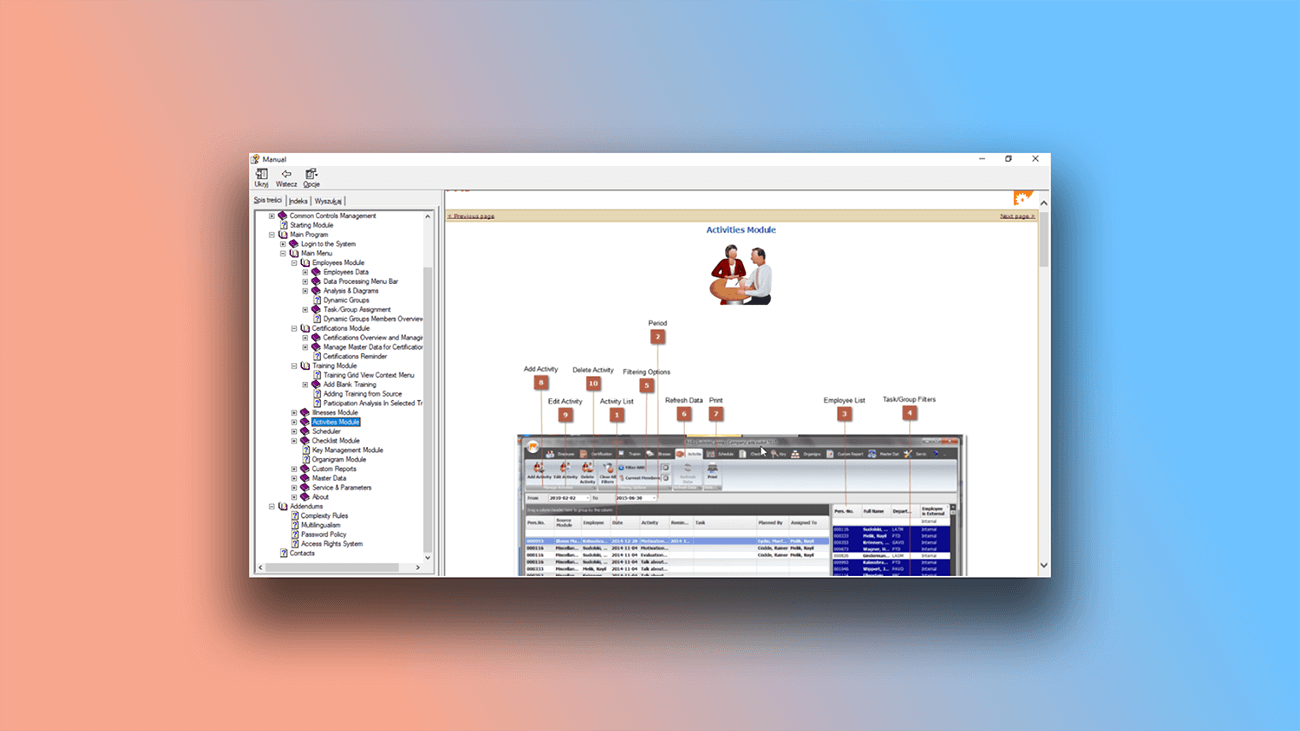
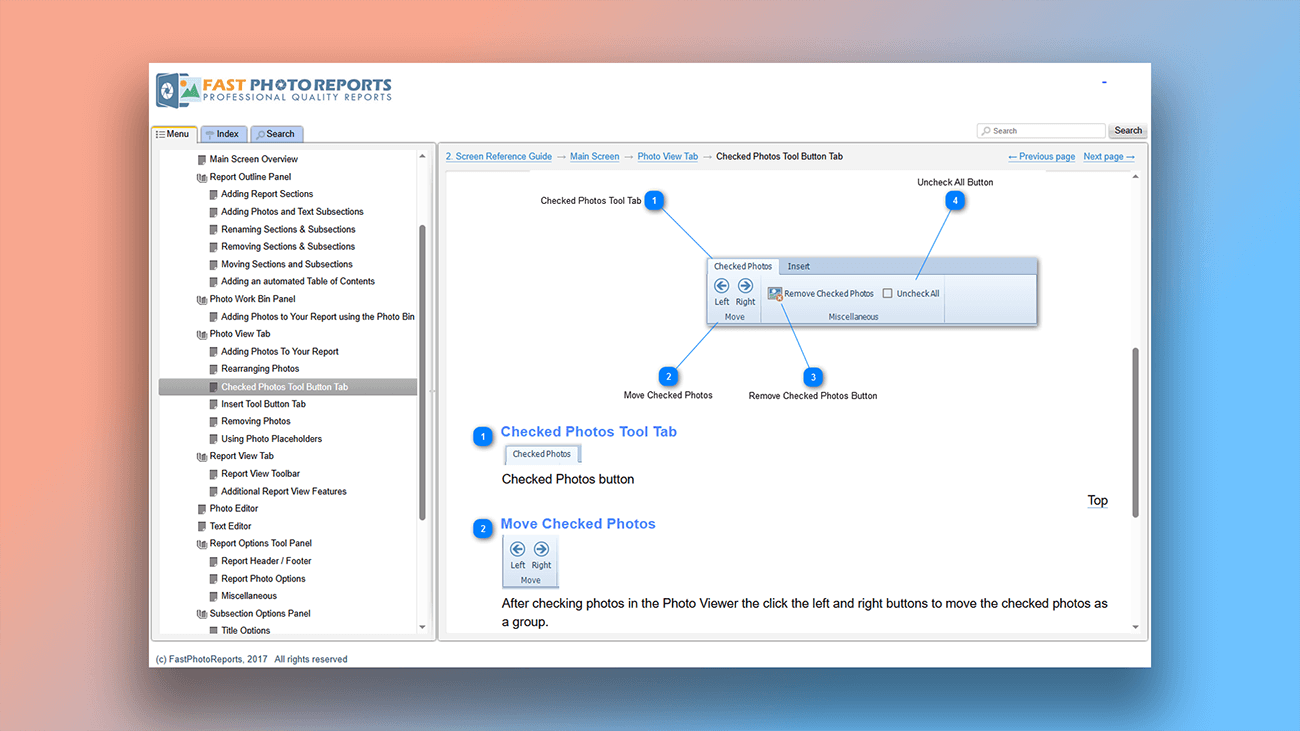
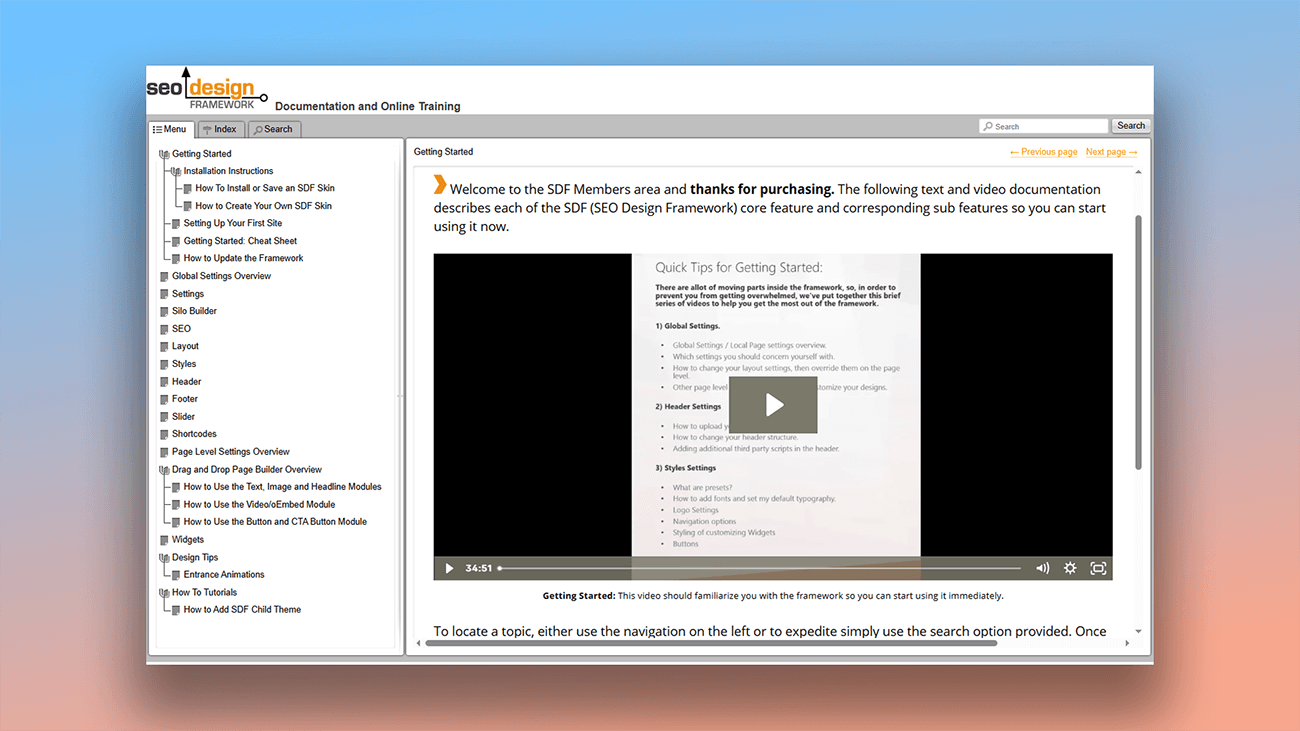
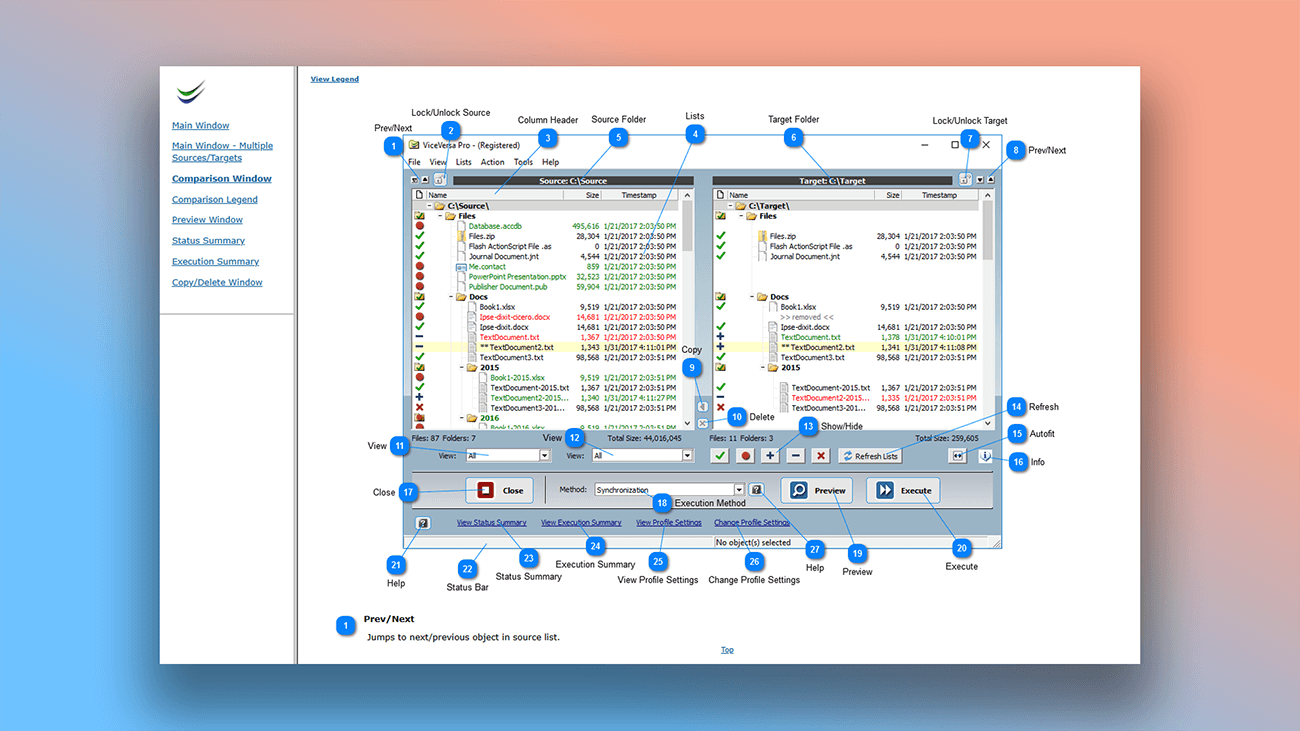
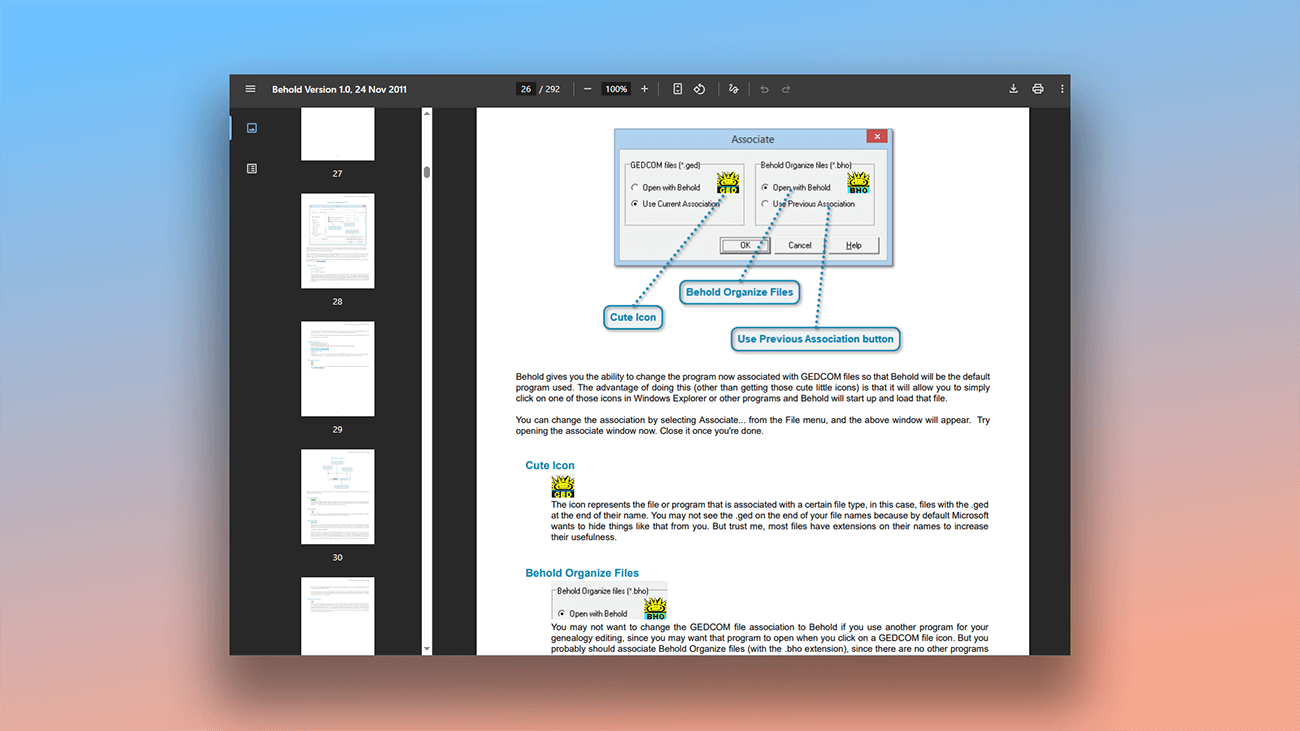
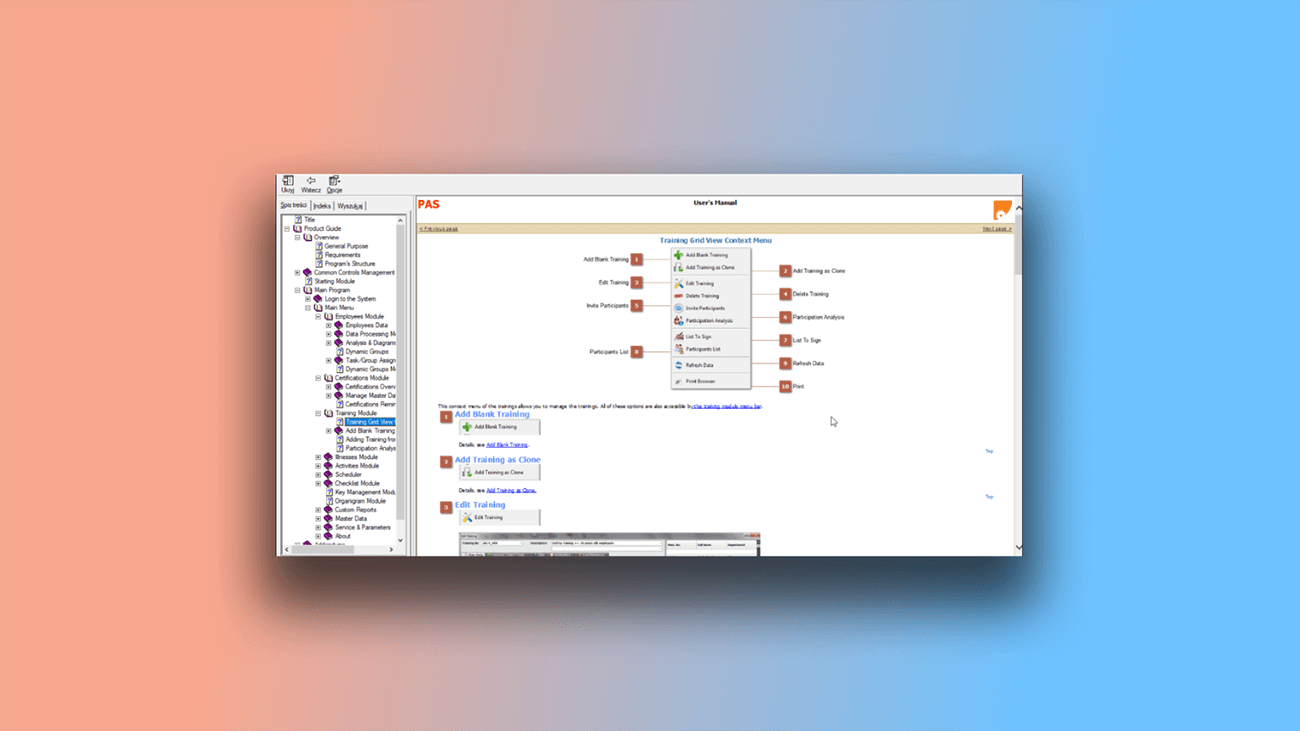
Examples of user documentation created in Dr.Explain
User documentation, like any living document, requires ongoing updates. It's essential to see the big picture: which topics are finished but need refreshing, which are still in progress, and so on. With Dr.Explain, you get a clear overview of your workload and priorities. Just as important, you can fully customize your project’s design — because a visually polished document improves how users understand and engage with your content.
What benefits will you get with Dr.Explain?
Dr.Explain’s status system turns your documentation into a visual progress map, where each topic is color-coded based on its completion level — making planning and tracking easier.
Track progress visually. See at a glance which topics need work and which are ready to publish.
Customize your help system’s design. Match the look and feel of your documentation to your website or application’s branding.
Save time with ready-made templates. Jumpstart your projects with professionally designed layouts. Templates help teams maintain a consistent structure, especially helpful for new authors.
What type of users is Dr.Explain suited for?
Dr.Explain works for experts and beginners alike — experts will appreciate its advanced customization options, while newcomers can quickly create modern, professional projects. Try this help authoring tool if you need to:
- quickly build a help system and export it to multiple formats;
- rely on stable, well-supported software with years of ongoing development;
- track progress across all topics of a large project;
- create deeply nested content with unlimited subtopics;
- use a desktop-based solution (not just web-based);
- automatically generate annotated screenshots.
Users about working with topic statuses in Dr.Explain

"When testing Dr.Explain, we found that it produces help systems whose design is easy to customize. It meant that now we can quickly implement the design that we need. We also liked the ability to se t a status for each help topic. It was very convenient, especially in our case (we have to maintain help systems in several languages)".
Olga Mikheyeva, head of the documentation department of ELMA
Interview with Olga

"The ability to set the status of each help section proved to be very handy, too. Thanks to that, after importing the old help version, we could easily see which sections need to be updated, which ones are being edited, and which ones have already been updated".
Natalia Obukhova, a business analyst with CRM Expert
Interview with Natalia

"You have the option to simply flag the root nodes to be hidden and then produce the documentation to only include what is visible. Everything in one place means that we have a comprehensive master document per project".
David Swindon, CIO of Trustco Group Holdings
Interview with David
Frequently Asked Questions
Does Dr.Explain include spell checking?
Yes, with support for multiple languages.
Can I reorganize documentation by dragging and dropping topics?
Yes. You can drag any topic and drop it anywhere in your documentation structure.
Can I import an existing project and continue working on it in Dr.Explain?
Yes. Your project’s structure and content will be preserved during import.
Can I see examples of projects created with your software?
Yes, you can view examples of user manuals.
Can I create web-based documentation without coding skills?
Yes. Dr.Explain automatically generates ready-to-publish online help — no coding required.
Will topic statuses be visible in the final published documentation?
No. Statuses are internal markers to track progress during development — they’re not shown to end users.