



Published: .
Recently, the Docs-as-Code approach has been gaining traction for developing user documentation. It's positioned as a convenient, modern way of working — especially effective if your company is involved in software development.
Real-world examples of the Docs-as-Code approach in action:
- Faster publishing at AWS. One Amazon Web Services (AWS) team switched from documenting in Word to docs-as-code. As a result, the time from writing to publishing documentation dropped by 25%, and later by 50% after further refinements.
- Time savings at Red Hat. Red Hat's migration to docs-as-code took just 6 months, with the typical onboarding time for developers clocking in at 2–4 weeks.
- Faster ramp-up for new hires. Adopting docs-as-code can reduce the time it takes to onboard new developers by up to 35%.
What are the downsides of this methodology? Is Docs as Code really necessary for writing help systems, or is it more of a tool for technical specs and API documentation? In this article, we'll explore what the approach is all about, when it makes sense, and let you decide for yourself: should you make the switch, or keep developing your help system the way you always have? We'll cover the following points:
- Docs as Code vs. DITA
- What is Docs as Code in the context of writing help systems?
- Advantages and disadvantages
- Who is Docs as Code a good fit for?
- What alternatives exist to this methodology?
- Hybrid approaches
- Final recommendation
Docs as Code vs. DITA: clearing up a common confusion
Before diving deeper into the Docs as Code approach, it's worth addressing a frequent point of confusion: the relationship — and difference — between Docs as Code and DITA (Darwin Information Typing Architecture). Many newcomers assume these are competing alternatives. In reality, they operate on entirely different levels and can even complement each other.
The core distinction: workflow vs. architecture
Think of it this way:
- Docs as Code is a workflow methodology. It answers the question: "How do we write, review, and publish documentation as part of the software development lifecycle?". Its pillars are plain text, version control (Git), pull request reviews, and CI/CD automation.
- DITA is an information architecture standard. It answers the question: "How do we structure, reuse, and version content at scale?". It defines strict rules for topics, maps, conditional processing (profiling), and content reuse (conref, keyref).
To use an analogy: Docs as Code is about the factory assembly line (the workflow), while DITA is about the blueprint and modular parts (the content architecture). You can have one without the other, or both together.
Where the confusion comes from
The confusion arises because both approaches often share two visible traits:
- They favor plain text over binary formats — DITA uses XML (usually .dita files), Docs as Code typically uses Markdown or AsciiDoc. Both are human-readable and version-control-friendly.
- They enable single-sourcing — both allow you to publish multiple outputs (HTML, PDF, CHM) from a single source.
However, the complexity and philosophy differ dramatically.
Key differences at a glance
| Aspect | Docs as Code (typical) | DITA |
|---|---|---|
| Underlying format | Lightweight markup (Markdown, AsciiDoc, reStructuredText) | Strict XML (with predefined elements: <task>, <concept>, <reference>) |
| Learning curve for writers | Moderate — Markdown takes hours, Git and CI/CD take weeks | Steep — understanding topic types, maps, conditional attributes, and tooling takes months |
| Content reuse model | Basic — includes and transclusions (e.g., `!include`), limited variables | Advanced — conref (reuse by reference), keyref (indirect linking), conditional filtering by product/audience |
| Tooling ecosystem | Lightweight generators (MkDocs, Docusaurus, Sphinx, Antora) + CI pipelines | Heavyweight XML editors (Oxygen XML Editor, XMetaL, SDL Contenta) or CCMS (Tridion Docs, Ixiasoft) |
| Typical output formats | HTML (web-first), PDF (via plugins, often with complex setup), CHM (very rare) | PDF (highly polished), HTML5, CHM, Microsoft Help, and even printed manuals out of the box |
| Target audience for the approach | Developer-led teams, startups, open source projects, API documentation | Large enterprises, regulated industries (aerospace, medical, defense), global publishing with heavy reuse |
| Typical project scale | Small to very large (e.g., Kubernetes docs use MkDocs with custom tooling) | Medium to massive (thousands of topics, dozens of product variants, multiple languages) |
Can you use DITA with Docs as Code?
Yes, absolutely. The two are not mutually exclusive. You can adopt the Docs as Code workflow while using DITA as your content architecture. Here's what that looks like in practice:
- You store `.dita` and `.ditamap` files in a Git repository.
- You write and edit them using an XML editor (or even a plain text editor if you're brave).
- You use pull requests for peer review and change tracking.
- You set up a CI/CD pipeline that runs a DITA Open Toolkit (DITA-OT) build to generate HTML, PDF, or CHM automatically.
- You deploy the output to a web server or package it with your application.
This combination is actually quite common in mature organizations. For example, large tech companies with heavy reuse requirements (like IBM or Oracle) often use DITA as the authoring standard but have adopted Git + CI/CD for collaboration and automation. In this scenario, DITA provides the semantic richness and conditional logic, while Docs as Code provides the modern developer-friendly workflow.
When would you choose DITA over Docs as Code (or vice versa)?
Here is practical guidance:
- Choose DITA (with or without Docs as Code workflow) if:
- You need extreme content reuse — the same paragraph, warning, or step appears across dozens of products or audiences.
- You operate in a regulated industry that requires strict audit trails and standardized content types (e.g., safety warnings must be tagged as <warning>).
- You produce documentation for multiple product variants (e.g., Professional, Enterprise, Ultimate) from a single source using conditional filtering.
- You already have a team of dedicated technical writers with XML training.
- Choose Docs as Code (with lightweight markup) if:
- You want developers to contribute to documentation without learning a complex XML schema.
- Your documentation is mostly narrative, tutorial-style, or API reference (where Markdown shines).
- You value speed of setup and deployment over strict architectural purity.
- You are publishing primarily to the web (HTML) and PDF is a secondary concern.
A note on AsciiDoc
If you find yourself torn between the simplicity of Markdown (Docs as Code) and the semantic power of DITA, look at AsciiDoc. AsciiDoc is a lightweight markup language that supports many DITA-like features: cross-references, conditional content (profiling), include directives, and even basic content reuse. Tools like Antora (which uses AsciiDoc) are often described as "Docs as Code with DITA-like capabilities." It is not a full replacement for DITA in heavy enterprise scenarios, but it covers a surprising amount of ground.
The bottom line
Do not confuse Docs as Code with DITA. They answer different questions. Docs as Code changes how you collaborate and publish. DITA changes how you structure and reuse content. You can adopt either, both, or neither — depending on your team's size, your industry requirements, and your content complexity. In fact, some of the most sophisticated documentation systems in the world use DITA + Git + CI/CD, blending the best of both worlds.
What Is Docs as Code?
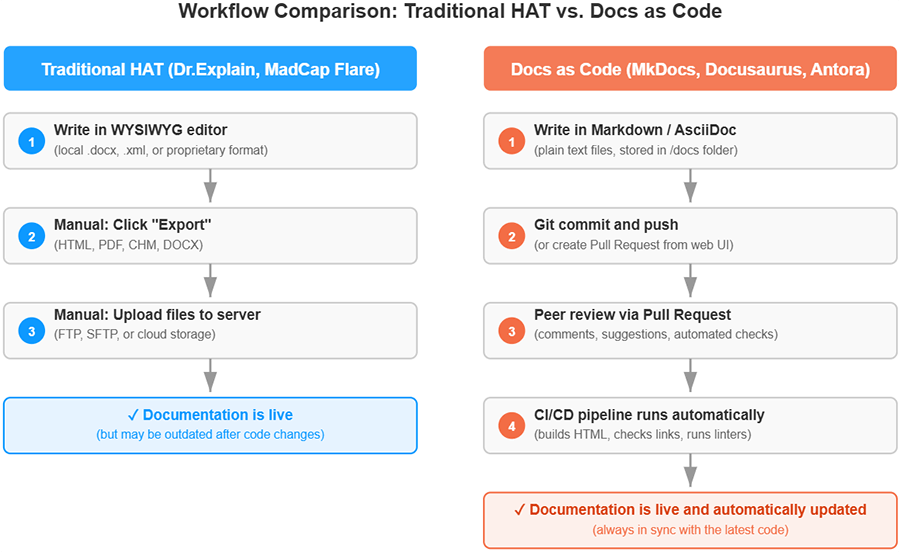
In simple terms, Docs as Code means moving away from traditional office editors (Word, Google Docs) and visual tools like Confluence in favor of a unified system where documentation becomes just as much a part of the project as the code itself. Instead of heavy DOCX files or closed systems, documentation is written in plain text files using lightweight markup languages like Markdown (the most popular), AsciiDoc, or reStructuredText.
These files are stored in a version control system (usually Git) right alongside the code. And when it's time to publish, CI/CD (Continuous Integration/Continuous Delivery) tools step in — they automatically turn those files into a nice-looking HTML website, PDF, or other formats. The process might sound complicated, but in practice it's not that hard.
Comparing Approaches to Creating User Documentation
| Criteria | Desktop application | SaaS platform | Docs as Code approach |
|---|---|---|---|
| Typical examples | MadCap Flare, Adobe RoboHelp, HelpNDoc, Dr.Explain | ClickHelp, Document360, HelpJuice, GitBook | MkDocs, Docusaurus, Sphinx, Antora |
| Markup language | Visual editor (WYSIWYG), occasionally XML/DITA | Visual editor (WYSIWYG) | Text-based (Markdown, reStructuredText, AsciiDoc) |
| Storage & version control | Proprietary binary or XML projects, limited Git integration | Vendor cloud, change history exists but version control is limited | Files in Git. Full history, branches, pull requests |
| Collaboration | Weak (via shared network folders) | Strong. Comments, notifications, real-time co-editing | Strong (via PR). Transparency, code review, automated checks |
| CI/CD integration | None | None | Full. Automated builds, link checking, deployment |
| Primary output formats | HTML, PDF, DOCX, CHM, ePub | HTML, PDF, DOCX | HTML |
| Key strengths | Powerful tools for complex print output, CHM | Easy to start, browser-based, built-in analytics | Transparency, automation, unified workflow with development |
| Key weaknesses | High cost, complexity, tied to a desktop | Less control over data, challenges with CHM and complex PDFs | Requires technical skills (Git, CI/CD), not suitable for CHM |
Core principles of Docs as Code
The Docs as Code approach rests on four pillars:
- Plain text formats. Markdown (or similar) only — this ensures lightness, transparency, and compatibility.
- Version control (Git). Every change is recorded. You can always view edit history, compare versions, or roll back a bad change.
- Review via Pull Request (PR). Documentation changes go through the same review process as code. A developer adds a new feature and proposes documentation updates through a Pull Request. Colleagues leave comments, and then the changes are merged into the main branch.
- Automated building and publishing. As soon as changes are accepted, the CI/CD system automatically rebuilds the documentation and publishes it to the site — no manual "Export" button needed.
Let's look at a practical example.
Imagine a team building a mobile app called "FitTracker," and a very effective manager decides to adopt Docs as Code for writing the help documentation. Here's what a typical workday would look like with the new setup:
- Developer Ted adds new functionality — real-time heart rate tracking.
- Documentation is created and reviewed like code:
- Ted creates a new branch in Git for his task.
- Inside the /docs folder of the repository, he finds the pulse-monitoring.md file and updates it, describing the new feature in plain language using Markdown.
- He then creates a Pull Request (PR) to merge his changes into the main branch. Both the developer and the technical writer participate in this PR.
- Technical writer Maria reviews the PR. She sees exactly which lines Ted changed and leaves a comment: "Great description, Ted! Could you please also add a screenshot of what this looks like in the UI?"
- Ted adds a screenshot, commits it to the same branch, and Maria approves the PR. The changes are merged into the main branch.
- Automated publishing. As soon as the PR is merged, a configured CI/CD pipeline (for example, GitHub Actions) runs automatically. It takes all the Markdown files from the repository, builds them into an HTML website, and deploys it to the server hosting the app's online help.
- Users see the result. For instance, user Sarah opens the app, notices the new feature, and goes to the "Help" section (which is that very HTML site) — and sees up-to-date documentation with screenshots.
As you can see, the Docs as Code approach not only makes life easier for technical writers but also keeps documentation alive and tightly connected to the product. It’s worth adding that in a real-world scenario, this process is dependent on the team's documentation culture.
Popular tools in this ecosystem include MkDocs, Docusaurus, Sphinx, Antora, as well as hosting services like Read the Docs, GitHub Pages, and Netlify.
Here's an example of the Docs-as-Code approach in action: an article from Squarespace engineers — Making Documentation Simpler and Practical: Our Docs-as-Code Journey. While it's not about user documentation per se, they moved their docs directly into code repositories instead of using external wikis (like Confluence). This shift solved several fundamental problems:
- Sync with code. Changes to functionality and their corresponding instructions now live in the same Pull Request. You can't update the code and "forget" to update the documentation.
- Unified workflow. Developers don't have to switch between contexts and tools. The IDE is their primary environment for both code and text.
- Quality through peer review. Documentation now goes through peer review, which dramatically reduces factual errors.
- Versioning. You can always see what the documentation looked like for a specific version of the service six months ago.
- Automation. Using linters to check for broken links, formatting issues, and even inclusive language.
Squarespace also notes the following pain points during adoption:
- Entry barrier for non-engineers. Product managers, designers, or technical writers without Git and Markdown experience find it harder to make edits.
- Discovery is harder. When documentation is scattered across hundreds of repositories, creating a single "knowledge portal" requires extra aggregation tools.
- Infrastructure maintenance. Now you need to maintain not just the product, but also the pipelines for building and deploying the documentation site.
Advantages and disadvantages of the Docs as Code approach
Pros
- Full versioning and transparency. Every change is recorded. You can revert to any previous version of the documentation. This is especially valuable if you ship documentation alongside your product and need to match the software version exactly.
- Integration with development. Developers can edit documentation directly in pull requests and go through code review. This lowers the barrier for developer participation.
- Automated publishing. After changes are merged, the documentation updates on the site without any manual steps. Perfect for agile cycles.
- Design flexibility. You can customize the look and feel of your online help down to the smallest detail using modern front-end technologies.
- Free tools. Most tools are open source, and static site hosting is often free for open-source projects or small teams.
Cons
- High barrier to entry for technical writers. Learning Git, the command line, Markdown, and CI/CD basics takes time and distracts from content. Many experienced authors who are used to visual editors struggle.
- Challenges with multimedia and screenshots. User guides often contain many annotated screenshots. Docs as Code has no built-in tools for automatically numbering UI elements, capturing windows, or updating images. All of this must be done manually or with third-party tools, which dramatically increases the time required.
- Limited format support. You'll get an excellent website, but CHM (the standard for Windows embedded help) is nearly impossible to produce, and high-quality PDFs require complex configuration. For many software products — especially Windows applications — this is a dealbreaker.
- Difficulty with non-text content. Large tables, complex formatting, embedded videos — all of these require extra effort and plugins.
- Infrastructure demands. You need to maintain CI/CD pipelines, update tools, and monitor builds. In small teams, this falls on developers or tech writers, pulling them away from their main work.

Search and analytics in Docs as Code: the hidden complexity
One of the most significant gaps in the Docs as Code conversation — and one that is rarely mentioned in enthusiastic blog posts — is search and analytics. Traditional help authoring tools (HATs) like MadCap Flare, Dr.Explain, or ClickHelp include built-in search engines and usage analytics. You publish your documentation, and search just works. You can see what users are looking for, where they get stuck, and what they never find.
With pure Docs as Code, neither search nor analytics is automatic. This section explains why, what the solutions are, and when it matters — especially for user documentation (as opposed to API reference or internal team documentation).
The core problem: static sites are, well, static
A typical Docs as Code setup (MkDocs, Docusaurus, Sphinx, Antora) generates a static website. Static means there is no server-side database, no backend application, and no running process. The site consists of pre-built HTML, CSS, and JavaScript files served directly to the browser. This is great for speed, security, and hosting costs. But it creates two immediate problems for search:
- No server-side search engine. There is no database to query, no relevance ranking algorithm running on the server, and no way to index content that updates dynamically.
- Search must happen entirely in the user's browser. The search index (a JSON file containing all page content) must be downloaded to the client. For large documentation sets, this can be megabytes of data.
This is not a dealbreaker. But it is a tradeoff that many Docs as Code advocates downplay.
How search works in pure Docs as Code
Most static site generators offer a client-side search solution. Here is how they typically work:
- At build time, the generator creates a search index — a JSON file that contains every page's title, URL, headings, and often the full text.
- The user's browser downloads this index (e.g.,
search-index.json) when they first open the search box. - JavaScript performs a substring or keyword match against the index and displays results instantly (no network round-trip).
- No usage data is collected unless you explicitly add analytics.
Popular built-in or out-of-the-box solutions include:
- MkDocs — built-in search (lunr.js) that works offline but has no relevance tuning.
- Docusaurus — Algolia DocSearch (free for open source, paid for private projects) or local search plugin.
- Sphinx — HTML output includes a built-in JavaScript search engine.
- Antora — no built-in search; requires integration with a third-party service (Algolia, Swiftype, or a custom backend).
The limitations of client-side search (critical for user documentation)
For internal team documentation or small open source projects, client-side search is often sufficient. But for user documentation — where readers are not technical, have low patience, and expect professional experiences — the limitations become painful:
| Limitation | Why it matters for user documentation |
|---|---|
| Large index files (e.g., 3–10 MB of JSON) | Users on mobile or slow connections experience delayed search or timeouts. Support teams then receive complaints that "search is broken." Even on fast connections, a 5 MB download feels sluggish compared to instant server responses. |
| No typo tolerance (basic substring matching) | If a user types "documenation" instead of "documentation," client-side search often returns nothing. Server-side engines (like Elasticsearch) automatically handle typos and stemming. Your users will blame your help system, not their typing. |
| No relevance ranking (no TF-IDF or BM25) | Client-side search typically shows results in alphabetical order or by simple keyword count. A page where the term appears once in the title might be ranked below a page where it appears ten times in a footer. Users do not understand why search "doesn't work." |
| No search analytics (what users search for) | You cannot see what terms users are typing. Without this data, you do not know where your documentation is failing. Are users searching for "invoice" but finding nothing? Is "how to reset password" a top query? You remain blind. |
| No advanced features (filters, facets, synonyms) | Users cannot filter results by product version, topic type (troubleshooting vs. tutorial), or audience. Synonyms ("log in" vs. "sign in" vs. "authenticate") cannot be configured. In enterprise products, this is a major usability gap. |
Solving search in Docs as Code: the third-party path
To get professional-grade search, most Docs as Code projects eventually integrate a third-party search service. The most common options in 2026 are:
- Algolia DocSearch — free for open source documentation, paid for commercial projects (starts around $49–99/month). Provides typo tolerance, relevance ranking, analytics, and instant results. Used by Docusaurus, Vue.js docs, React docs, and thousands of others.
- Meilisearch — open source, can be self-hosted or used as a cloud service. Offers typo tolerance, filters, and analytics. Self-hosting requires a server (even a small one).
- Typesense — similar to Meilisearch. Fast typo-tolerant search. Cloud or self-hosted.
- Google Programmable Search Engine — free tier (with ads) or paid. Less configurable but easy to set up. Ads on search results may look unprofessional for enterprise documentation.
- Swiftype (now Elastic App Search) — enterprise-grade, more expensive. Suitable for large documentation portals.
The catch: all of these require additional setup, configuration, and ongoing costs. You must:
- Sign up for a service and obtain API credentials.
- Configure the search client in your static site (JavaScript snippet).
- Set up a crawler or indexing job that runs on every documentation build.
- Monitor usage to stay within quota limits (e.g., Algolia's 10,000 search operations per month on the free tier).
None of this is impossible. But it is not automatic. In a traditional HAT (like Dr.Explain or MadCap Flare), you check a box and search works — including analytics. In Docs as Code, you become responsible for the entire search stack.
The analytics problem: what are users actually doing?
Search analytics is only half of the picture. The other half is general documentation analytics — understanding what users read, where they drop off, and which pages are most important.
Traditional HATs (e.g., ClickHelp, MadCap Central) often include built-in analytics dashboards that show:
- most viewed pages
- search terms with zero results (critical for content gaps)
- time spent on each page
- bounce rates
- navigation paths (where users go after each page)
With pure Docs as Code, you get none of this by default. You can add Google Analytics, Plausible, or Umami — but these track page views, not documentation-specific metrics. They will not tell you that users searched for "export CSV" and found nothing. They will not show you that 40% of users open the "troubleshooting" page within 5 seconds of landing on the homepage.
Building your own analytics stack (if you must)
If you need documentation-specific analytics in a Docs as Code setup, here is what a custom solution looks like:
- Track search queries. Log every search term submitted via your search service (Algolia, Meilisearch, etc.) to a database or analytics platform (e.g., Segment, Snowplow).
- Track zero-result searches. Monitor when the search API returns zero results. This is the highest-value signal for documentation gaps.
- Track page navigation. Use a product analytics tool (PostHog, Mixpanel, Amplitude) to build funnels — e.g., "Home → Installation → Troubleshooting".
- Track search-to-click conversion. Log which results users actually clicked after a search. This tells you whether your search ranking is working.
- Build a dashboard. Connect all these data sources to a BI tool (Metabase, Superset, or even Google Sheets).
This is possible. But it requires a data engineer or a very determined technical writer with analytics skills. Most documentation teams do not have this luxury.
When this actually matters (and when it doesn't)
Not every documentation project needs sophisticated search and analytics. Here is practical guidance:
You can live with client-side search if:
- Your documentation has fewer than 100 pages (index file remains small).
- Your users are developers or technical professionals (they tolerate basic search).
- You have no budget for third-party services.
- Search is a secondary feature — users mostly navigate via menus and links.
You need professional search + analytics if:
- Your user documentation is for non-technical end users (e.g., accountants, HR managers, small business owners). They expect Google-like search and will abandon your help if it fails.
- Your documentation has hundreds or thousands of pages. Client-side search becomes unusably slow.
- Your support team is overwhelmed, and you need to identify documentation gaps using search analytics.
- You are accountable for documentation ROI (e.g., reducing support tickets). Without analytics, you cannot measure success.
- You support multiple product versions, and users need to filter search results by version.
A concrete comparison: Dr.Explain vs. pure Docs as Code (search & analytics)
To make this concrete, here is how a traditional HAT (Dr.Explain) compares to a typical Docs as Code setup (MkDocs with no third-party services):
| Feature | Dr.Explain (Desktop HAT) | Pure Docs as Code (e.g., MkDocs) |
|---|---|---|
| Built-in search | Yes. Works immediately after build. No configuration. | Yes (client-side, lunr.js). Works offline but has limitations (large indexes, no typo tolerance, no relevance ranking). |
| Typo tolerance | Yes (configurable). | No. User must type exact terms. |
| Search analytics (what users search for) | No (unless you publish to a web server with logging). Dr.Explain generates static HTML, so you would need external analytics. | No by default. Requires external analytics setup (Google Analytics, Plausible, etc.). |
| Zero-result search tracking | Not built-in. Would require custom logging. | Not built-in. Would require custom logging plus search service integration. |
| Page view analytics | No built-in. Add Google Analytics manually. | No built-in. Add Google Analytics manually. |
| Documentation-specific dashboards (top searches, failed searches, popular pages) | No. You build yourself or use third-party. | No. You build yourself or use third-party. |
The table shows a surprising truth: neither Dr.Explain nor pure Docs as Code provides built-in search analytics or documentation dashboards out of the box. ClickHelp and MadCap Central (the cloud-based versions) do. But traditional desktop HATs do not.
This means that the analytics gap is not unique to Docs as Code. It is a gap that any static HTML documentation (whether generated by a HAT or a static site generator) must solve with external tools. The difference is that Docs as Code proponents rarely mention this, while HAT vendors are more transparent about it.
Recommendation: do not ignore this section
If you are evaluating Docs as Code for user documentation, do not skip the search and analytics discussion. Ask these specific questions before committing:
- How large will our documentation be in 12 months? (If over 200 pages, client-side search will struggle.)
- Who are our users? (Non-technical users require typo tolerance and relevance ranking.)
- What is our budget for third-party search services? (Algolia, Meilisearch Cloud, etc.)
- Who will maintain the search and analytics stack? (Is there a developer on the team who can debug indexing issues?)
- Do we need to know what users search for and fail to find? (If yes, you need search analytics — which is not free or automatic.)
For many teams, the answer will be: "We are fine with basic search and we will add Google Analytics for page views." That is a valid choice. But it is an informed choice, not a hidden surprise.
For teams that need professional search without ongoing maintenance, a hybrid approach (GitBook, Read the Docs with built-in search, or a cloud HAT like ClickHelp) may be a better fit than pure Docs as Code. These tools abstract away the search complexity while keeping the Docs as Code benefits.
The bottom line
Search and analytics are not impossible in Docs as Code. They are simply not automatic. You must architect them, pay for them (in time or money), and maintain them. For API documentation or internal wikis, basic client-side search is often sufficient. For user-facing documentation aimed at non-technical audiences, professional search is a requirement — and that requirement adds real cost and complexity to any Docs as Code implementation.
Factor this into your decision. A tool that gives you search "for free" (like a cloud HAT or a hybrid CMS) may be cheaper in total cost of ownership than a free static site generator plus a paid search subscription plus the engineering time to integrate and maintain it.
Who is Docs as Code a good fit for (when writing help documentation)?
Despite the drawbacks listed above, there are scenarios where Docs as Code works great:
- Teams where documentation is primarily written by developers. If you don't have dedicated technical writers and developers already know Git and Markdown, Docs as Code lets them write documentation without context switching.
- API documentation and technical specs. For documenting APIs, SDKs, and libraries, Docs as Code has become the de facto standard.
- Open source projects. The community is used to pull requests, and docs-as-code allows external contributors to submit changes easily.
- Products where help content is delivered only as a website. If you don't need CHM, PDF, or embedded help, Docs as Code gives you a modern site with good search functionality.
Who is Docs as Code NOT a good fit for (when writing user documentation)?
Here are typical situations where Docs as Code will create more problems than benefits:
- Your team has technical writers with no development background. They spend time learning Git and CI/CD instead of focusing on content quality. This hurts productivity and increases frustration.
- Your user documentation contains hundreds of annotated screenshots. Manual screenshot handling in Docs as Code is a time sink. Every UI update forces you to redo many images.
- Your product ships with embedded CHM help or requires context‑sensitive help (F1). Docs as Code cannot generate quality CHM files or support context IDs. For Windows applications, this is practically a non‑starter.
- Your user manual needs to be published in multiple formats (CHM, PDF, HTML, DOCX). Getting all of these from a single Docs as Code source with acceptable quality is very difficult. You end up maintaining multiple pipelines.
- You have a small budget for infrastructure and training. Adopting Docs as Code requires time to set up CI/CD, train people, and sometimes even hire a DevOps engineer.
What alternatives exist to the Docs as Code methodology?
If you recognize yourself in any of those points, don't despair. The methodology might feel like overkill — and fortunately, there are excellent alternatives specifically designed for creating user guides. They combine the convenience of visual editing, automation of routine tasks, and support for popular formats.
Examples include tools like HelpNDoc, MadCap Flare, and ClickHelp. Another alternative is Dr.Explain — a solid choice if MS Word no longer works for you but Docs as Code feels too bulky and complex.
Why Dr.Explain might be the optimal choice for writing user help?
Dr.Explain is a desktop application for Windows, purpose‑built for developing help systems in multiple formats: HTML (no special knowledge required), PDF, DOCX, and CHM files. It addresses the pain points of the Docs as Code approach that reduce efficiency for authors without a technical background.
Key features:
- Zero barrier to entry. Dr.Explain's interface is intuitive to anyone who has used Word or Google Docs. You start creating documentation right after installation — no Git, no Markdown, no CI/CD.
- Automated screenshot annotation. The built‑in screen capture tool recognizes UI elements, numbers them, and creates captions. When the UI changes, you simply replace the screenshot — all annotations stay in place. This saves hours of work per release.
- Popular formats from a single source. From one Dr.Explain project, you can export CHM (embedded help), responsive online help (HTML), PDF, and DOCX. All in a few clicks.
- Context‑sensitive help for applications. Dr.Explain supports Help Context IDs, allowing you to map F1 help calls to specific windows and dialogs in your Windows application. This is something Docs as Code fundamentally cannot do.
- Collaboration. Multiple authors can work on a project via a shared folder or collaboration server with section locking and comments. No merge conflicts, no CI setup.
Of course, Dr.Explain doesn't try to replace Docs as Code where the latter truly shines. If your help system is essentially technical documentation for developers (APIs, SDKs), if it doesn't contain complex screenshots and doesn't require CHM, and if everyone on the team already knows Git — then Docs as Code remains a great choice. But if your goal is to quickly create and easily maintain high‑quality user guides with lots of illustrations, publish them as CHM, PDF, and online, without spending time on infrastructure and tool training — Dr.Explain gives you all of that out of the box.
Hybrid Approaches: when the lines blur
The previous sections presented a clear binary choice: traditional desktop HAT tools (like MadCap Flare or Dr.Explain) versus Docs as Code (Markdown + Git + CI/CD). In reality, the modern documentation landscape is far more nuanced. Many teams and tools occupy the middle ground, blending the simplicity of visual editing with the power of Git-based workflows.
These hybrid approaches are often the most practical choice for teams that want the best of both worlds — without fully committing to the extremes of either end.
Why hybrid exists?
Pure Docs as Code works beautifully for developer-centric teams. But it creates friction when:
- Technical writers are comfortable with WYSIWYG editors but need version control.
- Subject matter experts (SMEs) need to contribute occasionally but won't learn Git.
- The team wants automated publishing but also needs rich media handling (screenshots, callouts, embedded video).
- Management wants the transparency of pull requests but cannot afford a months-long migration.
Hybrid approaches solve these friction points by meeting teams where they already are.
Four common hybrid models
Below are the most widespread hybrid setups in 2026, ranging from "Docs as Code with training wheels" to "Traditional tool with Git lipstick."
| Model | How it works | Best for |
|---|---|---|
| 1. Git-backed WYSIWYG editor (e.g., GitBook, Read the Docs, HackMD) | A web-based visual editor that automatically commits changes to a Git repository. Writers never see Git, but developers can clone, branch, and PR from the same repo. | Teams where writers want a Notion-like experience, but developers demand Git history and automation. |
| 2. Static site CMS with Git backend (e.g., Netlify CMS, Decap CMS, TinaCMS) | A web UI for editing Markdown files stored in Git. The CMS handles commits and pull requests behind the scenes. Writers edit in a familiar form, and the site rebuilds on merge. | Content teams that need structured editing (dropdowns for categories, image uploads) but want to keep the Docs as Code output stack. |
| 3. Traditional HAT with Git integration (e.g., MadCap Flare + Git, ClickHelp + Git sync, Paligo) | The desktop or cloud tool still provides visual editing and binary-friendly features (screenshot annotations, CHM generation), but the source files are stored in Git. Teams can do branch-based workflows and peer reviews, though diffing binary files is limited. | Large documentation teams that cannot abandon legacy features (CHM, F1 help, complex PDF) but want modern version control and CI/CD. |
| 4. Markdown in a CMS with visual preview (e.g., Contentful + Gatsby, Sanity + Next.js) | Writers fill out structured forms (title, body, tags). The body field accepts Markdown or a rich text editor. Content is stored in a headless CMS but rendered through a Docs as Code static site generator. | Teams that need separation of concerns: marketing manages content in CMS, developers manage templates in code. Suitable for large organizations with dedicated roles. |
Real-world example: GitBook
GitBook is perhaps the most successful hybrid tool in 2026. Here is how it bridges the gap:
- For technical writers: a block-based visual editor that feels like Notion or Confluence. They can embed images, tables, code blocks, and even interactive diagrams without touching Markdown.
- For developers: the entire documentation lives in a Git repository (GitHub, GitLab, or Bitbucket). Every edit made in the visual editor becomes a commit. Developers can clone the repo, make changes locally in their IDE, and push back — all changes sync seamlessly.
- For CI/CD: GitBook provides a native API and webhooks. When changes are merged, you can trigger external builds (for example, to deploy a PDF version or run link checkers).
- For reviewers: GitBook has built-in GitHub/GitLab PR integration. A writer can propose changes, and the team reviews them as pull requests — with the visual diff shown side-by-side.
The tradeoff? GitBook is less flexible than a hand-rolled Docusaurus site. Customizing the HTML template requires workarounds. But for 80% of teams, the productivity gain from the hybrid editor outweighs the loss of ultimate flexibility.
Another hybrid example: ClickHelp with Git Sync
ClickHelp is traditionally a SaaS help authoring tool with a WYSIWYG editor. In 2024, it added two-way Git synchronization. Here is the hybrid workflow:
- Writers continue using ClickHelp's visual editor — annotating screenshots, building tables, managing conditional content.
- Behind the scenes, ClickHelp stores topics as Markdown or HTML files in a Git repository (GitHub, Azure DevOps, etc.).
- Developers can clone the repo, edit topics in VS Code, and push changes. ClickHelp detects the push and updates its internal database.
- Pull requests trigger automated builds of the help system, which can then be deployed to ClickHelp's cloud hosting or an external server.
This model preserves what traditional tools do best (screenshot annotation, CHM export, context-sensitive help IDs) while adding what Docs as Code does best (branching, PR reviews, CI integration). It is a pragmatic compromise for enterprises that cannot abandon legacy outputs.
When a hybrid approach makes sense
Consider a hybrid model if you answer "yes" to any of these questions:
- "We have both developers and technical writers." Developers want Git. Writers want a visual editor. Hybrid gives both.
- "We need CHM or context-sensitive help, but we also want automated publishing." Pure Docs as Code cannot do CHM. A hybrid HAT with Git integration can.
- "Our writers are not against Markdown, but they hate the command line and merge conflicts." A Git-backed CMS or GitBook-style editor eliminates the friction.
- "We want to move toward Docs as Code, but we cannot afford a 6-month migration." Hybrid allows a gradual transition. Start with Git storage + visual editing, then migrate to Markdown + CLI over time.
- "We have occasional external contributors (translators, open source volunteers)." A pure Docs as Code repo requires them to learn Git. A CMS with a simple edit interface lowers the barrier.
When a hybrid approach is a bad idea
Hybrid is not a universal solution. Avoid it in these cases:
- Your team is small and uniform. If all documentation is written by developers who love Git, pure Docs as Code is simpler. Hybrid adds unnecessary complexity.
- You need extreme customization. Most hybrid tools abstract away the underlying code. If you need to deeply customize HTML, CSS, or JavaScript, a hand-rolled static site generator (pure Docs as Code) gives you full control.
- Your budget is very low. Pure open-source Docs as Code (MkDocs + GitHub Pages) costs nothing. Hybrid tools like GitBook, ClickHelp, or Paligo have monthly subscriptions.
- You produce hundreds of complex PDFs. Hybrid tools often compromise on PDF quality. If PDF is your primary output, a dedicated desktop HAT (MadCap Flare) or DITA-based system may still be better.
The spectrum of documentation tools (2026)
Instead of thinking in binary terms ("Docs as Code vs. everything else"), visualize a spectrum:
- Left end (pure visual, no version control): Microsoft Word, Google Docs, early Confluence. Avoid for software documentation.
- Center-left (visual editor + file storage, basic versioning): Traditional desktop HATs (Dr.Explain, HelpNDoc) with manual file sharing.
- Center (visual editor + Git sync): ClickHelp, Paligo, MadCap Flare (with Git). This is the sweet spot for many teams.
- Center-right (Markdown + web CMS + Git): GitBook, Read the Docs (with web editor), Netlify CMS.
- Right end (pure Markdown + CLI + CI/CD): Docusaurus, MkDocs, Sphinx, Antora. Full Docs as Code.
Each step to the right increases automation and developer-friendliness but also increases the technical skill required from writers. There is no "correct" position — only the position that fits your team's composition and constraints.
Practical advice: start center, move right gradually
Based on dozens of documented migrations (including Squarespace, Red Hat, and smaller startups), the most successful strategy is often incremental:
- Phase 1 (Center): Adopt a hybrid tool like GitBook or ClickHelp with Git sync. Writers stay productive immediately. Developers get version control.
- Phase 2 (Center-Right): Start using Markdown occasionally. Train writers on basic Markdown syntax. Use the hybrid tool's source view more often.
- Phase 3 (Right): If the team becomes comfortable, migrate to a pure static site generator (MkDocs, Docusaurus). The Markdown files are already there. The CI pipeline is already working. The migration becomes a theme change, not a rewrite.
Jumping directly to the right end (pure Docs as Code) often fails because writers get overwhelmed. Starting in the middle and moving right as skills improve has a much higher success rate.
The bottom line on hybrid approaches
Hybrid is not a compromise. It is a deliberate strategy for teams that value both writer productivity and developer workflows. In 2026, the tooling has matured enough that you no longer have to choose between "easy to write" and "easy to automate." Tools like GitBook, ClickHelp with Git sync, and Git-backed CMSs have proven that hybrid works at scale.
Before committing to pure Docs as Code — or rejecting it entirely — ask yourself: "Could a hybrid tool give us 80% of the benefits with 20% of the pain?". For most teams, the answer is yes.
Decision checklist: is Docs as Code right for your user documentation?
The previous sections covered many considerations. This checklist helps you turn those considerations into a concrete decision. It is not a scorecard with a single right answer. Instead, it helps you see where your team's context aligns with docs as code strengths and where it conflicts.
For each row, check the column that best describes your situation. At the end, look for patterns. More checks in the left column suggests Docs as Code is a good fit. More checks in the right column suggests a traditional or hybrid tool may serve you better.
| Consideration | Leans toward Docs as Code | Leans away from Docs as Code |
|---|---|---|
| Who writes the documentation? | mostly developers who already know Git and Markdown | dedicated technical writers with no development background |
| Technical writer comfort with command line | writers are comfortable with Git, CI/CD, and text editors | writers prefer WYSIWYG editors and are not interested in tooling |
| Team size and composition | small team, or team where developers and writers collaborate closely | large team with separate roles and no DevOps support for docs |
| Documentation size | under 200 pages, or well under 500 pages | over 500 pages, or growing quickly toward thousands of pages |
| Output formats needed | HTML website only, or HTML as the primary format | CHM, context-sensitive F1 help, or professional-grade PDF required |
| Screenshots and images | few screenshots, mostly text and code examples | hundreds of annotated screenshots that change with every UI update |
| Content reuse requirements | basic reuse is enough (includes, variables) | complex conditional content or heavy reuse across product versions |
| Non-technical contributors | no product managers, support staff, or marketers need to edit docs | many non-technical stakeholders must contribute regularly |
| Search quality needed | basic client-side search is acceptable for your users | users expect Google-like search with typo tolerance and relevance ranking |
| Analytics requirements | page views are enough, or you have resources to add custom analytics | you need built-in search analytics and documentation dashboards out of the box |
| Budget for documentation tooling | zero budget for licenses, but you have engineering time to maintain tooling | you have budget for licenses but limited engineering time for maintenance |
| Infrastructure maintenance | you have a developer who enjoys maintaining CI/CD pipelines and plugins | you cannot afford ongoing maintenance of the documentation toolchain |
| PDF quality requirement | PDF is nice to have, not a primary requirement | PDF must look professional with precise page breaks and complex formatting |
| Versioning and branching | you need to document multiple software versions in parallel branches | you document only the latest version, or your tool handles versioning differently |
| Open source or external contributors | you accept contributions from external developers via pull requests | all documentation is written internally, no external contributions expected |
How to interpret your results
There is no magic number of checks that makes Docs as Code "correct" or "incorrect." Instead, look at the pattern of your answers.
Strong fit for Docs as Code (most checks in the left column):
- Your team is developer-centric or has writers willing to learn Git and CI/CD.
- You publish primarily to HTML and do not need CHM or complex PDF.
- Your documentation is moderate in size with few screenshots.
- You have engineering resources to maintain the toolchain.
- You need branching and versioning for multiple product versions.
Mixed fit (roughly equal checks on both sides):
- Consider a hybrid approach (Git-backed WYSIWYG editor, or traditional HAT with Git sync).
- Consider keeping API documentation in Docs as Code but moving user guides to a different tool.
- Consider a phased migration: start hybrid, then move to pure Docs as Code if the team adapts well.
Poor fit for Docs as Code (most checks in the right column):
- Your team has technical writers who are productive in traditional tools and resistant to change.
- You absolutely require CHM, context-sensitive help, or professional-grade PDF.
- Your documentation is image-heavy with many annotated screenshots.
- You have no DevOps support and cannot afford to maintain a custom toolchain.
- A commercial help authoring tool (Dr.Explain, MadCap Flare, ClickHelp) will likely give you a better total cost of ownership.
Final recommendation before you decide
Before committing to any direction, run a small pilot. Do not migrate all your documentation at once.
- For Docs as Code: pick one small user guide or one API reference. Convert it to Markdown. Set up a basic CI/CD pipeline. Ask one writer and one developer to use it for two weeks. Collect honest feedback.
- For a hybrid tool: sign up for a free trial of GitBook, Read the Docs, or ClickHelp. Import the same small guide. Have the same people try it for two weeks.
- For a traditional HAT: download Dr.Explain or HelpNDoc. Build the same guide. Compare the experience.
After the pilot, you will know more than any checklist can tell you. You will know how your specific team reacts to each workflow. You will know which tool's pain points are acceptable to you and which are not.
That knowledge is worth more than any generic recommendation.
Docs as Code is not a silver bullet. It excels for developer-first teams with web-only output. For everyone else — teams with non-technical writers, CHM requirements, or image-heavy guides — hybrid tools or traditional HATs are often the better choice. Use the checklist, run a pilot, and decide based on your team's reality, not on industry hype.