



Published: .
In this article, we compare two desktop applications for creating help systems: Adobe RoboHelp and Dr.Explain. Are you ready to pay several hundred dollars a year for a program you'll use only 20% of the time? Do you need a tool without AI support in 2026? Let's see what Adobe RoboHelp — popular software that's part of the Creative Cloud ecosystem — has to offer, and why Dr.Explain — a tool focused on automating the visual side of documentation — might interest you. We'll compare functionality, evaluate total cost of ownership, uncover some non‑obvious complexities, and show scenarios where neither program is a good fit, and you'd be better off choosing something else.
- Quick overview of the programs
- Key differences: architecture, workflows, philosophy
- Hidden complexities: TCO, search, analytics, CI/CD
- Failure zones: when neither tool is right
- Hybrid approaches: can you combine the programs?
- User reviews of Adobe RoboHelp and Dr.Explain
- Decision checklist
- Conclusion
Quick overview of the programs
Adobe RoboHelp is a classic heavyweight HAT (Help Authoring Tool) that has been around since 1992 and is part of the Adobe ecosystem. It is positioned as a solution for large enterprises that need multi‑channel publishing (HTML5, PDF, DOCX, ePub, CHM, mobile apps), complex conditional content, and deep integration with other Adobe products. RoboHelp requires a dedicated team and budget.
Dr.Explain is a lighter, more specialised tool aimed at software developers and small teams. Its main strength is automatically creating annotated screenshots. It doesn't try to do everything, but it effectively streamlines the creation of visually rich documentation. It runs only on Windows and exports to the main formats: HTML, CHM, PDF, and DOCX.
The positioning of these tools is reflected even in their interfaces. RoboHelp looks like a professional IDE with many panels, windows, and settings. It expects the writer to understand HTML, CSS, JavaScript, and conditional compilation principles. Dr.Explain resembles Microsoft Word — you simply write text, insert images, and the program takes care of structure and formats.
It's important to understand: neither of these tools is universal. RoboHelp is overkill for a single person writing documentation for, say, a mobile app. Dr.Explain is insufficient for a corporation where user documentation must be published simultaneously in six formats, synchronised with a CRM, and undergo legal review.
Both tools solve the problem of moving away from Microsoft Word and fragmented PDFs. But their approaches differ. After reading this comparison, you'll be able to decide which tool is right for you.
Can Dr.Explain be considered an alternative to Adobe RoboHelp? Let's start with a table that gives a general idea of the differences. Then we'll break down each aspect in detail.
| Parameter | Adobe RoboHelp | Dr.Explain |
|---|---|---|
| Positioning | Powerful enterprise HAT for multi‑channel publishing, deep customisation, and conditional content | Lightweight tool with a focus on automatic screenshot annotation and single sourcing for small to mid‑sized teams |
| AI & automation | Microcontent for chatbots, integration with AI assistants, intelligent indexing | Automatic UI element recognition and annotation; no active AI agent |
| Screenshots | Manual creation and editing, integration with Photoshop and Illustrator | Automatic window capture, button/field recognition, numbering, caption generation |
| Output formats |
|
|
| Team collaboration | Cloud reviews, Git/SharePoint integration, version control | Collaboration via Tiwri.com cloud platform or on‑premises Collaboration Server |
| Platform | Windows and macOS | Windows only |
| Localisation |
|
|
| Price | Individual Adobe RoboHelp subscription is $39.99/month billed annually (or $479.88/year), with more expensive enterprise licences and additional fees for RoboHelp Server. | Dr.Explain offers both perpetual licences and annual subscriptions. Starting at $190 |
Key differences: architecture, workflows, philosophy
The table above only shows the tip of the iceberg. Behind each item are dozens of nuances that determine which scenarios the tool is suitable for and which it isn't.
1. Positioning
Adobe RoboHelp is a professional, feature‑rich tool built for technical writing teams. It allows you to create almost any type of document: from help systems and user manuals to complex knowledge bases. It supports publishing in many formats: from classic CHM and WebHelp to modern HTML5, PDF, e‑books, and even mobile apps. It's a true "all‑in‑one" tool that handles corporate documentation well.
The target audience for Adobe RoboHelp: large teams and organisations that need strict version control, full‑fledged collaboration, and an extensive conditional content system — a mechanism that lets you include or exclude documentation fragments based on given conditions.
Dr.Explain is a lightweight tool built to quickly create user guides. It's an alternative to Adobe RoboHelp that solves a specific problem: freeing the developer or technical writer from tedious screenshot work. Its key feature is a unique "interface capture" technology. The program automatically recognises elements in screenshots (buttons, input fields, etc.) and numbers them. It doesn't try to do everything; it focuses on its main strength.
Target audience: developers, small teams, and anyone who needs to quickly create and easily maintain visual user guides.
2. AI and automation: AI agent vs automatic interface capture
In 2026, Adobe RoboHelp bets on AI through microcontent. You can create short, self‑contained pieces of information that are then used for AI chatbots, voice assistants, rich snippets in search results — all without programming. RoboHelp also supports intelligent indexing: it automatically suggests keywords based on your content — saving time when creating an alphabetical index.
Dr.Explain, in contrast, doesn't have an AI agent in the classic sense. Its "intelligence" is algorithms that recognise UI elements. You press the screen capture button, and the program analyses the window structure, finds buttons, input fields, menus, automatically adds numbers, and generates captions. This isn't text generation; it's automating the routine. If you need to automatically write descriptions for screenshots or generate short section summaries, Dr.Explain won't help. But if you write the text yourself and only value automating UI markup, its capabilities are enough.
Hidden complexity: RoboHelp's AI tools require separate learning. Microcontent is powerful but non‑trivial, and not everyone needs it. Dr.Explain doesn't generate text, but it frees you from manually creating hundreds of screenshots.
3. Screenshots: external graphic editor vs built‑in tool
In RoboHelp, screenshot work is mostly manual. You take a screenshot with any tool, insert it into your document, then manually add callouts, numbers, and captions. You can use the full power of Adobe Photoshop and Adobe Illustrator for image editing, with live links to source Adobe files. However, when the application UI changes, you redo everything from scratch.
Dr.Explain is an alternative to RoboHelp with a different approach. Its built‑in capture utility "understands" window structure. When the UI changes, you simply refresh the screenshot — all numbers and captions stay in place. However, RoboHelp has integration with Adobe XD and Figma (via plug-ins) to automate screenshots.
When does this matter? If you have a product with frequent releases and a changing UI, Dr.Explain saves a lot of time. If your documentation consists mostly of text and tables with few screenshots, Dr.Explain's advantage becomes less critical.
4. Output formats: versatility vs narrow specialisation
RoboHelp is unmatched here. It supports everything imaginable: CHM and WebHelp, Frameless Responsive HTML5, direct export to knowledge bases, etc. If you work in a large corporation where documentation must be available on desktops, tablets, and phones — RoboHelp is your choice.
Dr.Explain exports projects to four popular formats: HTML, CHM, PDF, DOCX. For the vast majority of products, that's enough. ePub, mobile apps, and direct CRM/knowledge base integrations are not available in Dr.Explain.
5. Team collaboration
RoboHelp offers built‑in cloud reviews: you send a topic for review to subject matter experts, they leave comments in the browser, the author sees the changes and accepts them. There's integration with Git and SharePoint for version control. This requires setup, and for advanced functionality you need RoboHelp Server.
Dr.Explain has no built‑in simultaneous editing tools. Collaboration is possible through external solutions: Tiwri (free cloud service) or an on‑premises Collaboration Server. However, this is more about file synchronisation than real‑time collaboration. For a team of 1‑3 people, this isn't a problem. For five or more authors, it becomes a bottleneck.
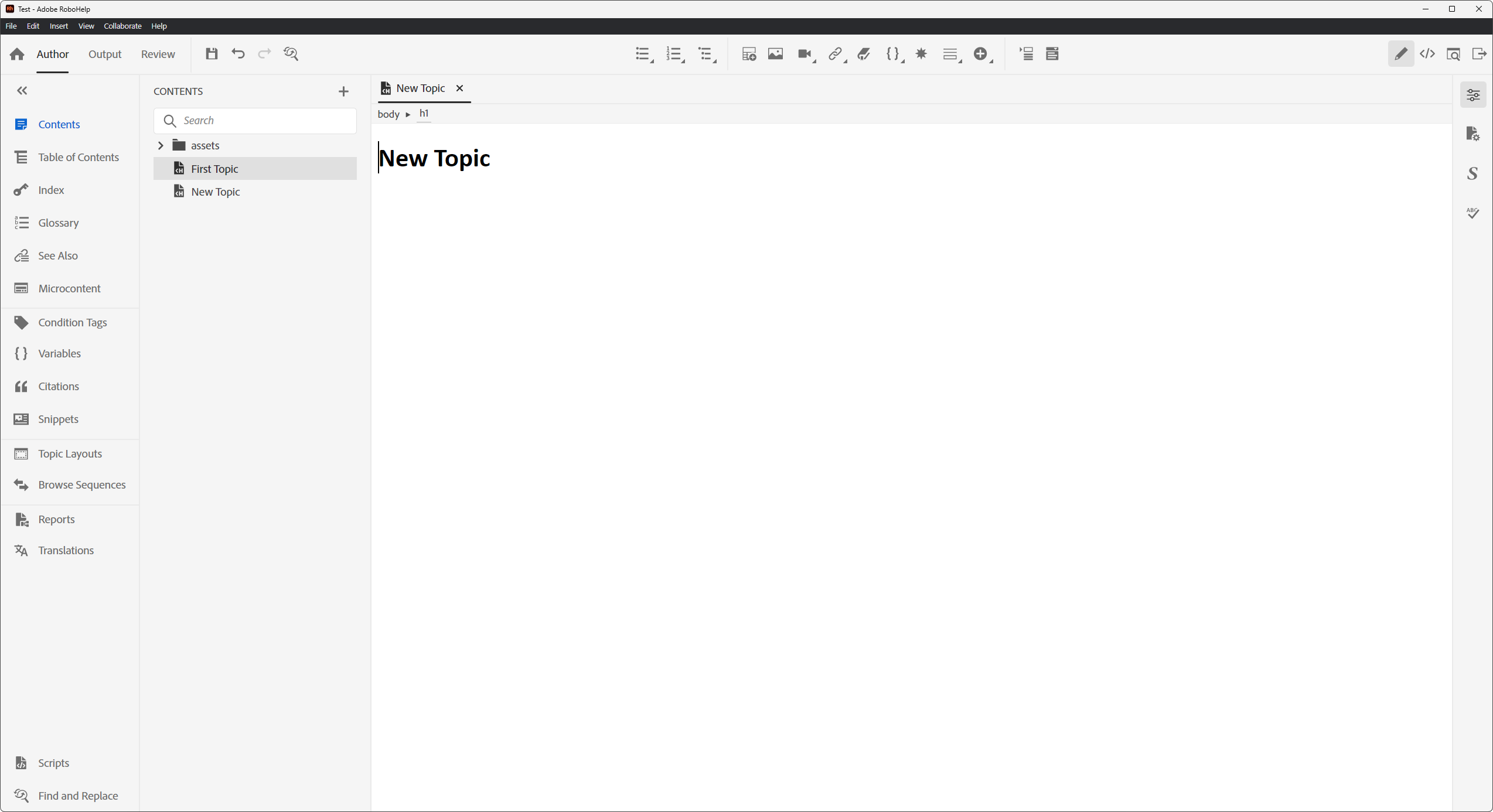
Interface comparison: Adobe RoboHelp vs Dr.Explain
The interface of a program reflects its philosophy. It shows what the developers emphasise, what workflow logic they embed, and for whom the tool is intended. Let's compare their windows.
Adobe RoboHelp interface:
Dr.Explain interface:
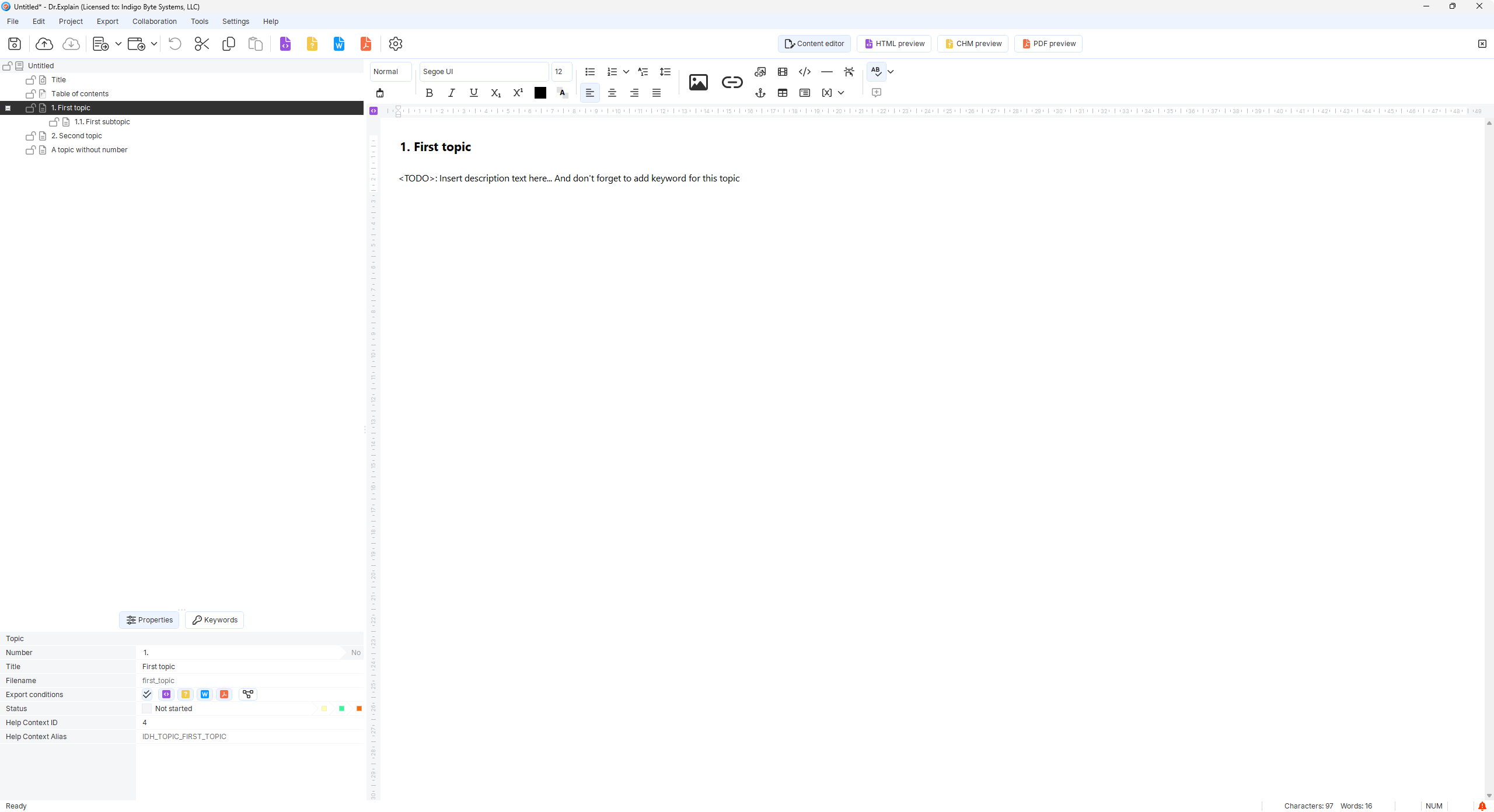
Both programs use a classic layout common to content management applications: project and resource navigation on the left, main content editing area in the centre, and a properties panel on the right or bottom. However, the visual style and workflow logic differ. For example, you'll notice that Adobe's icons use a low‑contrast minimalist style, making them visually less prominent against the content. All user attention is on the content, and nothing should distract from it.
- Adobe RoboHelp: modern, minimalist "flat" design, similar to an IDE. Lots of white space, clean interface.
- Dr.Explain: classic Windows style, reminiscent of MS Office, familiar to Windows users.
There are differences in the management logic:
- RoboHelp: the left panel is a multi‑function resource manager. The section hierarchy ("Contents") is supplemented by a long list of tabs: Table of Contents, Index, Glossary, See Also, Microcontent, Condition Tags, Variables, Citations, Snippets, Topic Layouts, Browse Sequences, Reports, Translations. The logic is: "first choose the content type (files, variables, etc.), then work with it in the central window." This is a function‑oriented approach.
- Dr.Explain: the entire left panel shows the document structure. The project tree tells you: "here is the ready‑made skeleton of your knowledge base." This is an approach oriented towards a well‑structured final product.
In both cases, the centre contains a WYSIWYG panel, but again there are differences:
- RoboHelp: tools for fine‑tuning formatting are hidden — you can find them by clicking the "Content Properties" icon in the right vertical panel. This contains a whole set of functions for every possible case (including rarely used ones).
- Dr.Explain: the top toolbar is rich and grouped into blocks (lists, font families, insertion of special objects, etc.) — like in MS Word. Below the section title there is a service block with a reminder ("DON'T FORGET: Replace this text with your own..."). This emphasises the program's focus on automating routine and helping the author fill in templates.
Collapsible text formatting panel in Adobe RoboHelp:
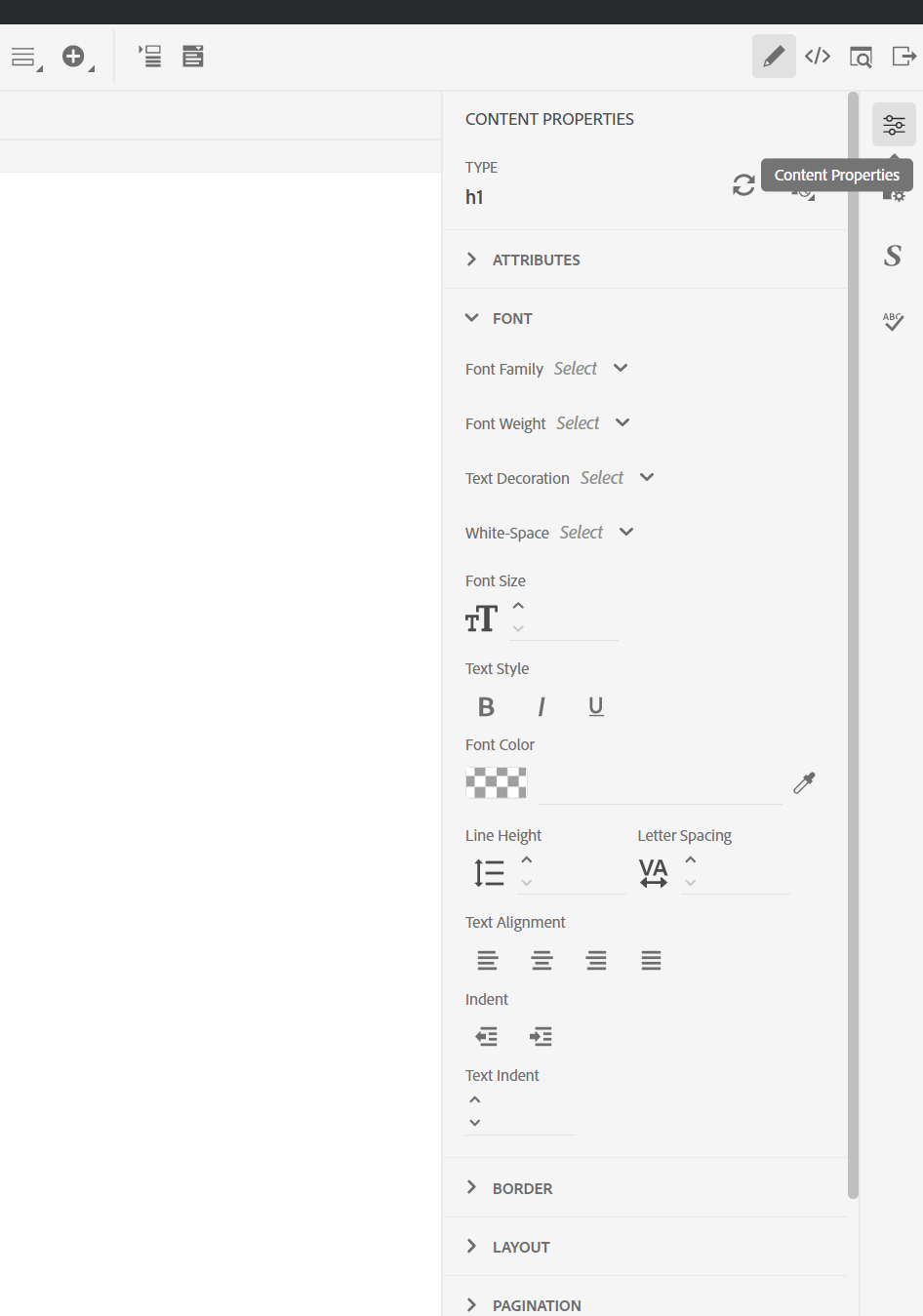
In RoboHelp, the properties panel is collapsed on the right and appears only when needed, not distracting from content, while in Dr.Explain it is permanently expanded at the bottom, allowing you to edit text and see key technical parameters simultaneously.
It's also worth mentioning interface localisation. Adobe RoboHelp's interface can be switched to English, French, German, and Japanese. The documentation you create can be in any language thanks to Unicode support. RoboHelp also has built‑in tools for translating content into more than 35 languages, and its search and spell check work with many languages.
The RoboHelp editor is a full‑featured environment with HTML5 and CSS3 support, visual and text modes, conditional blocks, snippets, and variables. It's powerful, but a beginner can feel overwhelmed. Moreover, the RoboHelp interface (starting with version 2019) was radically redesigned in a minimalist style, which caused mixed reactions from users of classic versions.
The Dr.Explain editor resembles Microsoft Word. It's not overloaded with panels, and you can start writing documentation right after installation. However, when working with complex tables, formulas, or multi‑column layouts, its capabilities may fall short.
Dr.Explain focuses on maximum accessibility in local markets. Dr.Explain's interface is translated into 9 languages, including German, French, Spanish, Italian, Portuguese, Dutch, Russian, and Swedish.
- Adobe RoboHelp is a professional "all‑in‑one" tool whose interface reflects its complexity and power. It's suitable for large teams and projects that require a strict structure, conditional content, multi‑channel publishing, and detailed analytics. A beginner might be intimidated by the abundance of tabs and options, but a professional will appreciate the flexibility.
- Dr.Explain is a "light" tool focused on speed of creating visual documentation. Its interface is minimalist and close to word processors. It's ideal for small teams, developers, and those who value automation of routine tasks (especially screenshots). However, for complex projects with hundreds of topics and dozens of formats, its capabilities may be insufficient.
Choose the tool based on your tasks and team composition. If you need "heavy artillery" and are willing to invest time in learning — go with RoboHelp. If you need a quick start and minimal complexity — go with Dr.Explain.
Hidden complexities: TCO, search, analytics, CI/CD
The most expensive mistakes when choosing a tool come from things you didn't consider upfront. Let's look at four aspects that are rarely mentioned in sales brochures.
Total Cost of Ownership (TCO)
RoboHelp officially starts at $29.99/month (annual subscription ~$479.88). However, if you need RoboHelp Server for publishing and analytics, add another $4,800 per year. Also consider:
- Training costs: RoboHelp requires several weeks for a new technical writer to learn.
- Integration costs: if you're not working in the Adobe ecosystem, setting up the connection with Git and third‑party tools will take time.
- Support: only paid support via Adobe; community forums are not always responsive.
Dr.Explain offers a business licence starting at $190 per year for 5 users. That's significantly cheaper. But there are hidden costs:
- Windows‑only: if you have writers on macOS, you'll need virtual machines or separate licences.
- Limited collaboration: for teams of 5+ people, external synchronisation tools create overhead.
- CI/CD integration: supported only via command line (basic export automation); no full CI/CD integration.
Important: Dr.Explain offers a free version with limitations (20 topics, watermarks on images). This lets you test the tool on a real project before buying.
Search and analytics
Search in RoboHelp is generated server‑side (if you use RoboHelp Server). It supports synonyms, ranking, external URL search, and detailed analytics: most frequent queries, queries with no results, popular topics, context‑sensitive help usage reports. All this is a powerful tool for improving documentation.
Dr.Explain generates search client‑side (JavaScript). It works out of the box but has limitations: no server‑side analytics (unless you add it manually), weak ranking, problems with large documentation volumes (1000+ pages). You can add Google Analytics, but that won't give you detailed reports on in‑help search.
Conclusion: if documentation analytics is critical for you, RoboHelp Server provides it out of the box. Dr.Explain will require external tools and manual setup.
CI/CD and Docs‑as‑Code integration
Neither RoboHelp nor Dr.Explain are Docs‑as‑Code tools. Their projects are binary or XML files not designed for full Git and pull request workflows.
RoboHelp supports Git and SharePoint integration, but it's more about file synchronisation than branching and merging. Output generation is launched from the interface or command line. Embedding it into CI/CD is possible but requires workarounds.
Dr.Explain supports the command line for automatic export to HTML, CHM, PDF, DOCX. This lets you integrate documentation builds into a pipeline, but nothing more. No native support for branches, pull request reviews, or automatic publishing on commit.
Conclusion: if your team already practices Docs‑as‑Code and documentation must live in a Git repository alongside code — neither RoboHelp nor Dr.Explain is a good fit. Look at MkDocs, Docusaurus, or GitBook instead.
Performance
Let's compare Adobe RoboHelp 2026.03.13 and Dr.Explain 7. What Process Explorer shows us?
Test system: Windows 11, 16GB RAM, Intel(R) Core(TM) i7-4790K CPU @ 4.0GHz (on other configurations, the measurement results may vary.)
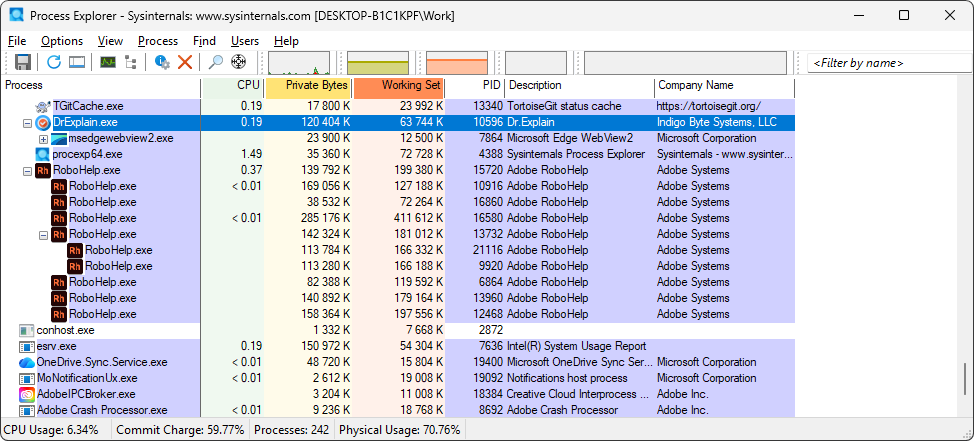
RAM usage difference (Working Set)
This is the most important metric for a user: how much physical memory the program is consuming right now.
- Dr.Explain: the main process uses only 63,744 K (~64 MB). Including the child process msedgewebview2.exe (which handles the preview), total consumption is about 76 MB.
- RoboHelp: here we see an "army" of processes. If you sum up all the Working Set values for the RoboHelp.exe group, you get roughly 1,817,000 K (~1.8 GB).
Bottom line: RoboHelp consumes nearly 24 times more RAM than Dr.Explain in this state. This is critical when working on laptops or office PCs.
Architectural differences
The screenshot makes it easy to identify the application architecture types:
- Dr.Explain is a lightweight native app: one main process and one process for rendering web content. This classic approach ensures fast response times and low overhead.
- RoboHelp is a multiprocess giant: the large number of processes (likely based on Chromium/Electron) indicates that the program isolates each feature into its own process. This improves stability (if one module crashes, the whole program doesn't go down), but the trade‑off is massive resource consumption due to duplicating system libraries across every process.
Ecosystem and background load
Notice the lower part of the list: alongside RoboHelp, AdobeIPCBroker.exe and Adobe Crash Processor.exe are also sitting in memory. These are additional Adobe services that consume resources even if you aren't using them directly. Dr.Explain runs independently, without loading any third‑party communication services or background managers into the system.
Failure zones: when neither tool is right
It would be unfair to claim that RoboHelp or Dr.Explain cover all needs. There are scenarios where neither is the optimal choice.
- Docs‑as‑Code approach: if your team already uses Git for everything, including documentation, you write in Markdown/AsciiDoc, review via pull requests, and deploy via CI/CD — neither RoboHelp nor Dr.Explain will work for you. Look at MkDocs, Docusaurus, Sphinx, Antora, GitBook, or Mintlify.
- Need a SaaS solution: in that case, check out ClickHelp, Paligo, HelpJuice. These are very popular HATs in the enterprise documentation segment.
- API documentation: generating reference materials from OpenAPI specs or code requires specialised tools like Swagger UI, Redoc, Apidog.
- Large distributed teams (20+ authors): neither RoboHelp nor Dr.Explain provides full real‑time collaboration and a CCMS (Component Content Management System) at the level of Paligo or ClickHelp.
- Strict audit and standardisation requirements (DITA): if you need strict semantics of tasks, concepts, and references with mandatory version control — DITA and specialised CCMS are better.
- Cross‑platform team with macOS and Linux: Dr.Explain runs only on Windows. RoboHelp runs on Windows and macOS, but if you have writers on Linux — both tools are unsuitable.
In these cases, it's better not to struggle but to choose a tool that is natively designed for your methodology.
Hybrid approaches: can you combine the programs?
You don't have to choose one tool for life. Many companies use hybrid setups:
- Dr.Explain for screenshots, RoboHelp for publishing: prepare annotated images in Dr.Explain, export them, then embed them into a RoboHelp project for complex multi‑channel publishing. This gives you the best of both worlds: visual automation and the power of an enterprise tool.
- RoboHelp for core content, Dr.Explain for quick guides: use RoboHelp for large manuals, and Dr.Explain for short interactive guides and release notes — thanks to its speed of creation.
- Documentation in Git + export via HAT: keep text sources in Git, use an external pipeline to import into RoboHelp or Dr.Explain and automatically generate final CHM/PDF files.
This approach requires extra discipline but lets you avoid sacrificing flexibility.
User reviews of Adobe RoboHelp and Dr.Explain
Theory is good, but practice is more convincing. Let's look at a few stories of companies that chose one tool or the other.
Comparison based on user reviews from G2:
| Criteria | Adobe RoboHelp | Dr.Explain |
|---|---|---|
| Overall rating (G2) | 4.4 / 5 (based on hundreds of reviews) | 4.5 / 5 (based on 30+ reviews) |
| Key strengths (most praised) |
|
|
| Main drawbacks (most complained about) |
|
|
| Ideal usage scenario | Large corporations needing dozens of output formats, strict conditional content, and team collaboration | Small to mid‑sized teams where documentation requires frequent screenshot updates and speed of creation is critical |
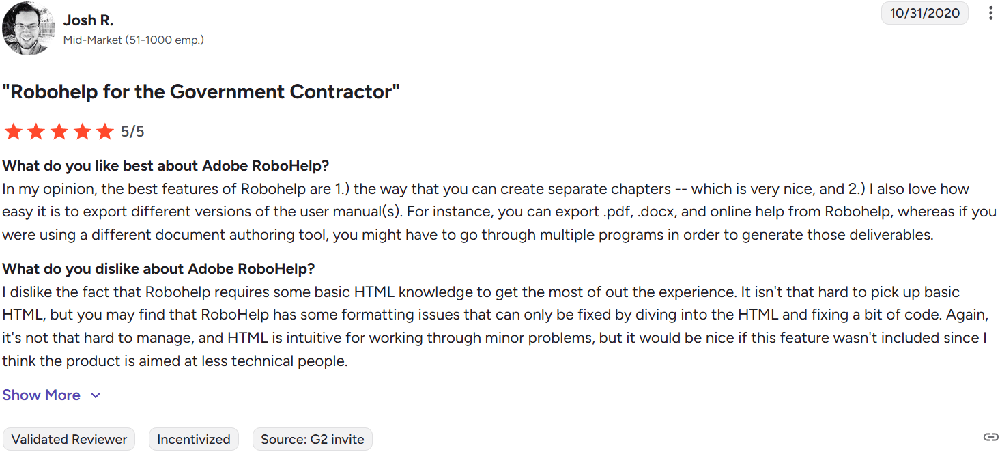
Example review of Adobe RoboHelp:
In my opinion, the best features of Robohelp are 1.) the way that you can create separate chapters -- which is very nice, and 2.) I also love how easy it is to export different versions of the user manual(s). For instance, you can export .pdf, .docx, and online help from Robohelp, whereas if you were using a different document authoring tool, you might have to go through multiple programs in order to generate those deliverables.
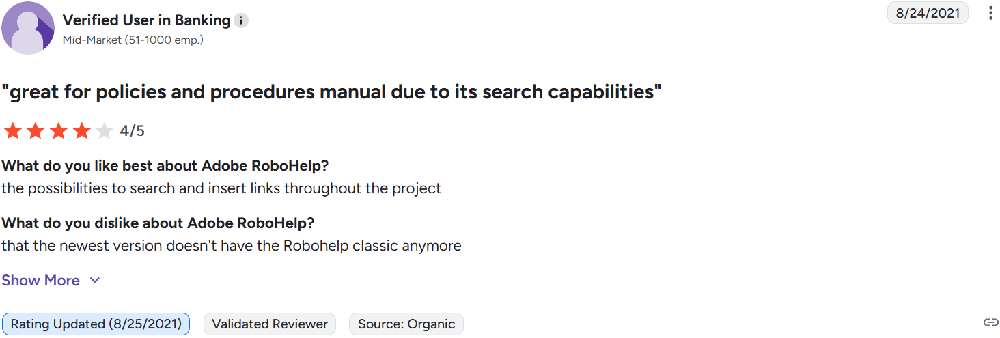
Great for policies and procedures manual due to its search capabilities
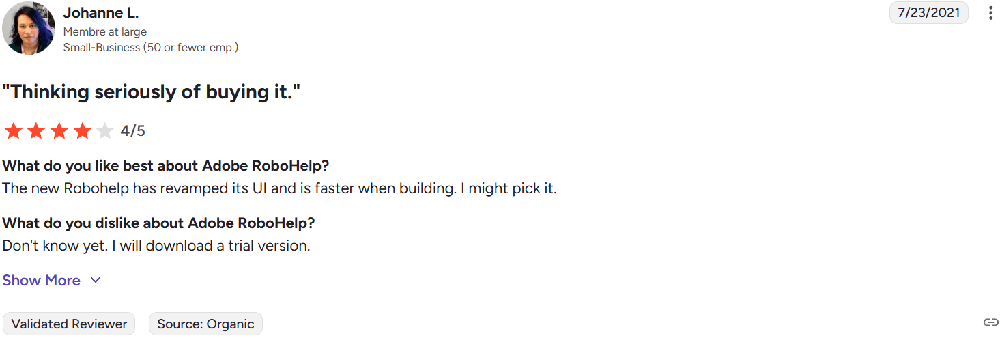
The new Robohelp has revamped its UI and is faster when building. I might pick it.
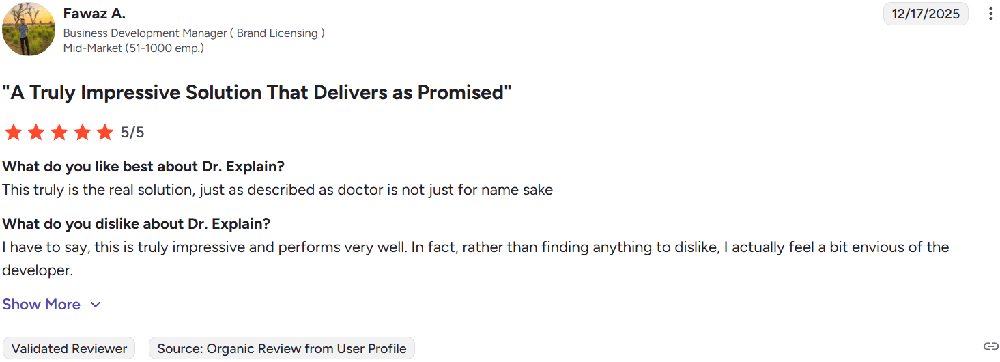
Example review of Dr.Explain:
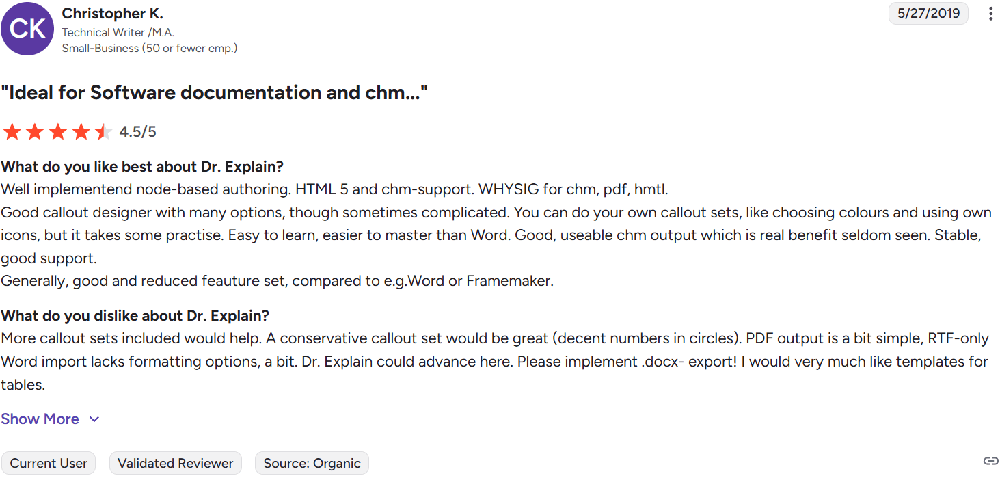
This truly is the real solution, just as described as doctor is not just for name sake.
Well implementend node-based authoring. HTML 5 and chm-support. WHYSIG for chm, pdf, hmtl. Good callout designer with many options, though sometimes complicated. You can do your own callout sets, like choosing colours and using own icons, but it takes some practise. Easy to learn, easier to master than Word. Good, useable chm output which is real benefit seldom seen. Stable, good support.
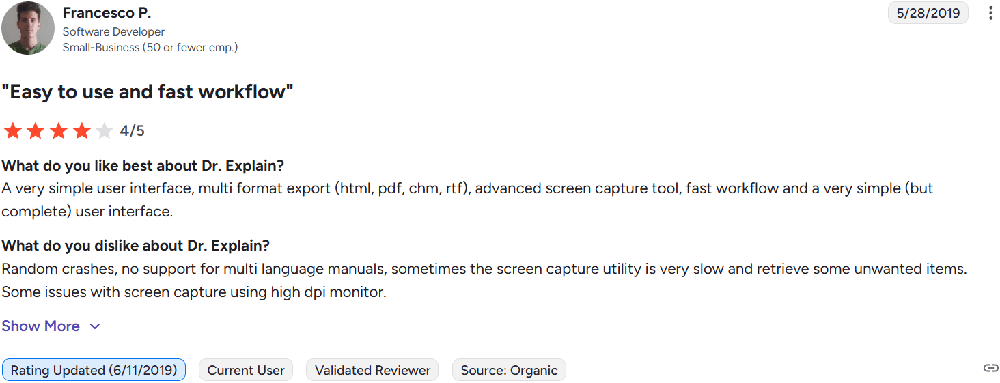
A very simple user interface, multi format export (html, pdf, chm, rtf), advanced screen capture tool, fast workflow and a very simple (but complete) user interface.
Decision checklist
Use this checklist to evaluate which tool better suits your team.
- Team size and budget: 1‑3 people, limited budget → Dr.Explain; 10+ people, budget allows → RoboHelp.
- Main content type: many screenshots, frequent UI updates → Dr.Explain; lots of text, tables, complex structure → RoboHelp.
- Required output formats: CHM, HTML, PDF, DOCX sufficient → both work; need ePub, Mobile App, Knowledge Base → only RoboHelp.
- Ecosystem: already using Adobe Creative Cloud → RoboHelp; otherwise → Dr.Explain (or RoboHelp but without integration advantage).
- Team collaboration: need real‑time reviews, cloud collaboration → RoboHelp; simple file sync acceptable → Dr.Explain.
- Operating systems: have writers on macOS → RoboHelp; all on Windows → both work.
- CI/CD and Docs‑as‑Code integration: need native support → neither works.
- Documentation analytics: need out‑of‑the‑box search analytics → RoboHelp + RoboHelp Server; willing to collect manually → Dr.Explain.
- Need context‑sensitive F1 help? → both work, but Dr.Explain is simpler.
Go through the checklist. If most answers lean toward one tool — the decision is obvious. If it's roughly even — try a hybrid approach or request trial versions (both tools offer them).
Conclusion
Adobe RoboHelp and Dr.Explain solve different problems for different audiences. RoboHelp is a heavy artillery tool for large enterprise teams that need maximum publishing flexibility, integration with the Adobe ecosystem, and built‑in analytics. Dr.Explain is a tool for small to mid‑sized teams that value automation of routine tasks (especially screenshots) and don't want to waste time learning software with unnecessary features. The choice between them is a choice between power and simplicity, between enterprise features and speed of work. Assess your context, go through the checklist, and if you're still in doubt — download both trial versions and test them on your real project.