



Screenshot editor
Nearly every help file or manual includes illustrations. Dr.Explain is a professional help authoring tool that features a powerful screenshot editor for creating user documentation that relies heavily on annotating images, serving as an all-in-one screenshot documentation tool.
A key advantage is its built-in screenshot capture tool, which analyzes the interface structure of applications or web pages and automatically adds numbered callouts to all key controls. You can then fine-tune screenshots using the Annotation designer, which offers everything from simple cropping to adding and organizing text labels.
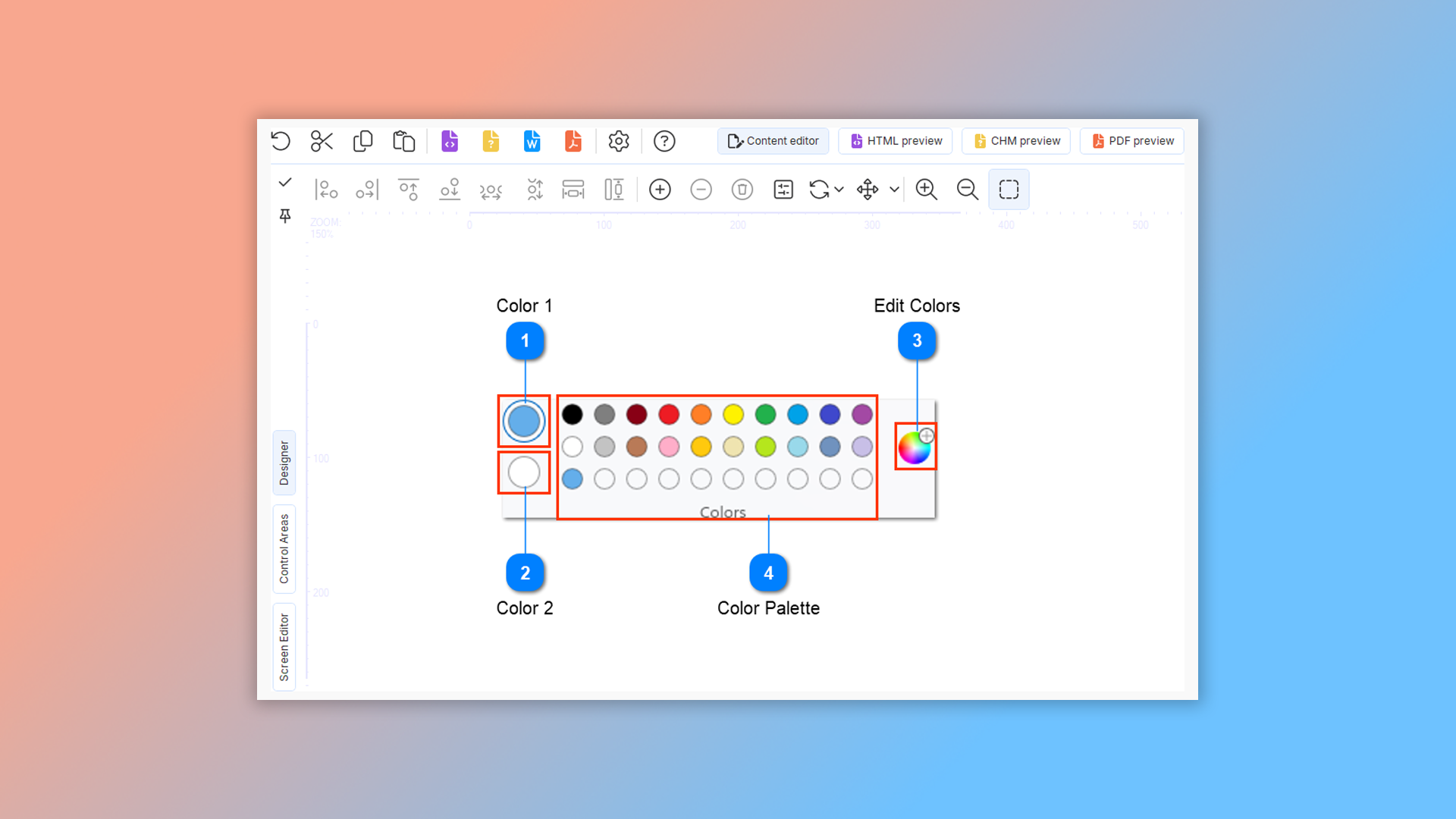
How to take a screenshot in Dr.Explain?
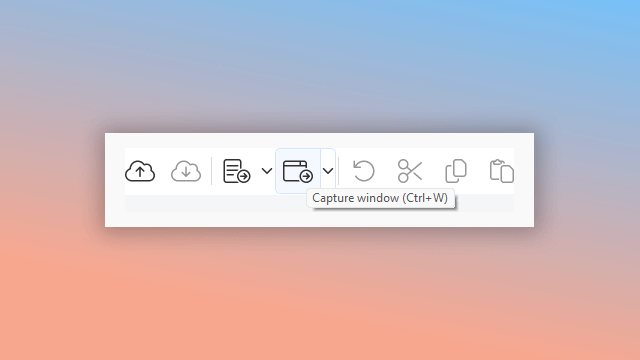
Capture the interface by clicking the toolbar button or using the corresponding keyboard shortcut.
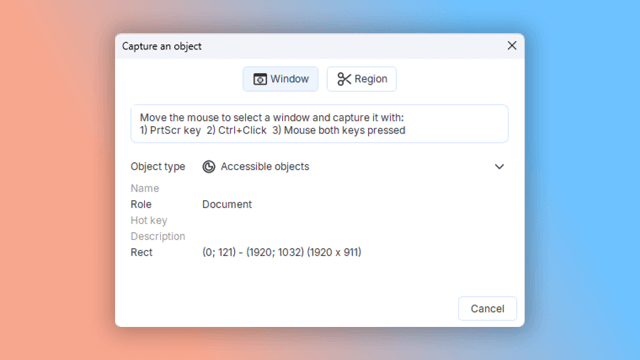
Select a specific region to capture, or snap a screenshot of the entire window.
The screenshot editing tool will then open, where you can add annotations, text labels, and adjust the size and scale of your image.
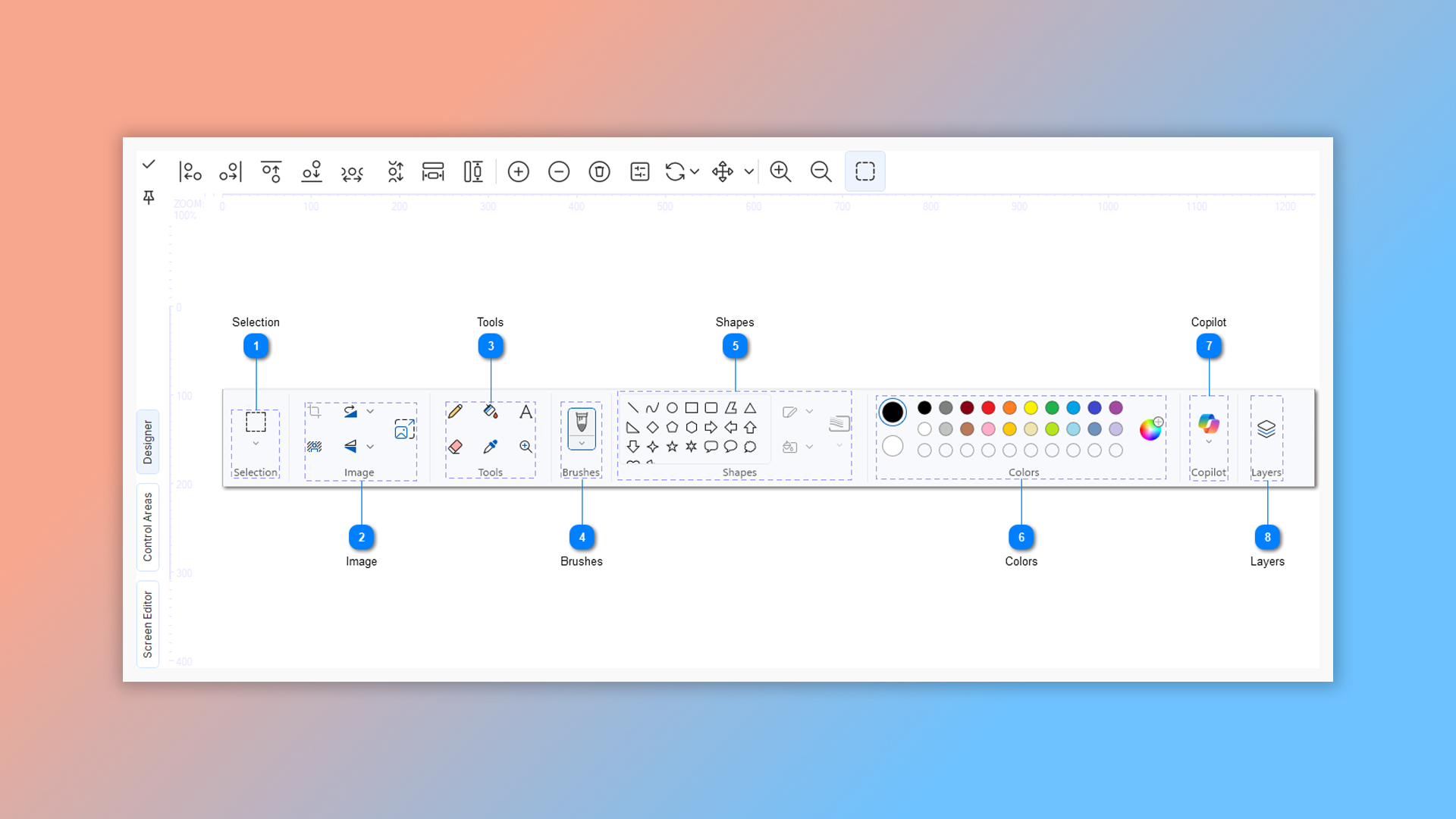
With a variety of editing tools, you’ll save time building professional help systems that include many images.
How to edit screenshots in Dr.Explain?
To edit a screenshot, right-click the image and select "Image properties" from the context menu.
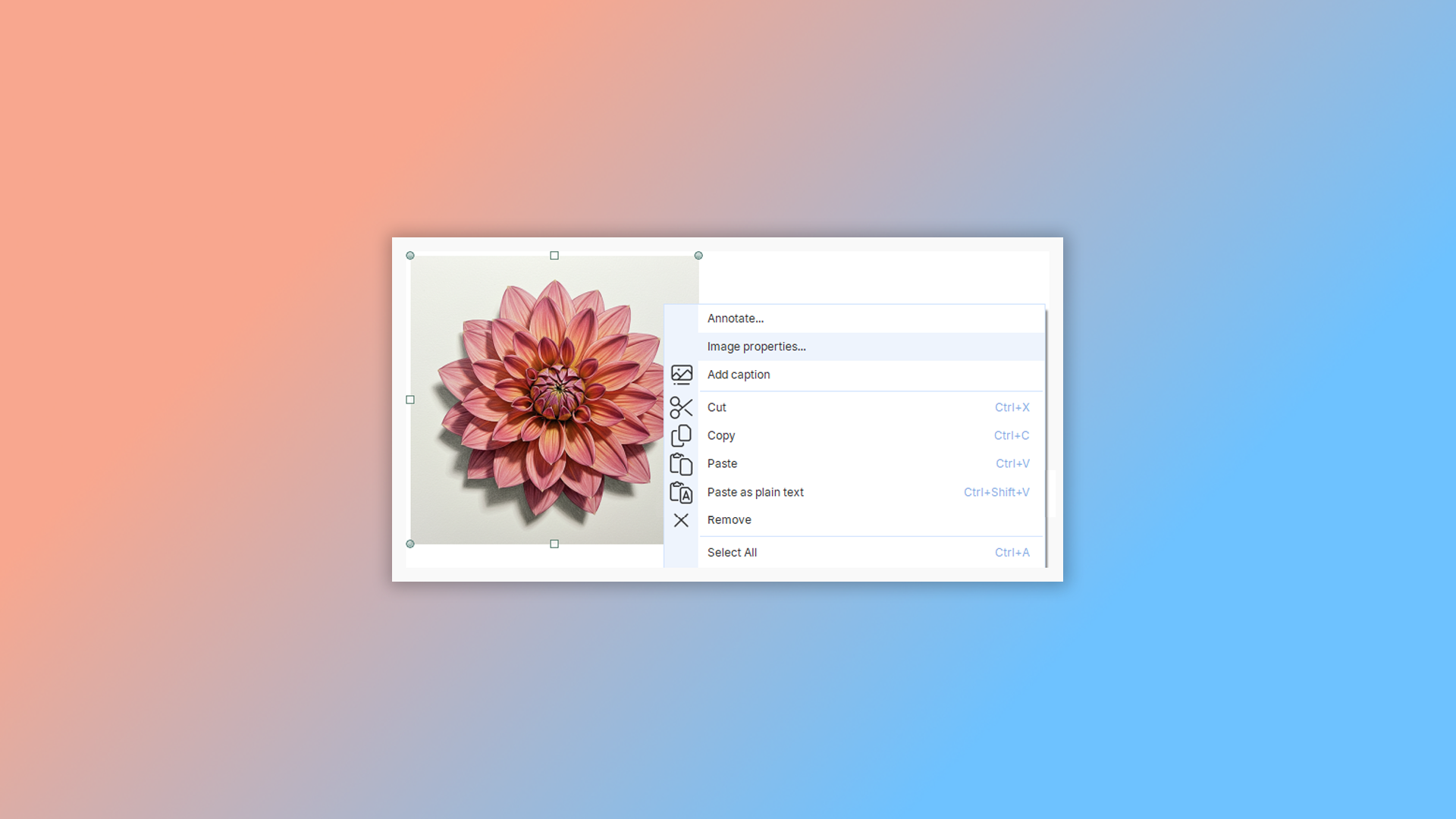
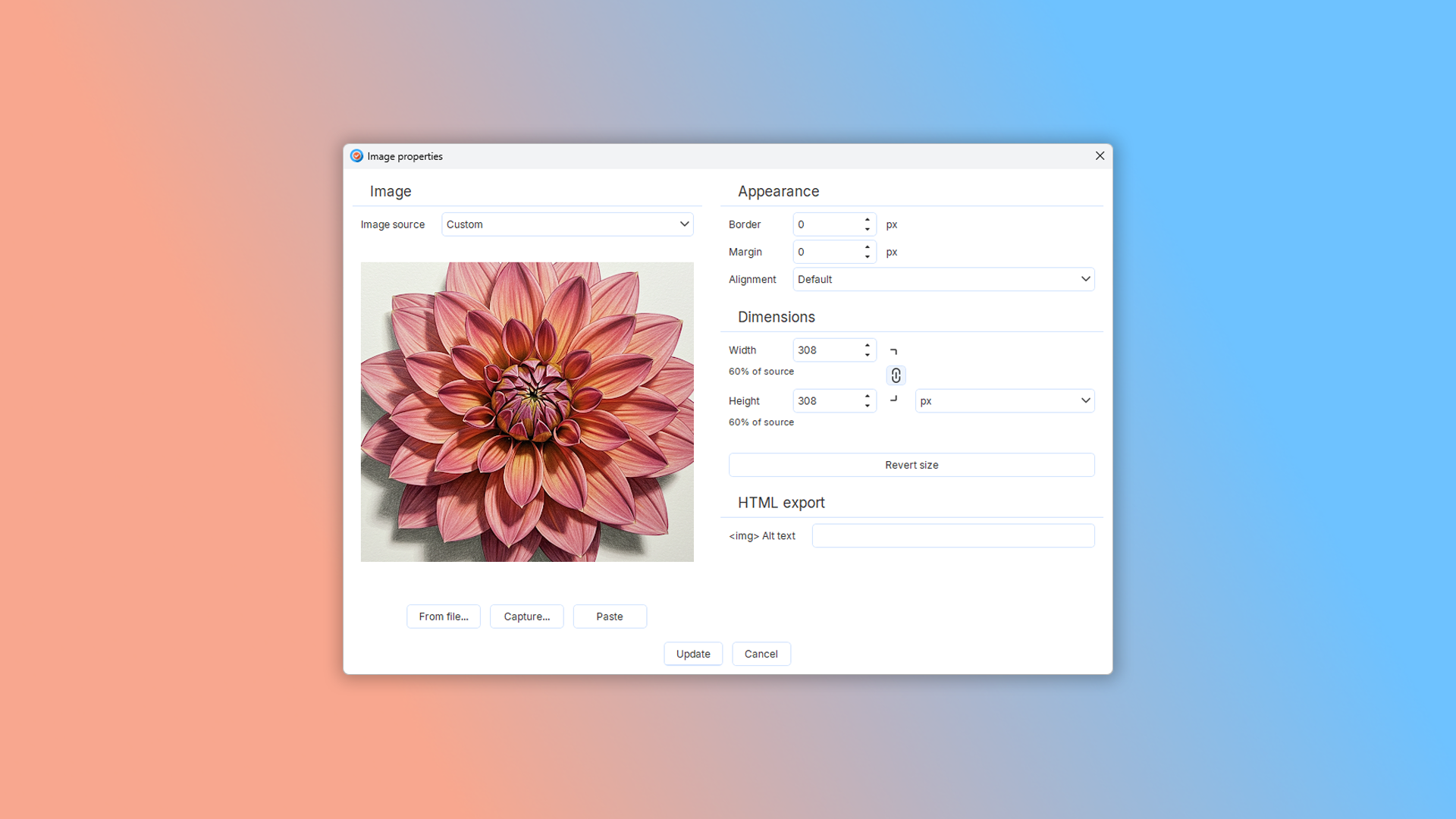
This opens the editing panel with all available customization options.
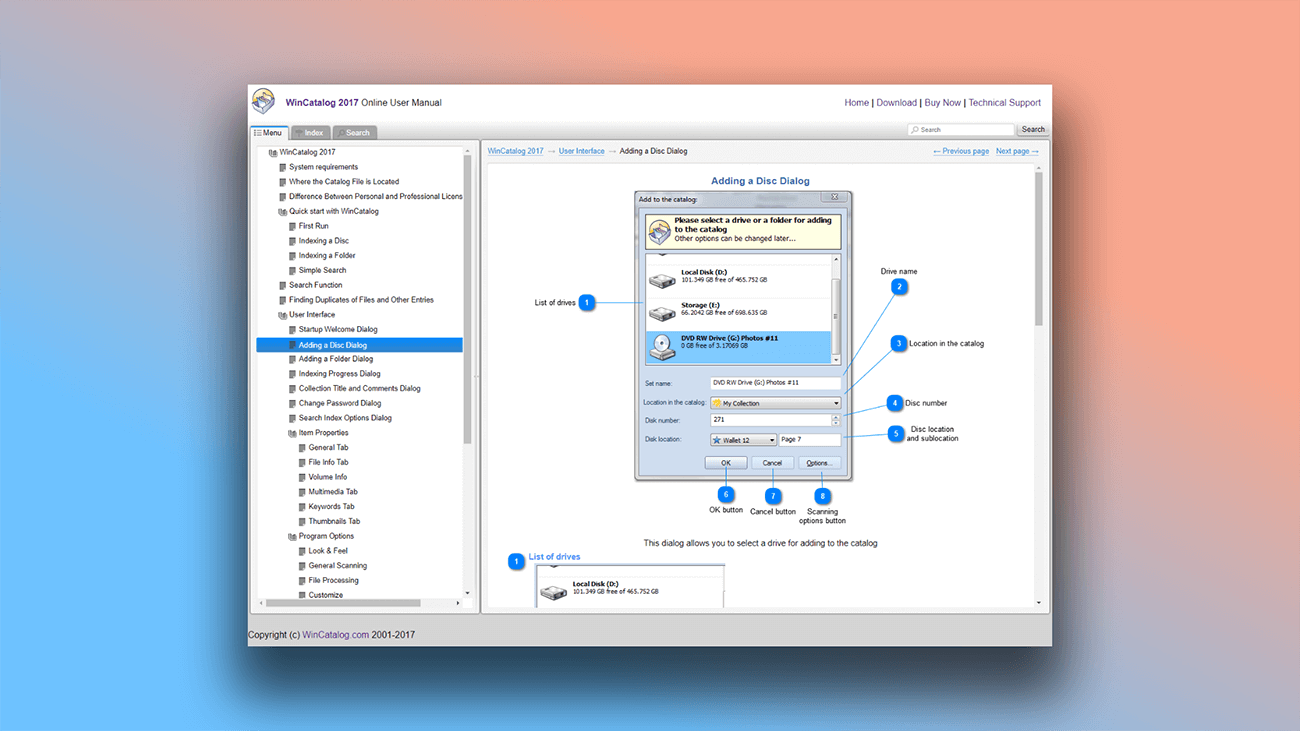
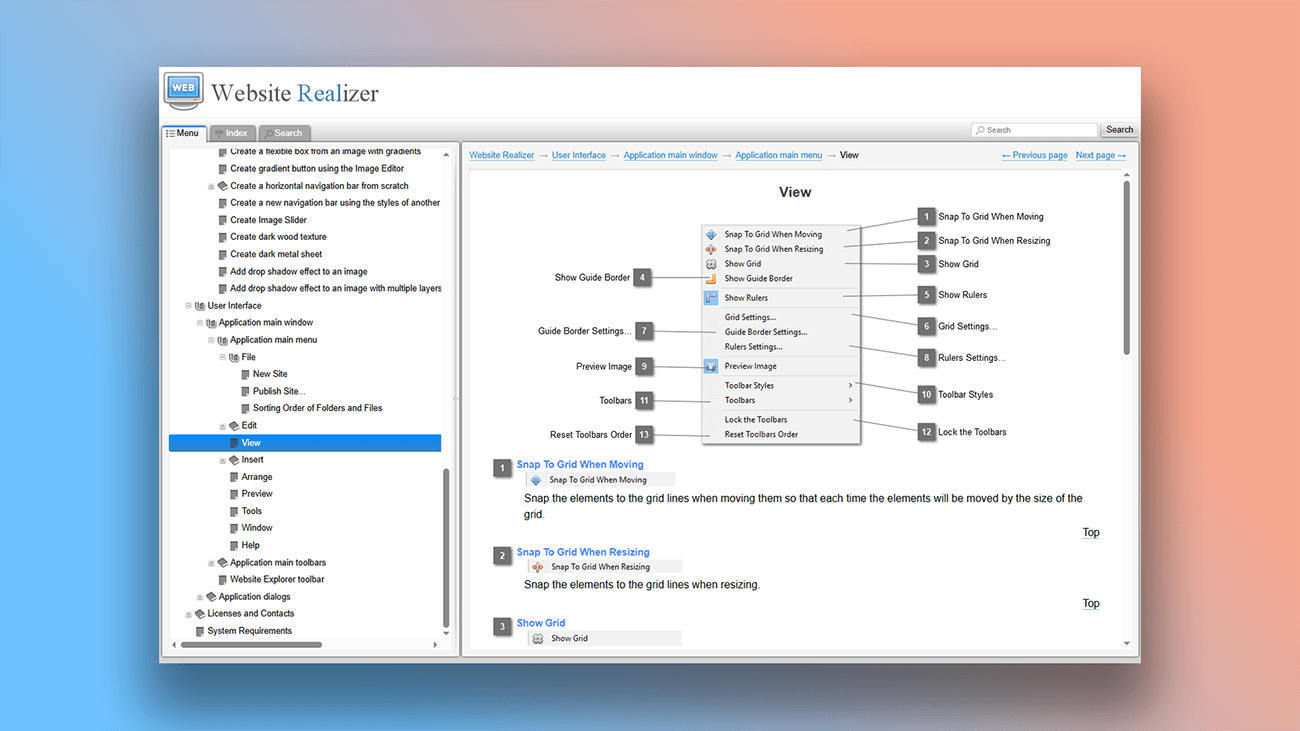
Examples of user manuals created in Dr.Explain
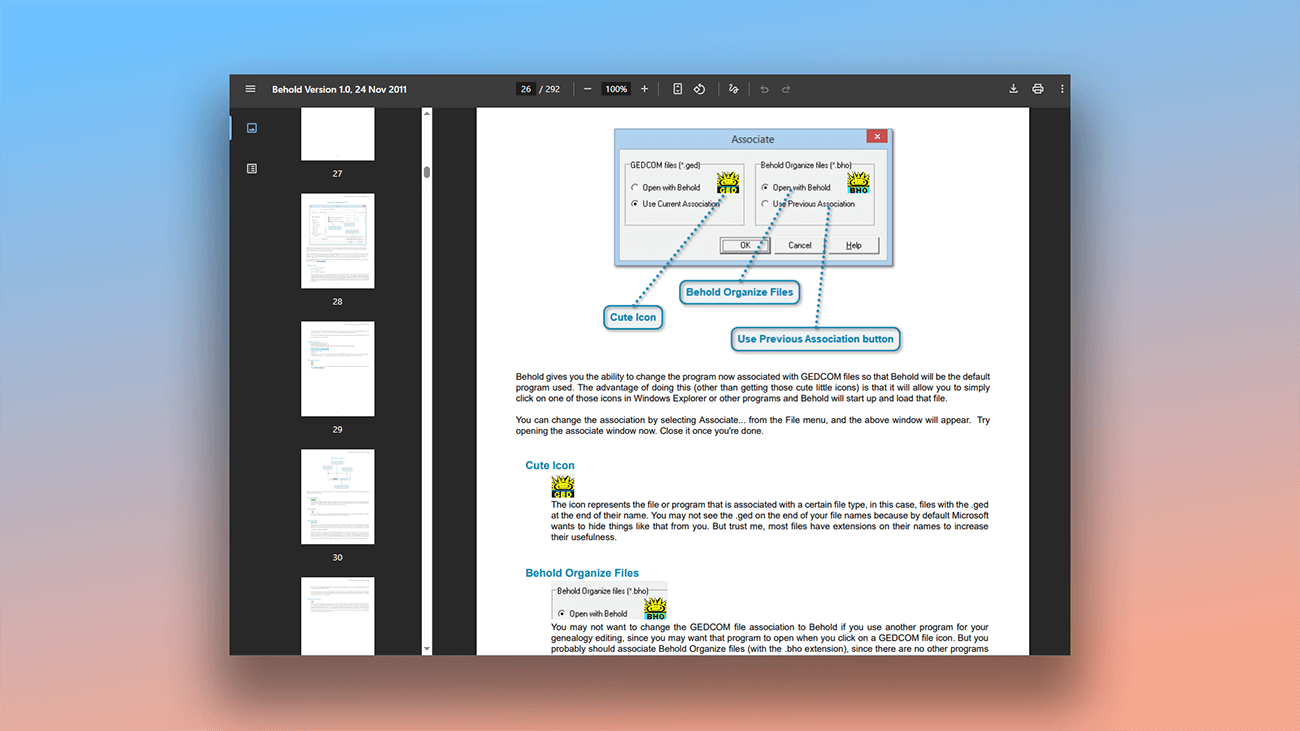
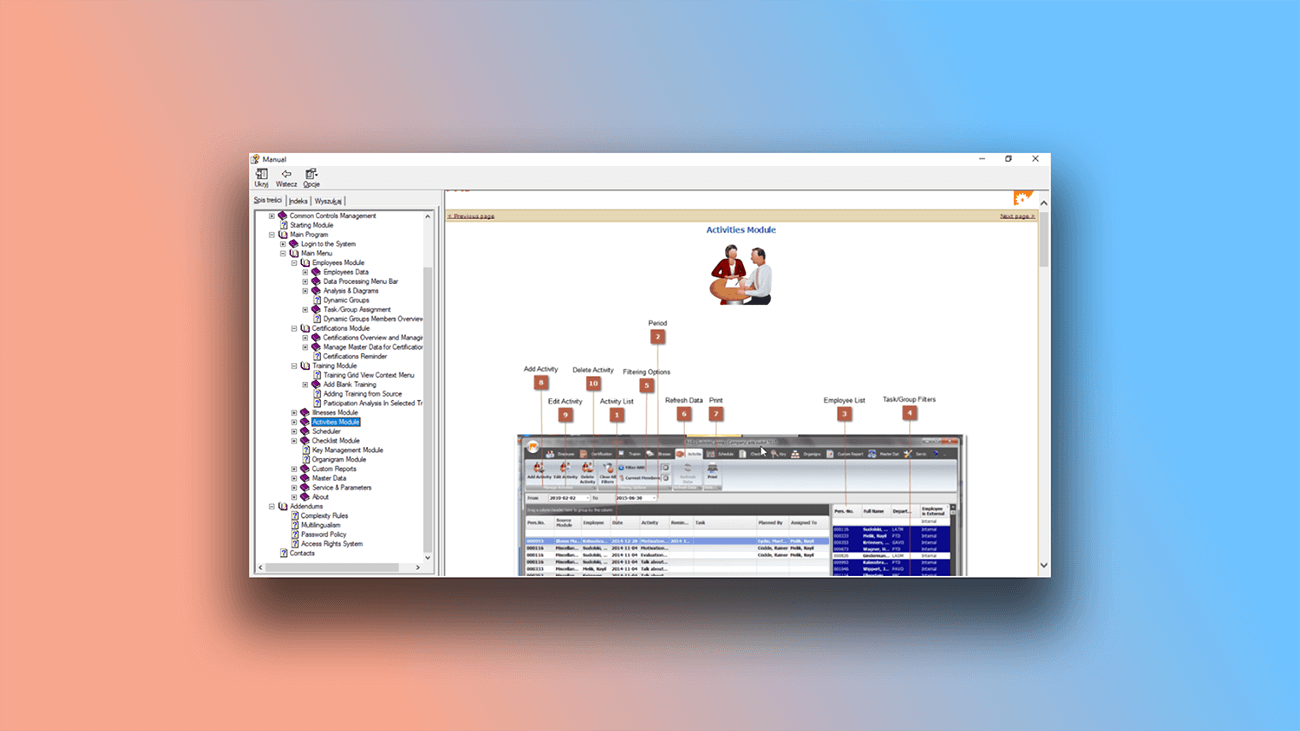
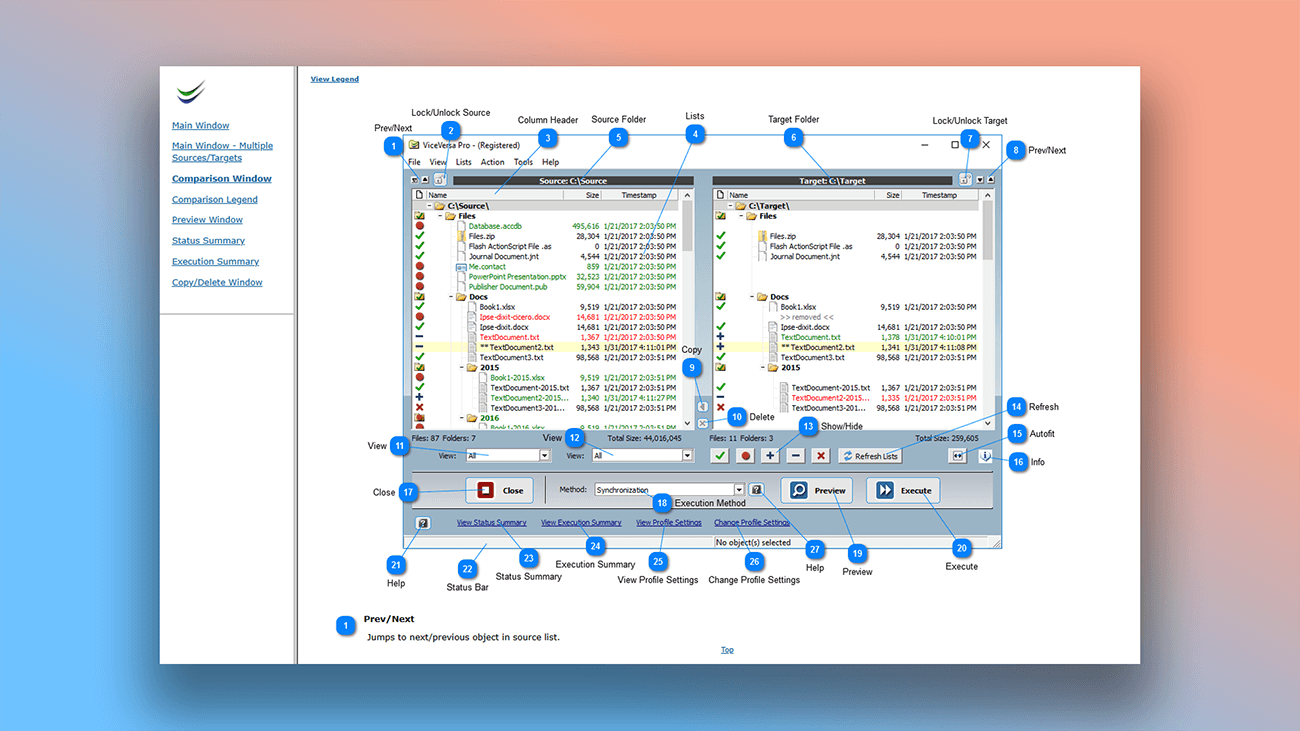
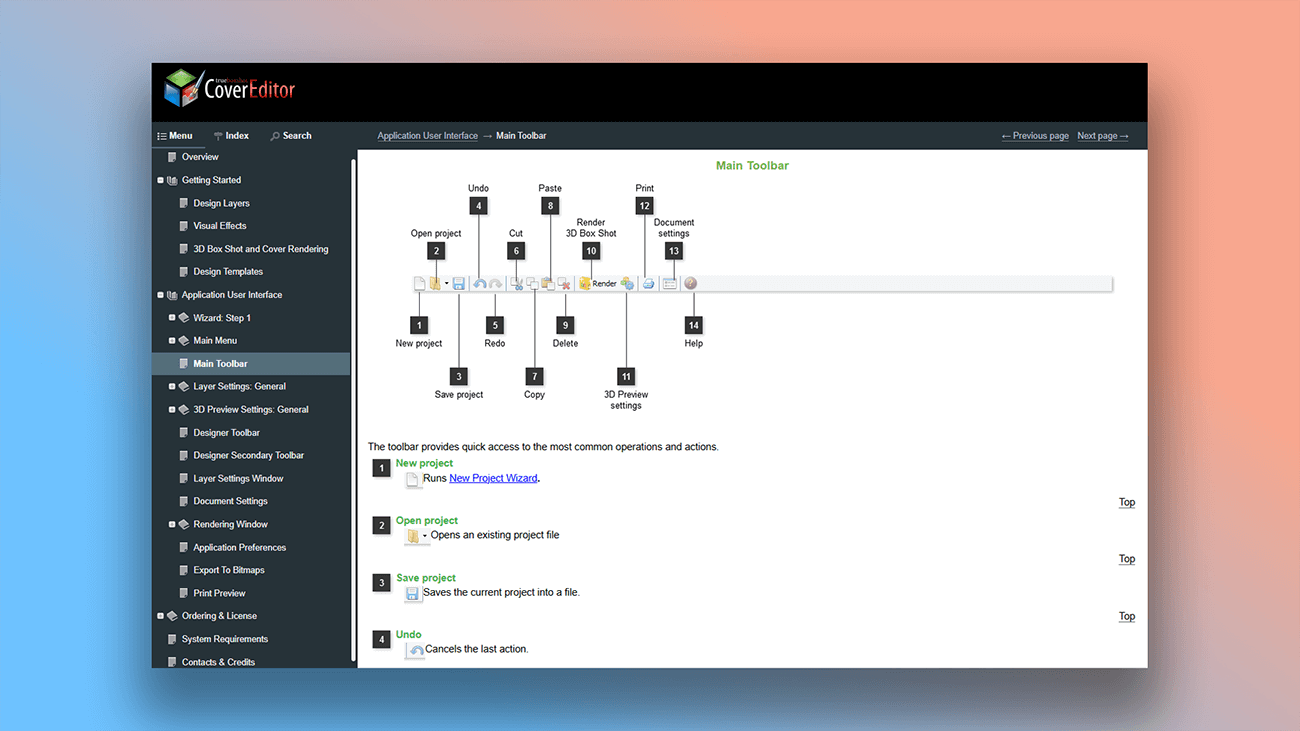
A professional help authoring tool offers more than just text and graphics formatting. True flexibility means having full control over visual design to make your documentation stand out. Below are real user guides created with Dr.Explain — each showing what’s possible when design is placed in your hands.
What are the benefits of using Dr.Explain?
With Dr.Explain, you get an automated, collaborative tool that exports to all the popular formats. Here are some of its key advantages:
Powerful screenshot tools. Editing screenshots is a vital part of documentation. Dr.Explain provides a full set of features to refine and enhance your images.
Save time with templates. Jumpstart your project using ready-made templates, so you can skip the tedious work of building a structure from scratch.
Flexible graphics control. Easily resize images, add margins, borders, and text wrap. You can also add alt text (essential for online help) and adjust alignment.
Automate repetitive tasks. Let automation save you time and prevent manual errors — especially when annotating user interface screenshots. This help authoring tool streamlines your entire workflow, helping you create polished documentation faster.
Comparison of the cloud platform and Dr.Explain
Cloud-based (SaaS) platforms are growing in popularity, and many technical writers have taken them on board. However, web services come with certain non-obvious drawbacks. Let’s compare an online platform for creating user guides with the desktop application Dr.Explain.
| SaaS platform | Dr.Explain | |
|---|---|---|
| Screenshots annotation | Limited automation of screenshot capture and annotation. | High degree of automation of screenshot capture and recognition of interface elements. |
| Data security | Data is stored on a third-party server; you have less control. | Data stays on your computer; you have full control. |
| Working with file formats | Limited set of formats, typically focused on web output. | A set of the most popular formats:
|
| Functionality | Limited automation for screenshots and annotations. | Advanced features like automated screenshot capture and annotation. |
| Stability and performance | Requires a stable internet connection to work. | Works offline; performance depends on your machine, not internet. |
| Customization | Limited to the platform's built-in capabilities. | Highly flexible settings and styling options. |
In some cases, these specific differences may not be the deciding factor. Ultimately, the choice between a cloud platform and Dr.Explain comes down to your unique workflow and priorities.
What type of users is Dr.Explain suited for?
Dr.Explain is the help authoring tool for creating all kinds of user guides, especially if you're new to documentation. Its well-structured templates save planning time, and automation handles repetitive tasks. Choose Dr.Explain if you need to:
- create multiple output formats from a single source;
- work with advanced image editing tools;
- use a desktop app instead of a cloud platform;
- check spelling in multiple languages;
- automatically generate annotated screenshots.
Users about editing screenshots in Dr.Explain

"We chose Dr.Explain software based on good references, user friendly interface, image capturing and mapping capabilities, adaptability for mobile devices and most of all a very good search engine with index in capabilities".
Crt Kosak, the Head of IT in The Association of Laryngectomees of Slovenia
Interview with Crt Kosak

"I was particularly impressed by the ease of use. It is also very helpful that Dr.Explain has some functions that make it very easy to describe program windows and dialogs".
Annette Wittner, the senior developer at Carl Valentin
Interview with Annette

"After testing a few applications to implement our user guide, all of which proved tedious and time consuming, I stumbled upon Dr.Explain. And there was the miracle — in three days I wrote basic content layout and added most of the screenshots. Then I added some explanations, links to my sample videos, and internal links. It was so easy!".
Pascal Beringer, the founder of the Hyphen project
Interview with Pascal

"Dr.Explain attracted us with the biggest ease of operation and screenshots management. We decided to base our system on the screenshots wizard, creating explanations guiding the user through the task. The management of controls in each screenshot along with the ability to create both CHM and HTML files were the key issues in choosing your product".
Robert Sibilski, CEO and chief programmer of SIBORSOFT
Interview with Robert
Frequently Asked Questions
Can I download a free version of the program?
Yes. You can download the free version of Dr.Explain.
Where can I see examples of documentation created with Dr.Explain?
You can view them on the page Examples of User Manuals and Online Documentation.
Can I edit the automatically generated annotations?
Yes, you have full control to modify them.
Can I add my own annotations?
Yes, absolutely.
Can I resize screenshots?
Yes, you can easily adjust screenshot dimensions.