



This article shows you how to annotate screenshots in Microsoft Word — no design or coding skills needed. Clear visuals are crucial for any documentation, especially user manuals. We've illustrated each step of this guide with screenshots, which makes the article a bit long, but the process itself is quite quick.
However, even though annotating in Word is simple, there's a much faster and more efficient way. We'll tell you about it at the end of this article.
Let's get started!
Essentially, all you need from Word's toolbox is the "Illustrations" pane, located on the "Insert" tab in the main menu.
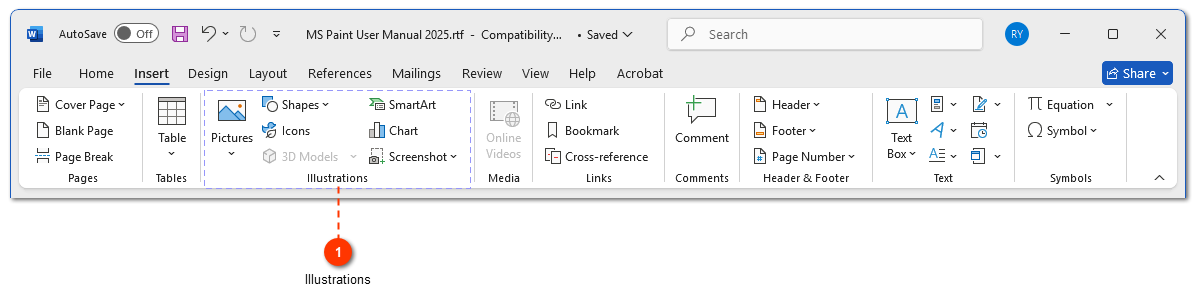
We'll annotate a screenshot of Paint program's toolbar.

1. Make sure both the program you're capturing (Paint, in our case) and Word are open. First, open Paint, then switch to Word.
2. In Word, go to the Insert tab (1). In the "Illustrations" pane, click the Screenshot icon (2).
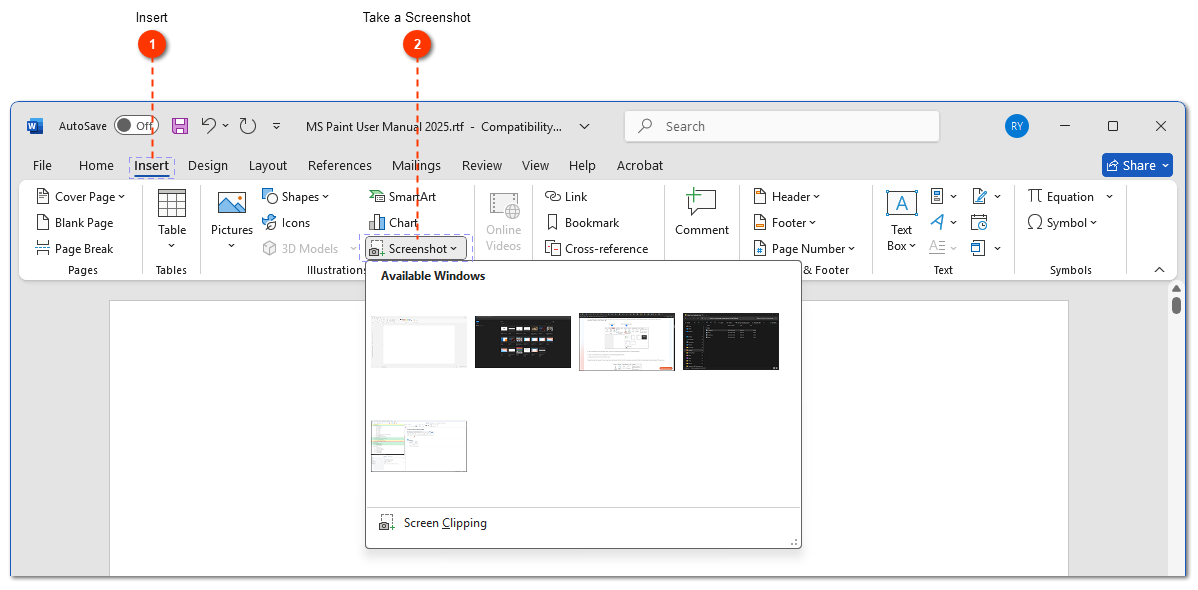
3. Word displays thumbnails of all currently open windows. You have two choices:
- Click a thumbnail to insert a screenshot of that entire window.
- Choose Screen Clipping (1) at the bottom to select a portion of a window.
We'll clip just Paint toolbar. Click Screen Clipping.
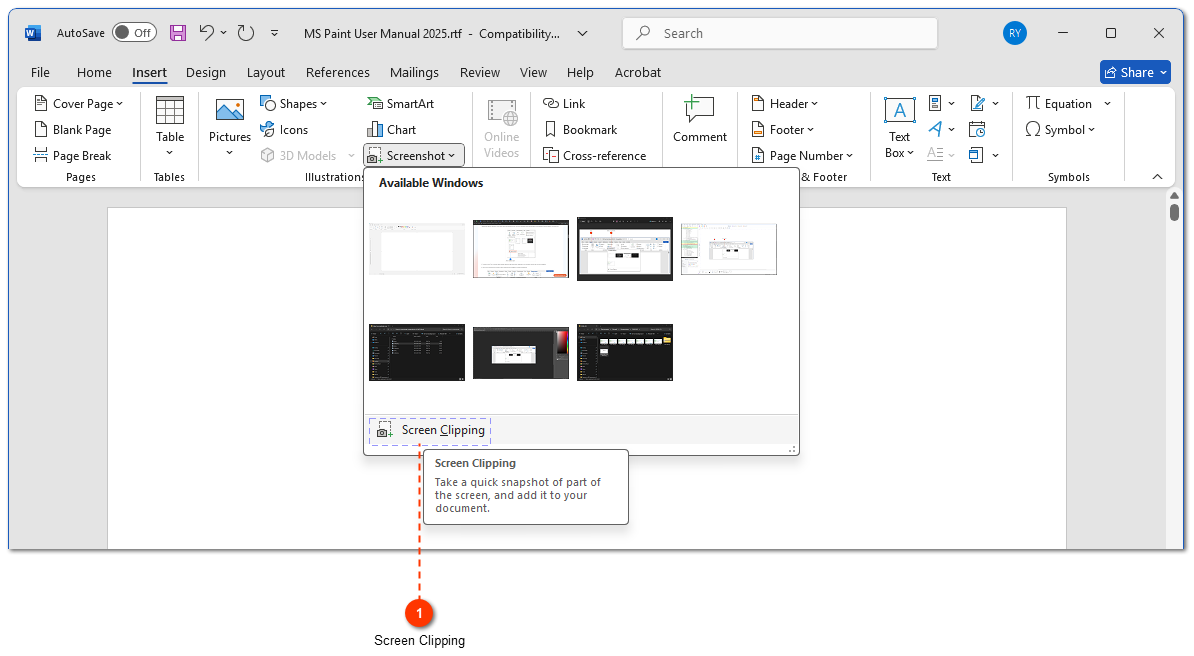
4. Paint opens, and your cursor turns into a crosshair. Click and drag to select the area you want — the toolbar, say.
5. Word will automatically open and paste the clipped screenshot into your document.
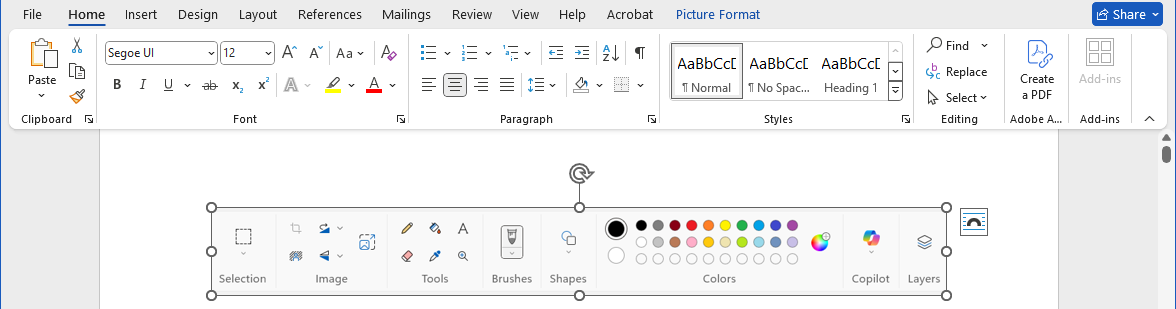
6. Now we have our screenshot. Go back to the Insert tab, click Shapes (1), and choose a shape to highlight an element. Let's pick the "Rounded Rectangle" (2).
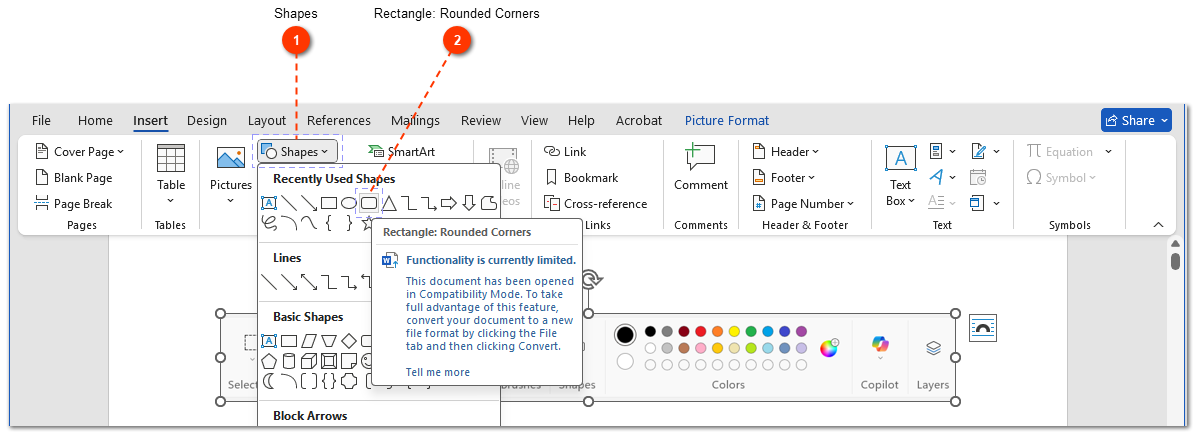
7. Your arrow turns back into a crosshair. Click and drag on the screenshot to draw the shape around the element you want to highlight. Let's outline the "Selection" tool. It will look like this initially.
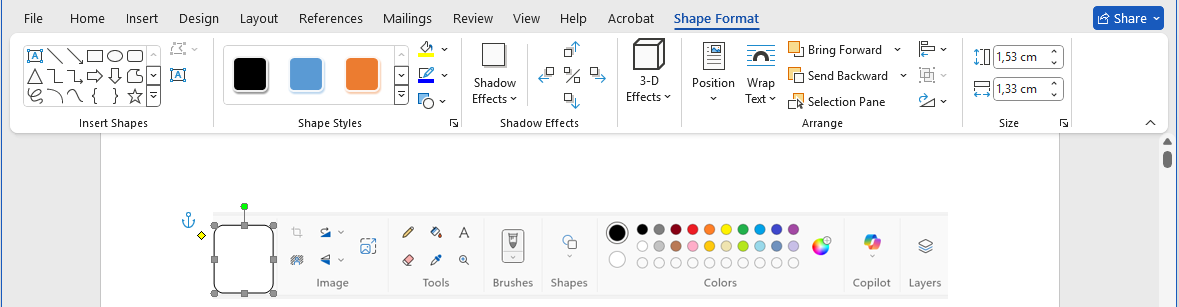
8. Now we need the shape's fill to be transparent. Select the shape and head over to the Shape Format tab. Click Shape Fill and choose No Fill (1).
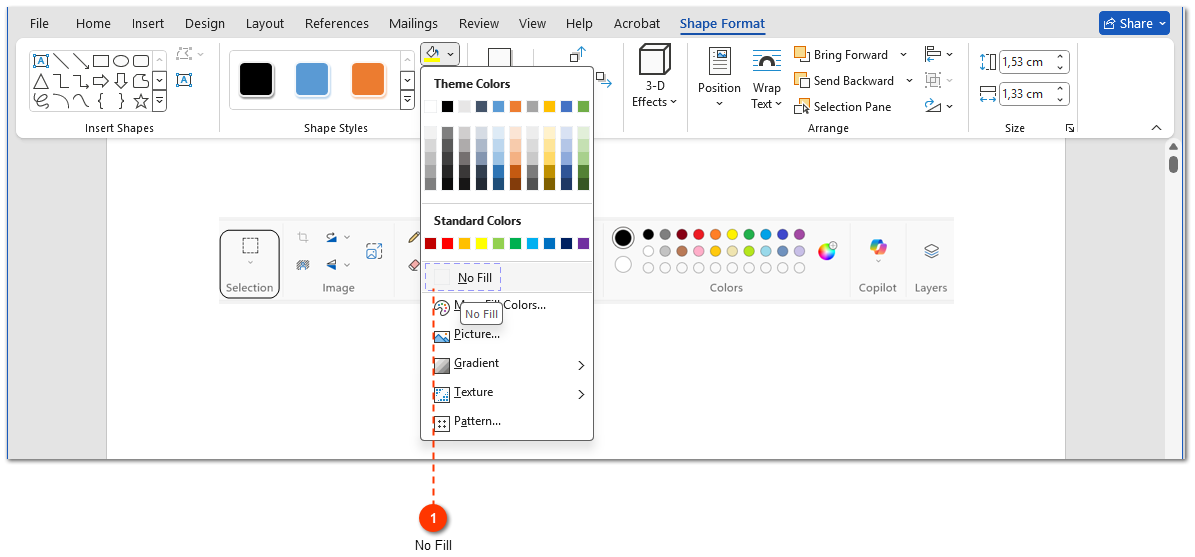
9. The fill disappears, leaving only the outline. Perfect.
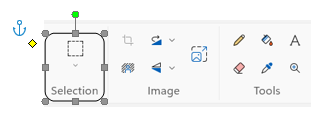
Our interface element now has a transparent outline with adjustment handles. You can resize, rotate, or move the outline using these handles.
To change the color, weight, or style of the outline, right-click the outlined object, click Format AutoShape (1), and then click the Shape Outline button (2).
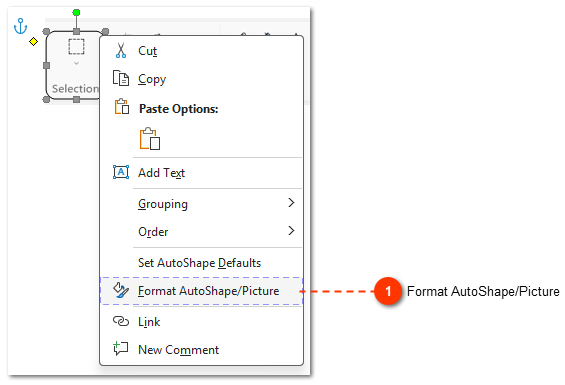
Let's now add a text label to the highlighted item.
10. Go back to the Insert tab (1), click Shapes (2) again, and this time choose the Text Box (3) tool.
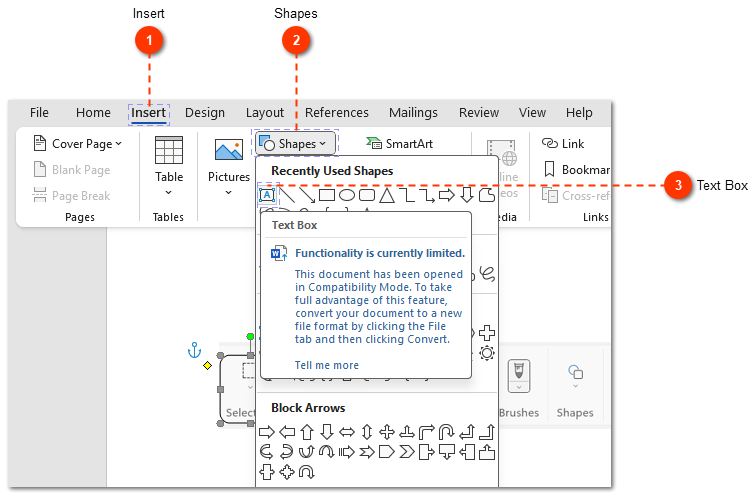
11. Click and drag on the screenshot to create a text box near your highlighted element. Type your label, for example, "Selection Tool".
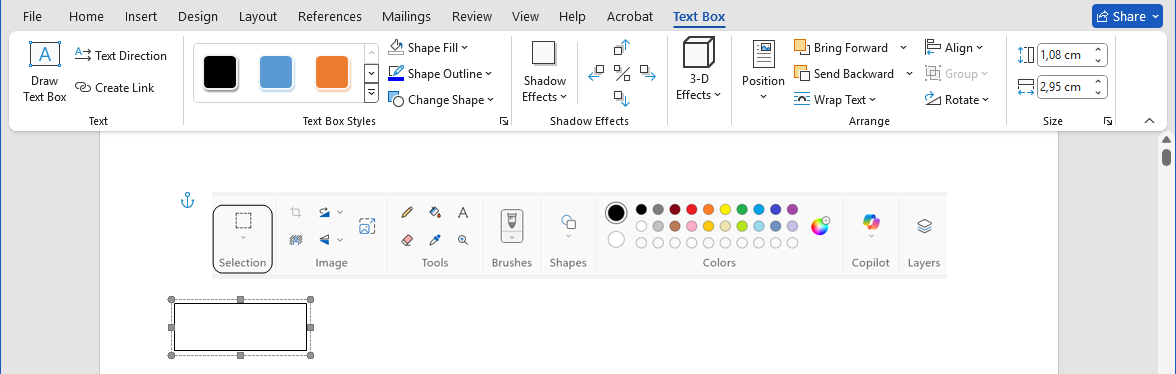
If the text doesn't fit, you've got two options: shrink the font, or grab a corner of the text box and drag it bigger.
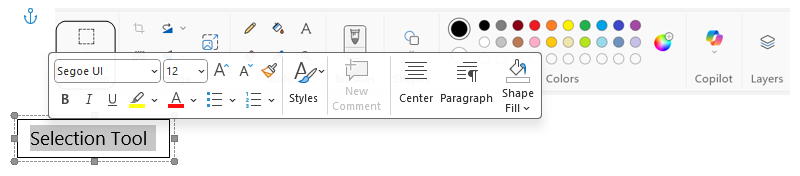
You can also align the text box.
12. Finally, connect the label to the element with an arrow. Go back to Insert > Shapes and choose the Line Arrow (1).
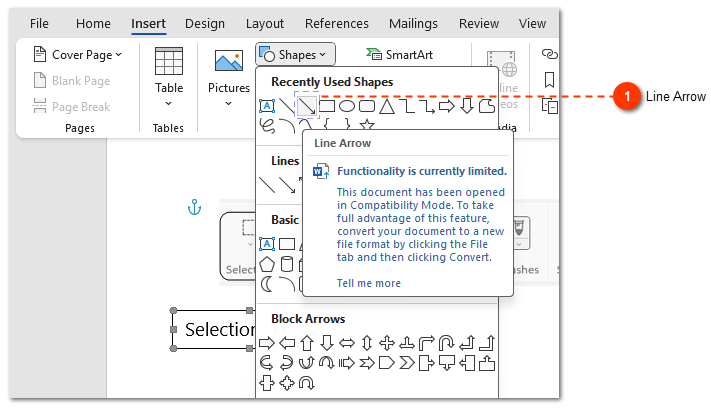
13. To draw a perfectly straight vertical (or horizontal) arrow, hold down the Shift key while you click and drag from the text box to the highlighted element. Here's the result.
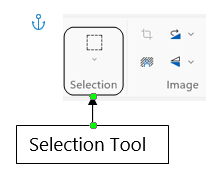
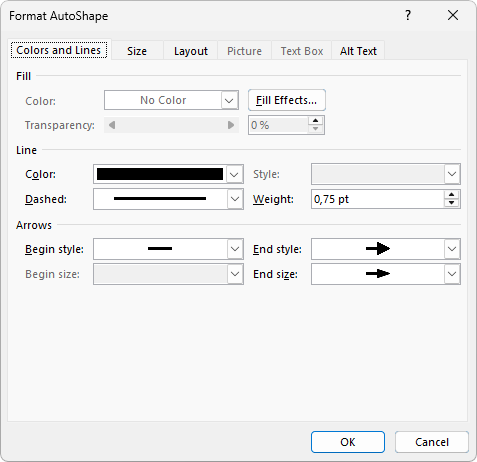
You can shape the arrow however you want. Grab its adjustment handles, or right-click it and open Shape Outline — that's where you change the color, the thickness, the style.
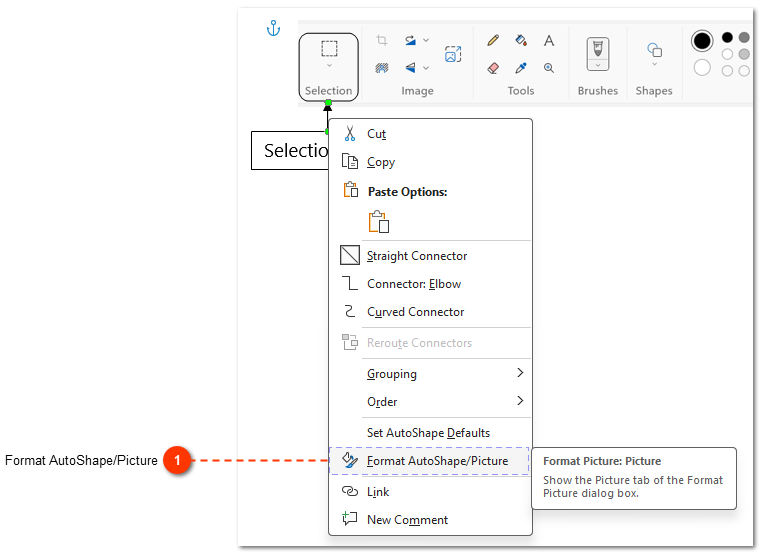
Format AutoShape popup:
Done!
Dr.Explain - a faster tool for creating user documentation with annotated screenshots
Annotating a few screenshots in Word is straightforward. But for creating entire user manuals with many images, it's not the most efficient method.
The manual process in Word took 13 steps. An automatic tool like Dr.Explain can do the same thing in just 2 clicks. Compare for yourself:
- Manual way: capture, insert, draw shape, remove fill, add text box, add arrow...
- Automated tool (Dr.Explain): capture screen -> add descriptions.
Dr.Explain is a dedicated help authoring tool. It captures content from the application window (or a specific region of it). It also automatically recognizes menus and objects. You can then add callouts and descriptions to these objects right in Dr. Explain. The finished documentation in HTML, PDF, or CHM formats can be saved with ease.
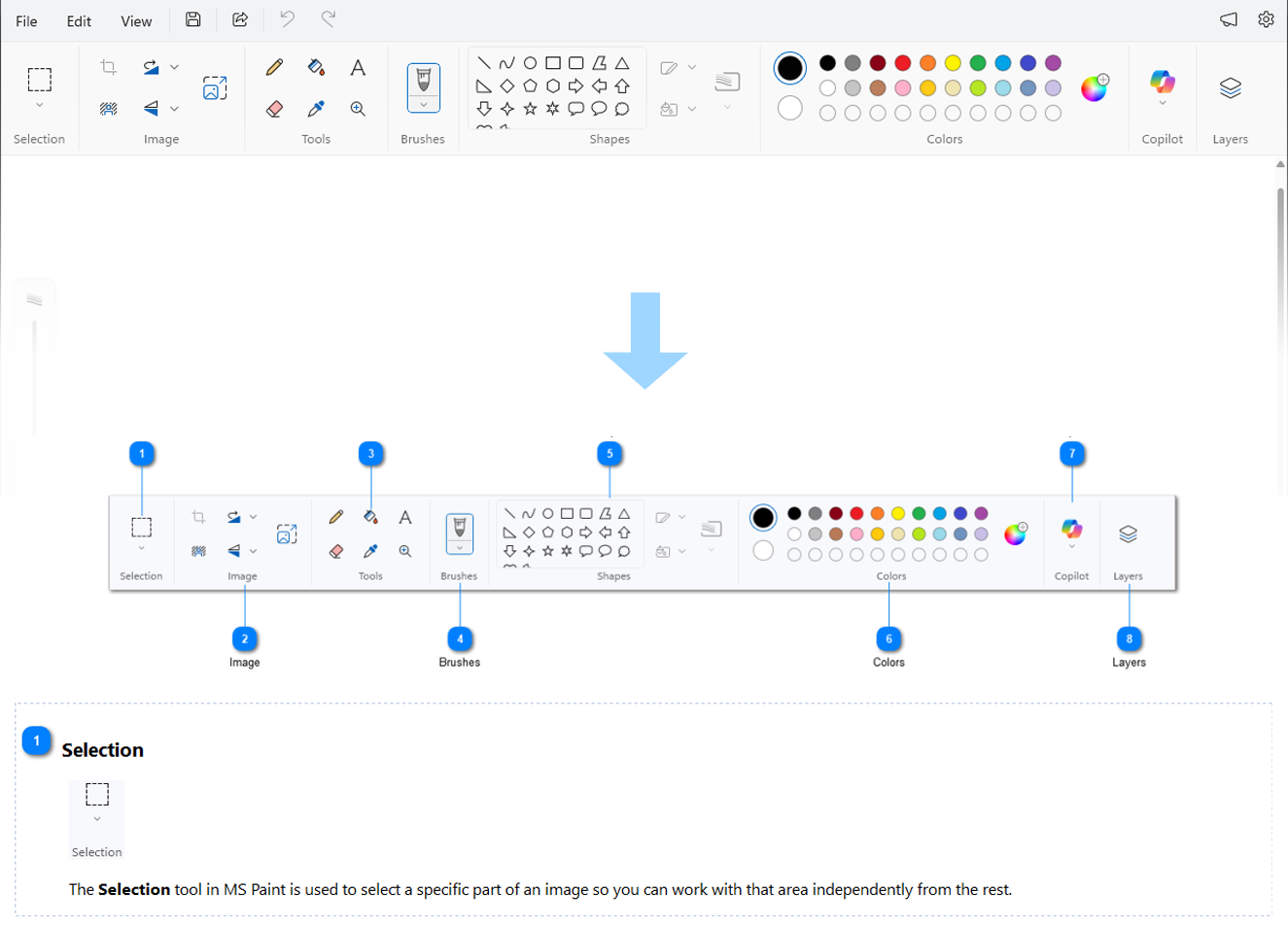
This is just one of its features, but it's enough to see how an automated tool can save you hours of manual work. Video of how annotating screenshots in Dr.Explain works:
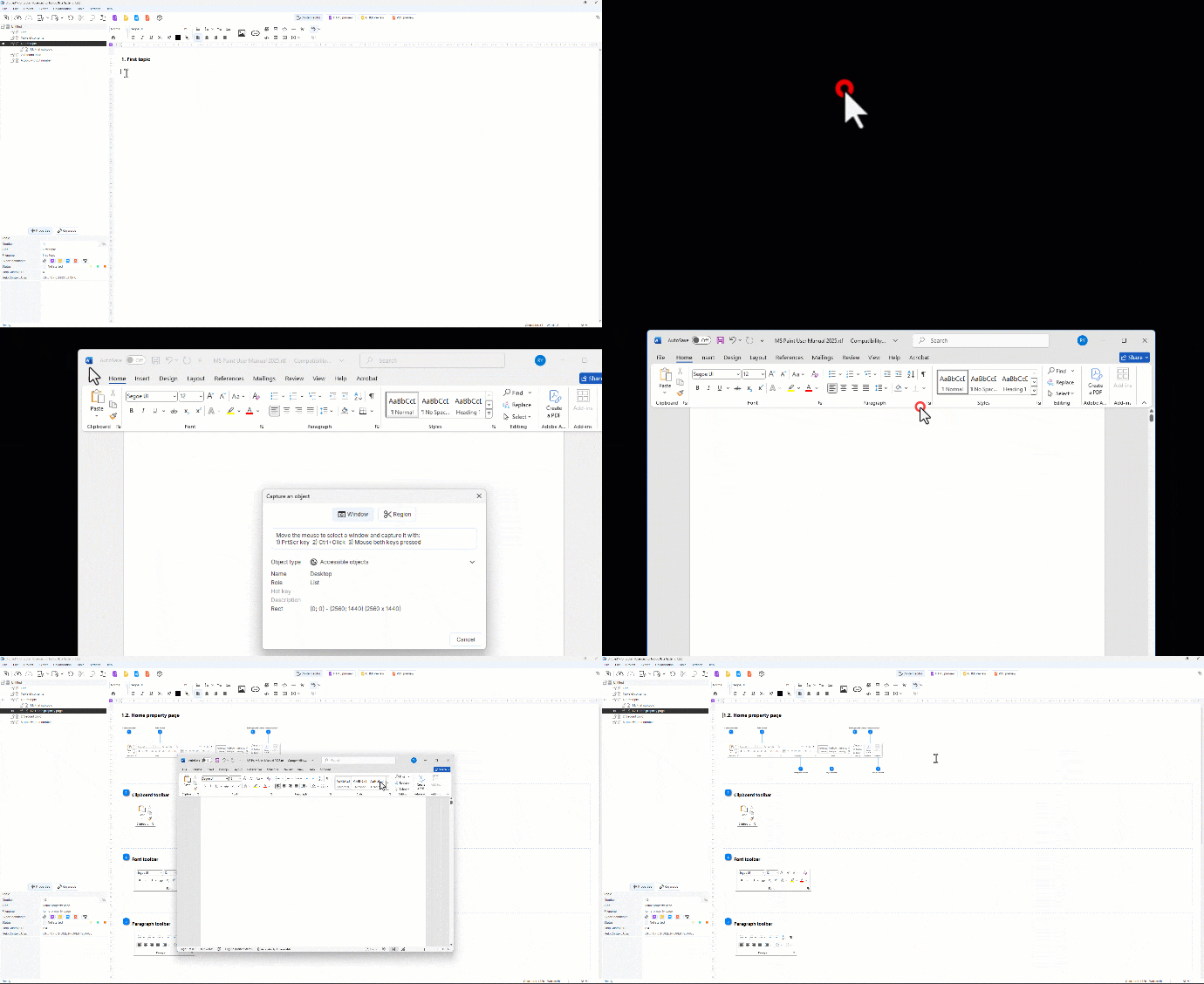
You can see examples of user documentation created with Dr.Explain.
Download Dr.Explain for free and start creating professional user documentation today. Export your user guide projects in popular formats without programming.
See also:
Frequently asked questions
1. How to add automatic captions (like "Figure 1") to my screenshots in Word?
Yes, Word has a built-in feature for this. You can insert a caption by going to the "References" tab and clicking "Insert Caption". This will generate labels such as "Figure 1 - Main Window" that are numbered according to the figures' creation or removal, but it will not automatically update the visual callout (e.g., arrows or boxes) highlighting the relevant image area, which still has to be added manually.
2. Arrows and text boxes shift when I try to drag the screenshot. How do I stop that from happening?
That is because the screenshot is a separate object as your annotations, so you need to group them together. Select the screenshot, and while holding down the "Ctrl" key, click on each of the annotations you want to group (this applies to all shapes, text boxes, and arrows). Then, right-click on one of the selected objects, go to "Group", and click "Group".
3. Is this manual way of creating an instruction manual effective enough for a user guide that involves more than 50 annotated screenshots?
In theory, yes, it could be done. Nevertheless, it would not be the most efficient method to accomplish the task. Creating a user manual involves repetitive processes, such as 13 steps you have to do for every button or value in the screenshot. It would take a lot of time to make a few annotations and add new screenshots. Word is a good program for making one or two annotated screenshots, but for a whole set of instructions, it just seems like a waste of time.
4. Is there a faster way to create annotated screenshots?
Absolutely. Specialized software exists precisely for this task. These tools are called "help authoring tools." For example, Dr.Explain, mentioned in the article, automates the entire process. It captures the application window, analyzes its structure to automatically detect buttons and controls, and instantly generates numbered callouts for each one. You can then add your descriptions and export the results to multiple formats like online help or PDF. Try Dr.Explain for free.
5. What are the main advantages of using a modern tool like Dr.Explain?
The main advantage is automation. For example Word is a manual process (as shown in the 13 steps above). Dr.Explain automates:
- screenshot capture,
- interface element detection,
- callout generation,
- turning 13 manual steps into several clicks.