



Customizing documentation pages with CSS
Dr.Explain offers you to change the structure and appearance of your help pages, to customize styles using CSS. You can tailor the look of your manual to be as simple or as advanced as you need.
To create an online manual that truly stands out, high-quality content alone isn't enough. You also need a well-designed layout with clear menus, navigation, and interactive elements. Dr.Explain provides all the tools to style your manual's pages and organize their structure.
If you're not familiar with CSS, you can easily customize the visual style by applying ready-made color themes, which you can adjust to fit your needs. For those who know CSS (Cascading Style Sheets), this help authoring tool allows you to fine-tune the appearance and even the behavior of every element in your online guide for complete creative control.
Why do I need CSS?
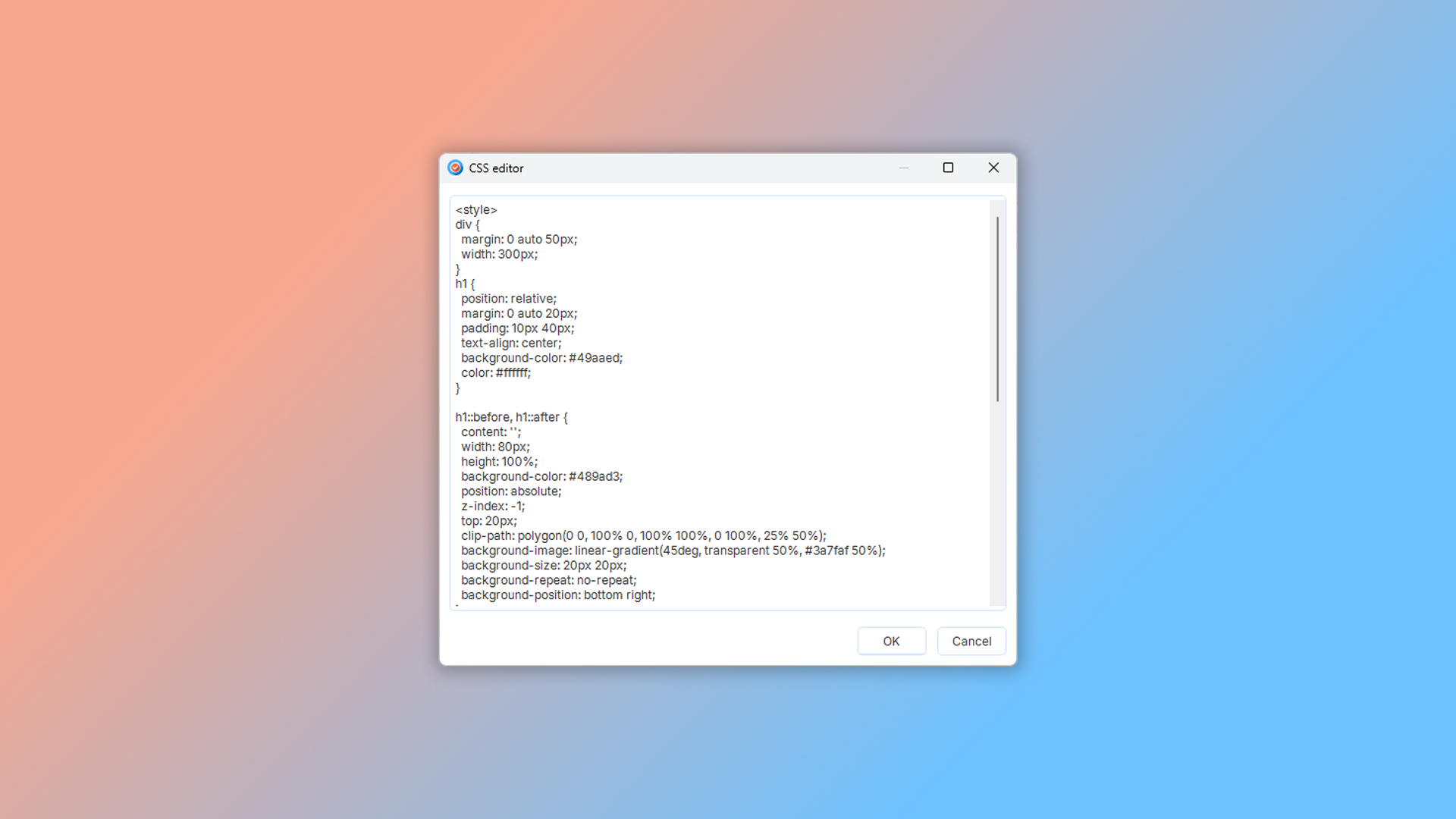
CSS is code that defines how elements on a web page look. When using CSS, your HTML file only needs to define the page structure and content — the blocks, their layout, and what's inside them. The CSS then controls the visual appearance of those blocks.
This approach, which separates content from its presentation, makes designing and maintaining web pages much simpler. Dr.Explain uses this same method when generating pages for online help or CHM help files.
How to apply your own CSS?
To customize the CSS for your online manual in Dr.Explain, use the "Additional CSS" button found in the "HTML export" menu of your project options.
Customizing your documentation's style
Dr.Explain offers several ways to customize your documentation's style, allowing you to adapt its appearance to your needs and preferences.
Using themes in help authoring tool
The program includes a set of ready-made themes. These themes control colors, fonts, and other design elements to ensure a consistent look. You can customize these themes by adjusting color schemes and other settings to match your brand identity.
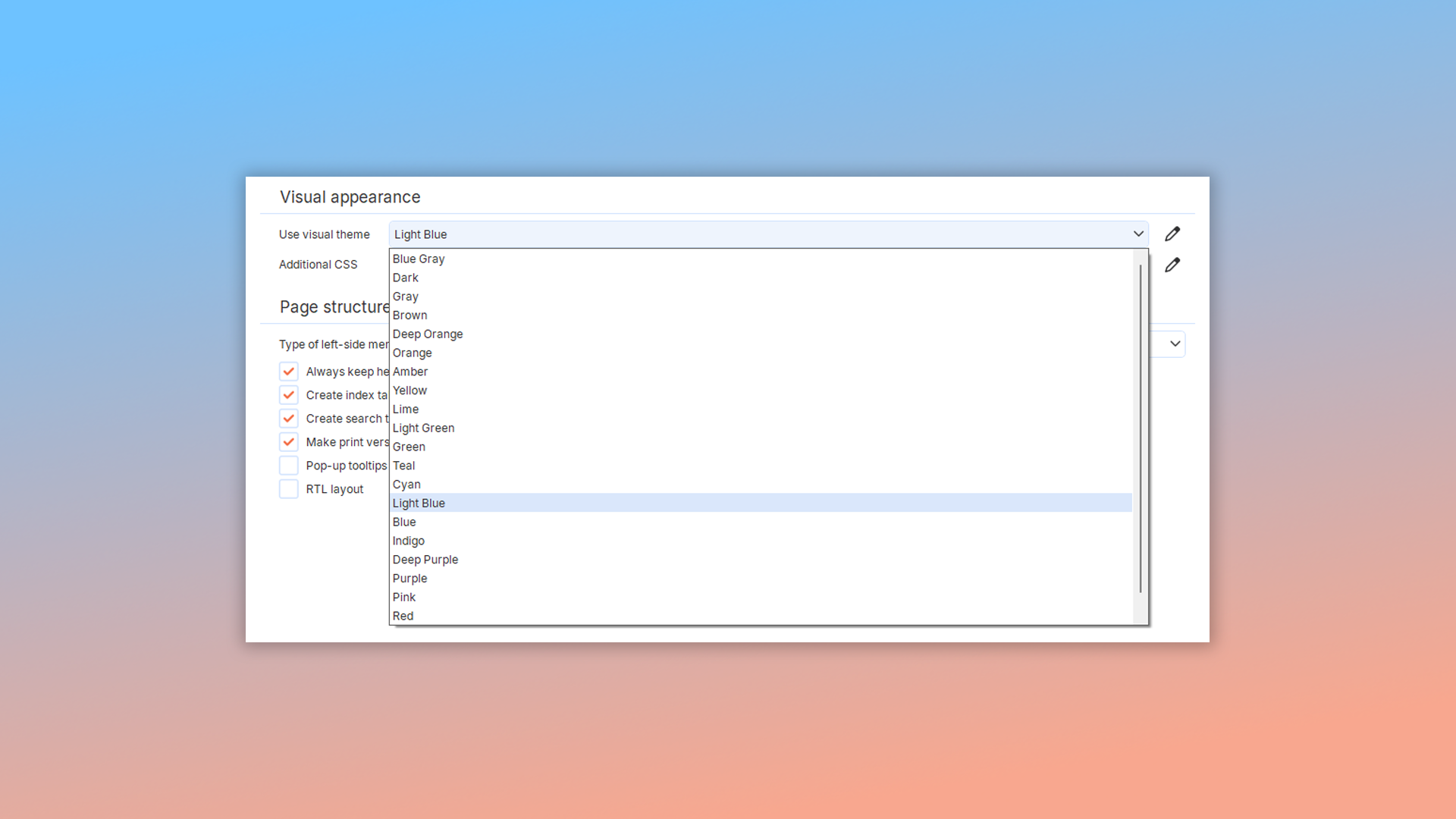
Customizing styles with CSS
Dr.Explain allows you to use CSS for more detailed customization. If you have CSS knowledge, you can write your own code to control the appearance and behavior of specific page elements. This gives you full control over the design, enabling you to create unique and professional-looking documents.
To override the CSS for your online manual's pages, use the "Additional CSS" button located in the "HTML export" menu of your project's options.

Examples of user documentation created in Dr.Explain
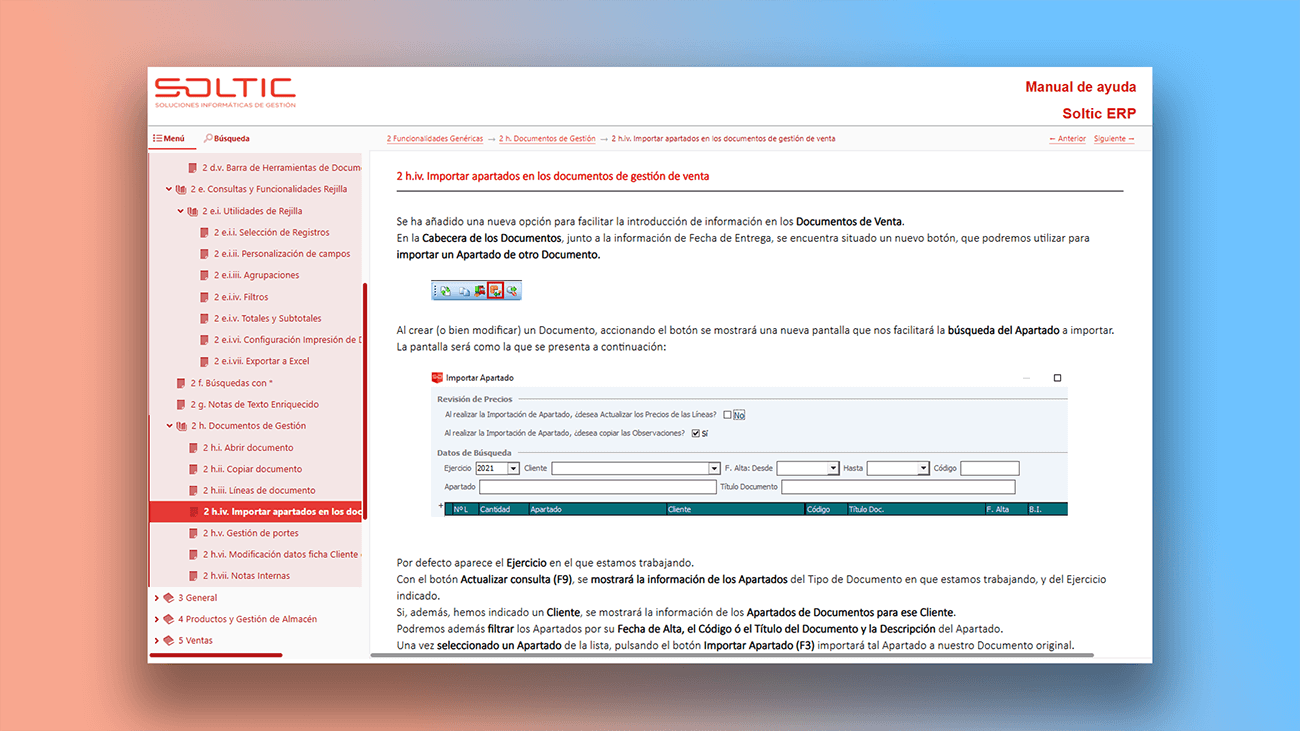
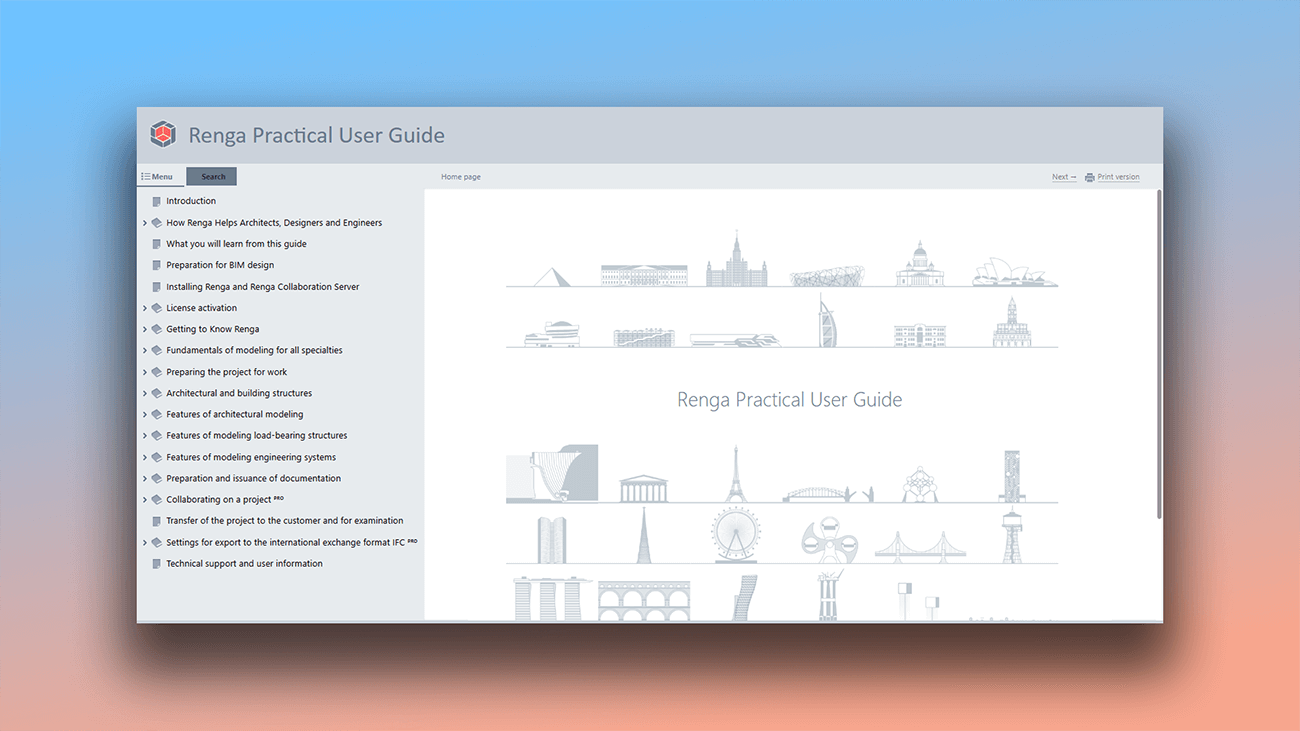
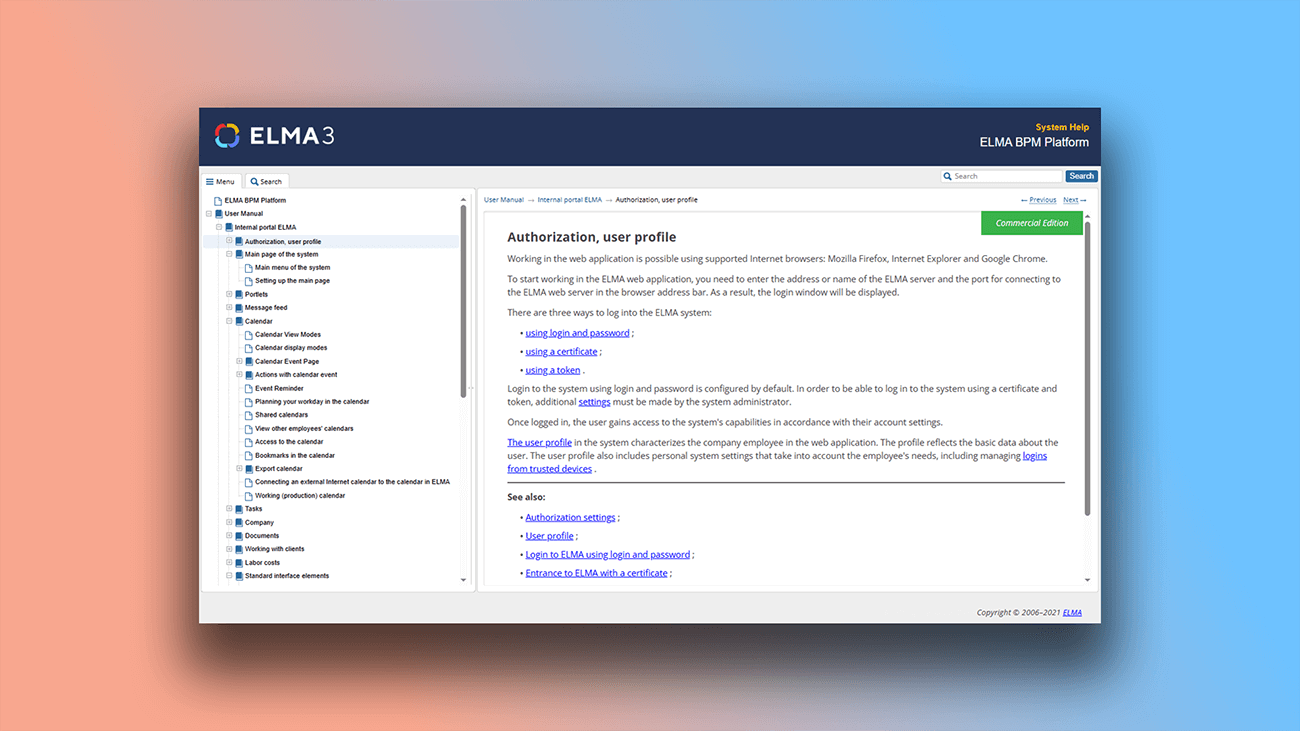
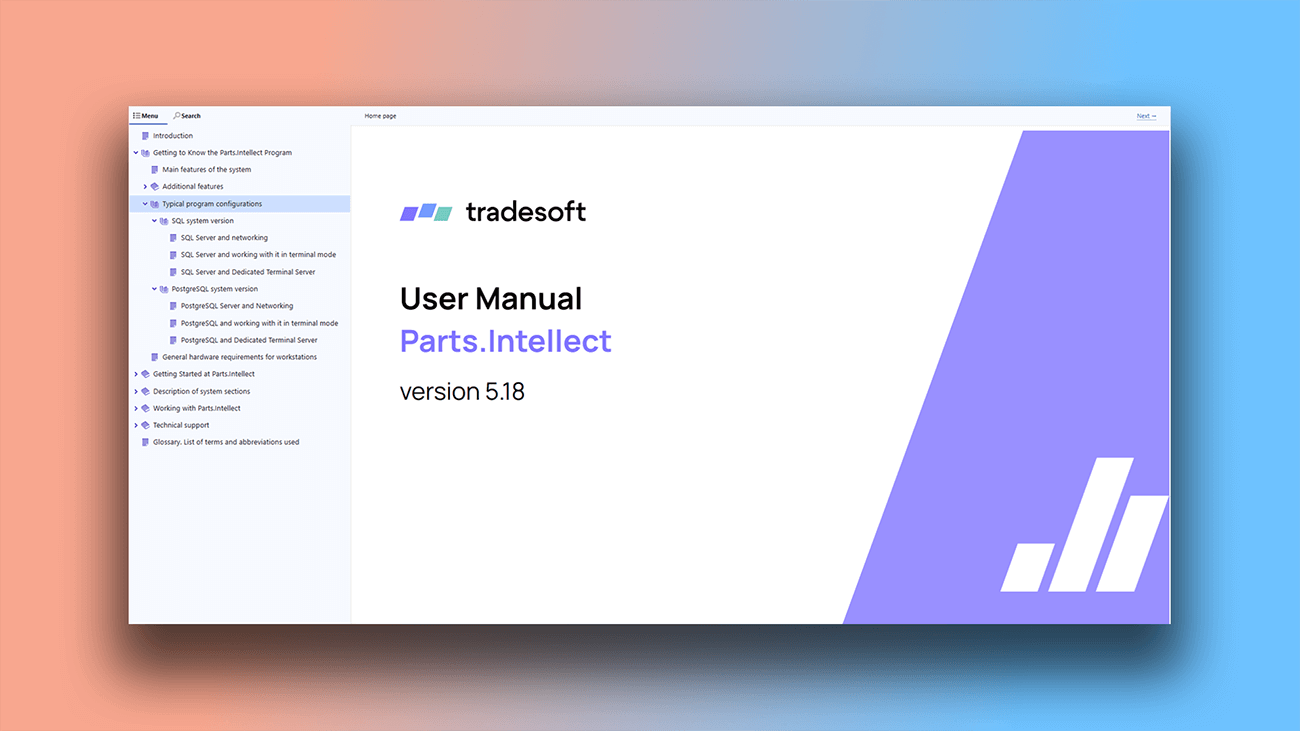
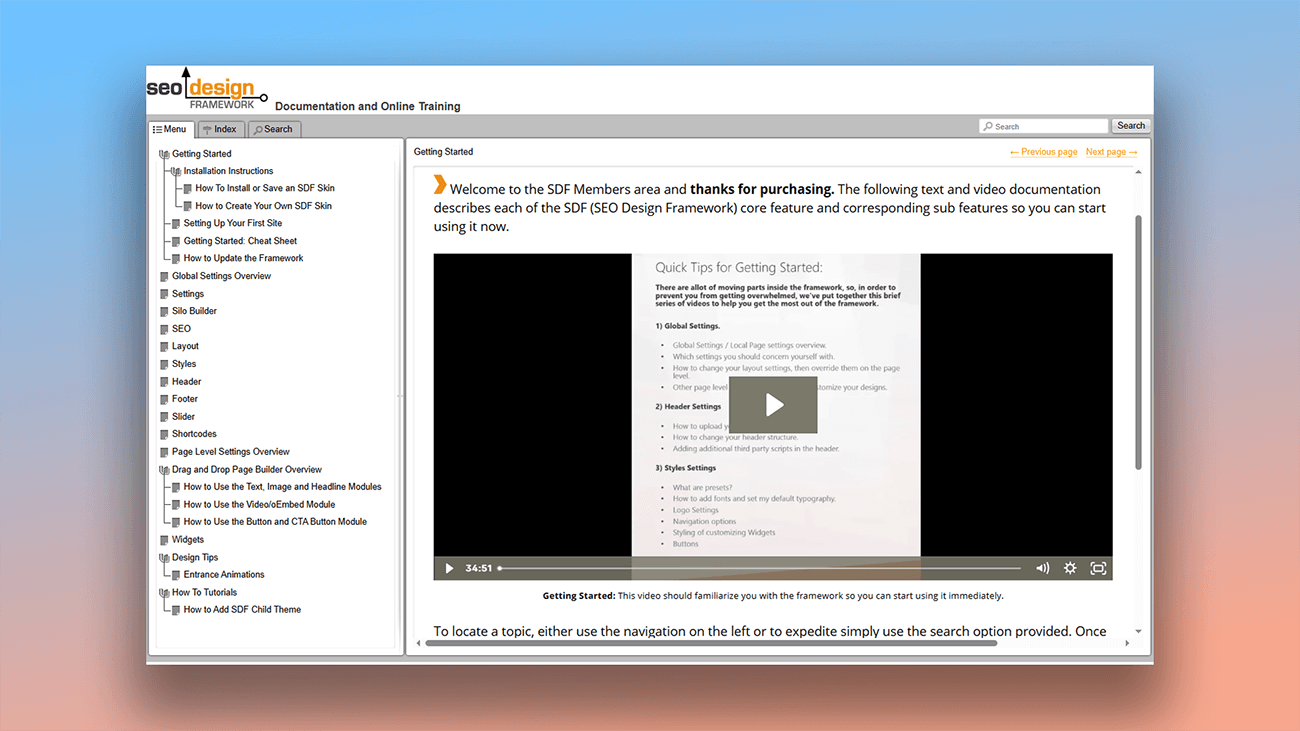
The wide range of customization options lets you create a unique document that stands out from your competitors. The screenshots below show examples of real user documentation created in Dr.Explain.

What are the benefits of using Dr.Explain?
Dr.Explain offers flexible options for customizing your help manual's appearance — from simple pre-built themes to detailed fine-tuning with CSS. This allows you to create both standard and uniquely styled guides that match your brand.
Get a head start. Whether you're a beginner or a pro, the ready-made templates will help you get up and running faster.
Automate routine tasks. Dr.Explain automates the time-consuming, manual work that usually slows you down.
Advanced export options. The software doesn't just export your document to different formats; it also performs a built-in error check before finalizing.
What type of users is Dr.Explain suited for?
The program isn't designed for just one type of specialist — it's accessible to users of any skill level. Here are some of the tasks that Dr.Explain can help you accomplish:
- you need a desktop application to create projects and export them to different formats;
- you want to develop your project locally, not on a remote server;
- you require a tool that works independently of an internet connection;
- you need automatic numbering for chapters and topics;
- you want to include a full-text search functionality;
- you're looking for an easy way to manage your project's structure;
- you want ready-made templates that you can customize.
Users about CSS support in Dr.Explain
"We have got a much better-looking and clearer documentation with a more professional look, and we can produce new documentation faster and with less frustration. What more can one ask?".
Jim, the deveoper of CNC Simulator project
Interview with Jim

"We have been updating our websites to a "responsive" format over the last few months, and we have upgraded to Dr.Explain version 5 so that we can also produce responsive HTML help documents to add to our online presence".
Bob Grimshaw, the founder of C-A-Solutions
Interview with Bob
Frequently Asked Questions
What is CSS?
In technical terms, CSS (Cascading Style Sheets) is the code that controls the look and layout of a web page.
Can I customize the page style without knowing CSS?
Absolutely. You can use Dr.Explain's tools without any special technical knowledge.
Can I export settings from one project to another?
Yes. This is especially handy when you want to use the same configuration across multiple projects. You can import all the settings at once, or just select specific ones.
Is there a preview mode for documents before exporting?
Yes. The preview mode is available for all four documentation formats.