



Customize the visual style of your online manual
Customizing the visual style of online manual in Dr.Explain lets you change the look of your user documentation to match your needs and preferences. The program comes with ready-to-use templates that feature a clean, pleasant design. This design makes the document easier to navigate, helps users find information faster, and keeps them focused — especially in large, content-heavy topics.
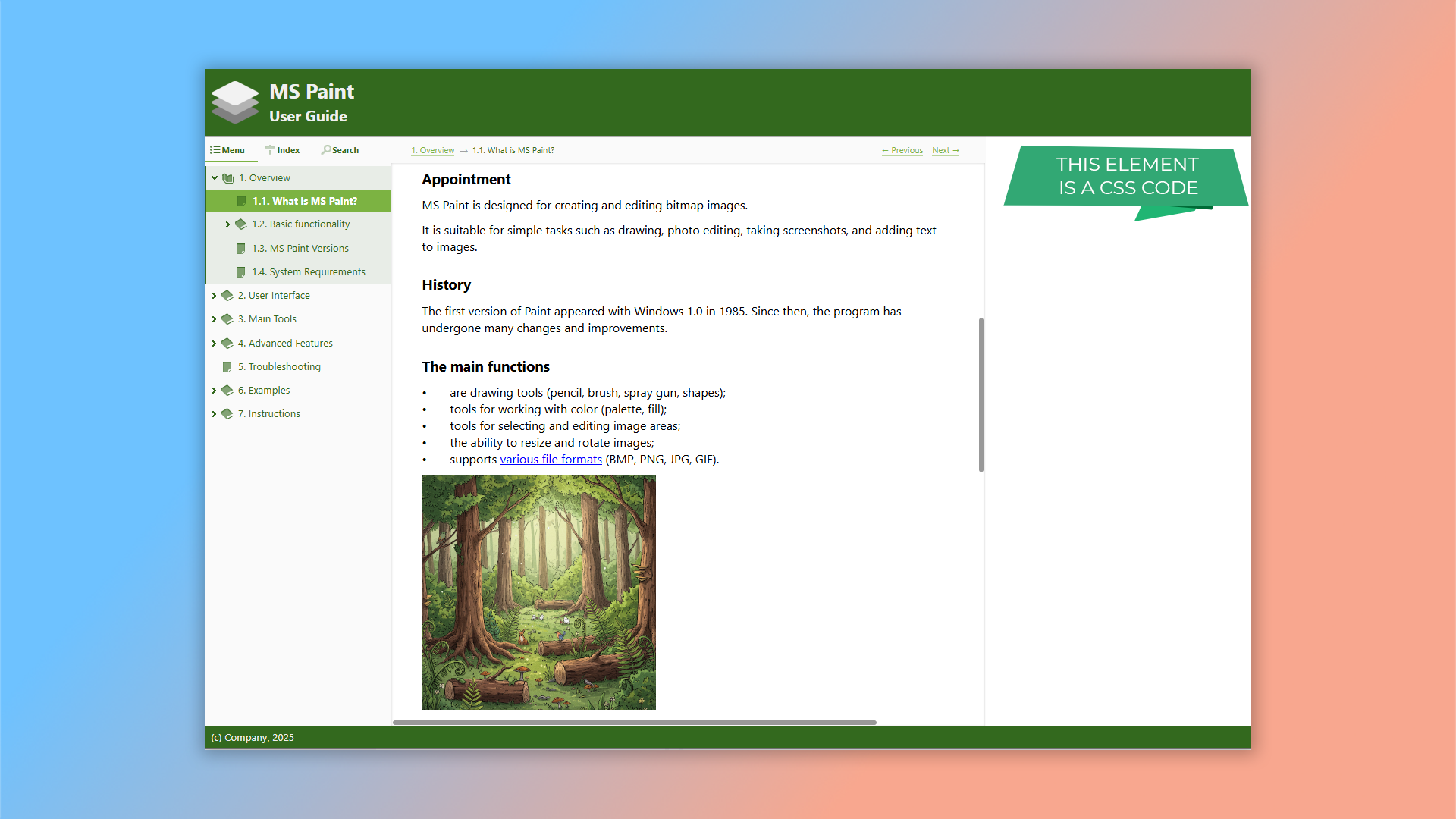
What is a user manual's visual style?
A user manual's visual style is the combination of graphic elements and design choices that define how your documentation looks. It plays a key role in how easily information is understood and how user-friendly the manual feels.
With Dr.Explain, you can customize your page layout using a collection of visual templates or with CSS code.
You can create an HTML template that matches your website's style by adjusting its color scheme. For even more precise control, you can use custom CSS to fine-tune the appearance of your online help down to the smallest detail.
The HTML templates are also responsive, making them easy to use on mobile devices.
How does the visual style setting work in Dr.Explain?
Use our ready-made templates or create your own custom design — no coding skills required. All the tools you need are built right into the editor.
Our online documentation covers everything you need to know, including:
- using HTML templates;
- working with CSS;
- adding interactive elements;
- and much more.
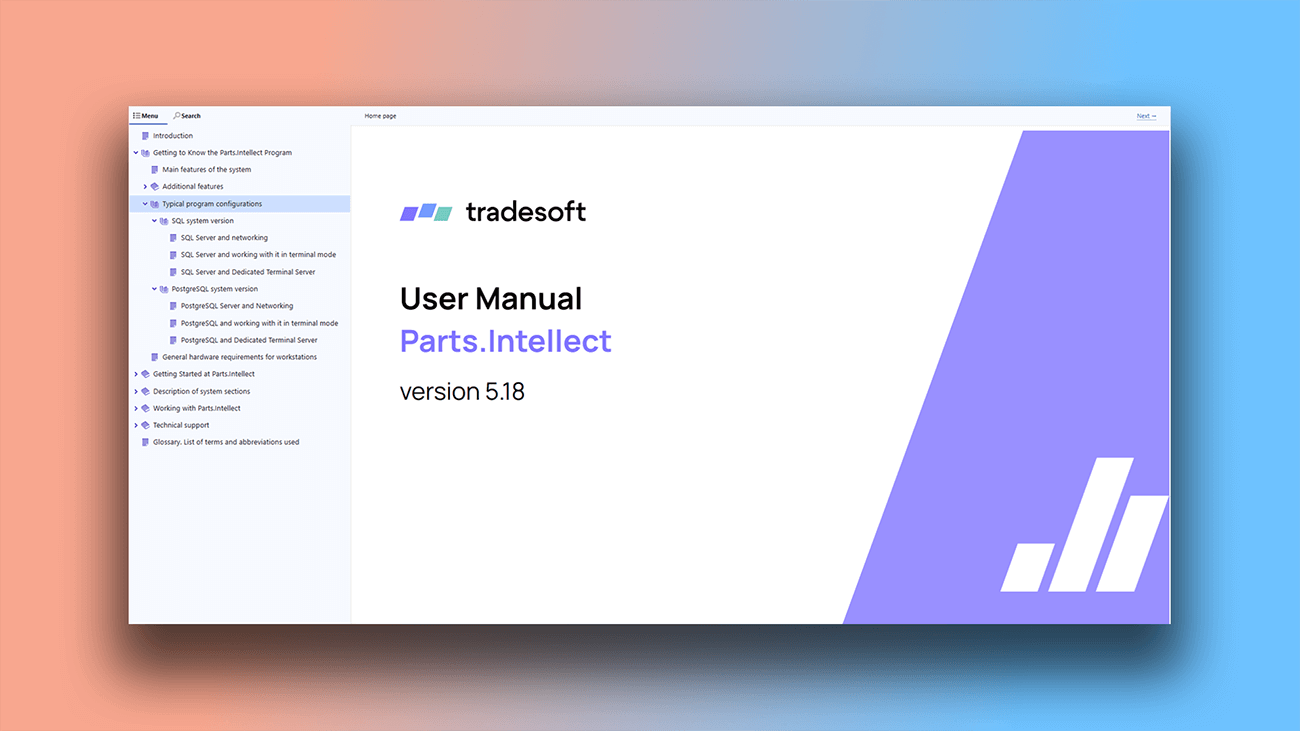
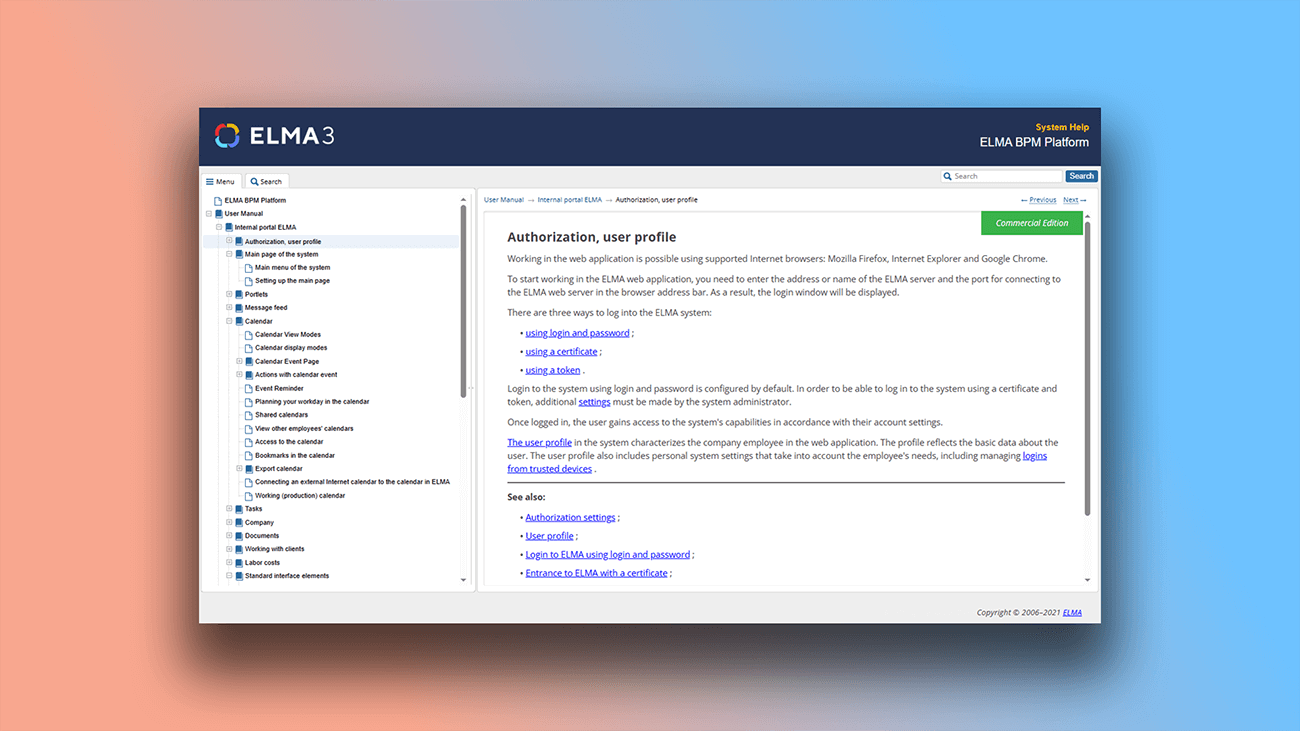
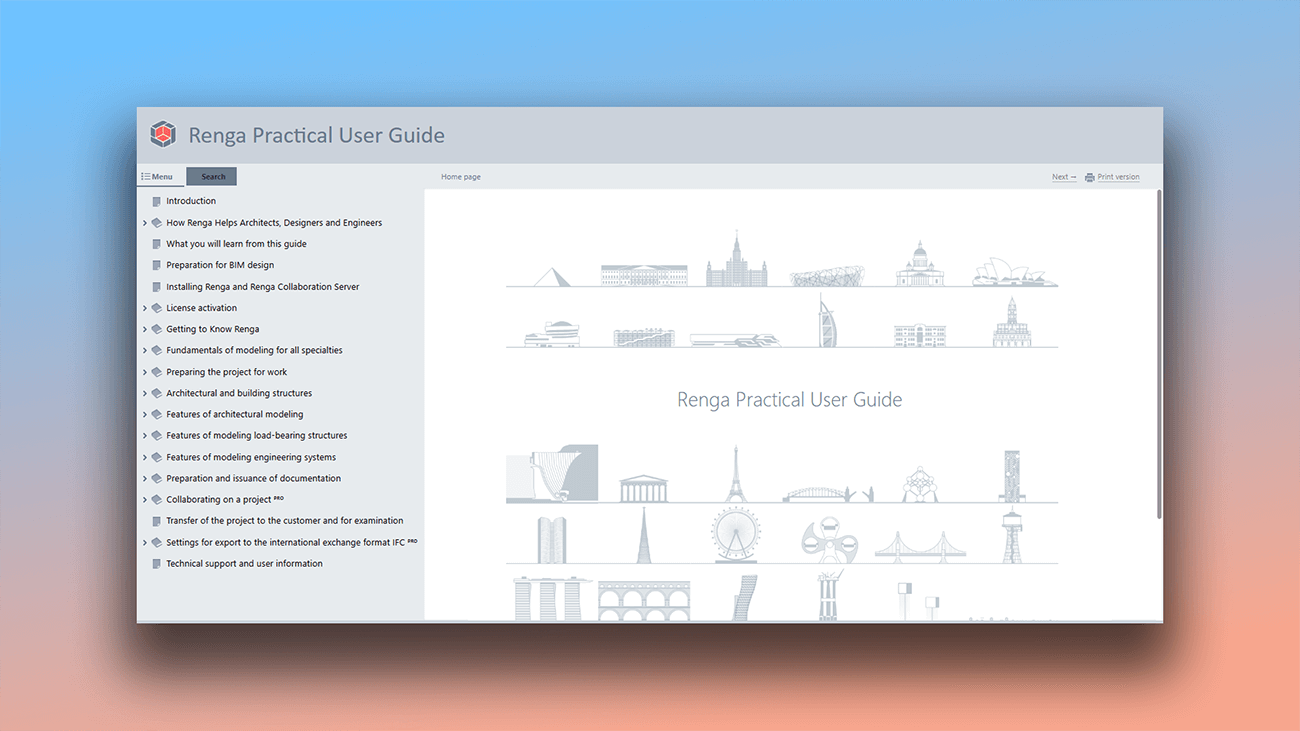
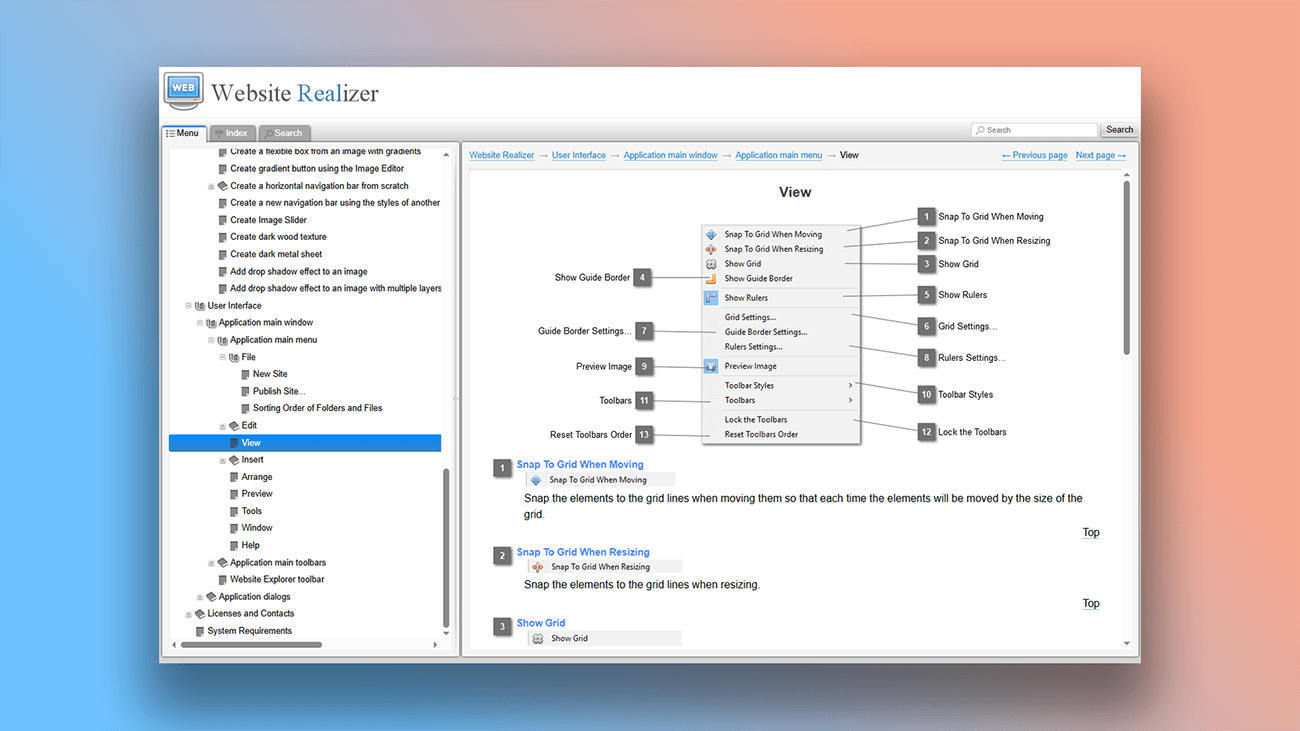
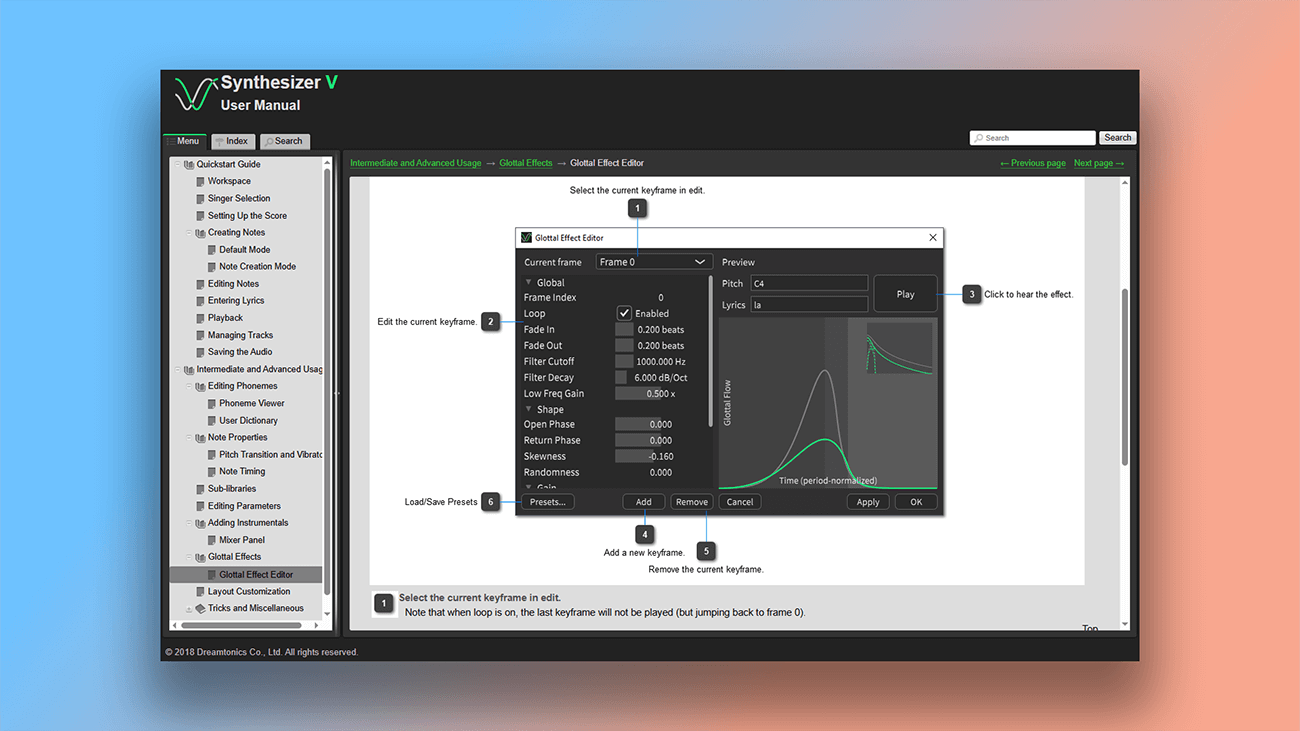
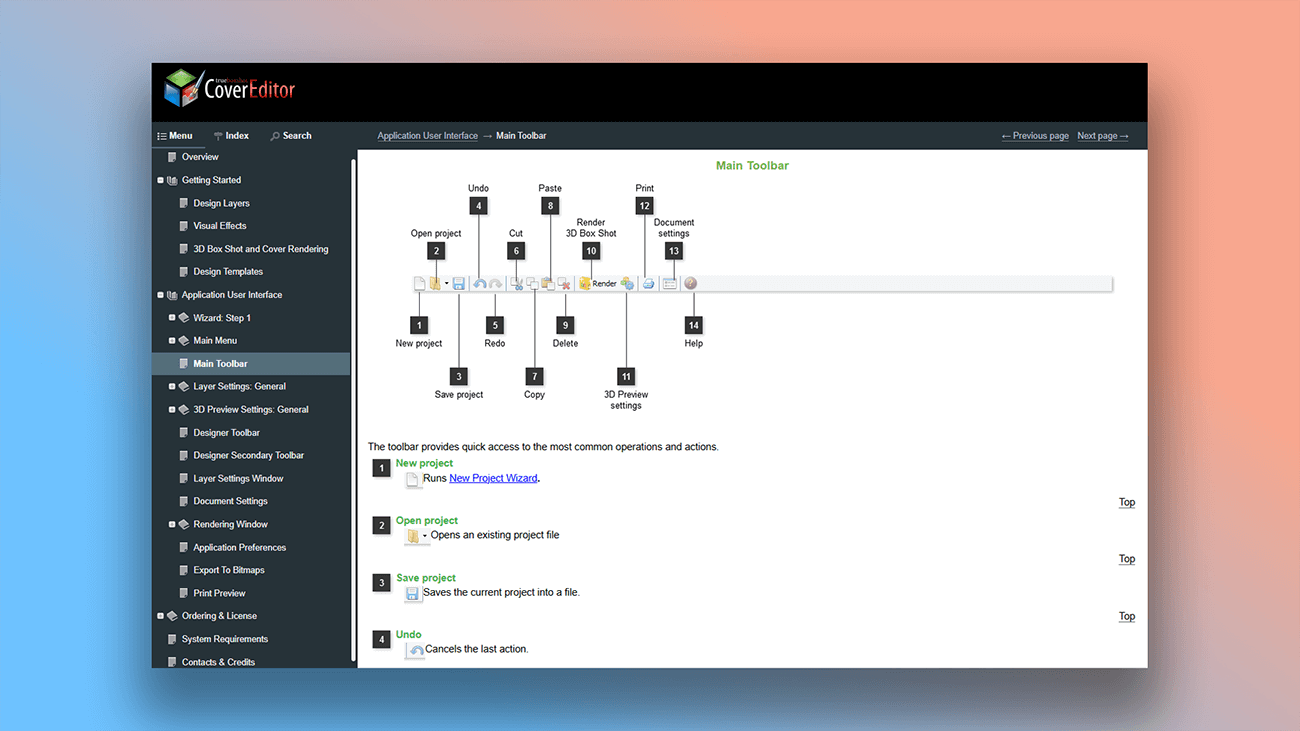
Examples of user guides created in Dr.Explain
The software helps you speed up the creation of guides with interactive screenshots and automate the process of documenting your application's interface.
What are the benefits of using Dr.Explain?
An attractive design does more than just help users grasp the material — it also serves several other important functions: it enhances the user experience and helps people successfully learn your product or service.
Readability. A clean, well-structured layout makes information easy to read and understand. The thoughtful use of fonts, spacing, headings, and other elements makes your text more accessible and clear.
A strong first impression. Professionally designed documentation creates a positive first impression of your product. Users are more likely to be interested and motivated to explore it further.
Ease of navigation. Good design includes intuitive navigation, allowing users to quickly find what they need. This is especially crucial for large, comprehensive manuals.
Increased trust. A polished, professional look conveys quality and reliability, which builds user confidence in your product.
Better comprehension. A visually appealing manual makes learning about a product a more pleasant and effective experience. Users remember information better and enjoy using the product more.
Brand consistency. When your documentation's design matches your overall brand style, it reinforces your company's identity and values. This creates a unified and harmonious impression of your company and its products.
A cohesive look. A consistent visual style ensures all pages and topics of your guide feel unified. This is achieved by using the same set of fonts, color schemes, icons, and other design elements throughout.
What type of users is Dr.Explain suited for?
Dr.Explain is a great fit for both large organizations and small teams. Even if you've never created a help system before, the interface will feel familiar — it works much like common text editors such as Microsoft Word or Google Docs.
Dr.Explain is the right solution for you if you need:
- a single tool to create documentation and export it to multiple formats;
- software that is powerful but still easy to learn;
- the assurance of a well-established product with reliable long-term support;
- a desktop application, not a cloud-based service;
- the ability to install and test a free trial version;
- built-in tools to facilitate team collaboration.
Users about working with visual styles in Dr.Exlain

"Dr.Explain was easy to use and gave me a good way via the screenshots and bulleting to document all my programs’ windows and menu options and output windows simply and straightforwardly. The resulting user manual has the quality and looks professional and gives the user more confidence that the underlying programs must be the same".
Louis Kessler, the owner of Behold Genealogy
Interview with Louis

"When testing Dr.Explain, we found that it produces help systems whose design is easy to customize. It meant that now we can quickly implement the design that we need. We also liked the ability to se t a status for each help topic. It was very convenient, especially in our case (we have to maintain help systems in several languages)".
Olga Mikheyeva, head of the documentation department of ELMA
Interview with Olga
Frequently Asked Questions
Can I add my own code?
Absolutely. You can insert your own code snippets HTML, CSS, and JavaScript to give your documentation pages a completely unique look and feel.
Can I add videos to the documentation?
Yes. See Inserting video for more information.
Can I customize the web design without using code or any special skills?
Yes, you can. The application provides easy-to-use tools and templates that let you change the design visually, no coding required.
Is the documentation optimized for mobile devices?
Yes. All documentation templates are built with a responsive design that automatically adapts to mobile screens.