



Manage the project structure
Struggling with overly complex user guides? When documentation grows too many nested topics, it becomes hard to maintain and even harder for users to navigate. What’s often missing is a clear visual overview of how topics relate to each other. In Dr.Explain, your project is displayed as a clear tree structure, where you can easily move, lock, delete, or add topics. This helps you to manage the project structure, to maintain a logical content hierarchy, simplifies navigation, and lets users find what they need — fast.

What is structure management in Dr.Explain?
In Dr.Explain, your documentation is organized as a tree of topics with unlimited nesting levels.
While working on your project, you can:
- create, delete, or hide topics;
- move, rename, or reorder topics;
- enable automatic numbering (for all topics or selected ones);
- set topic status (e.g., "In progress", "Completed") to track progress;
- lock topics to prevent accidental edits during collaboration;
- configure export: include or exclude specific content? You can control what gets included in your final document by setting conditions for each topic or content block during export.
How to manage topic structure in Dr.Explain?
Moving topics
You can rearrange topics in three ways:
- Drag and drop. Click and hold a topic, then drag it to a new location in the tree.
- Right-click menu. Use options to change a topic’s nesting level.
- Keyboard shortcuts. Use quick keys to move topics efficiently.
All changes are reflected instantly in your project’s visual structure.
Automatic numbering
Automatic topic numbering helps you navigate large projects with ease. You can customize the numbering format and style, and choose where numbers appear — in the table of contents, topic lists, or search results. Examples of topic numbering styles:

Track documentation progress with a visual heat map
Monitor and manage your writing process effectively. By color-coding topics in the tree structure, Dr.Explain turns your documentation into a progress heat map. This helps you plan tasks and balance workloads — for example, assigning experienced team members to topics marked in red.
Color guide:
- yellow — topics being edited;
- green — completed topics;
- red — topics awaiting work or requiring revisions.

Locking topics
Locking prevents accidental edits to completed topics — especially useful when multiple authors work on the same project. You can lock only the parent topic or both the parent and its subtopics.
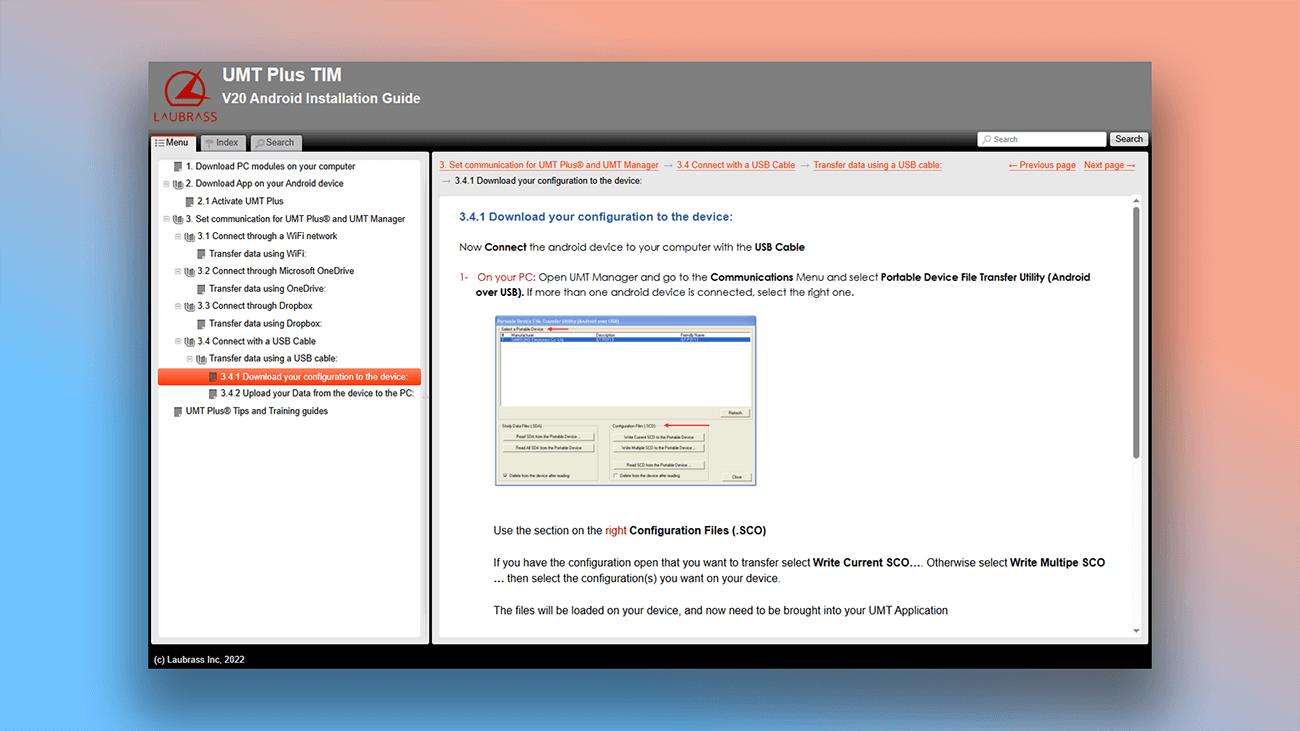
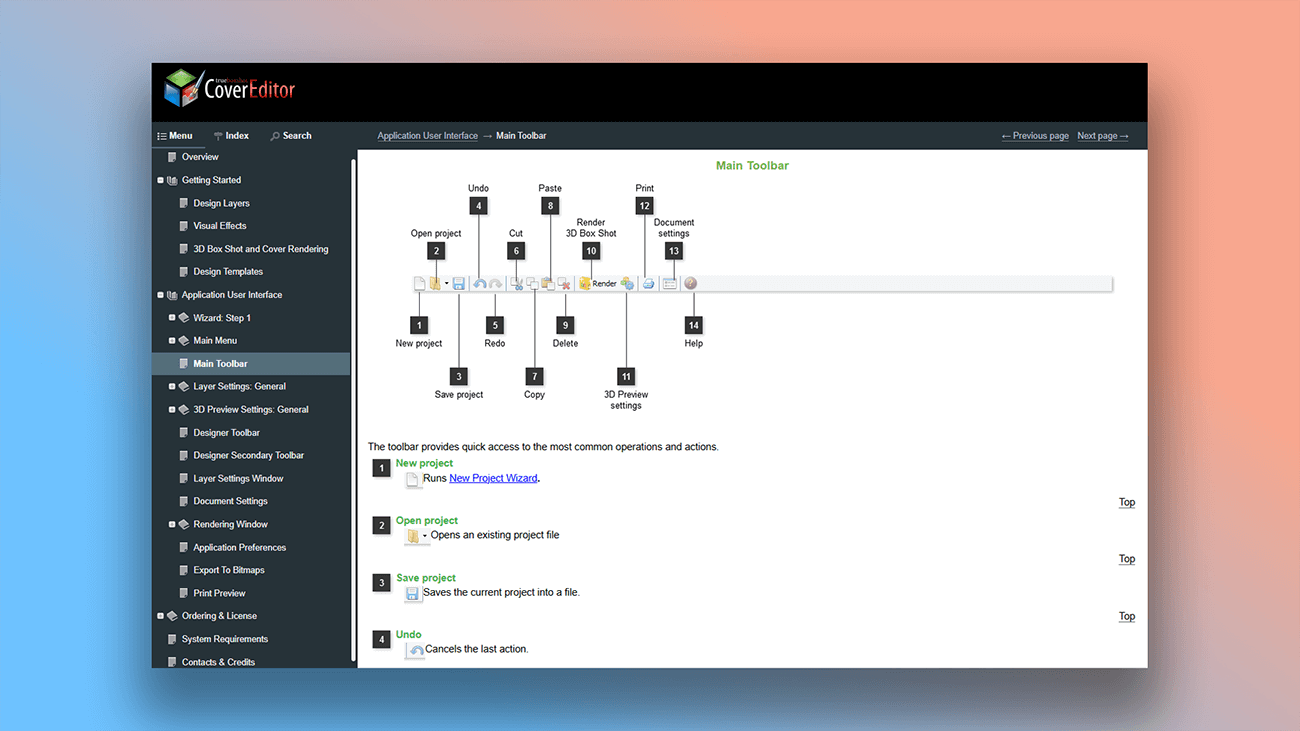
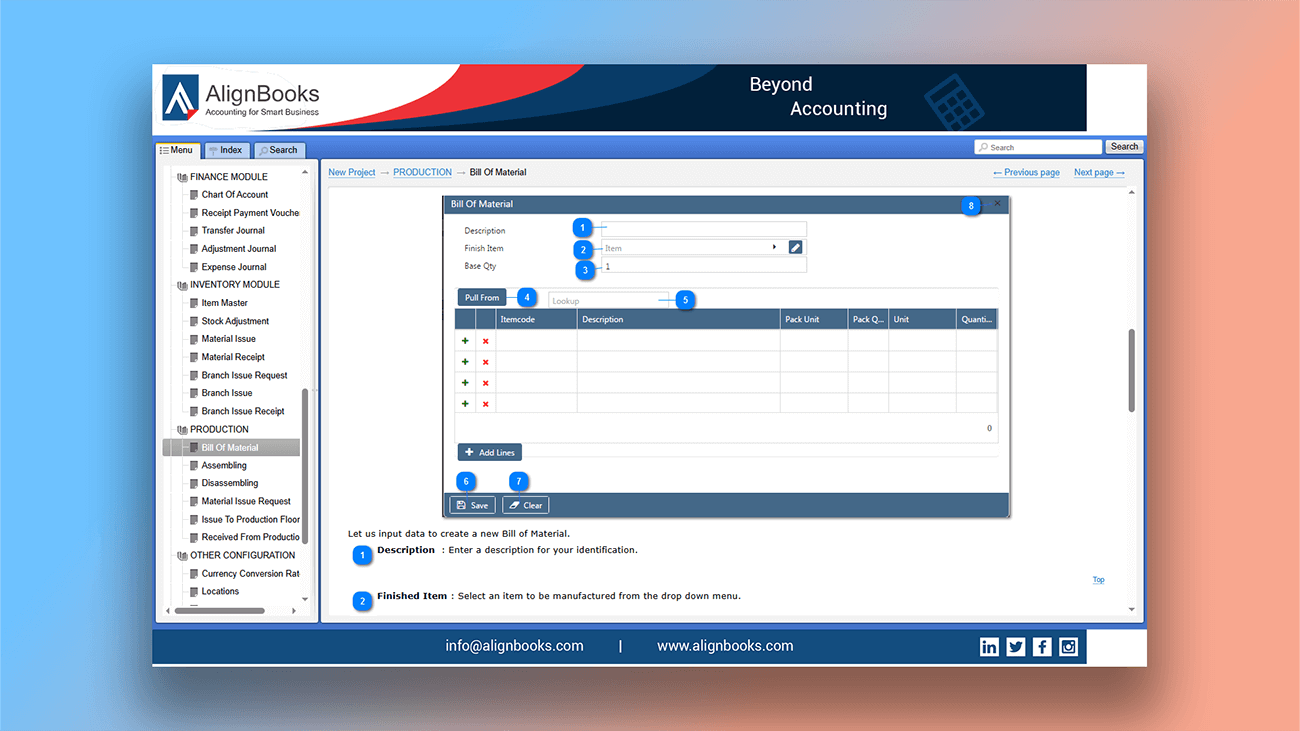
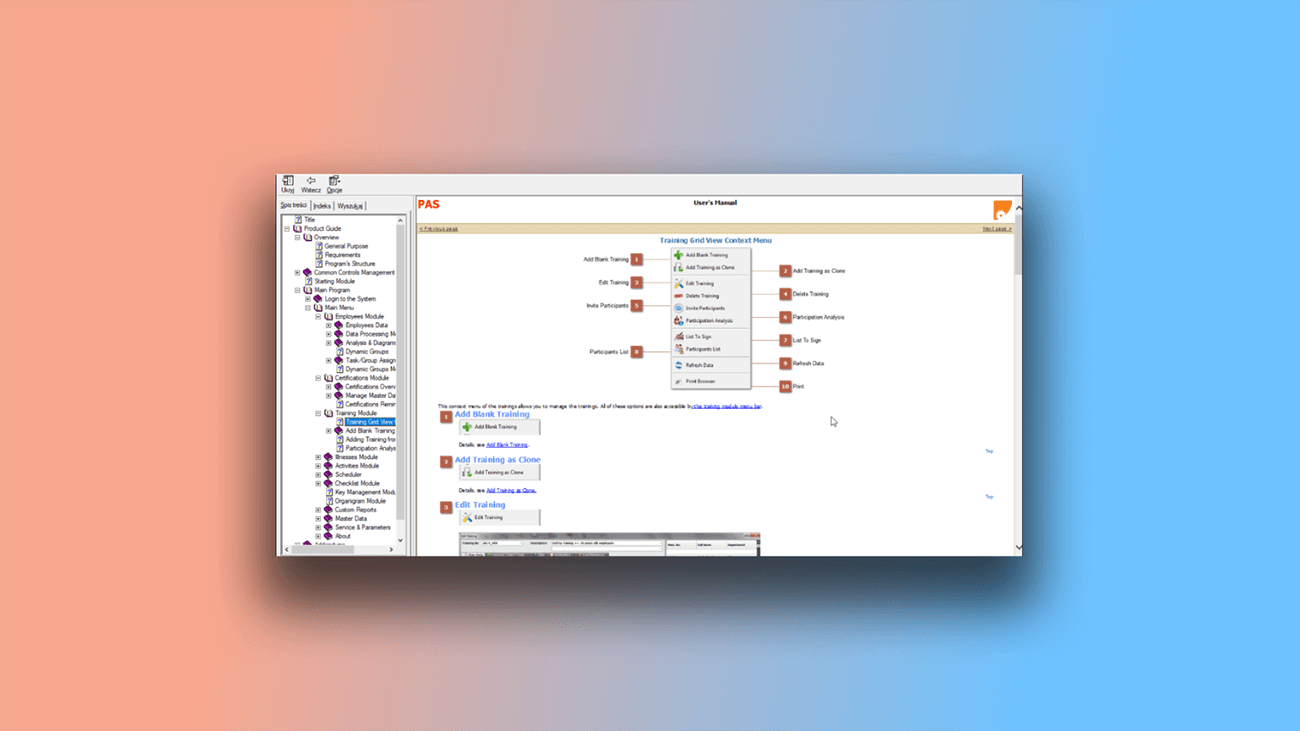
User manual examples created with Dr.Explain
Dr.Explain is a help authoring tool that makes documentation easier and more efficient. Below are examples created using these features:
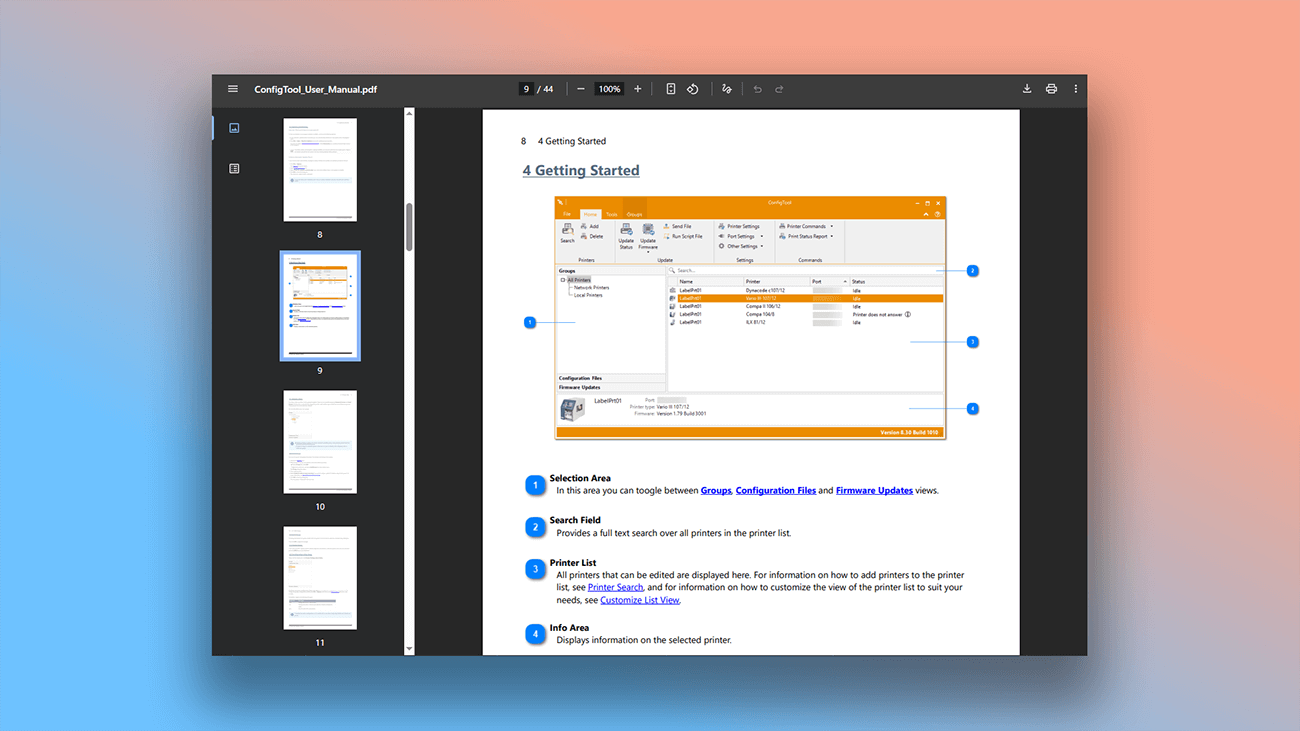
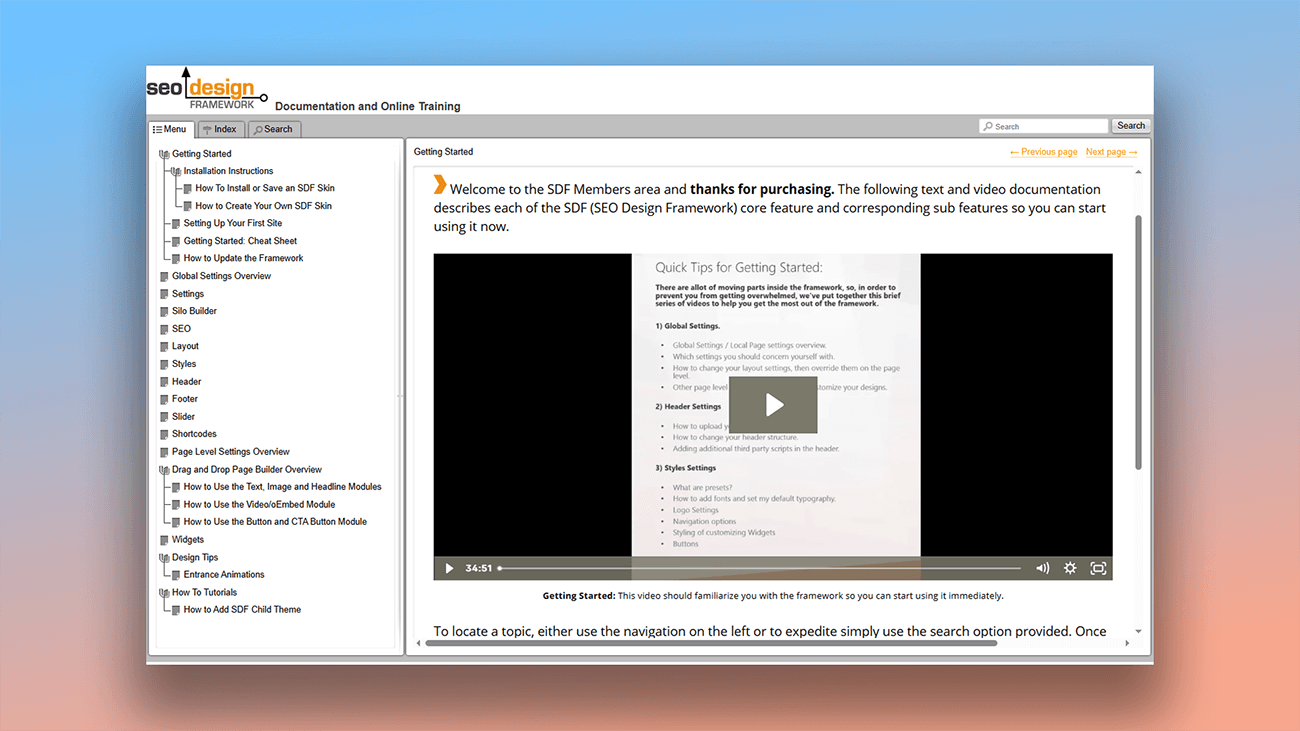
What are the benefits of using Dr.Explain?
Dr.Explain simplifies project organization by replacing repetitive tasks with intuitive, powerful tools — so you can focus on content, not technical details. This reduces development time, improves user experience, and maintains a professional standard throughout your documentation.
Clear hierarchical structure. Easily add, rename, or rearrange topics and subtopics to build logical navigation — even for complex, multi-level guides.
Automate routine tasks. Speed up documentation with auto-numbering, screenshot annotation, and pre-designed content blocks.
Flexible and adaptive. Reorganize content effortlessly: merge topics, reorder topics, or link related material — ideal for updating docs or adapting them for different product versions.
Visual project overview. The tree-view interface provides a clear picture of your entire project, helping you navigate large volumes of content, identify structural gaps, and distribute information evenly.
Progress tracking. Use the heat map to gauge the overall status of your project and monitor the completion of individual topics.
Unlimited scalability. Create deeply nested documentation without restrictions, making it easy to scale as your project grows.
Topic locking. Prevent accidental edits during team collaboration by locking completed topics.
Advantages of project structure management in Dr.Explain
Authors often look for a more powerful solution when their current text editor — like "MS Word" — can’t keep up with complex documentation needs. Here’s how Dr.Compare compares when organizing and managing content.
| MS Word | Dr.Explain | |
|---|---|---|
| Document status (heat map) | — | + |
| Unlimited nesting | — | + |
| Clear tree-structure view | — | + |
| Topic locking | — | + |
| Flexible content reorganization | — | + |
| Conditional output | — | + |
What type of users is Dr.Explain suited for?
Dr.Explain helps authors of all skill levels create professional documentation, especially when facing challenges like:
- managing documentation that has become too large or complex;
- adding clear navigation and full-text search;
- customizing your guide's visual design;
- simplifying work with screenshots and images;
- avoiding slowdowns from switching between multiple tools;
- creating both print and web versions from one source;
- collaborating with a team in real time;
- relying on long-term product support;
- needing a free version to try before you buy.
Users about project structure management in Dr.Exlain

"Firstly, simplicity. It is easy to paste images. It is easy to structure the document and the built-in Topic Status enables you to see your progress at a glance. I like the simplicity of creating PDF and Word versions. Having created the CHM, it is easy for us to add it to our .NET applications".
Alex Muir, the managing director of Database Software Solutions Ltd
Interview with Alex

"Initially we wrote help documents in Microsoft Word, but they were difficult for people to use or to find the specific answers they were looking for. We tried two or three help authoring packages before settling on Dr.Explain. We chose Dr.Explain because it was easy to use and produced well-formatted help documents with comprehensive search facilities.".
Bob Grimshaw, the founder of C-A-Solutions
Interview with Bob

"Dr.Explain saves me countless hours of copying, pasting, and linking documents by automatically capturing screens from my software, and generating interactive screenshots complete with callouts and links for all my window controls".
Winnie Skosana, Technical Writer in Hensoldt
Interview with Winnie
Frequently Asked Questions
Do you have a free version of Dr.Explain?
Yes. Download Dr.Explain for free on this page.
Can I drag a topic to any place of the documentation, not just the nearest parent and the nearest child?
Yes. The topic (document) can be dragged to any other topic of the guide. Learn more about managing topics in Dr.Explain.
Is there a limit to how many subtopics I can create?
No. You can nest topics indefinitely without restrictions.
Can I copy and paste entire topics?
Yes.
Can I see version history when collaborating?
Yes, version history is available.
Do you have technical support?
Yes.