



Locking topics
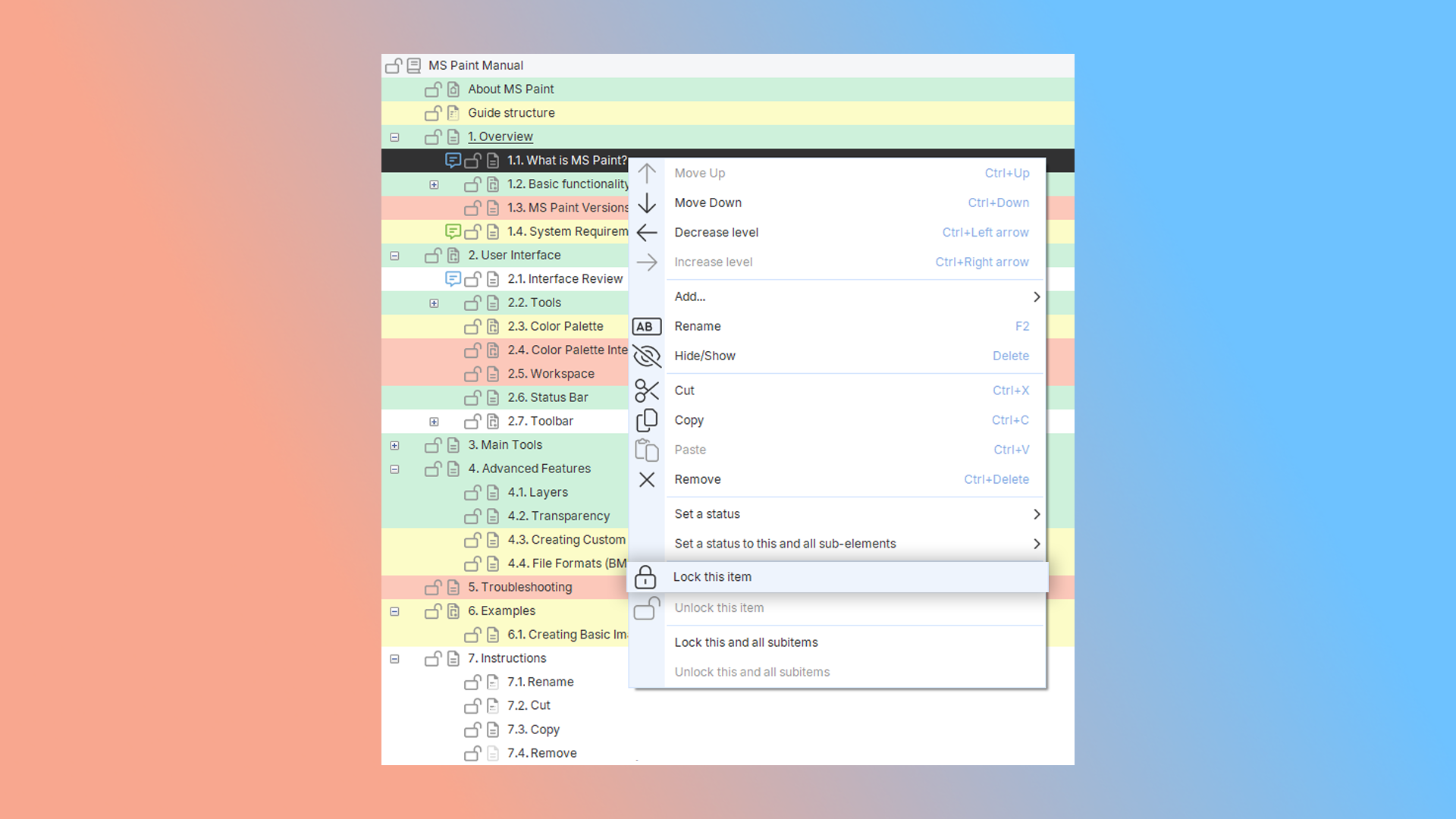
Dr.Explain lets you focus on creating content — without worrying about technical details or losing your work. Sometimes topics get edited or deleted by accident. To prevent this, Dr.Explain lets you lock any topic with one click. Once locked, a topic can’t be changed or removed until it's unlocked. This simple feature can save you hours of work.

In the project tree, you can also assign statuses to topics, thereby monitoring the progress of work and assigning keywords to topics for easier navigation through documentation.
How does topic locking work in Dr.Explain?
In the topic tree, you can also set topic statuses to track progress and assign keywords to improve navigation.
How topic locking works in Dr.Explain?
Dr.Explain keeps your content safe by letting you lock topics against accidental changes. Focus on writing knowing your work is protected, while using statuses and keywords to stay organized. To lock a topic, right-click it and select "Lock this item" (or "Lock this and all subitems"). You can lock just that topic or lock it together with all its subtopics. To unlock, right-click and choose "Unlock this item" (or "Unlock this and all subitems"). A lock icon will remind you which topics are protected.
Examples of user documentation created in Dr.Explain
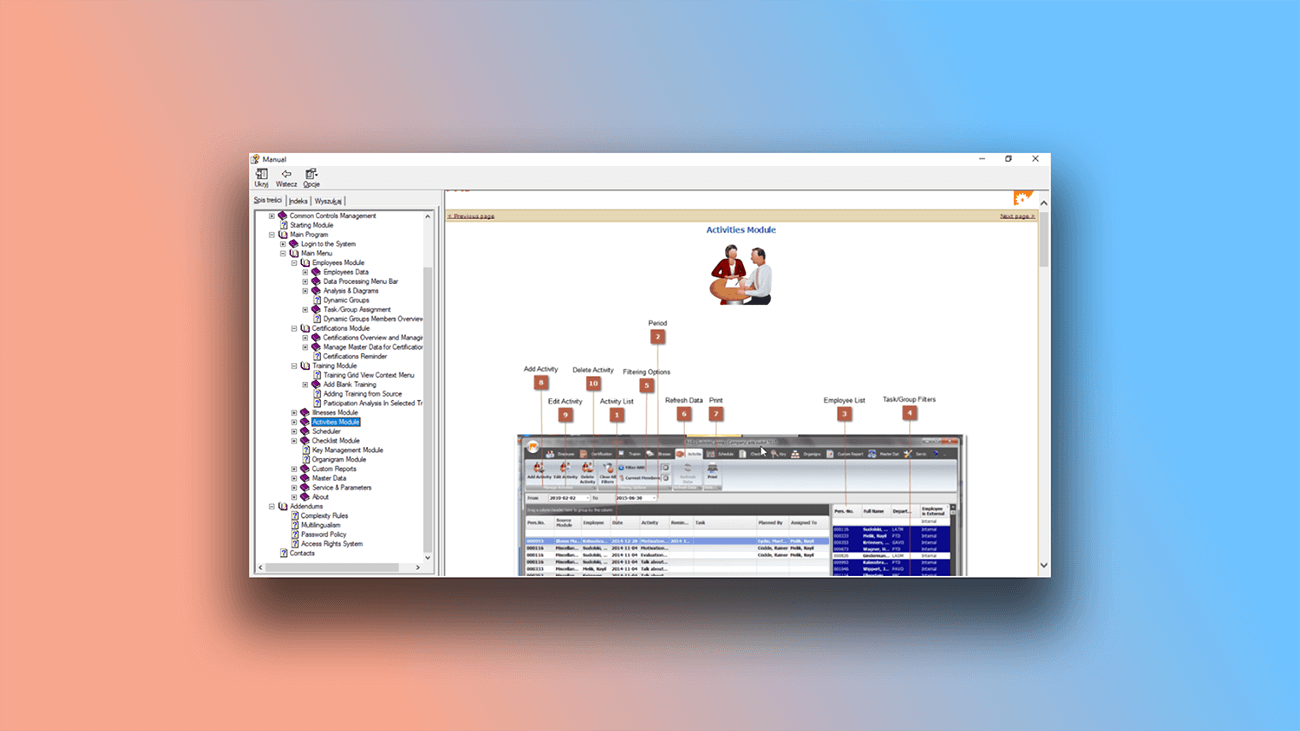
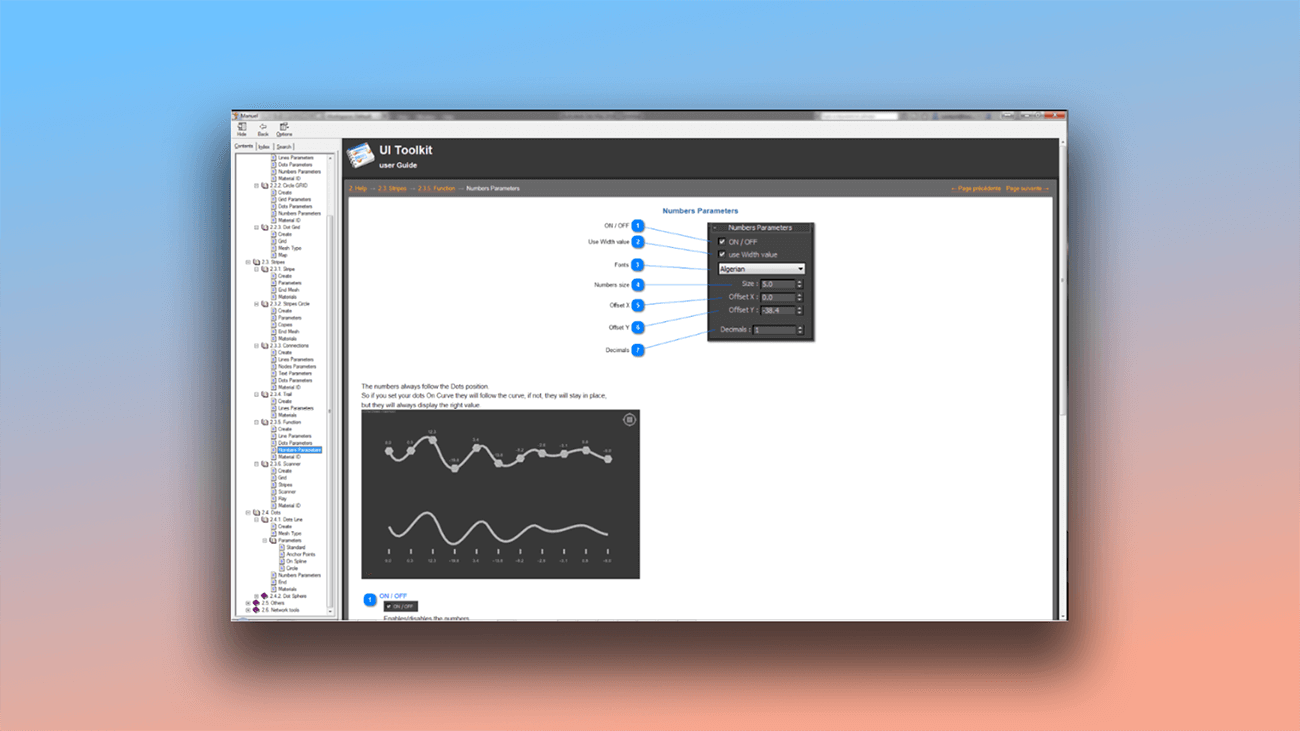
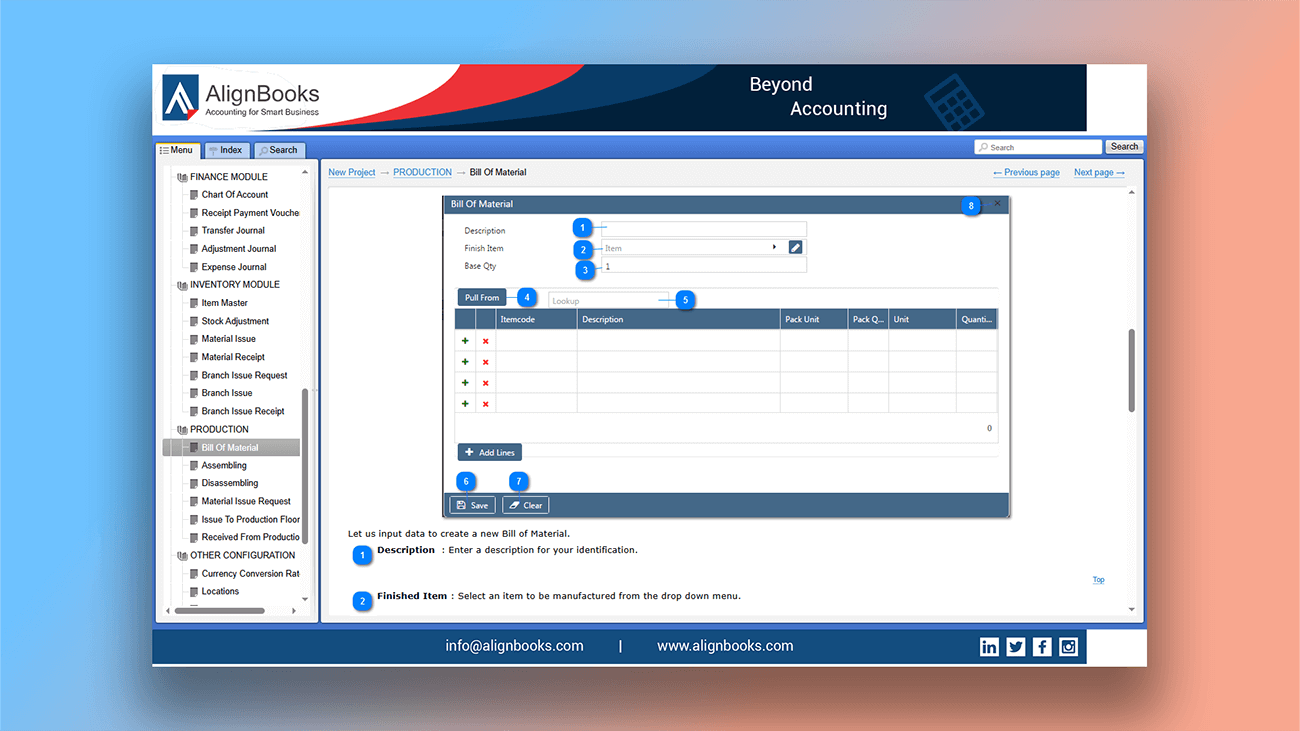
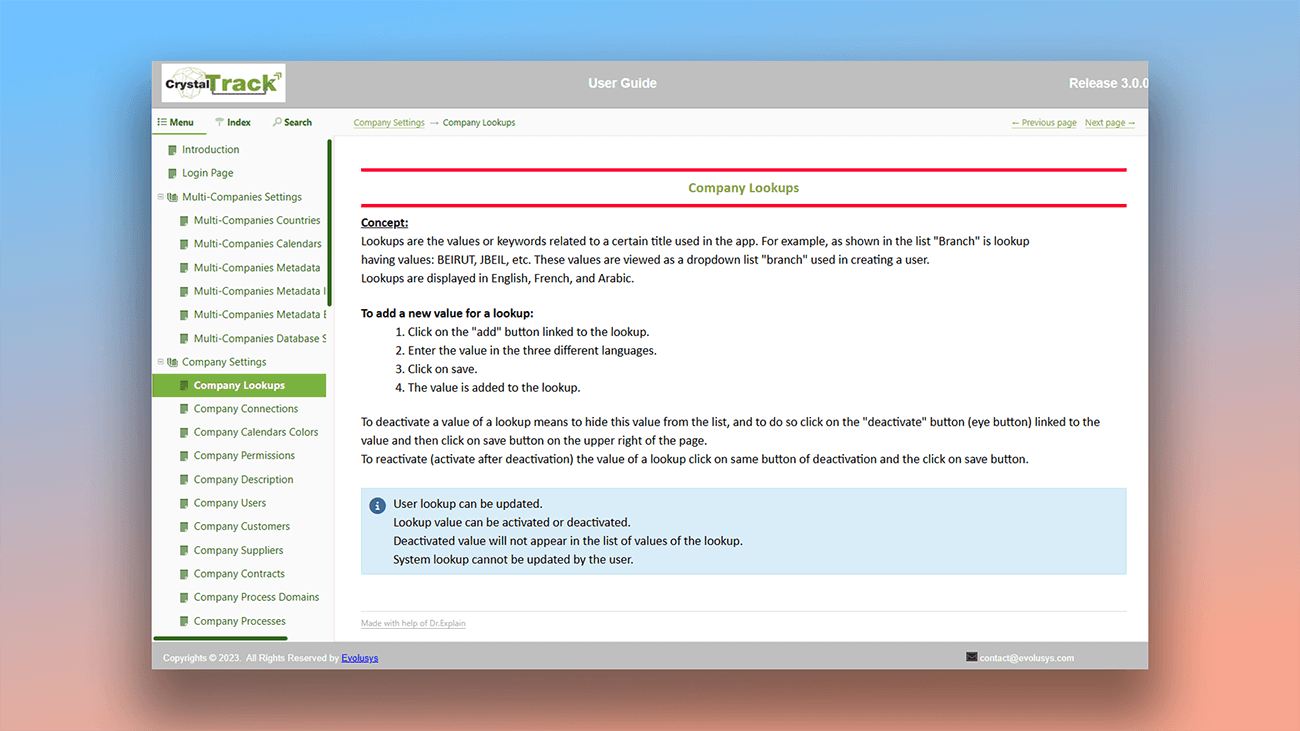
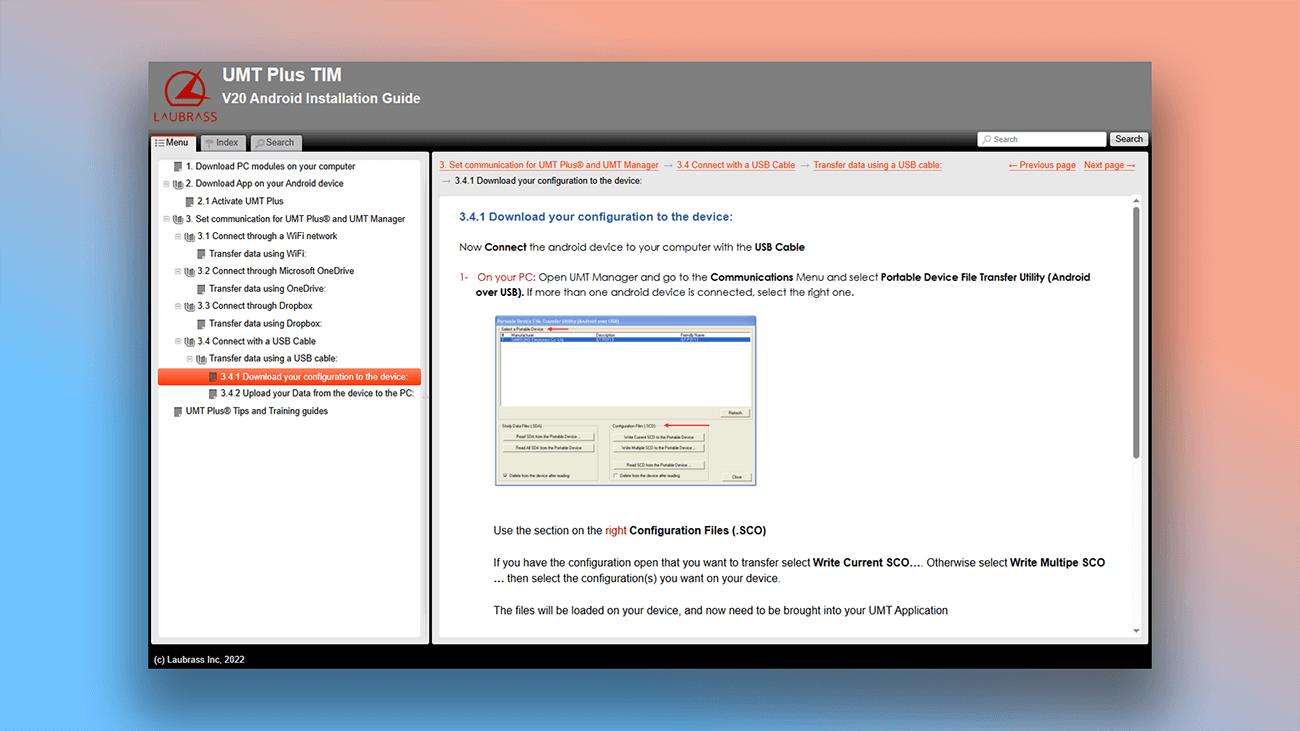
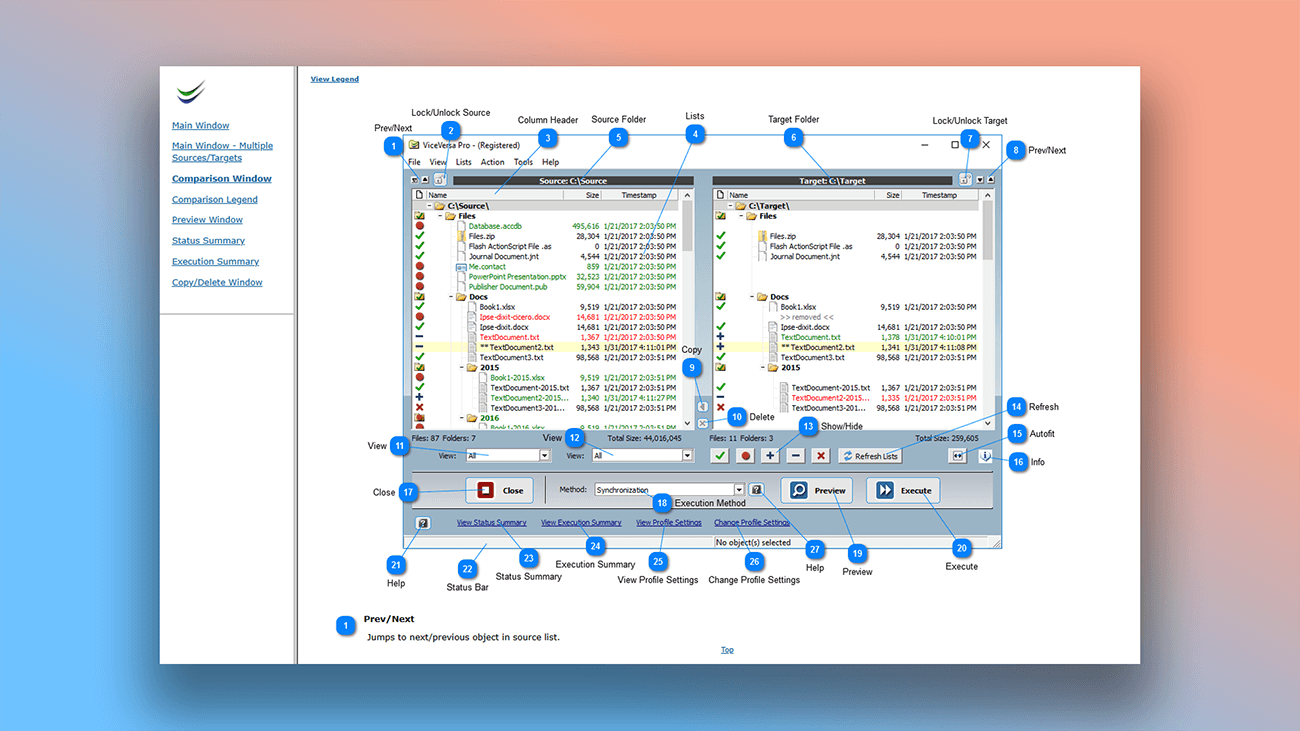
You can find Examples of user manuals and online documentation created with Dr.Explain on our site, below are screenshots of user guides created with this help authoring tool.
What are the benefits of using Dr.Explain?
You'll save time right away: ready-made templates come with a logical structure — just fill in your content and export to the format you need. You also get full control over the visual design, so your documentation can match the style of your website or application.
Quick start. Many of our users — even those new to documentation tools — have created effective guides in very little time.
Tools that improve clarity. Use numbered tables, images, cross-references, text blocks, and more to build helpful, easy-to-follow instructions.
Security and offline access. Unlike cloud services, Dr.Explain runs locally — so your data stays secure, and you can work without an internet connection.
What type of users is Dr.Explain suited for?
Dr.Explain is a professional help authoring tool that works for everyone — it simplifies and speeds up documentation development for all kinds of users. It's the right choice if you need:
- a desktop application for writing user guides;
- automatic annotated screenshots;
- local data storage (no cloud required);
- full-text search across your documentation;
- team collaboration on help systems.
Users about working with topics in Dr.Explain

"We decided to use Dr. Explain after evaluating the trial version. We immediately liked its ease of use and intuitiveness. Even without any programming skills, you can build a manual and publish it on the Web. Moreover, you can easily manage the states of different chapters, which allows multiple operators to write text simultaneously".
Alessandro Calmo, the software department coordinator at Ala Data System
Interview with Alessandro
Frequently Asked Questions
Do you have video tutorials for working with Dr.Explain?
There is. We recommend watching training videos on our Youtube channel.
Do you have a free version of the program?
Yes. You can download Dr.Explain on our site.
Can I import my old DOCX files and continue to work in Dr.Explain?
Yes, you can. Learn more about how to import Microsoft Word file.