Inserting page rotate blocks
A page rotate block is a special content object in Dr.Explain that lets you change the orientation of individual pages in the exported document. Page rotate blocks are useful when a topic contains a wide image, a large table, or any other wide element that does not fit on a portrait page.
Instead of rotating the image or editing the exported file in a third-party editor, wrap the content in a page rotate block. Dr.Explain applies the rotation automatically by placing the content on a page with swapped width and height. Page size can be configured in the PDF and DOCX export settings.
Page rotation only takes effect in printable formats: PDF and DOCX. In other export formats the block has no effect and its content is exported as-is.
|
How to insert a page rotate block
Click the  button in the editor toolbar to insert a page rotate block into the topic. You can also select existing content first and then click the button — the selection is wrapped into the block automatically. In the editor, the block is displayed as a region with a border.
button in the editor toolbar to insert a page rotate block into the topic. You can also select existing content first and then click the button — the selection is wrapped into the block automatically. In the editor, the block is displayed as a region with a border.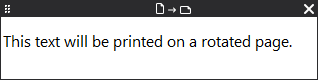
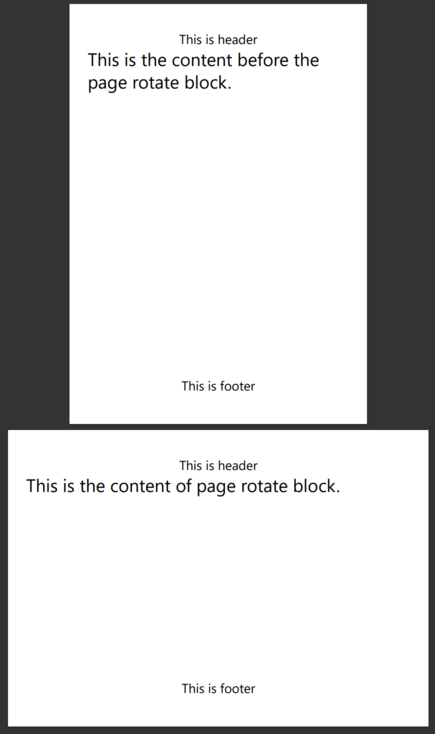
Below is an example of how the block looks when exported to PDF:
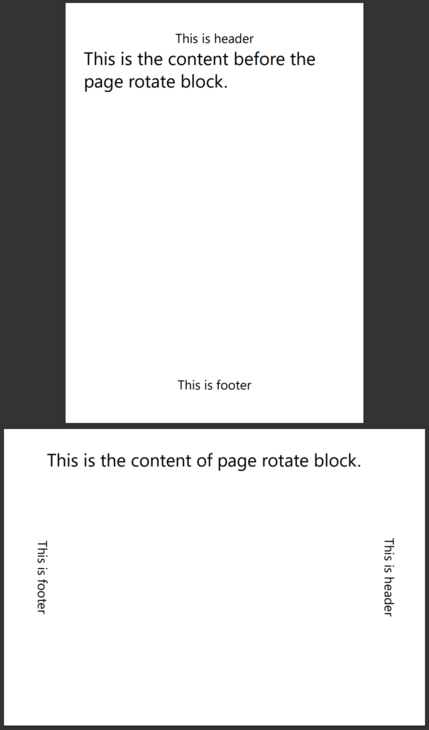
If the Follow page rotation for headers and footers checkbox is selected in the PDF/DOCX page settings, headers and footers stay along the same edge of the sheet and appear rotated together with the page: