



Create printable PDF and DOCX user documentation
The user may not always be able to work with documentation online. Therefore, along with the online help, it is recommended to create printable manual and post it on the website or simply have all the documentation at hand in a single file, for example, in PDF format. If desired, the user can download this file and work with it offline on almost any device, and printing out all the documentation will now be a matter of a couple of clicks.
How to create a PDF user manual in Dr.Explain?
To make printed documentation in the program, create a project in the main menu and write down the main topics of the future guide. Use ready-made manual templates if you don't want to come up with the documentation structure yourself. The suggested templates in the Dr.Explain program are just an expert recommendation summarizing our many years of experience in the field of technical writing. The structure and content of the topics in the templates are not absolute or strictly mandatory. You can freely modify the templates to suit the specifics of your software product.

Fill in the topics with content — text and images describing the functionality of the software. The Dr.Explain editor will help you with this, as well as its automatic annotation algorithms. You can insert special objects into your help, such as anchors, videos, tables, and more. And automatic annotation will be useful when describing the program interface.
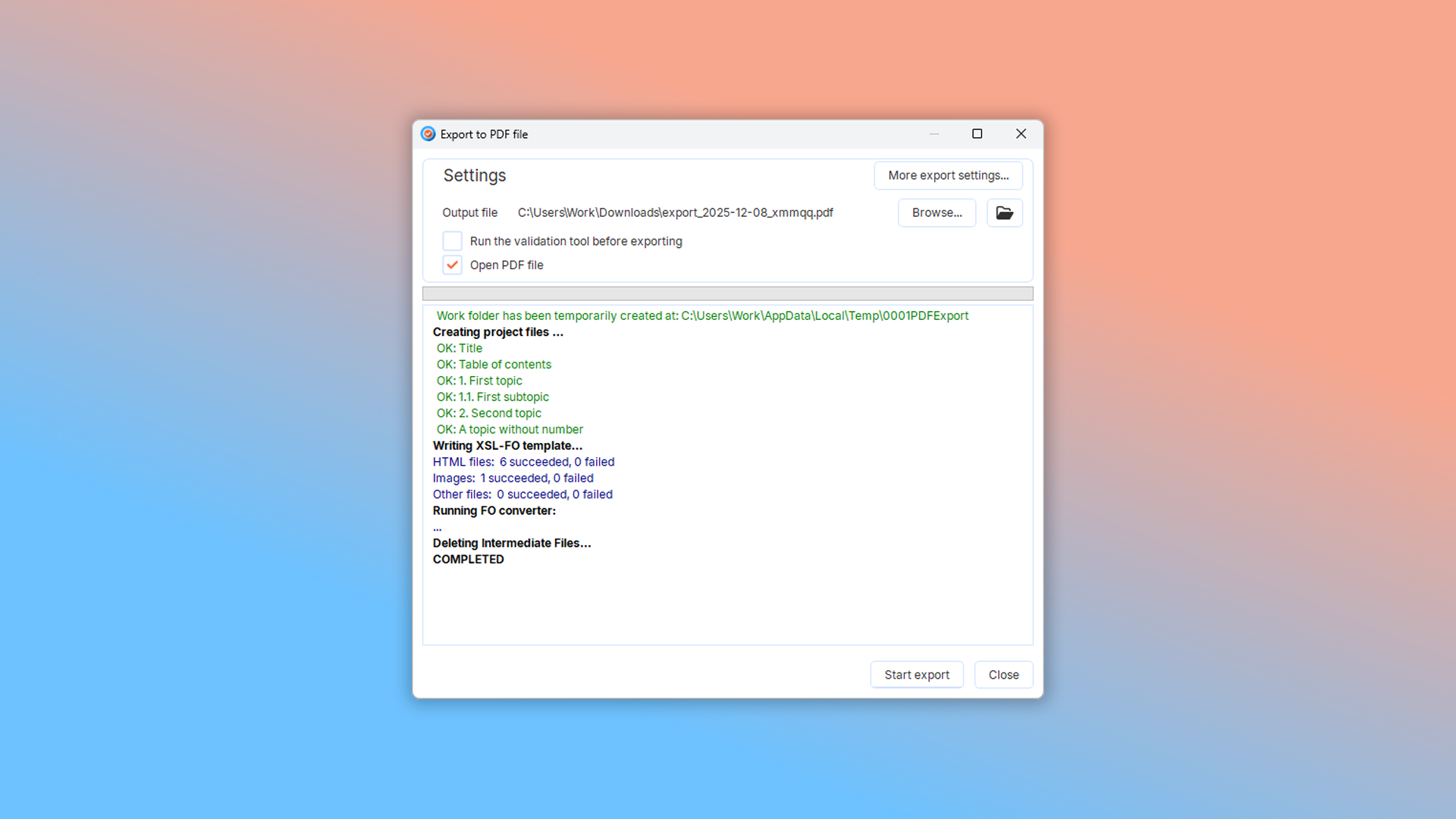
After the documentation is written, it remains to export it to the desired format.
Do you already have written reference documentation in text format? Click on the "Create PDF" button in Dr.Explain and you will receive a ready-made PDF document that can be immediately published on the website or printed.
Provide offline manuals on your website so users can download and explore your program without internet access. You can later expand to printed formats like brochures, further enhancing your company's professional image.

Documentation examples created with Dr.Explain
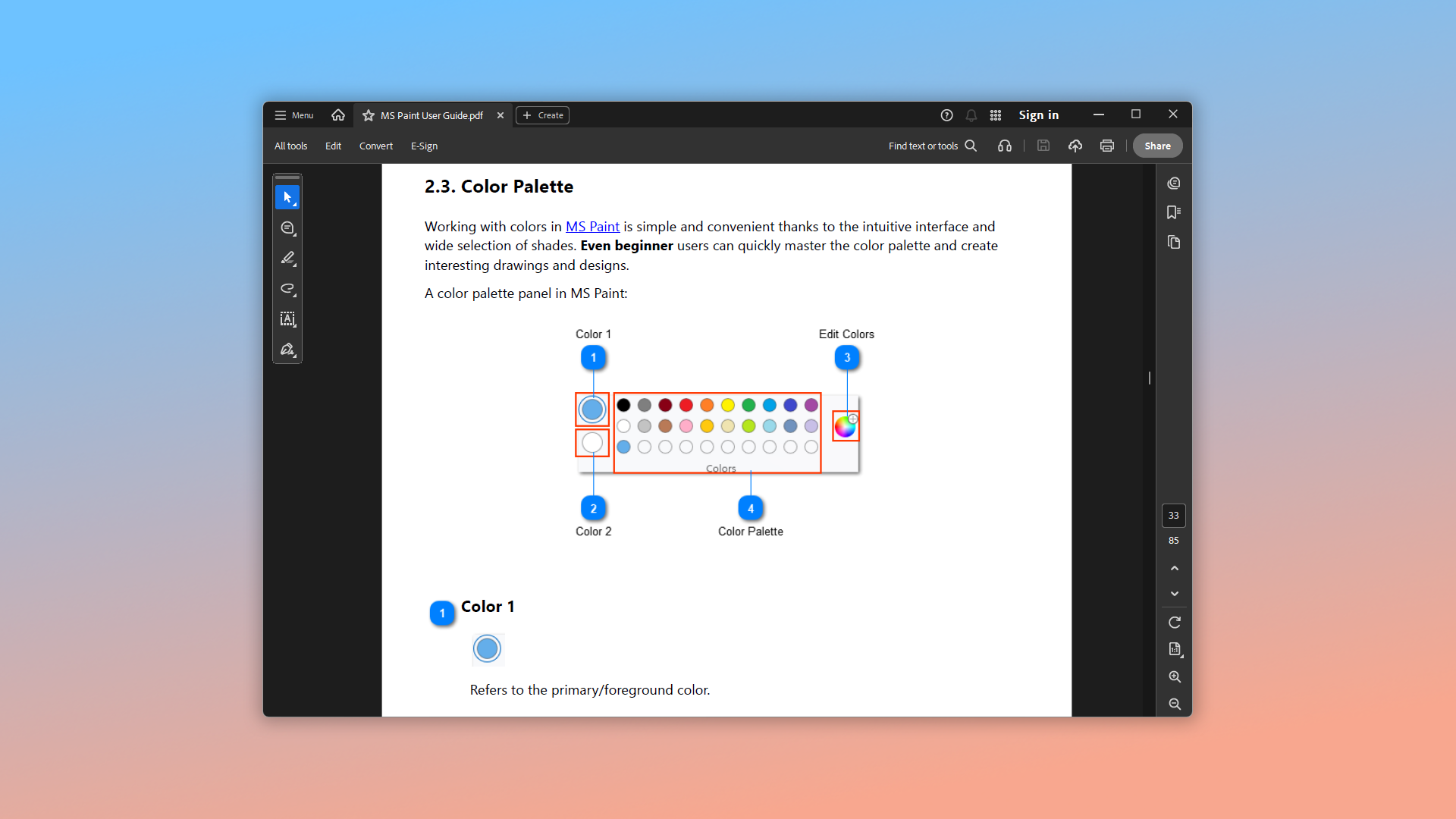
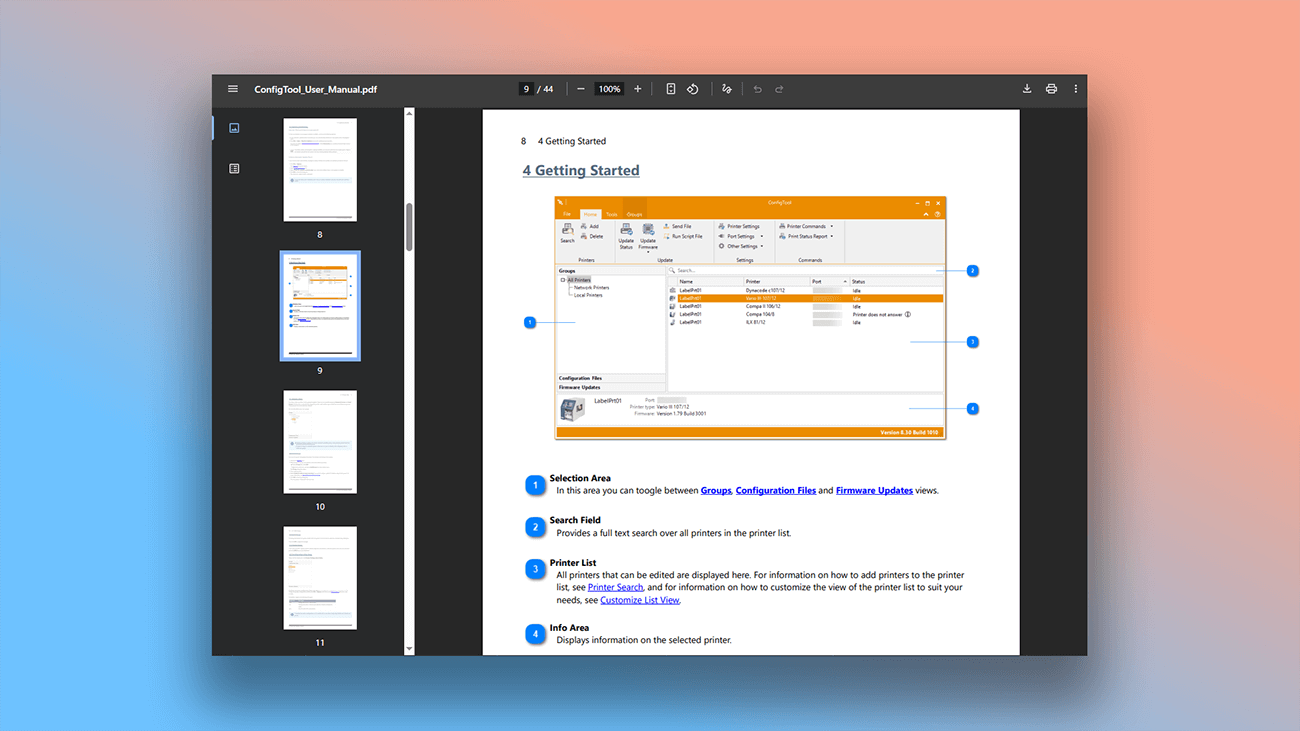
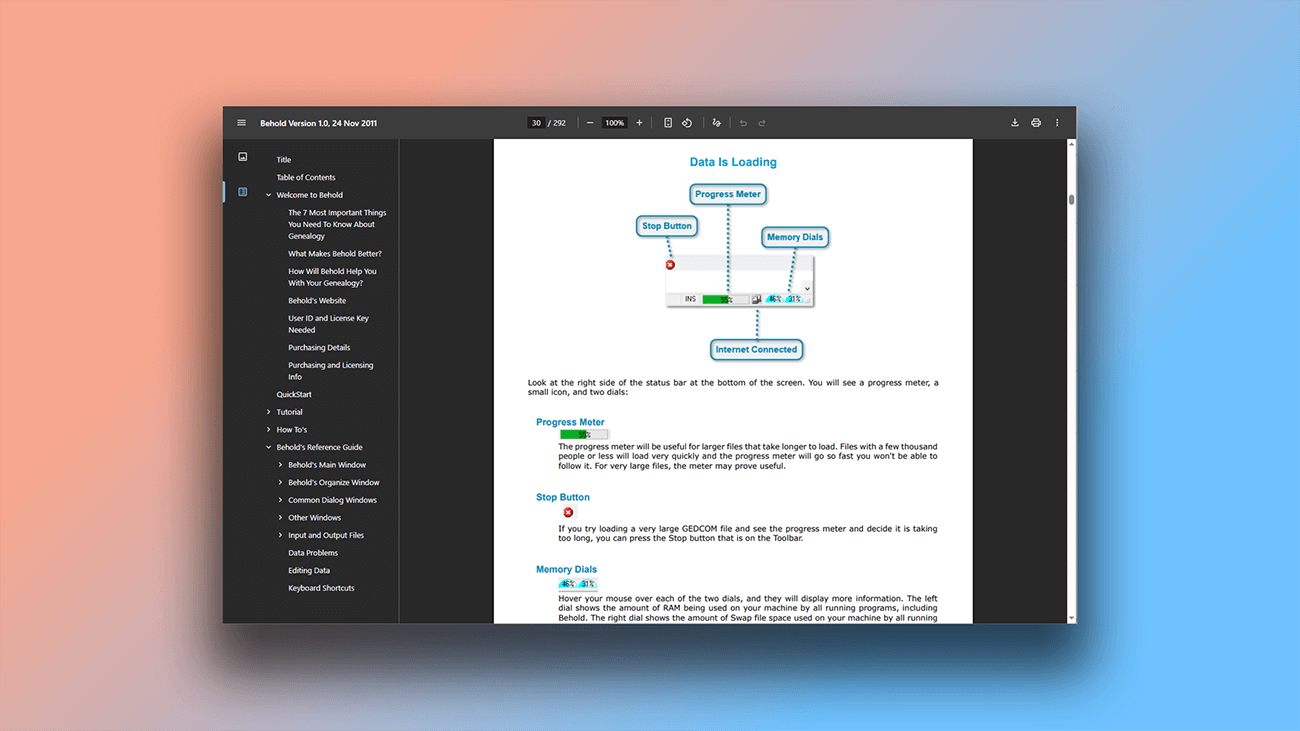
Used across various industries, this help authoring tool demonstrates its versatility through diverse user guides. Below are real-world examples:

What are the benefits of using Dr.Explain?
Dr.Explain is a feature-rich tool that remains simple and intuitive to use. Here’s why authors of help documentation have trusted it for over 20 years:
Quick Start. Dr.Explain’s interface is designed for ease of use, allowing you to get started right away — no deep technical writing or development experience required. There’s no lengthy setup or system preparation.
Template-driven structure. Use built-in templates to easily manage and update evolving documents, saving significant time on manual content maintenance.
Streamlined workflow. Simplify how you add and organize information. Create new topics, insert text, images, or diagrams with simple clicks and drag-and-drop — no need to navigate complex menus or interfaces.
Advantages of Dr.Explain text editor
Let’s compare the Dr.Explain text editor with MS Word — a tool often used for writing user guides.
| MS Word text editor | Dr.Explain text editor | |
|---|---|---|
| Advanced project design customization | — | + |
| Variables support and full document search | — | + |
| Auto-annotation, variable management, and third-party code integration | — | + |
| Text formatting tools | Text formatting (fonts, paragraphs, styles). | Text formatting designed for user documentation — including numbered lists, variables, reusable elements, and structured text blocks. |
| Image handling capabilities | Inserting and basic editing images. | Image annotation tools — insert screenshots with automatically detected and labeled interface elements. |
The text editor in Dr.Explain offers comprehensive set of tools — specifically designed for creating high-quality user documentation.
What type of users is Dr.Explain suited for?
Dr.Explain is designed for a wide range of users — from experts to beginners creating help documentation for the first time.
Here are common scenarios where Dr.Explain delivers exactly what you need:
- advanced content management tools;
- multi-language support;
- flexible customization of your guide’s appearance;
- automatic screenshot annotation;
- multi-format export (HTML, PDF, CHM, DOCX);
- real-time collaboration features;
- long-term product support and updates;
- a fully functional free trial.
Whether you're working solo or with a team, Dr.Explain helps you create professional documentation efficiently.
Users about creating printed manuals in Dr.Explain

"I initially started writing this User Guide with normal Word and PDF docs but it never works out. And I was tasked to find a software that writes a User Guide for software and I came across Dr.Explain. And it seems to solve all my problems and I have never moved on from here. I recommended it and Dr.Explain was purchased. So, I am using it now to write documentation for our software".
Ricky Mato Paisip Narewec, Quality Assurance Analyst & Technical Writer
Interview with Ricky

"I was particularly impressed by the ease of use. It is also very helpful that Dr.Explain has some functions that make it very easy to describe program windows and dialogs. Besides, it is very important for us that Dr.Explain offers a PDF export. This makes it possible to use the same sources to create a file for the program help (* .chm) and product documentation (* .pdf)".
Annette Wittner, the senior developer
Interview with Annette

"Google Docs limits your opportunities by making you use its format, and the user cannot easily navigate from one page-topic to another. But when using Dr.Explain, you can create help sections of any nesting depth, and each section can contain as many pages as you need. The resulting documentation is not as “heavy” as that created in Google Docs. The user can easily find the necessary information using the built-in search".
Dmitry Nichiporchuk, owner and chief executive of the full-cycle web design and development company Time Design
Interview with Dmitry
Frequently Asked Questions
What are PDF and DOCX formats?
These are standard document formats designed for offline use. Since users can't always rely on an internet connection, we recommend supplementing your online help with a downloadable file — such as a PDF. This allows users to: save the file and access it offline on virtually any device print the entire documentation with just a couple of clicks PDF and DOCX ensure your help is always available, online or off.
Can I open the DOCX file exported from Dr.Explain in Microsoft Word?
Yes. The DOCX format is fully compatible with Microsoft Word. You can also open it in Google Docs or other popular word processors.
Do you have a trial version of Dr.Explain?
Yes. You can download Dr.Explain and use the free version with no time limit.
Can I open my existing Word and PDF documentation in Dr.Explain to continue working on it?
Yes. You can import DOCX and PDF files and edit them in Dr.Explain.
Will the structure and content of my old documentation files be preserved when I import them?
Yes, everything will be preserved.
Will the free version add watermarks to images?
Yes. When exporting with the free license, a watermark is added to all images. After purchasing a license, all restricted features will be unlocked, and exported images will no longer include watermarks. You can continue working on projects created with the free version in the licensed software — no need to start over. Learn more about licenses in Dr.Explain.