



Interactivity
Think of your online manual as a ready-to-use web application. You can switch between tabs, use the navigation, and search through topics — all without writing a single line of code. Dr.Explain handles all the programming for you, delivering every interactive feature right out of the box.
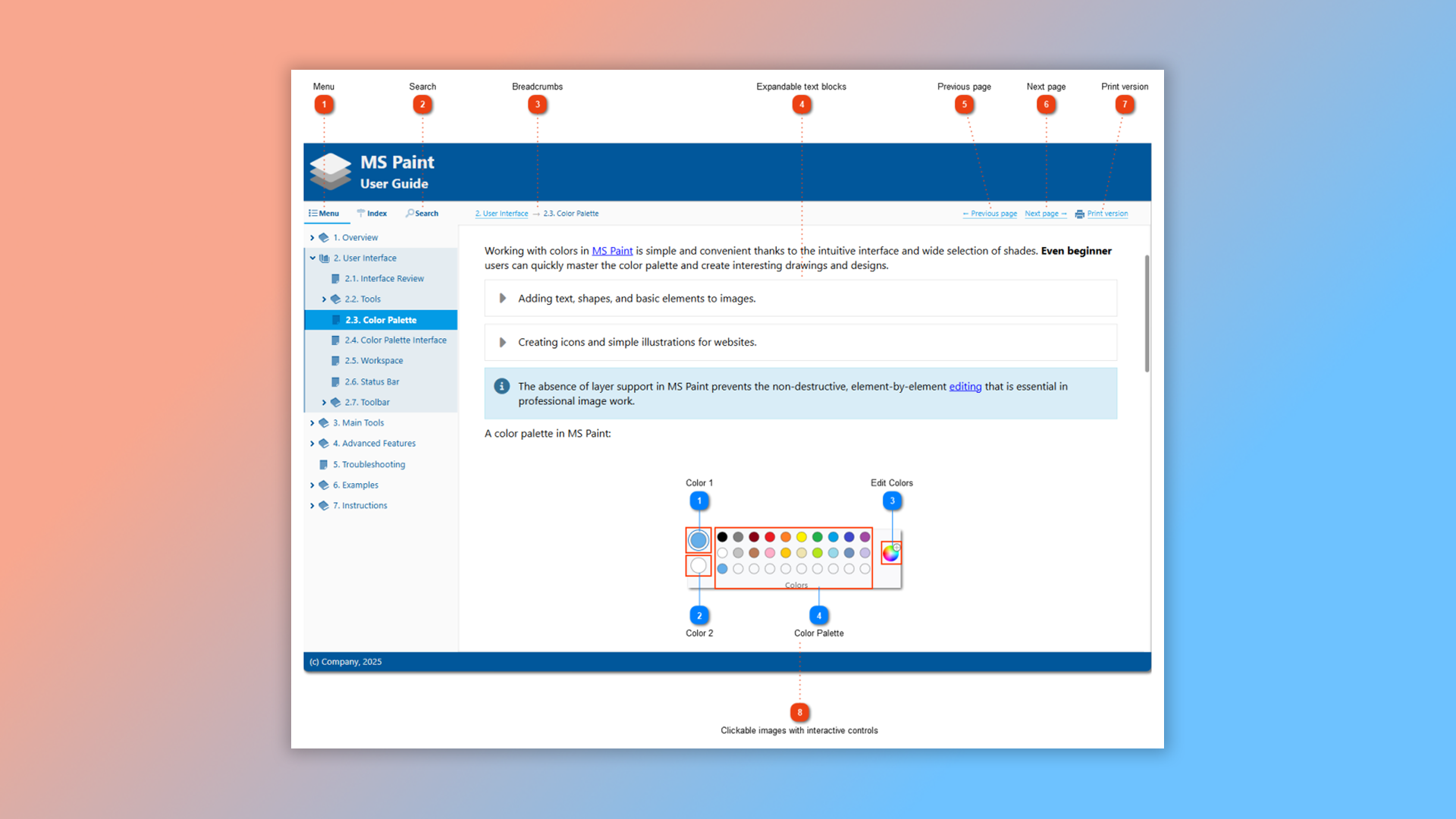
For instance, when creating an online guide, you won't need to build common elements like menus, next/previous page arrows, or a search box from scratch. Help authoring tool automatically equips your help system with these interactive features. You also have the flexibility to add your own custom elements, scripts, or external widgets by inserting HTML code blocks directly into your content.
Adding interactivity in Dr.Explain
Many interface elements — such as the search field, navigation links, menus, breadcrumbs, and a print button — are generated automatically by the program, so you don't have to create them manually. You can learn more about working with interactivity in Dr.Explain online documentation.
Please note that Dr.Explain includes a full set of keyboard shortcuts to speed up your workflow. The complete list of shortcuts is on the page Keyboard shortcuts.
Examples of user manuals created with Dr.Explain
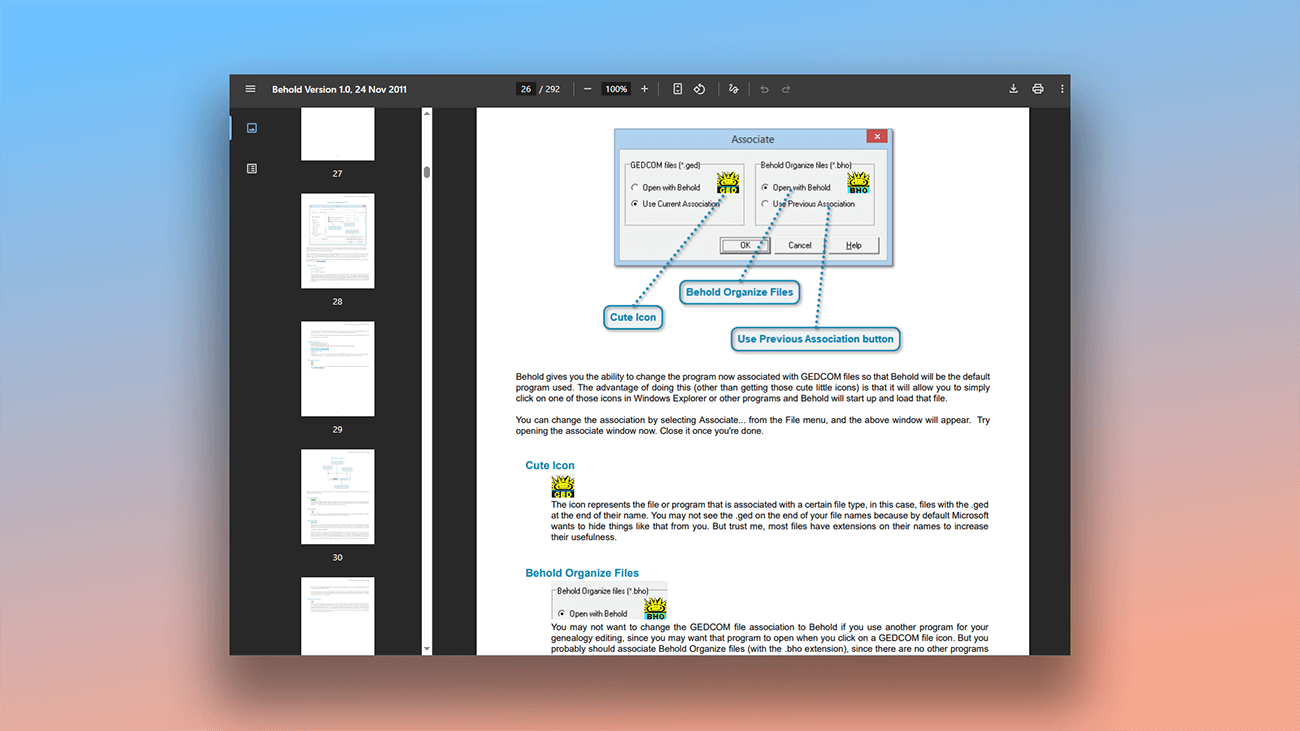
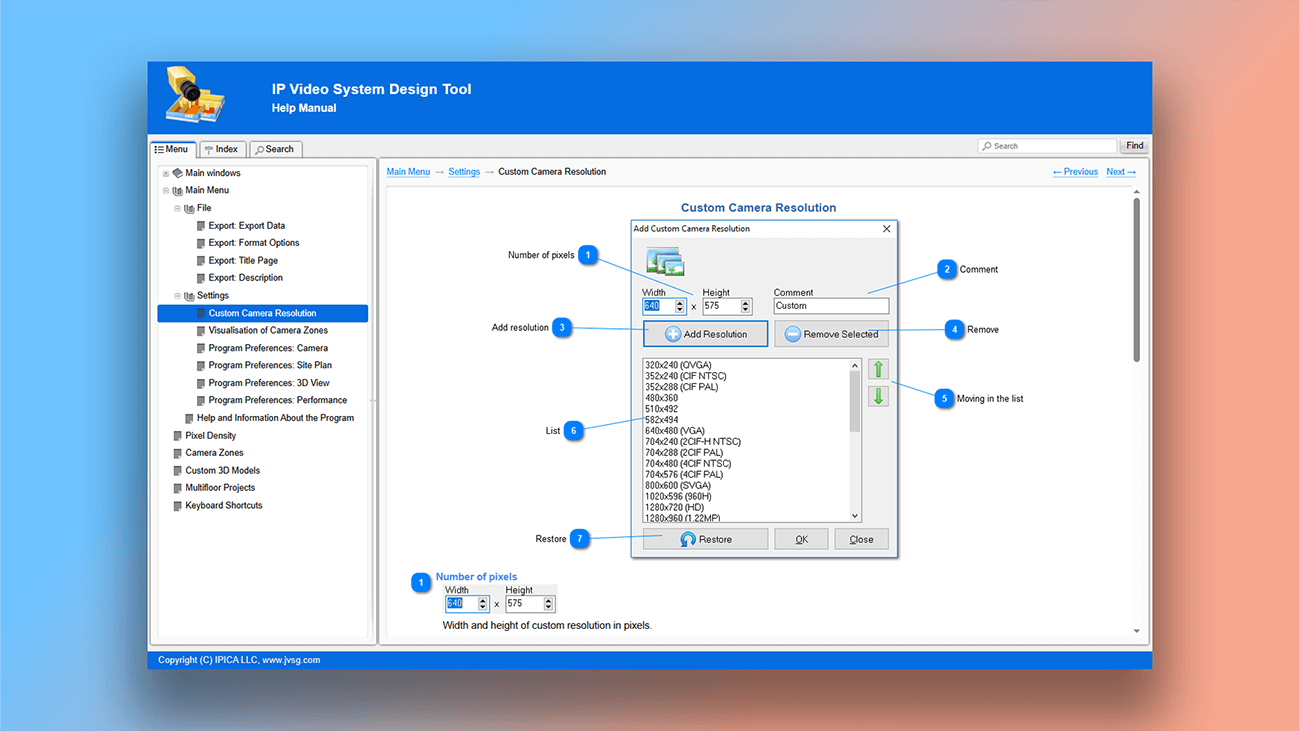
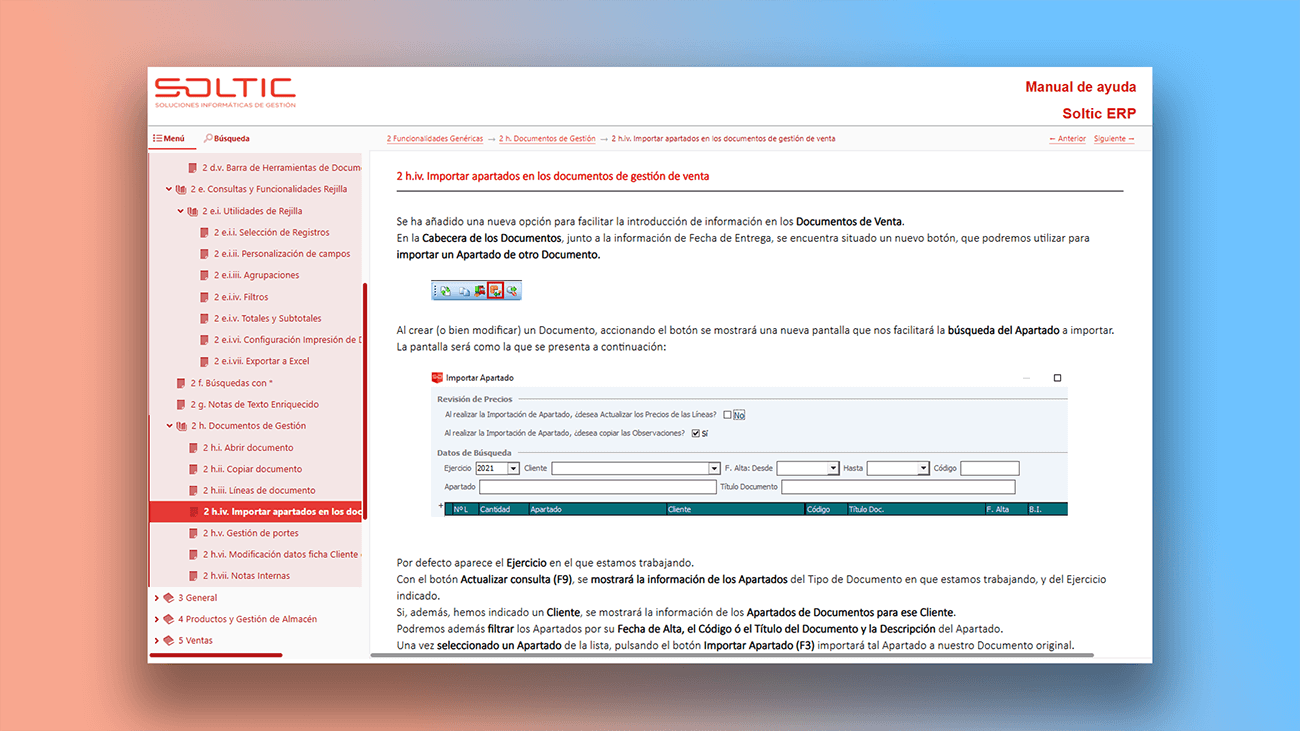
It's often necessary to style a user manual to match corporate branding, and Dr.Explain provides all the tools you need to do this. Below are some screenshots of manuals where the authors moved beyond the default styling to give their projects a unique and custom look.
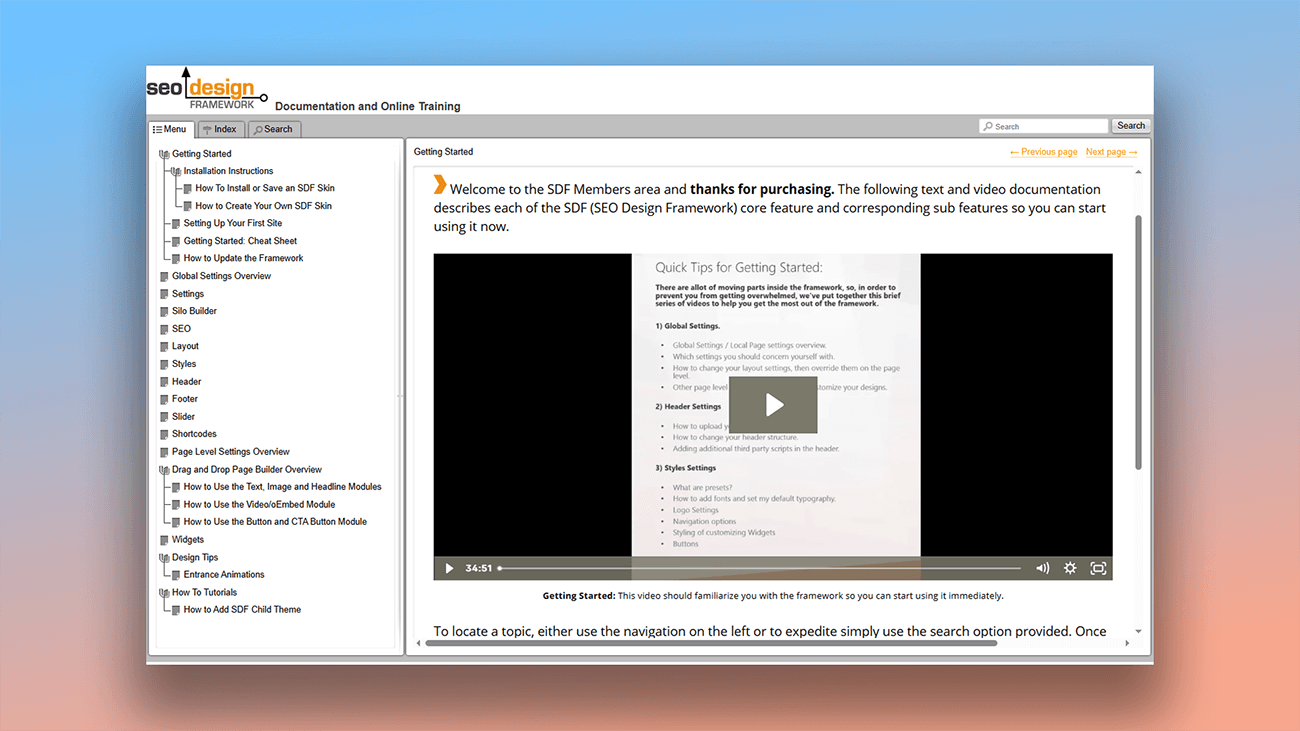
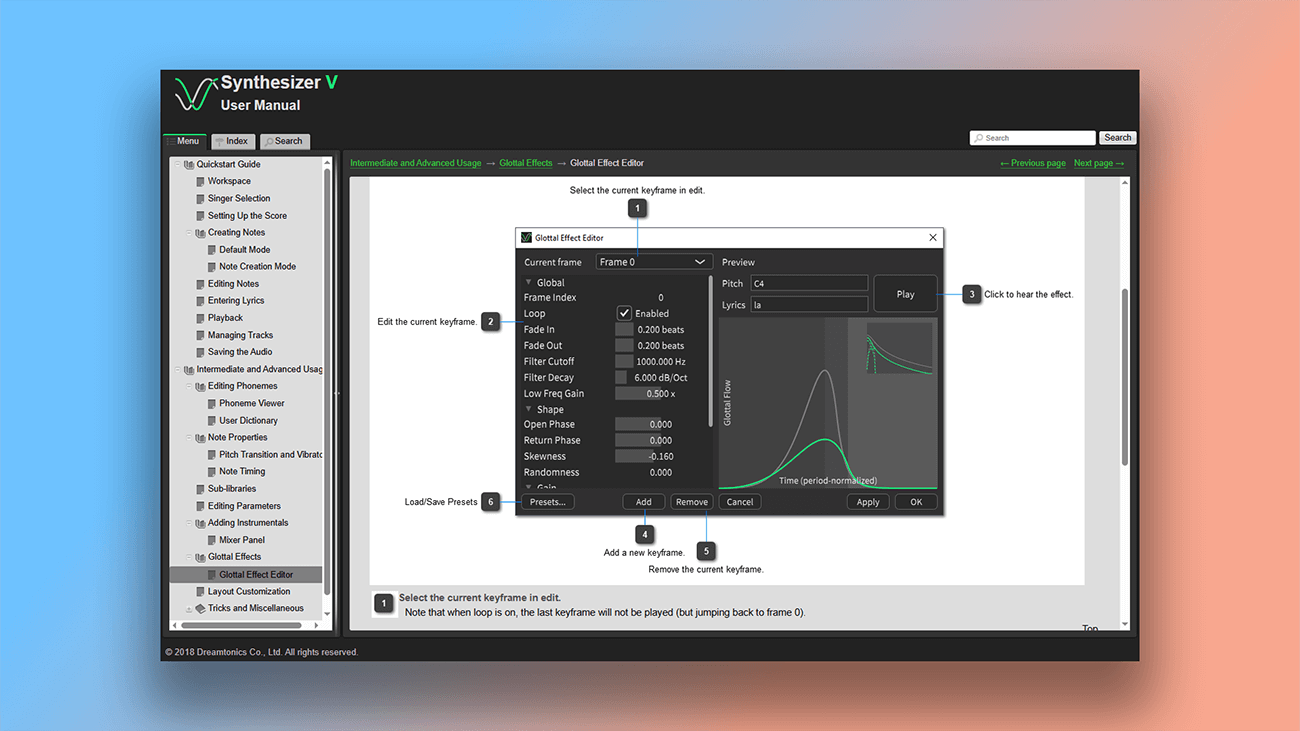
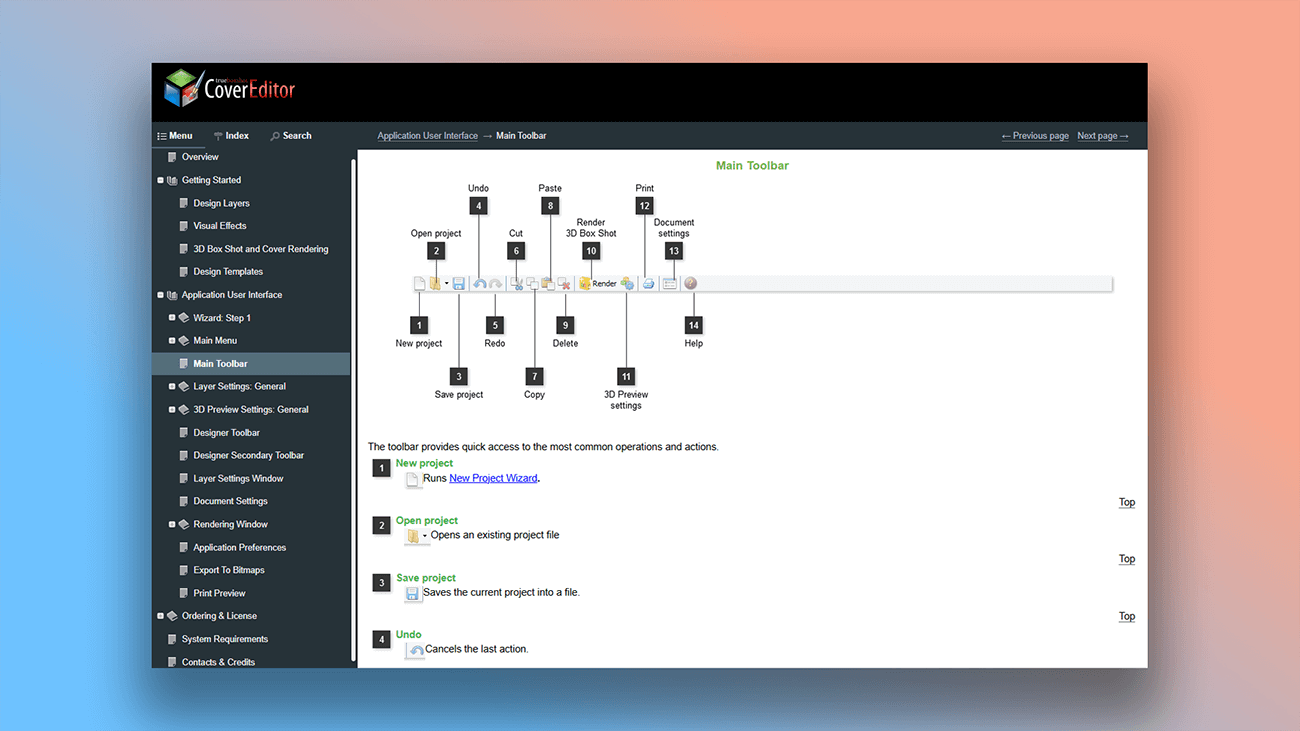
What are the benefits of using Dr.Explain?
Create an online manual with intuitive navigation and search — without writing a single line of code. The program automatically adds all the necessary interactive elements and even allows you to integrate third-party widgets to make your content more engaging.
Saves you time. This help authoring tool's functionality lets you create professional documentation with minimal time investment.
Boosts search visibility. The web-based help pages are indexed by search engines, which can improve your website's overall findability.
Provides usage analytics. Integrate web analytics trackers into your documentation to get a complete picture of how users interact with it. This data helps you identify weak spots and make improvements.
What type of users is Dr.Explain suited for?
Dr.Explain is designed for all skill levels. Authors with no coding experience can create online manuals with basic functionality, while experienced specialists can develop more advanced projects. In the end, both will produce a high-quality document that works perfectly on all kinds of mobile devices.
Here are a few situations where Dr.Explain can help:
- your documentation is growing large and complex, and you need to make it easier for users to find specific information;
- you want automatic navigation links, like "Previous page" and "Next page" to be generated for you;
- you need automatic numbering for chapters and topics;
- you want the ability to embed custom code or third-party widgets;
- you need a quick way to preview your changes as you make them;
- you require a desktop tool that performs reliably, with no dependence on an internet connection;
- you want to integrate web analytics trackers to monitor how your documentation is used.
Users about interactivity in Dr.Explain

"Because Dr.Explain is specifically designed for documentation, it made the whole process so much easier. For example, searching, indexing, hyperlinks, etc".
Mike McLoughlin, the sole developer of Champion Software
Interview with Mike

"You can have an image layout of a system’s dialogue box or menu with lines and arrows pointing but this is not complete. There must be labels showing the step by step process in opening and closing menus and dialogue box or even filling in fields. On-screen functions are delicate and can be easily confused and misguided. And Dr.Explain provides that solution of numbered control buttons to show the step by step process of the screen".
Ricky Mato Paisip Narewec, Quality Assurance Analyst & Technical Writer
Interview with Ricky

"After testing a few applications to implement our user guide, all of which proved tedious and time consuming, I stumbled upon Dr.Explain. And there was the miracle – in three days I wrote basic content layout and added most of the screenshots. Then I added some explanations, links to my sample videos, and internal links. It was so easy!".
Pascal Beringer, the founder of the Hyphen project
Interview with Pascal
Frequently Asked Questions
Where can I find Dr.Explain video tutorials?
You can watch our video tutorials on our Youtube channel.
Will the online manual be optimized for mobile devices? What do I need to do?
Yes. Your online manual project will have a responsive design that works on mobile devices automatically. You don't need to do anything extra; the software handles it all for you.
Can I embed JavaScript in the documentation?
Yes, you can. Read the topic Inserting HTML code snippet.
Can multiple authors work on the same project?
Yes, collaborative work is possible using the free online service Tiwri.com. You can find more details in the topic Tiwri.com cloud service.
Can I rearrange topics by dragging and dropping?
Yes. You can change your project's structure using drag-and-drop.
Can I add anchor links?
Yes, that's possible. Insert anchor link if you want.