×

HTML page right sidebar

 
In this dialog window, you can configure the right sidebar of your HTML online manual or CHM file pages.
 
To open the project settings, use one of the ways described below:
  • click Project settings button in the application toolbar;
  • go to the Project menu and click the Project settings menu option;
  • use Ctrl+Alt+P shortcut;
  • you can also click the floating button in HTML preview (or CHM preview). Here is what it looks like:
     
     
Project settings dialog should appear. On the left side of it go to HTML export -> Page structure, and then to Right sidebar.
 
HTML page right sidebar
 
1

Visibility

1. Visibility
 
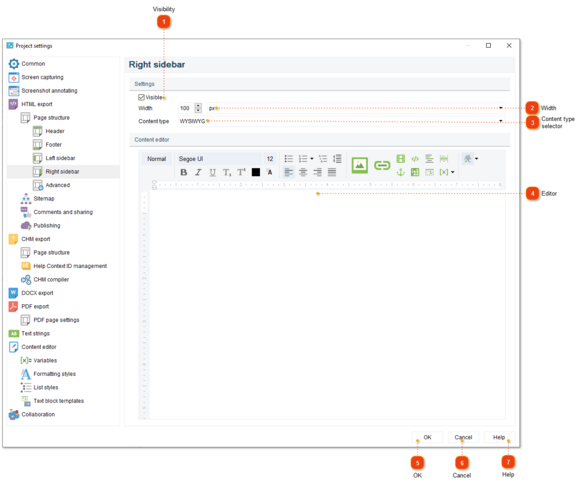
Clear this checkbox if you don't want a right sidebar section to be present in the exported files.
2

Width

2. Width
 
Use this field to set the width of the sidebar.
3

Content type selector

3. Content type selector
 
Use this selector to switch the editor into Code or WYSIWYG1 mode. In Code mode you can insert your own HTML or other code that will render the sidebar of the page. The provided code will be inserted into the output page file as-is, without modifications.
4

Editor

4. Editor
 
Use the editor to customize the content of the page sidebar.
5

OK

5. OK
 
Press the button to accept all changes and close the dialog.
6

Cancel

6. Cancel
 
Press the button to close the dialog and to discard the changes.
7

Help

7. Help
 
Press the button to show the context help page.

1 WYSIWYG ("What You See Is What You Get") — denoting the representation of text on-screen in a form exactly corresponding to its appearance on a printout.

Made by Dr.Explain, software documentation tool