



Create multi-format documentation
No more maintaining multiple versions of the same guide — one for your application, one for the web and another for printing. With Dr.Explain you can create a multi-format user guide and export it to any format you need.
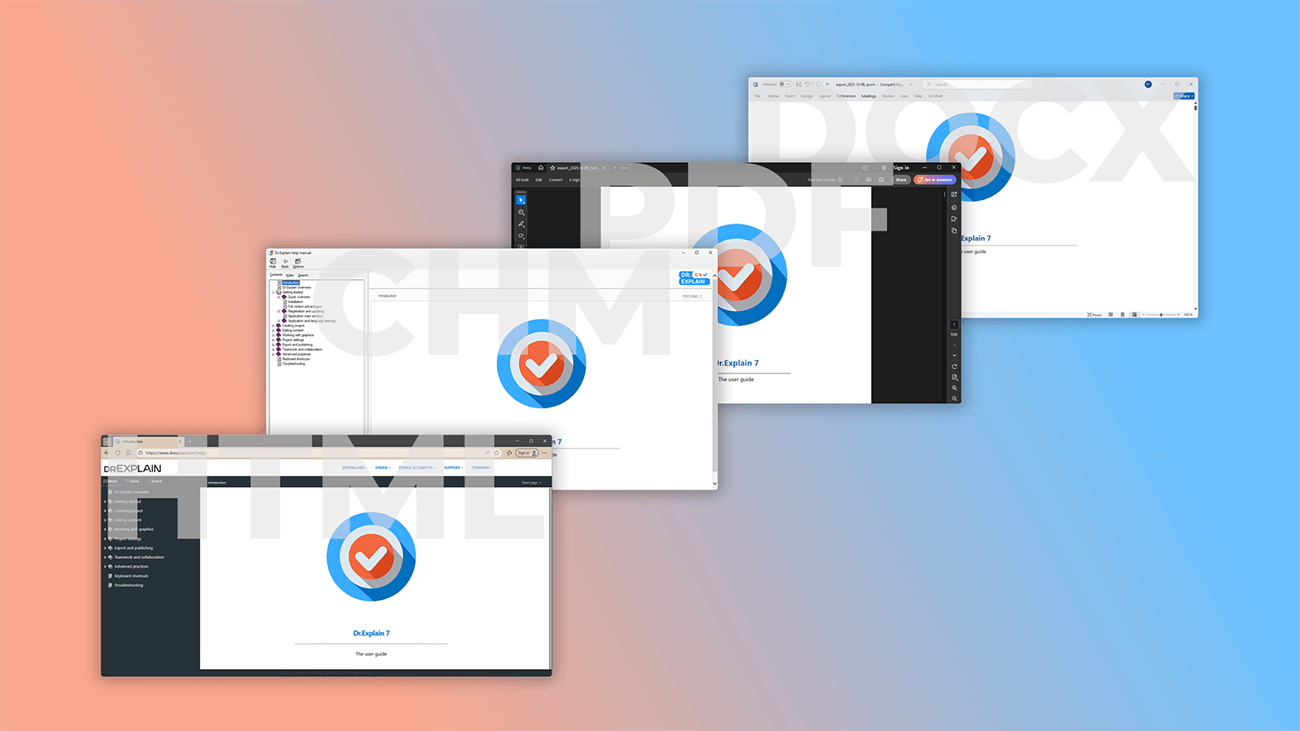
Which export format should you choose?
For an interactive online help system available anytime on your website, choose HTML.
For integrated help within your Windows software, export to CHM. This format supports context-sensitive help, letting users get instant explanations right where they need them — without searching through separate documents.
For downloadable or printable manuals, export to PDF or DOCX. Perfect for guides users can save locally or print for offline use. Best of all, you don’t need any technical or coding skills to create any of these formats!
How can I export user documentation to different formats?
To generate your finished document, simply select the format you want and specify the folder on your computer where you'd like to save it.
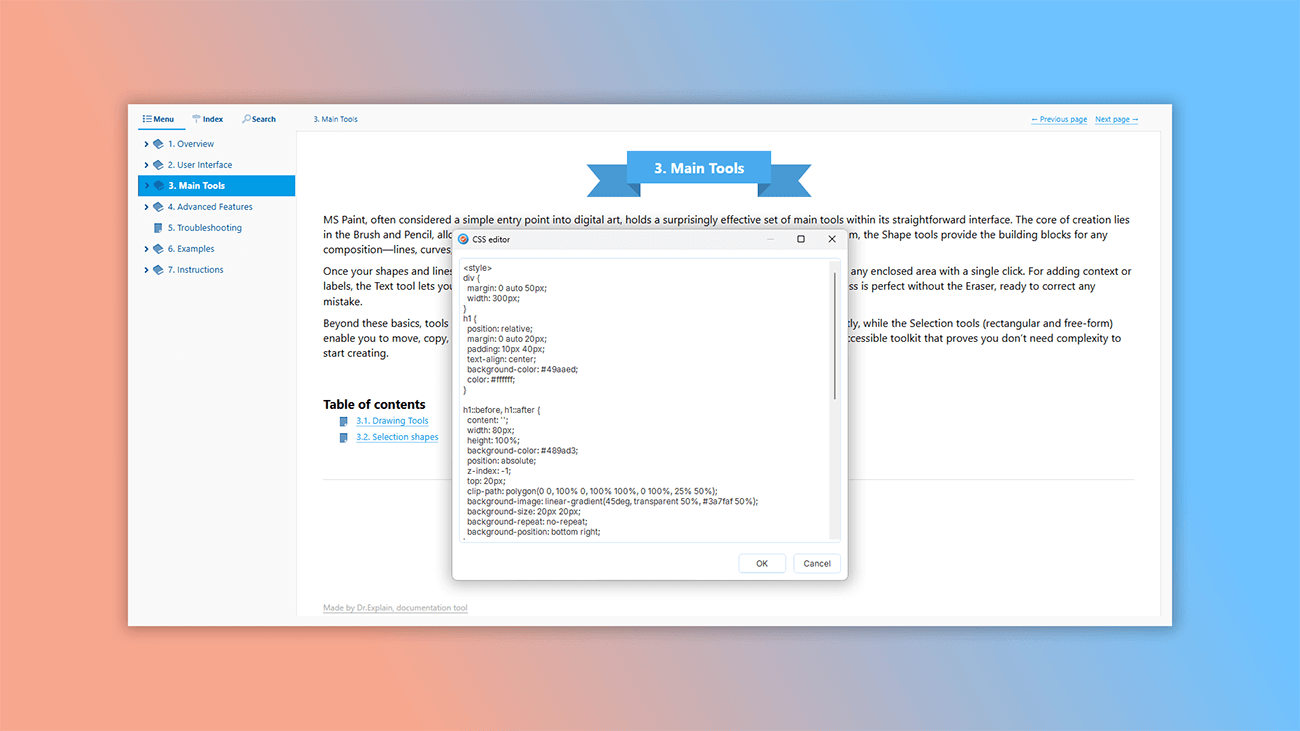
If you want to create a project with a unique design that perfectly matches your product, use the advanced export options. These settings give you the flexibility to customize the document parameters so that it completely aligns with your brand's style and helps your documentation stand out.

For example, you can easily customize the look by changing the font, modifying the color of the footers, or picking a suitable option from our ready-made list. If you need even more flexibility, simply paste the HTML or CSS code for a visual component directly into the page's header or sidebar. This lets you create a truly unique design that perfectly highlights your project's style!
Examples of user guides created in Dr.Explain
A help system's design directly impacts how users perceive and absorb information. Dr.Explain gives you complete control over your project's appearance — from choosing fonts and adding numbering to working with graphics and adjusting backgrounds. With its powerful text editor and built-in annotation designer, you can bring your creative vision to life without any extra software.
Based on our years of experience and customer feedback, we can confidently say that this unique design:
- generates interest in your product;
- sets you apart from competitors;
- helps to build a strong brand identity;
- creates an emotional bond with users;
- boosts product recognition.
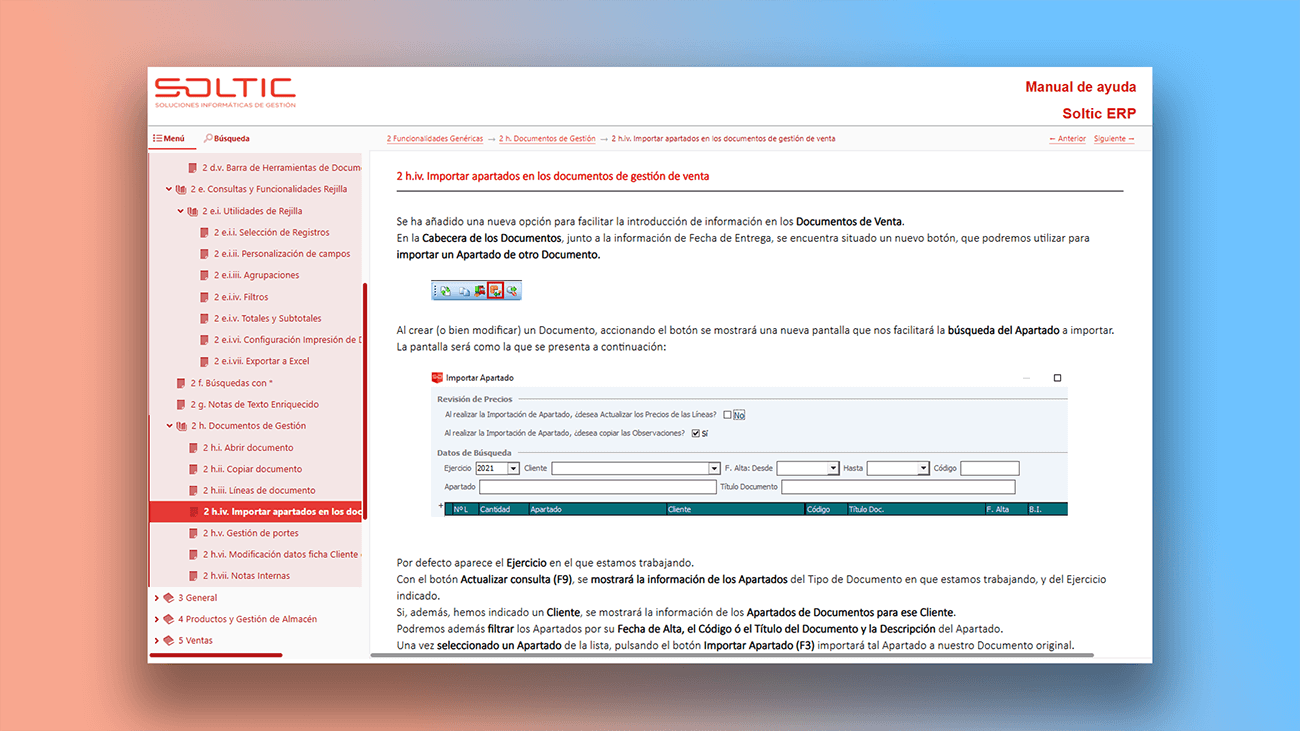
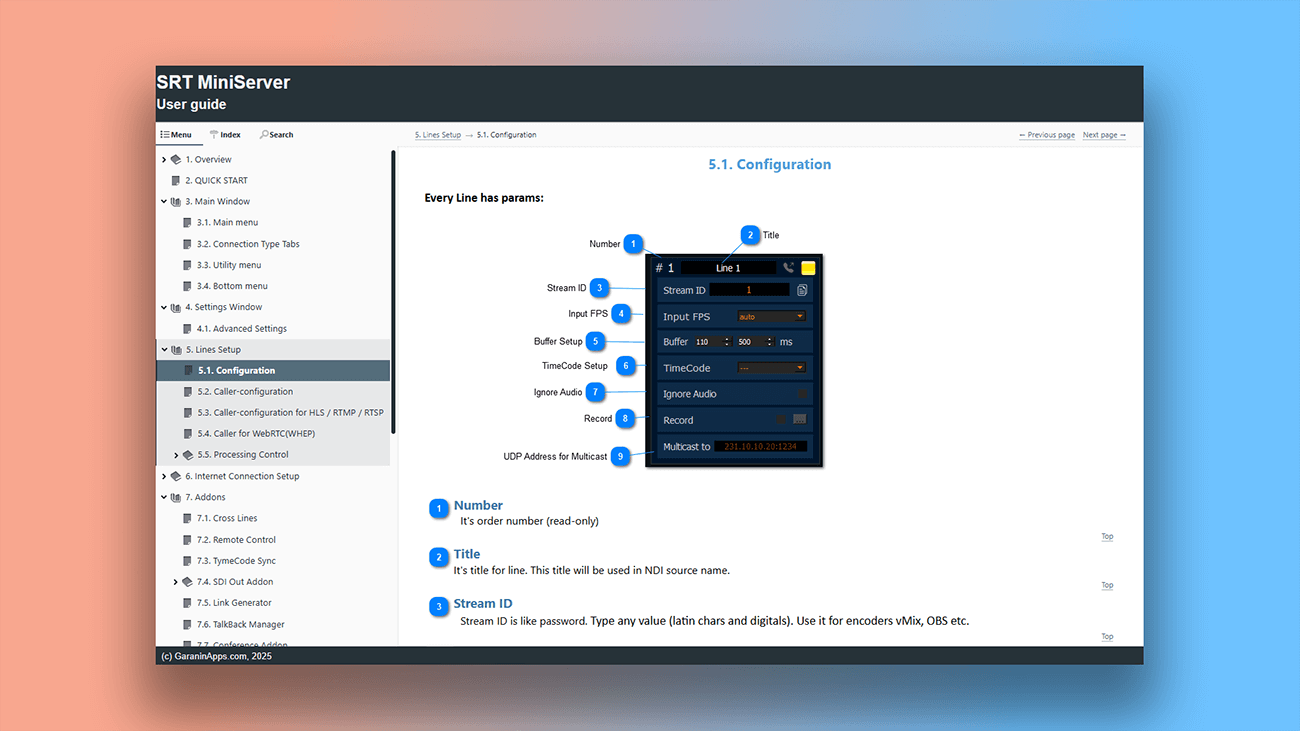
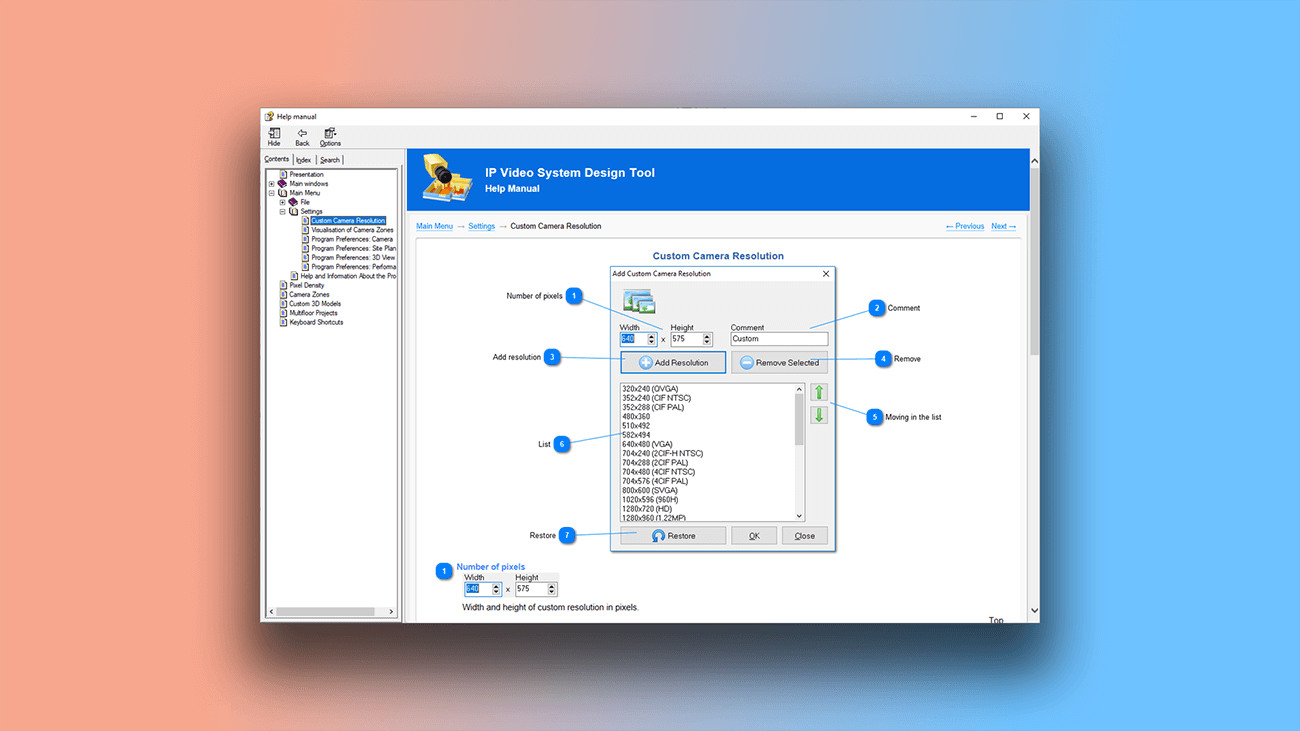
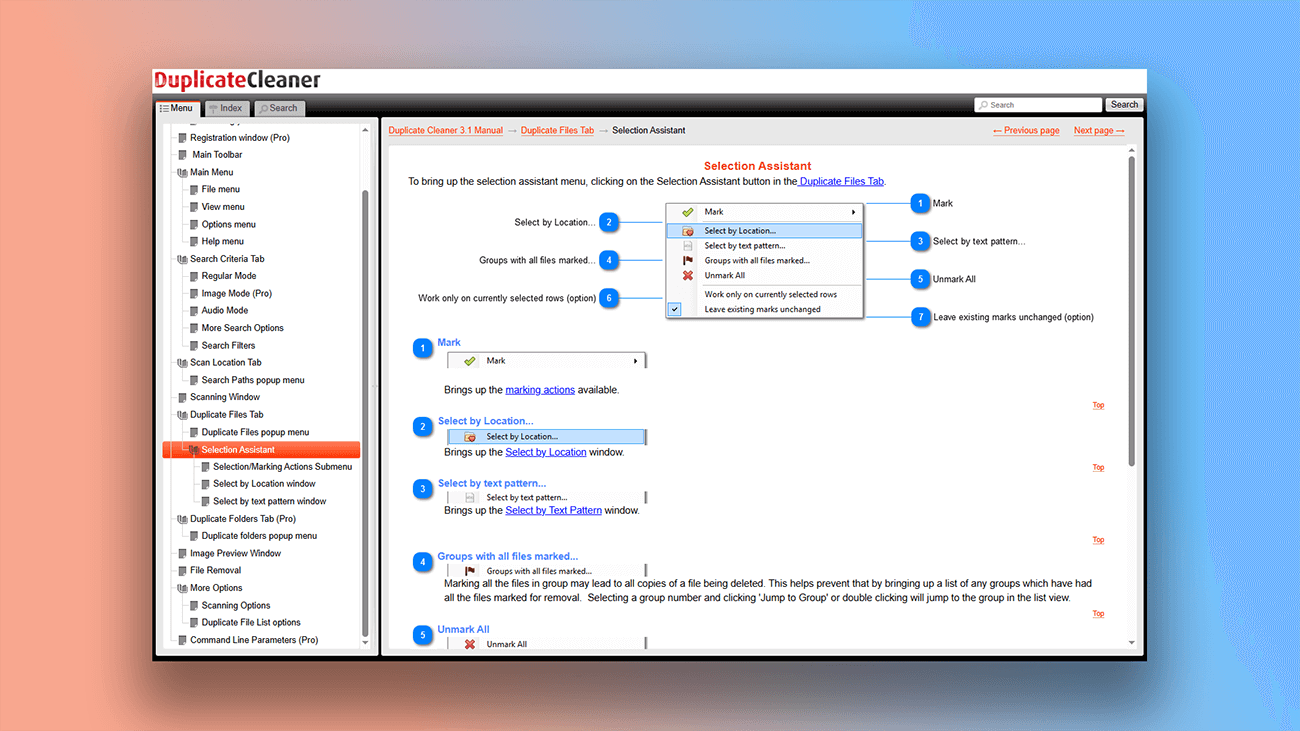
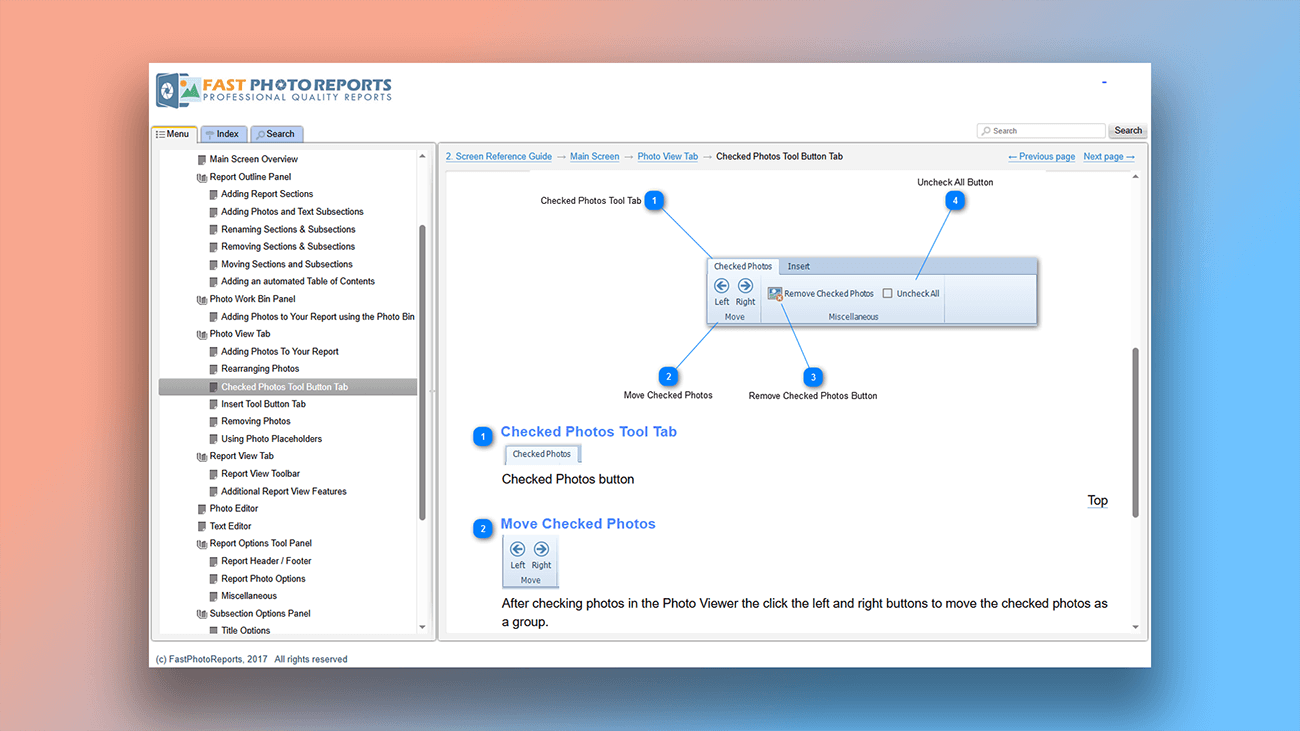
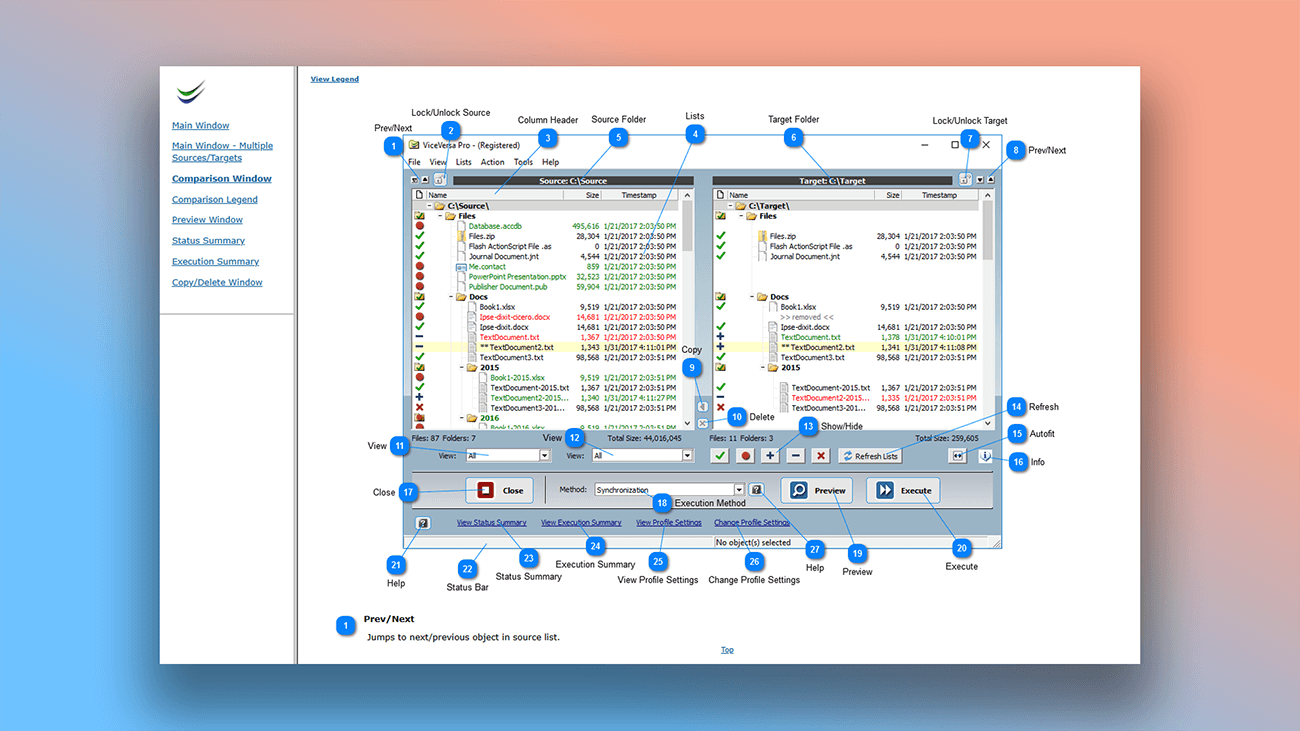
If you've ever changed text or background colors in simple graphics programs like MS Paint, you'll find Dr.Explain's styling tools familiar. You can see all your edits update in real time — no need to export the project just to check how it looks. The screenshots below show examples from real user documentation created with these help authoring tool.
What are the benefits of using Dr.Explain?
Automation. Dr.Explain handles routine tasks automatically, saving you time and effort:
- generating standard documents;
- annotating screenshots;
- updating illustrations;
- styling and reusing content;
- publishing to multiple formats.
With these tools, users save dozens of hours on manual work.
All-in-one tool. Dr.Explain captures screens and automatically annotates interface elements in one seamless workflow. No need to juggle multiple applications — like a separate screenshot tool, image editor, and word processor.
No-code workflow. Create professional user guides without any programming knowledge or technical expertise.
Custom brand styling. Use advanced customization options to design visually appealing documentation that matches your brand's visual identity.
Comparison of exports in a regular text editor and in Dr.Explain
| A regular text editor | Dr.Explain text editor | |
|---|---|---|
| Multi-format export | — | + |
| Advanced export configuration | — | + |
| Customizable project design | — | + |
| Pre-export validation | — | + |
| Sitemap configuration (for web help) | ~ | + |
| Social media integration (for web help) | ~ | + |
What type of users is Dr.Explain suited for?
Dr.Explain is a professional help authoring tool for creating clear and effective user guides. It’s the right choice if:
- your project is large or complex;
- you need multi-level navigation and full-text search;
- you work with lots of screenshots and images;
- you want to publish both web and print versions;
- your team collaborates on documentation;
- you need advanced design control without complexity;
- you prefer reliable support from a local provider;
- you want to try before you buy with a free version;
- your organization requires on-premises hosting.
Dr.Explain simplifies documentation creation while offering powerful export and customization features.
Users about exporting projects in Dr.Explain

We started to provide user documentation in three formats. First, we provide the conventional CHM help file. Second, we provide the PDF version, which is included in the distribution package so that users can easily print out the documentation. (As I’ve already said, some people prefer the paper format.) Third, we provide web help on our website. Recently we started paying more attention to web help.
Maxim Shumeyko, Founder and Director of IPICA Ltd
Interview with Maxim

Before using Dr.Explain, we packaged and published user guides as PDF documents or MS Word documents, and used Windows help compilers to create CHM help files. So it was a bunch of tools, and we had to maintain duplicate content.
Gary Arnold, Founder and CEO of Structured Solutions Inc.
Interview with Gary

Dr. Explain came as a boon and made the entire process of creating and maintaining the user documentation simple and streamlined. We can now focus on producing content while the software takes care of other things like conversion to different formats and single point update processing. We can export the same document to various media and print-ready formats as required.
Ali Ataya, General Manager and CRYSTALTRACK Product Owner
Interview with Ali
Frequently Asked Questions
Do you have a free version of the software?
Yes, we do. You can download Dr.Explain for free.
Can I export to web format without programming skills?
Yes. Publishing documentation to web (HTML format) requires no technical knowledge or coding experience.
Can I choose what parts of the documentation to include or hide for different user groups when I export it?
Yes. You can choose to export either entire topics or just specific content within a topic based on your audience. Read more in Topic's export conditions.
Do all documents look the same after export? Can they be customized?
Yes, you can fully customize the appearance of documentation. Design the layout to match your brand style and create a unique look using a wide range of built-in tools.
Will exported images have watermarks?
Yes. To export projects without watermarks, you will need to purchase a license.
What is the CHM format?
Yes. CHM is the industry-standard help file format for Windows applications. It's the ideal format for creating context-sensitive help that integrates directly with your software. The Help ID feature transforms your project into a fully functional context-aware help system. Learn more about CHM export settings in Dr.Explain.
What is the HTML format?
HTML is the standard format for creating web pages. Export your project to HTML, and you'll get a ready-to-use online user guide. How to publish user manual to web — read in the topic HTML export settings.
What are PDF and DOCX (Word) formats?
These are standard document formats perfect for offline use. Since users can't always access online documentation, we recommend supplementing web-based help with a downloadable PDF or DOCX file. This lets users save the file locally and view it offline on virtually any device. Printing the documentation is just a couple of clicks away.