



Create CHM help files
A CHM file is a compressed collection of web pages bundled into a single file. It remains one of the most widely used help formats for software applications. Without a help file, your application is just a tool — not a complete software product. While the logic of your program may seem obvious to you as the developer, new users often need guidance. Creating CHM help file bridges that gap, ensuring users understand and can effectively use your software.
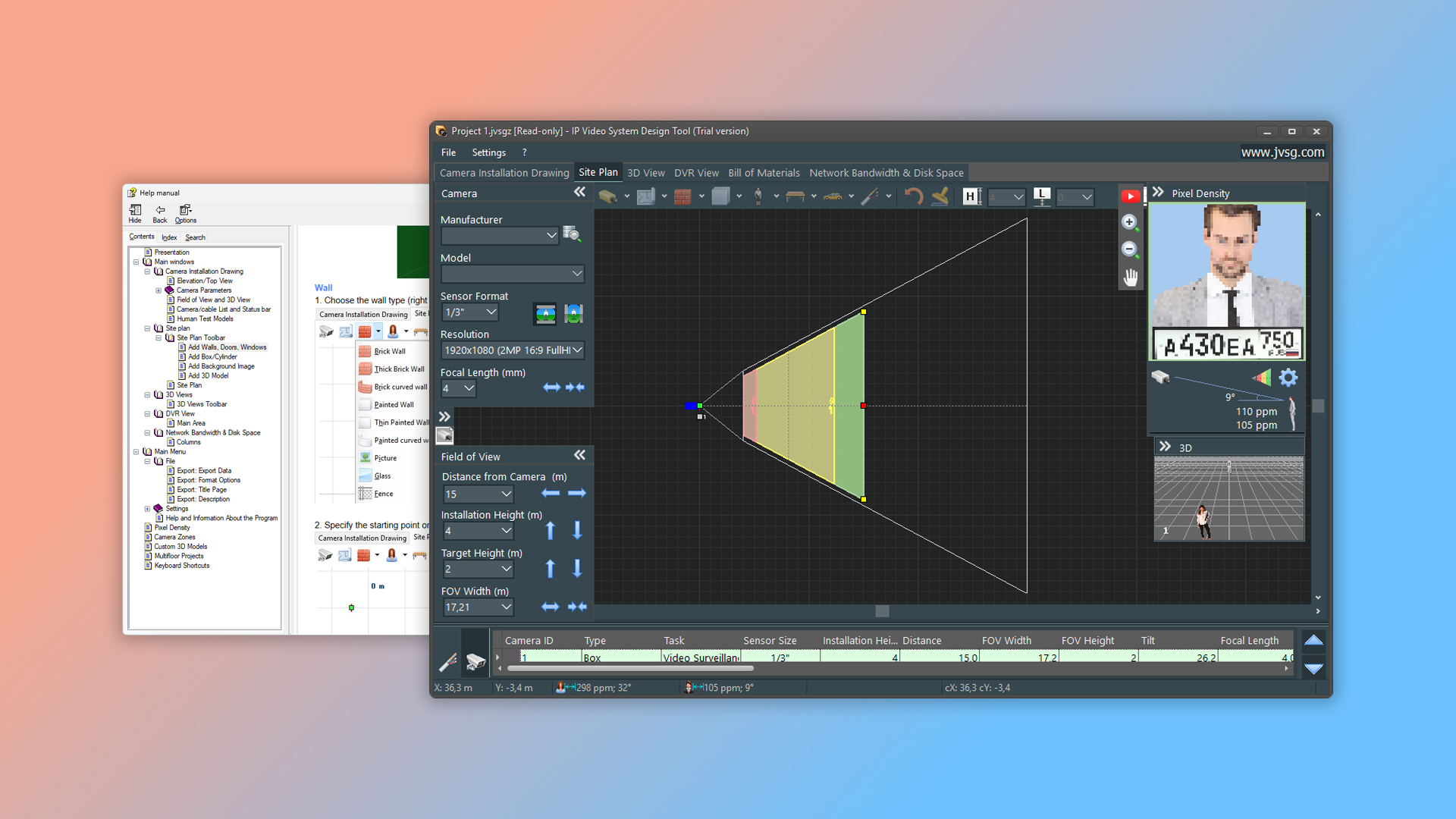
CHM files are the ideal solution for quickly adding context-sensitive help to your application. Most modern programming languages and development environments include built-in support for linking your software components with CHM help files. This integration uses Microsoft's HtmlHelp API, allowing your application to open specific help topics or run searches directly from within your program.
No special skills required. Create your first CHM help file in minutes using the visual WYSIWYG editor. Build and edit help topics effortlessly, then set up the table of contents, keywords, menus, and navigation with just a few clicks. Use Help IDs to create fully integrated context-sensitive help.
How do I create a CHM help file in Dr.Explain?
Start by creating a project from the main menu and outline the topics for your future help file. If you prefer not to design the structure yourself, you can use one of the ready-made manual templates.
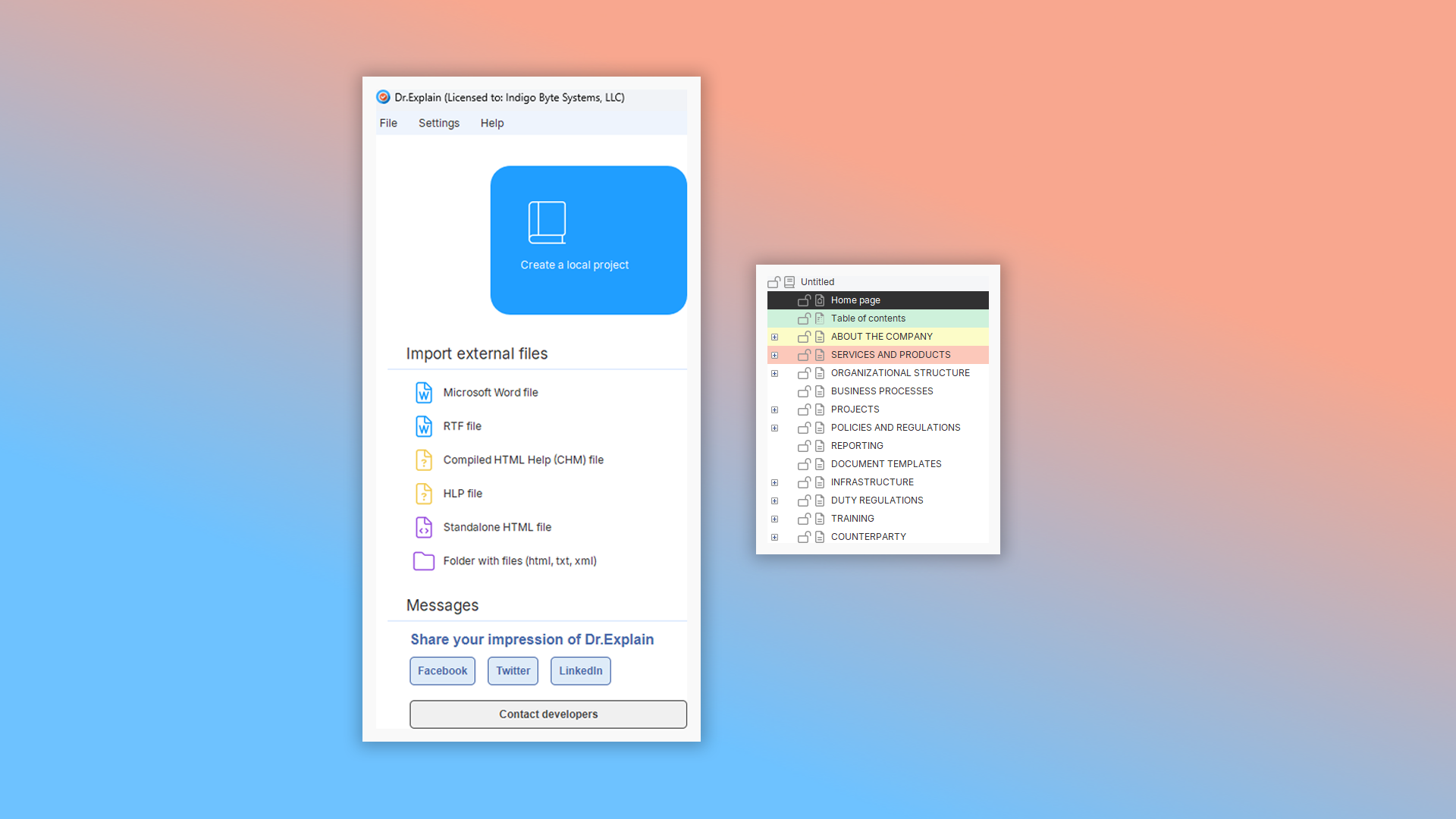
Add content to each topic of your documentation. Include images with annotations to clearly explain your software's features. Customize your help file's appearance using the live project preview. In the project settings, you can easily adjust the visual style of your documentation pages.

After exporting, you'll just need to link the help file to your application and include it in your installation package. Dr.Explain supports the Help Context ID feature, turning your project into a fully functional context-sensitive help system.

Integration
Professional help authoring tool lets you create CHM help files ready for integration into Windows applications — no coding or specialized knowledge required. Let's look at how to integrate a CHM file into a ".NET" application. In Dr.Explain, each topic has a "Filename" field in the properties pane that you can customize. In the example below, we've set this value to "save_button".
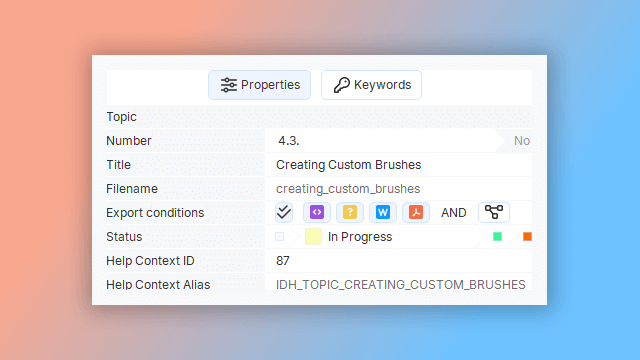
Open your application in the code editor. For the UI element that should open the corresponding help topic (the "Save Button" section), set the HelpKeyword property to "save_button":
private void HlpButton_Click(object sender, EventArgs e) { Help.ShowHelp(this, "save_button.chm"); }
This is how we link interface elements to specific topics in the user documentation.
Examples of user manuals in CHM format created in Dr.Explain
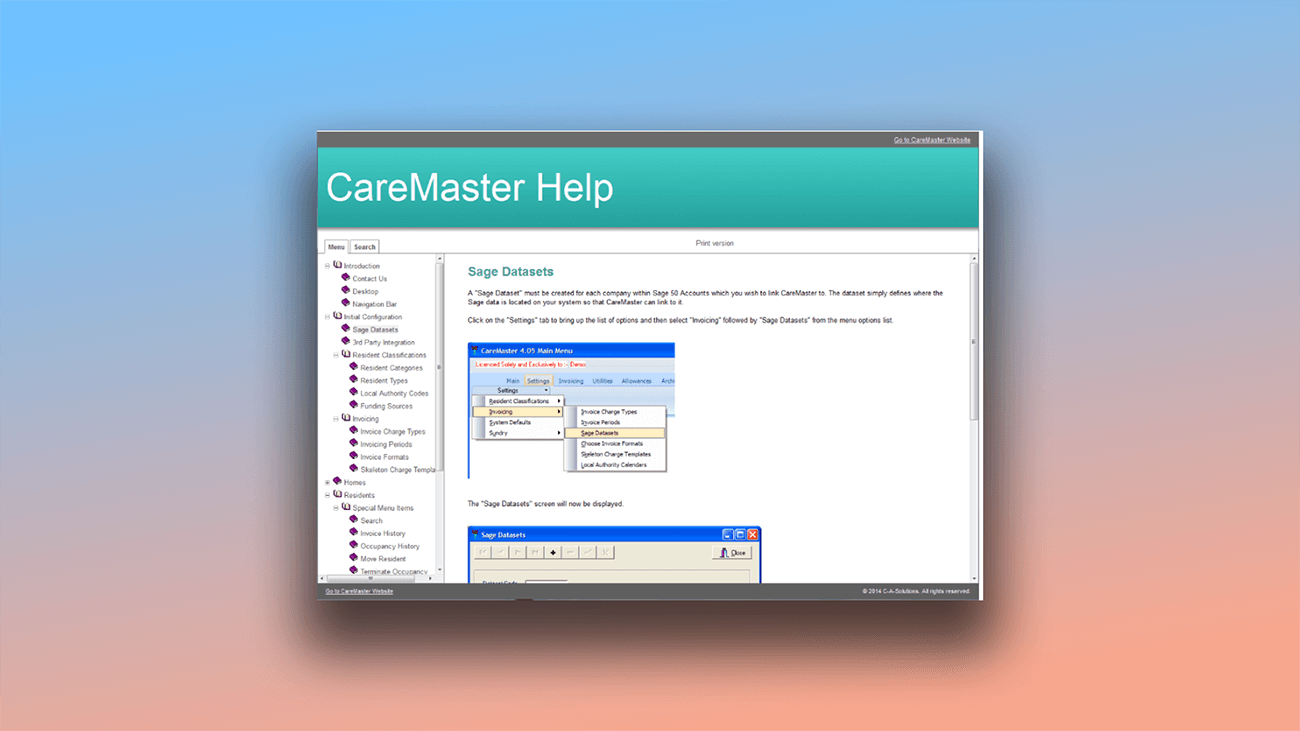
Below are examples of actual context-sensitive help systems built with Dr.Explain.
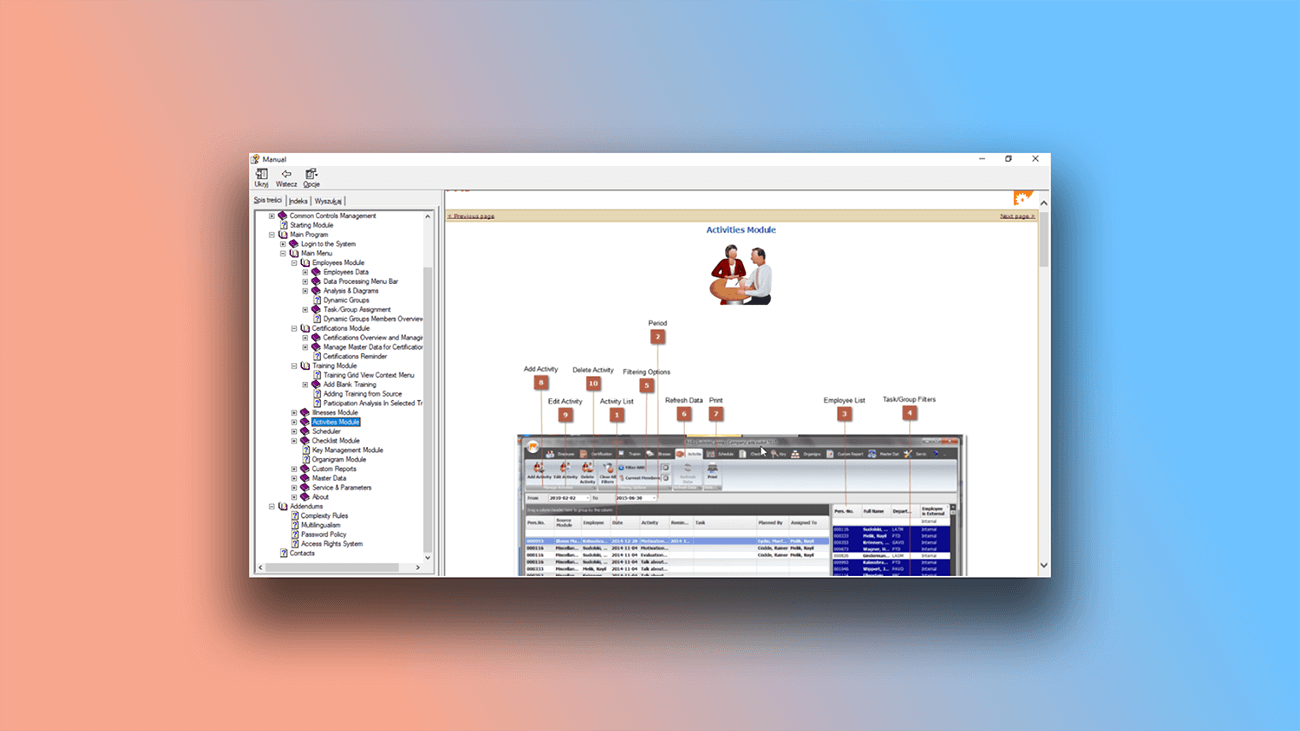
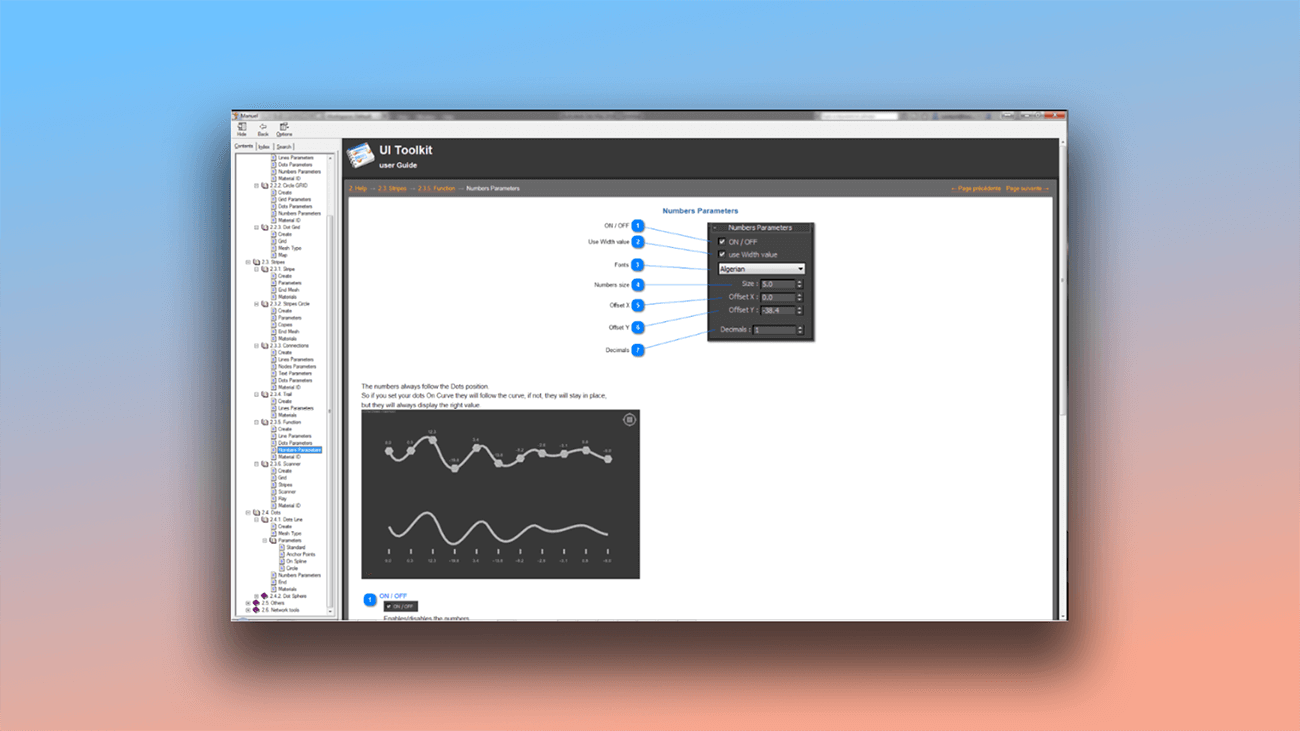
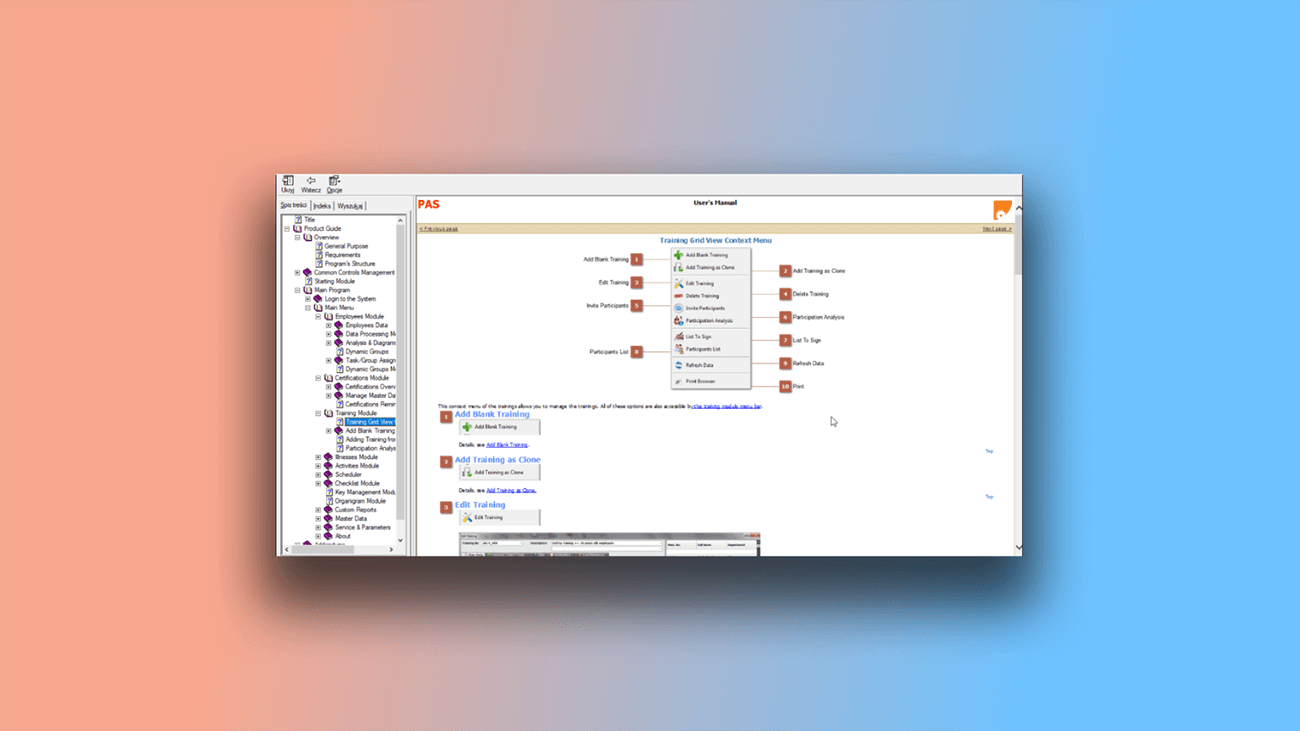
What are the benefits of using Dr.Explain?
Dr.Explain is a professional-grade tool designed for ease of use — trusted by experts and beginners alike. Here’s what makes it a go-to solution for creating help guides efficiently.
Team collaboration. While Dr.Explain is a desktop application, it integrates with the Tiwri.com cloud platform, enabling multiple authors to work together seamlessly.
Intuitive workflow. The process of creating guides is straightforward and doesn’t require specialized technical knowledge.
Multilingual support. Create and manage documentation in multiple languages, and generate separate CHM files for each — ideal for software with a global audience.
What type of users is Dr.Explain suited for?
Dr.Explain is designed for those who take user documentation seriously — for creators who aim to build not just a set of instructions, but a well-structured help system that improves how users interact with the software. Here are a few scenarios where Dr.Explain becomes essential:
- your user guide has grown so large that you need full-text search to help users quickly find what they need;
- you want to apply custom styling and give your project a unique visual identity;
- you need to collaborate with a team on the same document;
- you plan to export to multiple formats like CHM, HTML, PDF, and DOCX;
- you prefer to try a free version before making a decision;
- you require the ability to embed custom code or widgets into your help system.
Users about creating CHM help files in Dr.Explain

"Dr.Explain attracted us with the biggest ease of operation and screenshots management. We decided to base our system on the screenshots wizard, creating explanations guiding the user through the task. The management of controls in each screenshot along with the ability to create both CHM and HTML files were the key issues in choosing your product".
Robert Sibilski, CEO and chief programmer of SIBORSOFT
Interview with Robert

"This was the first time that we need to create a help file for any project. I did do some research and compared different CHM help file authoring tools and Dr. Explain seemed to suit my requirements and seemed very easy to use. Based on the reviews of other users, I decided to give it a try and I can say without any hesitation that it was a good decision".
Rick Szasz, a programmer at Damselfly Solutions Inc
Interview with Rick

"I allowed people to compare the CHM generated with Dr.Explain and the other help files. The difference was huge! The comments I got about Dr.Explain’s version were absolutely positive, and the ones about the CHM files generated by the IDE, negative... The CHM created by Dr.Explain looks perfect, which increases the value of the whole project. We can see how serious it is".
Michel Garcia, the founder and CEO of EZSecure
Interview with Michel
Frequently Asked Questions
What is the CHM format?
CHM is the industry-standard help file format for Windows applications. It's the ideal format for creating context-sensitive help that integrates directly with your software. The Help Context ID feature transforms your project into a fully functional, context-aware help system. Read more about publishing CHM user manuals.
Can Dr.Explain export to print-ready formats?
Yes. The program can export your documentation to DOCX and PDF — both ideal for printing or digital distribution.
Can I customize the appearance of CHM files?
Yes. The program includes various built-in themes and you can edit theme colors.
When collaborating on a document, can you protect content from accidental changes by other participants?
Yes. You can lock specific topics to prevent editing. Locked topics become read-only for other users. For more details, see Lock and status options.